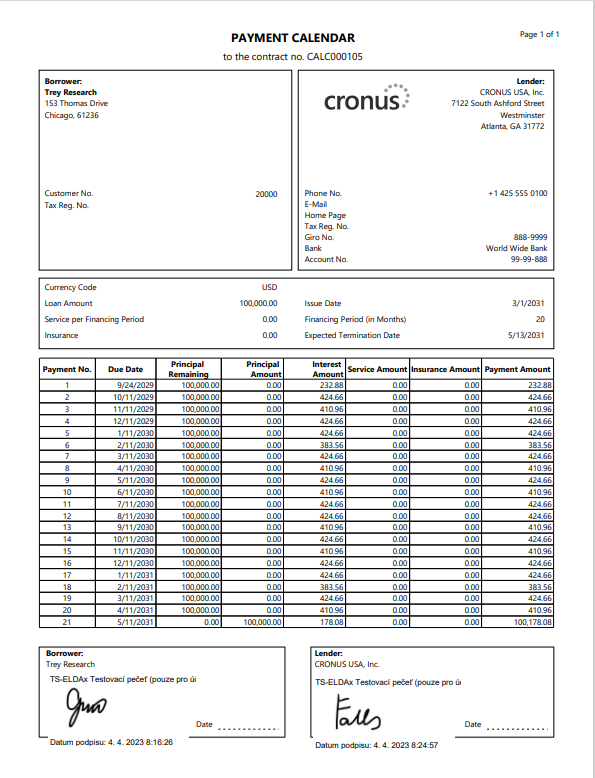
The process of signing in Sey4Sign app is fully flexible. By your requirements you can define parameters for each document, as:
-
Signing parties and their persons
-
Min. Singers in Group
-
Parallel or Serial Workflow
-
Language for each person
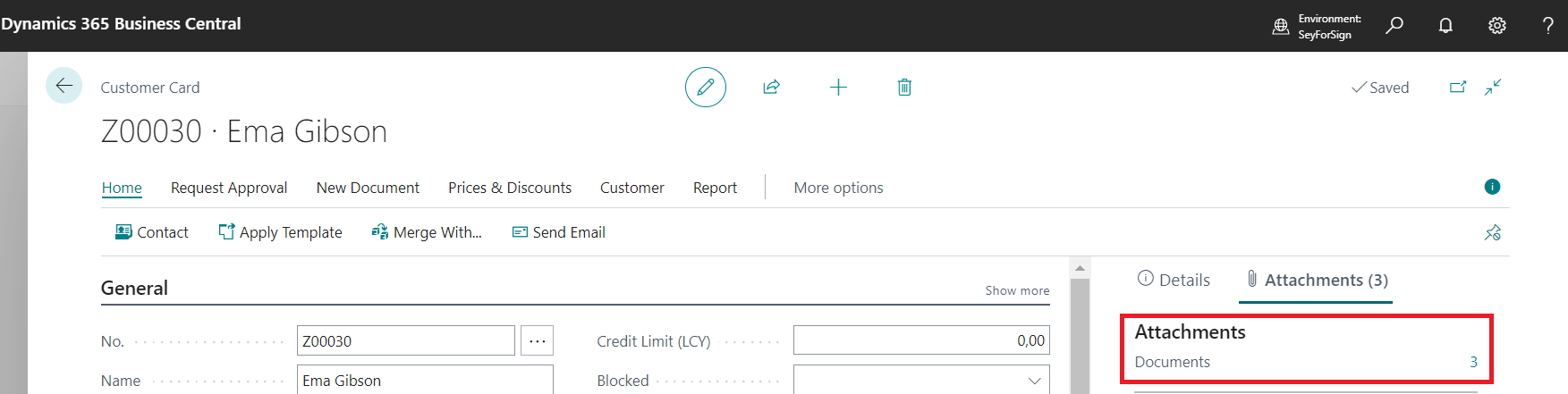
We will show an example on the customer's card, so on the main page search Customers.
In general you are able to sign documents situated in table named Attachments.

-
Choose one of attachments available via Customer Card or Contract.
-
In section Attachments click on the number of attached documents
-
Table with Attached Documents is opened.
-
Clicking on button New is possible to add New Document.
-
In case you want to sign document named Payment Calendar (displayed in second line), stand in the line where is this document and click on the button Signing.

-
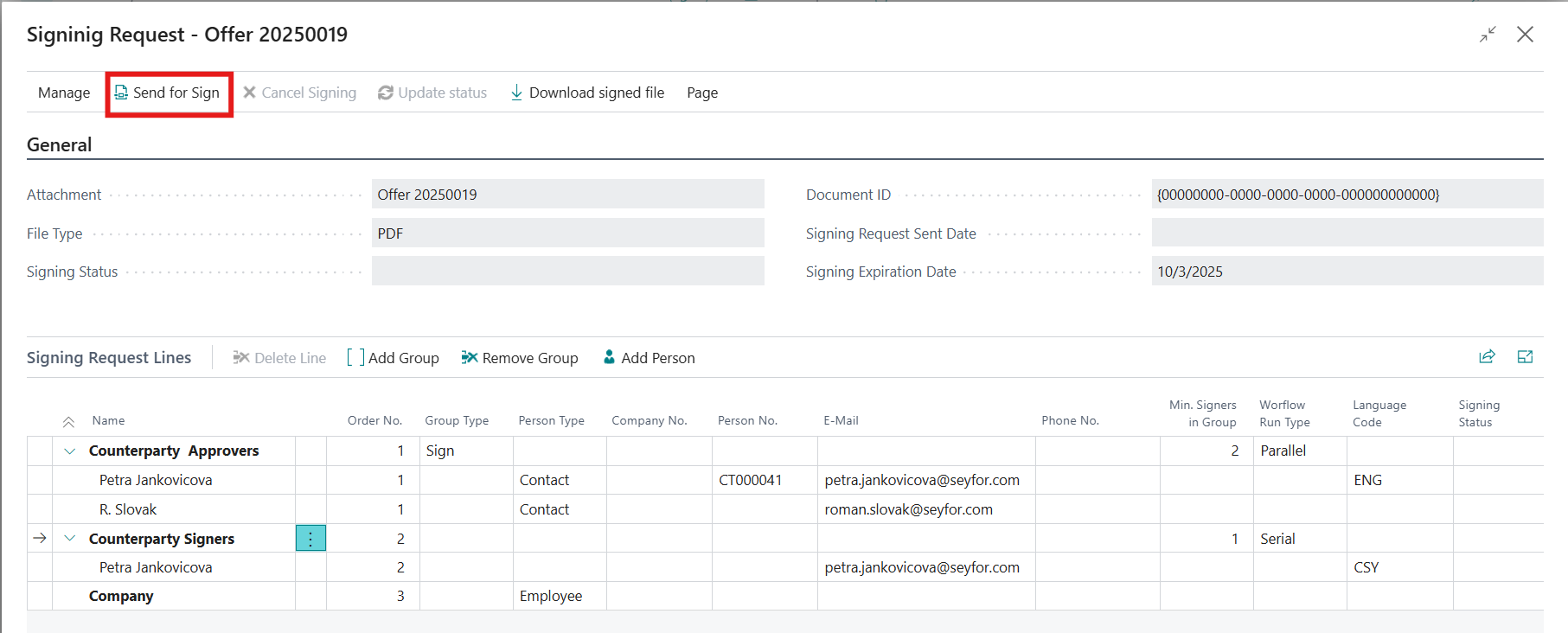
Signing Request Card is displayed
-
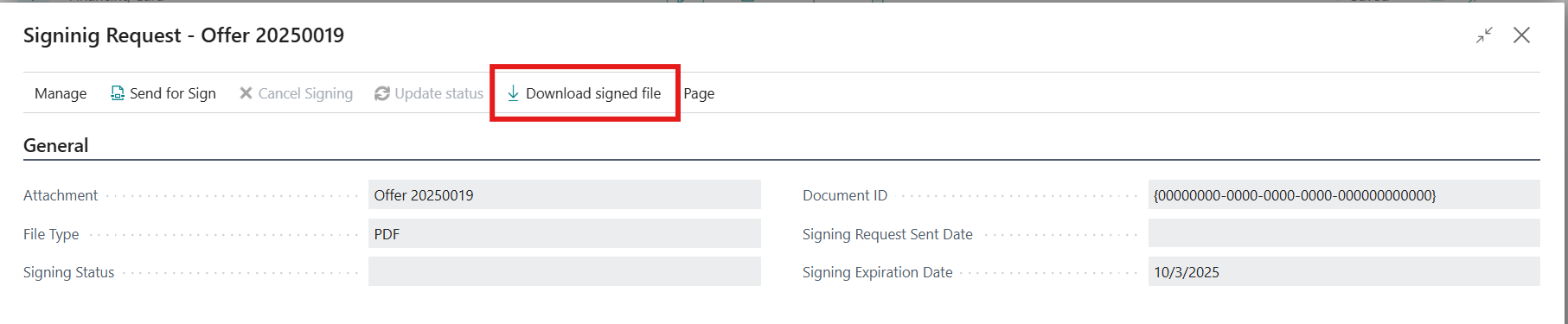
In section General you see important information about:
-
Signing status
-
Signing Request Sent Date
-
Signing Expiration Date (signature expiration you set in Sey4Sign Setup).
-
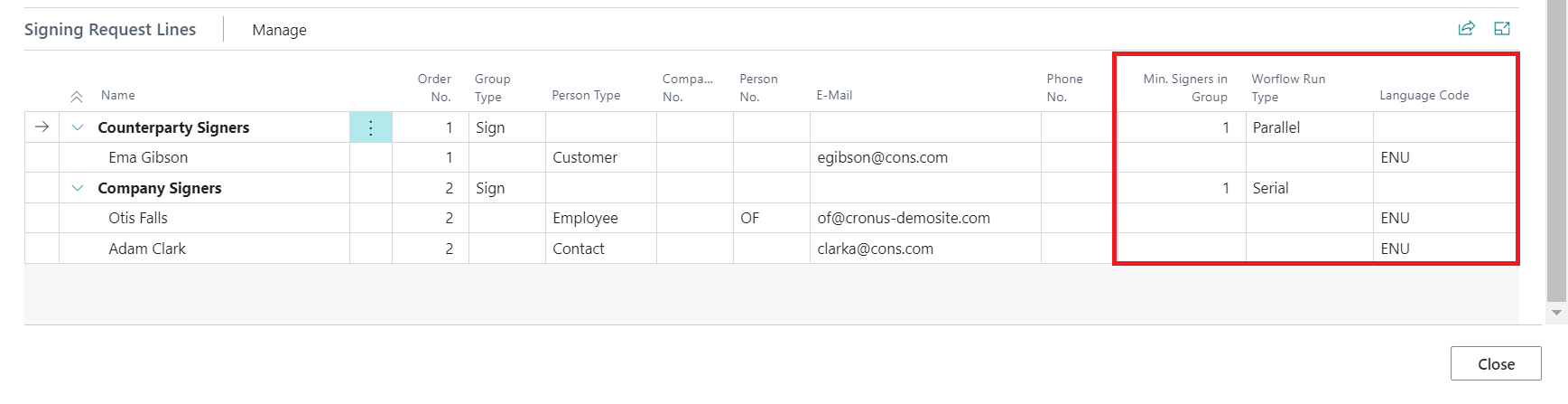
In section Signing Request Lines you can see template, which we also set in Sey4sign setup. For more information see Sey4Sign Setup.
-
This template can be modified and adjusted according to your requirements.
-
We choose English language for all persons. In case you leave this field empty, the system will use default language from setup.
-
After entering signing groups, person within the given groups and other parameters, click on button Send for Sign situated on the top bar. Then the process of signing starts and you can see the status of signature in field named Signing status, which can be:
-
Ready to sign - document - the document is sent for signature, but no one has yet signed it
-
Signing - the document has been signed by at least one person and the signing process is ongoing
-
Signed - the document was signed by all parties-
-
Error - if cancellation occurred during signing
-
Signed document can be downloaded via button Download Signed File
The process of signing by the example
Step no. 1
The person in the first group receives an email about signing of the document. He also sees information about Signature Deadline. Clicking on button Sign documents the document intended for signature is displayed.
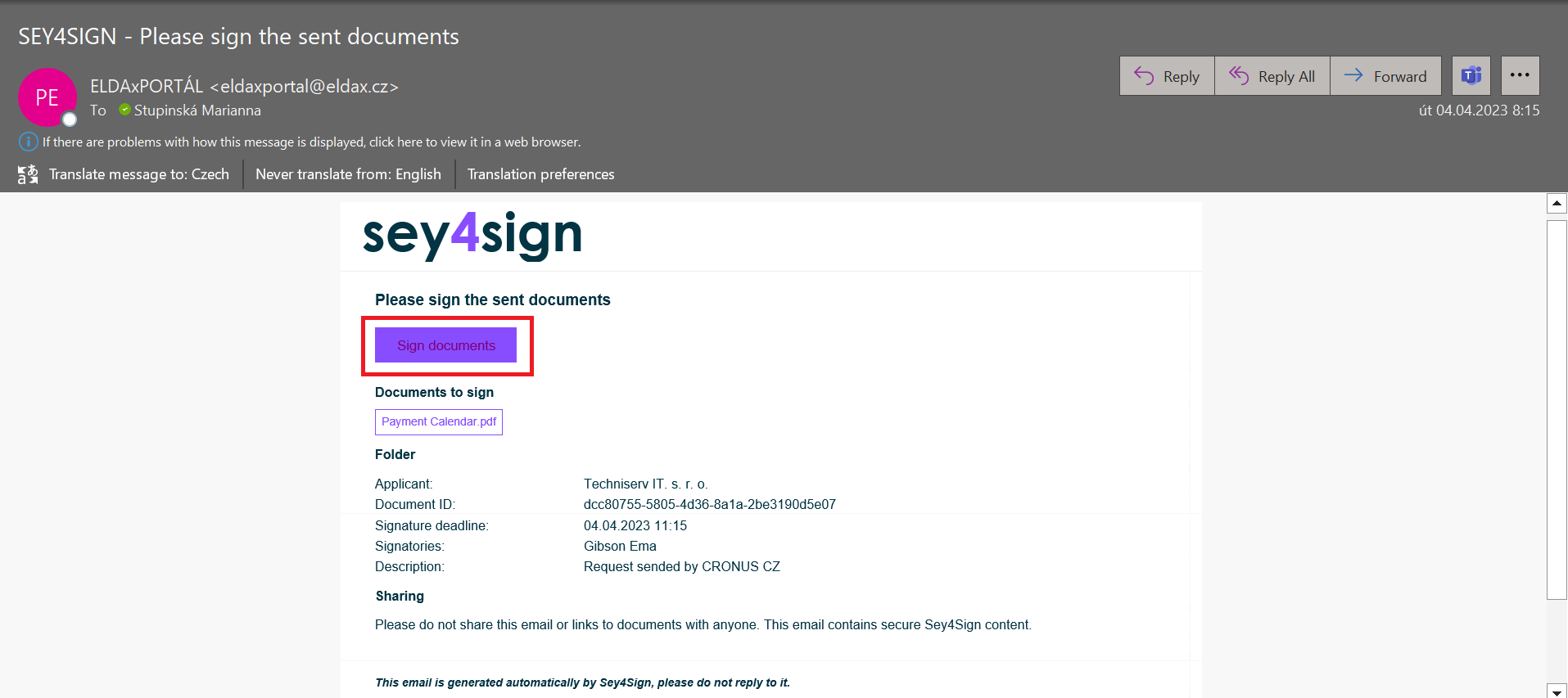
Since the minimum number of persons who must sign the document is only one, the document will be sent for signature to the second group after it has been signed by one person from the first group.
Step no. 2
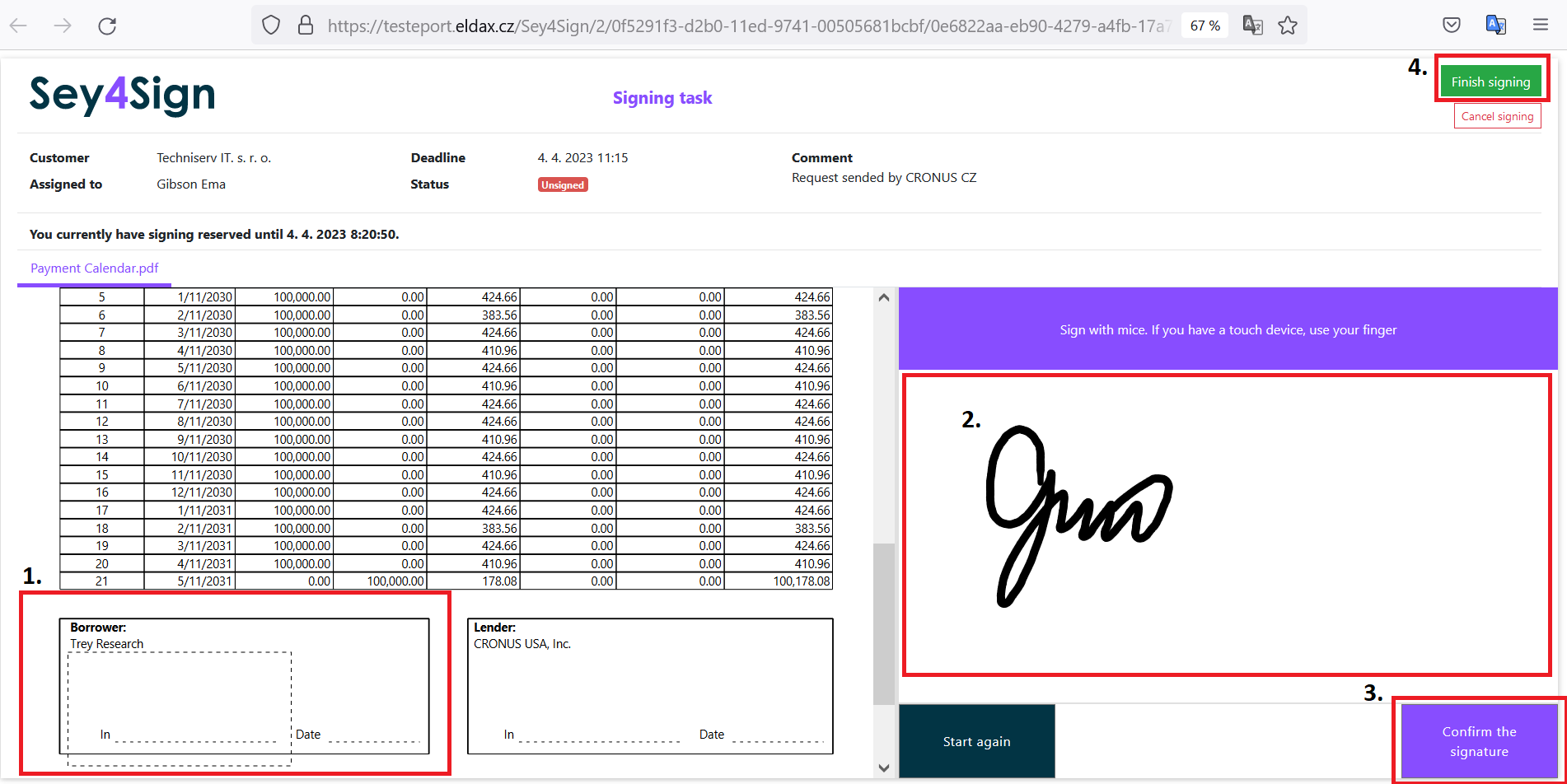
Click on button Start Signing to avoid situation of double signing at the same time by another person within your group. Then the signing process is easy (see picture below) :
-
Click where you want to insert the signature.
-
Then draw the signature by mice or use your finger if you have touch device.
-
In the next step Confirm the signature by clicking on button. In case you want to repeat the signature once more, click on Start again
-
In the last step, Finish signing and the document will be sent to the person in the second group. If for some reason you do not want to sign the document, click on Cancel signing and the signing process will follow the setting.
Step no. 3
Since the document was signed within the first group, it will be sent to the first person within the second group. This person receives an email about signing the document and the procedure is the same for each person.
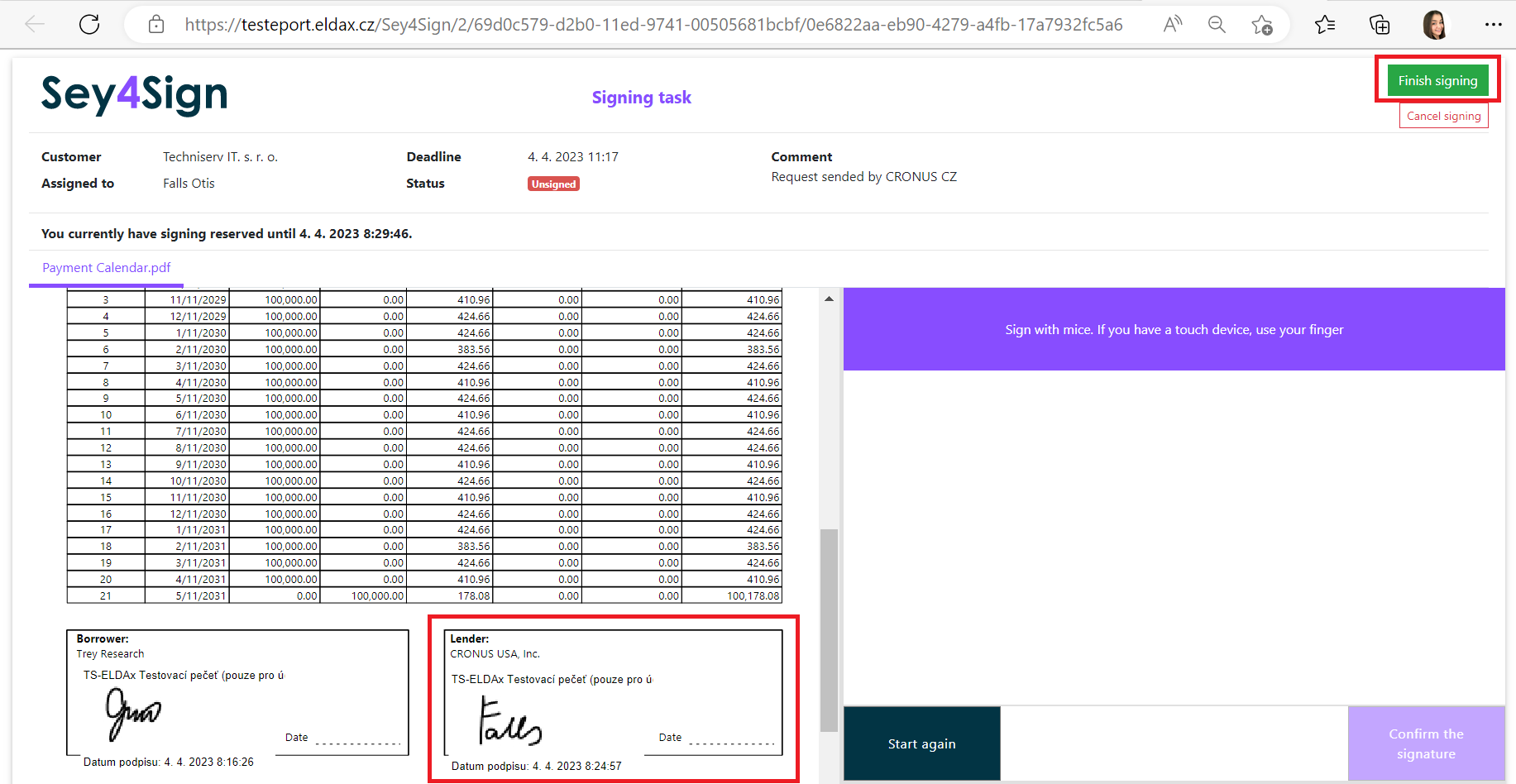
Fully signed document
Given that the minimum number of signatories in the second group is only one person, the document is considered signed by the each parties. After signing process the person who is noted in Sey4sign Setup receives notify result e-mail about the successful signing of the document and is able to download signed document via button Download Signed File.