
Generate Notifications
The task is available via search: Calculation and Send Notifications.
Options Tab
-
Notification Date – OC will automatically add a working date
-
Generate notifications (boolean) – set to YES by default
-
If Y – generates Notifications
-
If N – does not generate a Notification
-
-
Send Notification Emails (Boolean) - set to YES by default.
-
If Y – generates emails with Notifications
-
If N – generates Notifications, but without emails
-
-
Filter: Customer
-
No. – set the filter for the numbers of customers for whom we wish to generate Notifications. If the field is not filled in, a Notification will be generated for all customers who meet the condition
-
Add filter – to generate the report, it is possible to add any other filter to customers for generating the report, for example: Notification Term Code, Legal Subjectivity Code," etc.
-
-
Filter: Financing Contract Header
-
No. – set the filter for the numbers of the contracts for which we wish to generate Notifications. If the field is not filled in, a Notification will be generated for all contracts that meet the condition
-
Add filter – To generate the report, you can add any other filter to the customers for generating the report, for example: "Framework Agreement Numbers," etc.
-
-
Buttons/Functions
-
Schedule – use this function to set the task to start later.
-
OK – The function will start generating Customer Notifications according to the set filters
-
Cancel – Close the Request form for generating the given report
-
List of Generated Notifications
After confirming OK in the dialog box above, Notifications will be generated. We can open the Notifications table via search.
Meaning of the field:
-
Entry No.
-
It can have the following values:
-
Blank — only for the line of text (opening or closing)
-
Account – for reminder fee
-
Customer Ledger Entry – Reminder Entry
-
Line fee – if the reminder also contains a line fee
-
-
-
Contract No.
-
Customer Contract No.
-
-
Contract Line Type
-
The OC will be filled in depending on whether it is an installment or another open receivable
-
-
Contract Line No.
-
The OC will fill in, depending on which line of the contract it is
-
-
Customer No.
-
The OC will add the customer's number
-
-
Customer Name
-
The OC will add the customer's name
-
-
Customer Entry No.
-
The OC fills in the number of the customer item for which the notification was created
-
-
Amount Including VAT
-
The OC will add the notified amount of the receivable, including VAT
-
-
Currency
-
Is the currency in which the customer's ledger entries exist
-
-
Contract Line Notified
-
Flag that the notification was made before the payment was posted above the financing contract line (the notification is no longer performed after the payment is posted)
-
-
Cancelled on Change
-
If there is a change in the Customer Number, Due Date or the amount of the receivable (e.g. when cancelling an installment and posting a new one), the original notification is marked with this flag and a new notification is generated according to the valid data.
-
-
Due Date
-
Due date of the item/payment at the time of notification creation
-
-
E-mail Addresses Used
-
List of e-mail addresses to which the notification was sent
-
-
Notification Date
-
The date when the notification was created and is to be sent
-
-
Notification Period
-
Number of days, how much earlier before the due date the notification is sent
-
The information is added from the Notification Condition.
-
-
Notification Term Code
-
Notification term code that was used to notify the receivable/installment to the contract
-
-
Sent
-
Flag whether the notification has been sent
-
-
Date Sent
-
Date when the notification was sent
-
-
Time Sent
-
The time when the notification was sent
-
Send a notification
If you check the boolean Send Notification Emails in the Task: Calculate/Send Notifications, Notifications will be automatically sent to all clients who meet the conditions of the Notification.
Notification e-mail
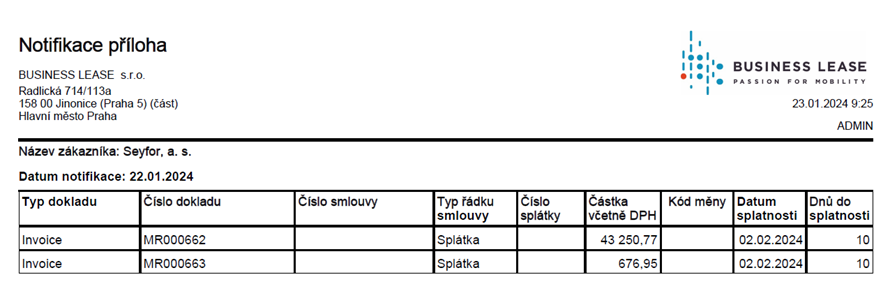
The notification e-mail is sent to the e-mail addresses that have been filled in the Contact of the Person type for the given customer and have set up the corresponding Job Responsibility. If this Job Responsibility is not entered in the Contact of the Person type for the given customer, the Notification will be sent to the e-mail address specified on the Customer Contact Card in the Communication tab.
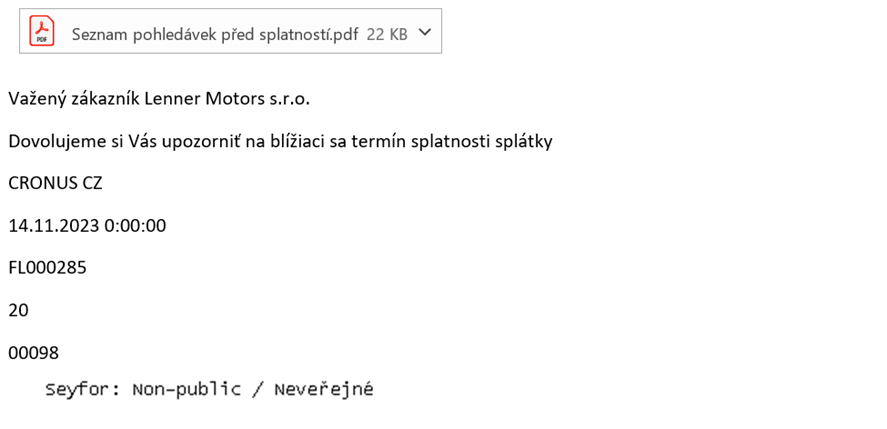
E-mail attachment
Report Scheduler Settings – Calculating/Sending Notifications
Through the Calculate/Send Notifications task, it is possible to set up the Scheduler to automatically generate Notifications before the due date of receivables.
-
Report ID
-
Fills in OC automatically
-
-
Report Name
-
Adds OC automatically according to the report ID
-
-
Description
-
Adds OC automatically according to the report ID
-
-
Report Output Type
-
Empty
-
non-editable
-
-
Printer Name
-
Do not fill in, as only reports, e-mails will be generated
-
-
Next Startup Date Formula
-
Entered manually by the user
-
-
Date and time of the first start
-
Entered manually by the user
-
-
Expiration Date and Time
-
Entered manually by the user
-
If the Date and Time is not entered, Notifications will be generated indefinitely
-
-
Buttons/Functions
-
OK – The function will start generating Customer Notifications according to the set filters
-
Cancel – Close the Request form for generating the given report
-
Deleting a Notification
The Notification deletion task can be started via the search: Notification deletion.
-
Maximum Line Generation Time
-
Entered manually by the user
-
-
Maximum Number of Rows
-
Entered manually by the user
-
-
Maximum Number of Documents
-
Entered manually by the user
-
-
Buttons/Functions
-
Schedule – use this function to set the task to start later.
-
OK – The function will start the deletion of generated Notifications
-
Cancel – Close the Request form for generating the given report
-