
You can create a calculation or a contract with services using the Create Calculation with Services Wizard.
Location:
OneCore Role Center - Financing (All products) ->Action/Create Calc. Services
When you click Create Calculation with Services Wizard to open a window Step 1 To enter:
-
Financing Type
-
If the user has it defined in the Defaults setting for the Create Agreement Wizard Výchozí hodnoty pro průvodce vytvořením kalkulace/smlouvy , it will be completed automatically.
-
The user can change it by selecting from the options Operative leasing or Fleet management (i.e. only financing types where Financing with services = A). Can only select from those types for which the user has permissions in User Settings
-
When changing the default value, other values in the wizard that were taken from the default settings are also deleted.
-
-
Customer No.
-
Selects a user from the customer directory, where you can select not only by number, but also by other customer data. It is also possible to select by writing the customer's name using full-text search.
-
Optional field, it is possible to create an offer without selecting the customer number
-
If the value of this field is changed, then the value in the field will be deleted
-
Financing Template No.
-
-
-
Customer Name
-
Completes OC automatically if Customer No. has been selected
-
To be completed manually by the user if the Customer No. has not been selected (it is not located in the customer directory)
-
Required field, without entering the user, the user cannot continue
-
-
Legal Form Code
-
If the user has it defined in the Defaults setting for the Create Agreement Wizard Výchozí hodnoty pro průvodce vytvořením kalkulace/smlouvy , it will be completed automatically.
-
If the user selected the customer in the previous step, it will be taken from the customer's contact and the editability of the field is turned off.
-
If the value of this field is changed (before the customer number is selected), then the value in the field will be deleted
-
Customer No.
-
Financing Product Type Code
-
Financing Product No.
-
Financing Template No.
-
-
-
Customer Business Place No.
-
Selects the user from the business place directory of the selected customer.
-
Optional field, it is possible to create an offer without entering the customer's business place number
-
-
Customer Business Place Name
-
Fills in the OC automatically after selecting the Customer Business Place No.
-
Non-editable field
-
-
Currency
-
Default value is blank (= local currency)
-
Selects the user from the currency table if they want to create an offer in a foreign currency
-
If the value of this field is changed, then the value in the field will be deleted
-
Financing Product No.
-
Financing Template No.
-
-
-
Commodity Code
-
If the user has it defined in the Defaults setting for the Create Agreement Wizard Výchozí hodnoty pro průvodce vytvořením kalkulace/smlouvy , it will be completed automatically.
-
Selects the user from the Catalogue Card Commodity table, which is filtered to valid and active records. The field is mandatory to select the right product
-
If the value of this field is changed, then the value in the field will be deleted
-
Group Code
-
Financing Product Type Code
-
Financing Product No.
-
Financing Template No.
-
Catalogue Card No.
-
-
-
Group Code
-
If the user has it defined in the Defaults setting for the Create Agreement Wizard Výchozí hodnoty pro průvodce vytvořením kalkulace/smlouvy , it will be completed automatically.
-
The user selects valid and active records from the Catalogue Group table, which is filtered to the selected commodity. The field is mandatory to select the right product
-
If the value of this field is changed, then the value in the field will be deleted
-
Financing Product Type Code
-
Financing Product No.
-
Financing Template No.
-
Catalogue Card No.
-
-
-
Framework Agreement No.
-
Selects the user from the customer's Master Agreement, which is filtered to
-
Customer No.
-
Frame state. Contracts=Active
-
-
-
Used Financed Object
-
If the user has it defined in the Defaults setting for the Create Agreement Wizard Výchozí hodnoty pro průvodce vytvořením kalkulace/smlouvy , it will be completed automatically.
-
Editable field, default value N
-
Changes user to A when creating a calculation for a used object
-
-
Object ESG
-
Editable field, default value N
-
Changes user to A if creating a calculation with green financing
-
-
Salesperson Code
-
The system pre-fills with the value from the user settings
-
User can change by selecting from the Salesperson/Purchaser table
-
-
Financing Product Type Code
-
If only one record matches the filters, it will be completed automatically.
-
After selecting "Catalogue Card Groups", the system filters the "Financial Product Type" code list according to the following filters:
-
Financing Type
-
Legal Form Code
-
Commodity Code
-
Group Code
-
Contract with Services=YES
-
Valid From <= Calculation Starting Date <= Valid To
-
If there is one matching record, then the system will automatically fill it in
-
If there are multiple matching records, then the user must select one
-
-
-
If the value of this field is changed, then the value in the field will be deleted
-
Financing Product No.
-
Financing Template No.
-
-
-
Financing Product No.
-
Selects the user from the Financing Products table.
-
If only one record matches the filters, it will be completed automatically.
-
After clicking on the lookup, you will see a tab to select the financing product. The card consists of two sections: Financing Product Identification (selection box) and Financing Product subform.
-
In the Financing Product Identification tab, there are the following selection fields:
-
Commodity Code
-
OC pre-fills automatically, non-editable.
-
-
Group Code
-
OC pre-fills automatically, non-editable.
-
-
Used Financed Object
-
OC pre-fills automatically, non-editable.
-
-
Financing Product Type Code
-
OC pre-fills automatically, non-editable.
-
-
Currency
-
OC pre-fills automatically, non-editable.
-
-
-
The Financing Product subform contains lines that are automatically filtered to:
-
Type = Financing Product
-
Status = Active
-
Financing Product Type Code – Filter for a given value
-
Legal Form Filter – filter for a given value and empty (system filter)
-
Valid from<= today <= Valid to
-
Commodity filter – filter for a given value and blank
-
Group filter – filter for a given value and blank
-
Valid from<= today <= Valid to (today adds to the filter on the open page, system filter)
-
Used Financed Object – filter for given value and empty
-
Currency code – filter in the Currency and calculation parameters table, where Type=Financing Product and the given currency
-
-
By clicking on the user, the user selects the relevant line of the subform and the Financing Product is selected. Subsequently, after clicking on the OK button, the form closes. The OC writes the Financing Product No. into the wizard field. Double-clicking on a given row has a similar effect.
-
Selection of the Financing Product No. is mandatory, it is not possible to continue without selecting/adding. In case the user wants to continue without entering the Financing Product Number, the OC will display the error message "Please enter the Financing Product Number." and will not allow the process to continue.
-
If the value of this field is changed, then the value in the field will be deleted
-
Financing Template No.
-
Updated fields in downstream steps
-
-
-
Financing Product Name
-
Completes OC automatically based on Financing Product No.
-
Non-editable field
-
-
Financing Template No.
-
Selects the user from the Financing Templates table.
-
A financing template is not required to create a calculation.
-
After clicking on the lookup, you will see a tab to select a financing template. The card consists of two sections: Financing Template Identification (selection field) and Financing Templates subform.
-
In the Financing Template Identification tab, there will be the following selection fields:
-
Customer No.
-
OC pre-fills automatically, non-editable. (there will also be a filter on empty, i.e. it will fill in the value from the wizard as well as the empty ones)
-
-
Branch Code
-
OC pre-fills automatically, non-editable. (there will also be a filter on empty, i.e. it will fill in the value from the wizard as well as the empty ones)
-
-
Salesperson Code
-
OC pre-fills automatically, non-editable. (there will also be a filter on empty, i.e. it will fill in the value from the wizard as well as the empty ones)
-
-
Financing Product No.
-
OC pre-fills automatically, non-editable.
-
-
Commodity Code
-
OC pre-fills automatically, non-editable.
-
-
Group Code
-
OC pre-fills automatically, non-editable.
-
-
Subgroup Code
-
Selected by the user
-
lookup into subgroups, which will be filtered to Catalogue Group
-
-
Type Code
-
Lookup into species, selected by the user
-
-
Make Code
-
Lookup into tags, selected by the user
-
-
Model Line Code
-
lookup to model lines, filtered to Make, selected by user
-
-
Model Code
-
lookup to models, filtered to Model Line and Make
-
-
-
The Financing Templates subform will contain lines that will be automatically filtered to:
-
Type=Financing Template (system filter)
-
Status = Active (System Filter)
-
Valid from<= today <= Valid to (today adds to the filter on the open page, system filter)
-
Legal Form Filter – filter for a given value and empty (system filter)
-
Customer No. – filter for a given value and blank
-
Branch Code – filter for given value and blank
-
Salesperson Code – filter for the given value and blank
-
Financing Product No. – filter for a given value
-
Commodity code – filter for a given value
-
Group code – filter for a given value
-
Subgroup code – filter for a given value
-
Type code – filter for a given value
-
Brand code – filter for a given value
-
Model Line Code – Filter for a given value
-
Model Code – Filter for a given value
-
Currency code – filter in the Currency and calculation parameters table, where Type=Financing Template and the given currency (system filter)
-
-
The user clicks to select the appropriate subform row and the Financing Template is selected. Subsequently, after clicking on the OK button, the form closes. The OC writes the Financing Template No. into the wizard field. Double-clicking on a given row has a similar effect.
-
If the Financing Template No. is empty, after clicking on the Next button, the system will display the message: "The Financing Template No. is not filled in. Do you wish to continue?"
-
If the user confirms Yes, they can continue.
-
-
If the value of this field is changed, then the value in the field will be deleted
-
Catalogue Card No.
-
Updated fields in downstream steps
-
-
-
Calculation Template Name
-
To be completed after selecting Financing Template Numbers
-
Non-editable
-
At the end of step 1, the user has the following buttons:
-
Back – inactive button
-
Next – Proceed to the next step using the Next button, which will be checked to fill in the mandatory fields, see above.
-
Finish – inactive button
-
Close – after pressing the Close button, the OC displays the message "Do you really want to close the calculation without saving?" If the user confirms Yes, the OC closes the window without saving the record to the database. If he confirms No, then the user can continue entering data into the wizard.
After clicking on the next option, Step No. 2 will be displayed
-
Item No.
-
Empty by default, optional.
-
selects the user manually lookup into Item (27)/Item List (31, List) , filters on the Type (10)=Inventory, Blocked (54)=No, Catalogue Card No.=not empty, Financing Contract No. (new field on item)=empty, Item Financing Status (new)=empty
-
if the user selects Item No., the system automatically takes the Catalogue Card No. from the item and adds it to the Catalogue Card No. field, or sets the Catalogue Card No. field to non-editable
-
when deleting Item No., delete also Catalogue Card No. and switch to editable in wizard
-
-
Catalogue Card No.
-
uneditable if Item No. is not empty. After selecting Item No., the system will add items automatically from the card.
-
editable if Item No. is empty, then selection according to current functionality
-
Selects the user from the Catalog table.
-
After clicking on the lookup, a card will appear to select the catalogue card. The card consists of two parts: Catalogue Card Identification (selection field) and Catalogue Cards subform.
-
If only Financing Product has been entered, then the field will be added to the filter tab as follows:
-
Object Category
-
Completes OC automatically according to commodity, non-editable.
-
-
Commodity
-
Adds OC automatically from the wizard, non-editable.
-
-
Group
-
Adds OC automatically from the wizard, non-editable.
-
-
The other fields will be selected by the user
-
-
If the Financing Template has been entered in the wizard, then the field will be added to the filter tab as follows:
-
Object Category
-
Completes OC automatically according to commodity, non-editable.
-
-
Commodity
-
Adds OC automatically from the wizard, non-editable.
-
-
Group
-
Adds OC automatically from the wizard, non-editable.
-
-
Subgroup Code
-
If there is a non-empty value on the financing template, then it will be filled in and the field is uneditable. Otherwise, the user selects whatever
-
-
Type Code
-
If there is a non-empty value on the financing template, then it will be filled in and the field is uneditable. Otherwise, the user selects whatever
-
-
Make Code
-
If there is a non-empty value on the financing template, then it will be filled in and the field is uneditable. Otherwise, the user selects whatever
-
-
Model Line Code
-
If there is a non-empty value on the financing template, then it will be filled in and the field is uneditable. Otherwise, the user selects whatever
-
-
Model Code
-
If there is a non-empty value on the financing template, then it will be filled in and the field is uneditable. Otherwise, the user selects whatever
-
-
The other fields will be selected by the user
-
The subform contains a list of catalogue cards that:
-
If no catalogue cards have been entered on the Financing Template, the list of catalogue cards in the subform will be filtered to the values entered in the Object Identification tab
-
If catalogue cards have been entered on the Financing Template, there will be a list of them in the subform
-
If exactly one catalogue card has been entered on the Financing Template, OC will automatically fill in its number into the wizard.
-
-
-
The Catalogue Card No. field is mandatory, it is not possible to continue without selecting/completion. If the user wants to continue without entering the Catalogue Card Number, the OC will display the error message "Please enter the Catalogue Card Number" when moving to the next step (the "Next" button) and will not allow the process to continue.
-
-
Catalogue Card Name
-
The system will be completed according to the number of the catalogue card
-
-
Financed Object Metod Usage
-
The default value is filled in from the API Fin. Object Usage Method (4047061) from the line Default=Y (similarly the Financed Object Metod Usage field (4047100) is filled in on the subject
-
The user switches to a different type of usage manually if it is a special type of object
-
-
Vendor No.
-
If the user has it defined in the Defaults setting for the Create Agreement Wizard Výchozí hodnoty pro průvodce vytvořením kalkulace/smlouvy , it will be completed automatically.
-
Selection of suppliers
-
-
Vendor Name
-
The system will be completed according to the vendor number
-
The field is non-editable
-
-
Vendor Business Place No.
-
Selection of suppliers
-
-
Vendor Business Place Name
-
The system will be completed according to the supplier's cost center number
-
The field is non-editable
-
-
Operating Unit
-
If only the Financing Product No. has been entered, the OC will be completed automatically according to the financing product.
-
If the Financing Template No. has been entered, the OC will be completed automatically according to the Financing Template No.
-
Editable
-
-
Initial Indicator Status
-
Does the user manually enter the initial status of the pointer
-
Default value 0
-
-
1st Registration Date
-
The OC will be completed automatically as it sets the Expected Handover Date in the background according to the settings on the Financing Model The default date is assumed. Handover=First day of this month, Current date or First day of next month.
-
Note: this ensures that the same dates are added for new courses after the calculation is created. Also, if the user does not change the First Registration Date for a used item, the same dates will be added in the calculation.
-
-
Editable if in the first step Used Financed Object=A
-
Non-editable for new courses, i.e. Financed Object Used=N
-
-
Financing Period
-
If only the Financing Product No. has been entered, the OC will be filled in automatically according to the Financing Product No. from the Financing Period – Default field from the Financing Product.
-
The user can change between Financing Period-min and Financing Term-max in increments according to Financing Period-step, according to the values set on the financing product.
-
If the Financing Term value is > Financing Period-max, the OC will display the message "The maximum financing period on the financing product has been exceeded. Do you wish to continue?" If the user confirms, they can continue with the process.
-
If the Financing Term value is < Financing Period-min, the OC will display the message "Financing Period has not been reached on the financing product. Do you wish to continue?" If the user confirms, they can continue with the process.
-
-
-
If the Product Template No. has been entered, the OC will be completed automatically according to the Financing Template No. from the Financing Period – default field from the calculation template.
-
The user can change between Financing Period-min and Financing Term-max in steps according to Financing Period-step, according to the values set on the product variant.
-
If the Financing Term value is > Financing Period-max, the OC will display the message "The maximum financing period on the financing template has been exceeded. Do you wish to continue?" If the user confirms, they can continue with the process.
-
If the Financing Term value is < Financing Period-min, the OC will display the message "The minimum financing period on the financing template has not been reached. Do you wish to continue?" If the user confirms, they can continue with the process.
-
-
-
Editable field.
-
-
Contractual Mileage
-
Does the user manually enter the contractual mileage for the duration of the contract
-
Field editable, optional.
-
If Yearly Mileage has been entered, Contractual Mileage will be calculated automatically
-
If it is not filled in, the OC will display the message "Contractual mileage has not been entered. Do you wish to continue?" Once confirmed, the user can continue without entering a value.
-
-
Yearly Mileage
-
Editable.
-
If a Contractual Mileage has been entered, it will be calculated automatically according to the current functionality in the Contractual Mileage table.
-
At the end of step 2, the user has the following buttons:
-
Back – active button, can return to step 1
-
Next – continues to step 3 of the wizard
-
Finish – inactive button
-
Close – after pressing the Close button, the OC displays the message "Do you really want to close the calculation without saving?" If the user confirms Yes, the OC closes the window without saving the record to the database. If he confirms No, then the user can continue entering data into the wizard.
After clicking on the next option, Step 3 will be displayed.
-
Repayment Period
-
If only the Financing Product has been entered, the OC will be completed automatically according to the Financing Product Number.
-
If a Financing Template has been entered, it will fill in the OC automatically according to the Financing Template No.
-
Only Period=Monthly is used for calculation with services
-
-
Interest Rate Type
-
If only the Financing Product has been entered, the OC will be completed automatically according to the Financing Product No. and Currency Code from the table Currency and calculation parameters:
-
If Blank and the Financing Product Type contains parameter Optional Financing=N, the user can choose from Fixed, Variable values
-
If the value is different from Blank, non-editable.
-
-
If a Financing Template has been entered, the OC will be completed automatically according to the Financing Template No. and Currency Code from the table Currency and calculation parameters:
-
If Blank and the Financing Product Type contains parameter Optional Financing=N, the user can choose from Fixed, Variable values
-
If the value is different from Blank, non-editable.
-
-
If the values were taken from a product/template, the system will try to find the REFI code automatically (described below)
-
If it was not taken from the product/template and the user selects it manually, the system will try to find the REFI code automatically (description below)
-
When changing the value manually, the system will also try to find a new REFI code:
-
If it finds it, it will add the Base Rate and Cost Rate rates.
-
If it does not find it, it deletes the original REFI code, but keeps the interest rates (for technical reasons it is not possible to delete them).
-
When changing to an empty value, the original REFI code is deleted, but the interest rates remain (for technical reasons it is not possible to delete them).
-
-
REFI Code
-
For parameter Optional REFI code=A according to Financing Product Type Code it is an optional field and OC does not search for REFI code.
-
If parameter Optional REFI code=N on the Financing Product Type Code, then the system will find the REFI code as follows:
-
According to the following filters, it will find a matching REFI code:
-
Currency
-
There must be the same currency code in the calculation/contract as on the REFI code
-
-
Valid From
-
The "Valid from" date must be equal to or less than the Reference Date (when creating a calculation, the Reference Date is filled with the workdate)
-
-
Valid To
-
The "Valid To" date must be empty, equal to or greater than the Reference Date
-
-
Interest Rate Type
-
Fixed, variable
-
The interest rate type must match the interest rate type of the REFI code.
-
-
Active=Yes (on REFI code)
-
-
If it does not find a matching REFI code, it displays a message and does not continue.
-
If it finds exactly one matching REFI code, it proceeds to check the REFI code rates:
-
For the REFI code, there must be Base Rate and Cost Ratethat have:
-
Valid From
-
The "Valid From" date must be equal to or less than the Contract Reference Date
-
-
Valid To
-
The "Valid To" date must be empty, equal to or greater than the Contract Reference Date
-
-
The base rate must have a value greater than 0.00, check when the rate is applied
-
Financing Period (month) must be Min. Leas. Contract From<=Financing Period<=Max. Leas. Contract To
-
Active=A
-
-
If the Base Rate and Cost Rate are suitable, then it will take them into the wizard fields:
-
Basic Rate
-
Cost Rate
-
-
Then calculates:
-
Reference Interest=Base Rate+Cost Rate
-
Calculation Interest = Reference Interest + Interest Margin (Takes Margin from Product/Template)
-
-
-
If the system finds more matching REFI codes, then it ends and the user has to select himself, with the same conditions as described above applying.
-
-
Base Rate %
-
fills in the system automatically according to the selected REFI code as described above
-
Non-editable field
-
-
Cost Interest %
-
fills in the system automatically according to the selected REFI code as described above
-
Non-editable field
-
-
Reference Interest %
-
Fills up the system automatically:
-
Reference Interest=Base Rate+Cost Rate
-
-
non-user-editable field
-
-
Interest Margin %
-
If only the Financing Product has been entered, the OC will be completed automatically according to the Financing Product No. and Currency Code from the table Currency and Calculation Parameters
-
If a Financing Template has been entered, the OC will be completed automatically according to the Financing Template No. and Currency Code from the table Currency and Calculation Parameters
-
Editable if the interest rate type is equal to Variable, the system then calculates the Calculation Interest %
-
-
Calculation Interest Rate % (p.a.)
-
The system calculates
-
Editable if the interest rate type is equal to Fixed, the system then calculates the Interest Margin %.
-
At the end of step 3, the user has the following buttons:
-
Aback
-
active button, it can return to the previous screen
-
-
Another
-
Inactive button
-
-
Finish
-
After confirming Finish, the wizard will perform a flag check on the Contract Financing Product Type
-
If REFI code=N is Optional and the REFI code field is empty, it will display an error and will not allow you to continue. If the REFI code is entered, it continues to create the calculation.
-
-
If REFI code=A is optional, it does not perform the check and continues and displays the message:
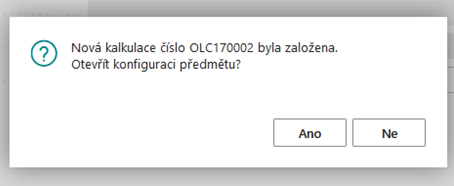
-
The user confirms No:
-
The OC does not open the created calculation, the user can return to it later
-
-
The user confirms Yes:
-
The OC automatically opens the Offer and Item tabs and then the Price and Equipment form so that the user can configure the item (described in the next chapter)
-
If Item No was filled in in the wizard, the system:
-
Creates a subject. After creating a course on the course, it will populate (edit) the following:
-
Fill the Item No. value from the wizard to the financed object, field Item No. (600) if entered in the wizard
-
Fill the values of the field on the item from the Item according to Item No. if Item No. was entered:
-
VIN (37)
-
Colour Code (20025)
-
Colour (249)
-
Interior Colour (247)
-
-
Create a record in the API License Plate History (4026584) if Item No. has been entered:
-
Licence Plate No. (1) take from Item
-
Date (5) Fulfill Workdate System
-
Financed Object No. (10) fill the number of the financed object
-
User ID (11) according to the user's login (as currently when creating a record manually)
-
-
Fill in the Licence Plate No. (39) field on the financing object as currently from the Licence Plate History API, if Item No. has been entered.
-
Populate field ObjListPriceExclVATLCY (10010)
-
Modification of filling:
-
If Item No. has been entered, fill the field from the Price for Financing Excl.VAT field from the item
-
If the Item No. field has not been entered, fill from the catalogue card as currently.
-
-
-
If Item No. has been entered, switch Item Financing Status on the item according to the detailed contract status settings
-
Opens the API Financed Object Prices (4026586, Card) tab as current.
-
-
-
-
-
Close
-
after pressing the Close button, the OC displays the message "Do you really want to close calculations without saving?" If the user confirms Yes, the OC closes the window without saving the record to the database. If it confirms No, it can continue with the entry.
-