
The functions of the change copy are described in the following chapters.
Original contract and change copy
When creating a change copy, the system checks whether the insurance contracts of the given financing contract are not in the prepared statements to the insurance company. Insurance contracts proposed in the statement for the insurance company prevent the user from creating a change copy or making changes to the financing contract. If the system detects that the contract is in the report, it prints a message and does not create a change copy.
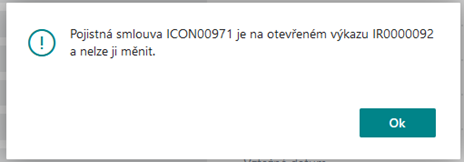
Described in Výkazy pro pojišťovnu in the chapter Blocking Contracts by Report.
If the wizard was launched from the contract card, the OC will leave the just created change copy open after creating the change copy.
If the wizard was launched from the contract overview, the OC will not open the change copy after creating the change copy.
At the same time:
-
the original contract is blocked from changes (depending on the detailed status settings) and receives:
-
The detailed status of the contract is set according to OneCore Settings, field Detailed status during change copy.
-
flag Change Copy Exists will be set to Y (it is not editable by the user)
-
In the Change Copy User ID field, the system displays the ID of the user who created the change copy.
-
-
the change copy of the contract will be an image of the original (it has the original detailed condition), then:
-
The contract number will be supplemented with a postfix according to OneCore Settings, change copy postfix field
-
Last Change Code=Change Type Code that the user selected in step 1/3 of the wizard for creating a change copy
-
flag Change copy=A
-
field Change Copy to Contract No. = Original No.
-
Change Copy User ID field. Any changes can only be made to this copy of the contract.
-
-
After the wizard is finished, either another wizard is started to make the change (if a change has been selected, where the wizard object number is listed, except for contract activation) or the user can manually make the requested change without the wizard.
The user has the option to switch from the change copy to the original contract, namely:
Changes –> Show original:
Transfer change copy
This option allows the user who created the change copy (the owner of the change copy) to transfer the change copy of the contract to the original. By doing so, the changes made will be transferred to the original and the change data will be stored in the contract history. The change copy is deleted after the transfer.
Once confirmed, the system will perform the following steps:
-
Checks if the user is running functions from the change copy (i.e. the flag of the contract is Change Copy=Y):
-
If Y, it continues If
-
N, it displays an error message and does not continue:
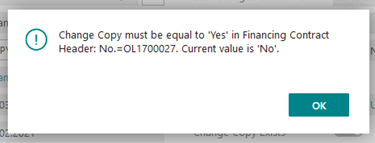
-
-
Check if the logged-in user is the owner of the change copy:
-
If so, it continues.
-
If not, it displays an error message:
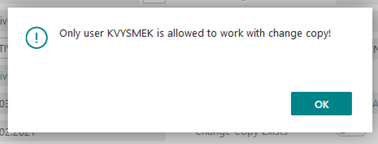
-
-
Checks if there are active variants for the contract:
-
If not, it continues
-
If so, it displays information about the existence of an active variant and asks if the user wants to continue:
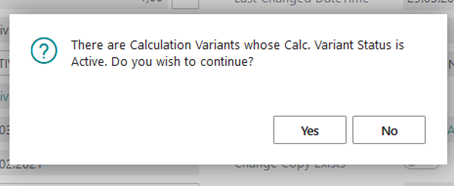
-
After confirmation, it sets Variant Status=Inactive on all active variants and continues.
-
-
-
Asks if the user really wants to overwrite the original:
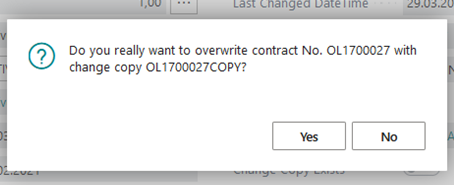
-
After confirmation, it performs a flag check to see if the contract has been recalculated.
-
-
Checking that the contract payment calendar is up-to-date (if the contract has been recalculated after the change - function ActivateChangeCopy):
-
Service-Updated (150)=Y and
-
Insurance-Updated (151)=Y and
-
Payments-Updated (152)=Y– all three must be Y, otherwise it will display the message:
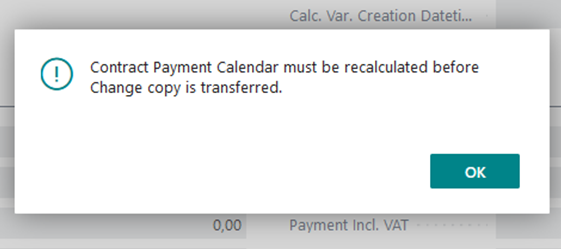
-
a will not transfer the change copy.
-
If all symptoms are Y, proceed to the next step.
-
-
-
Checks if there are insurance contracts for the financing contract to be reported or unsubscribed online
-
For reporting new fuses the system checks whether the insurance contract contains:
-
Insurance Type <> Individual
-
Insurance Reporting OnLine = Yes
-
Insurance Company Check-in Date = empty
-
Termination Code = Empty
-
-
If there is an insurance policy that meets these conditions, it checks whether the insurance framework contract contains the flag Insurance Company Verification Required = Yes. If:
-
Yes
-
Checks if the Verified = Yes field is on the insurance contract if:
-
No
-
Displays the error message "Verified must be Yes on insurance contract XY" and stops the change copy transfer process
-
-
Yes
-
In the OC, the preparation for calling the service for reporting the insurance policy (reporting addition) continues with the process of transferring the change copy
-
-
-
-
-
For opting out fuses online, the system checks whether the insurance contract includes:
-
Insurance Type <> Individual
-
OnLine Reporting = Yes
-
Insurance Company Check-Out Date = empty
-
Termination Code = Not Empty, or Early Termination = Yes
-
-
-
When there is an insurance policy that meets these conditions, it checks:
-
If the Valid To on the insurance policy equal to the date in the field Object Return Date to Financed Object Card. If you:
-
Yes
-
The insurance deregistration system will use instead of Valid To from the fuse current System Date
-
To the Insurance Company Calendar and Commission Calendar completes rows for the period from returning the object to the current date (The daily rate will be applied according to the "daily rate calculation" set on the insurance company's product, see below for an example)
-
-
-
Current date is 04.06.2024, Return of the financed object = 31.5.2024, insurance contracts:
|
Insurance Company |
Product |
RS No. |
Insurance Contract Type |
Valid From |
Valid To |
Date of Reporting |
Check-out date |
|
GCP |
CASCO |
IFR00003 |
proper Insurance |
15.09.2021 |
31.05.2024 |
15.08.2021 |
04.06.2024 |
|
GCP |
MTPL |
IFR00002 |
proper Insurance |
15.09.2021 |
31.05.2024 |
15.08.2021 |
04.06.2024 |
|
GCP |
MTPL |
IFR00039 |
Face |
05.06.2024 |
03.06.2025 |
05.06.2024 |
|
Please note:
-
In the statement definition, it is necessary to set the "Disposals" report to the Valid to field from the statement line, not from the Insurance contract
Insurance calendar for a regular insurance client:
|
Payment No. |
Period From |
Period To |
Posting Date |
Amount |
Pro Rata |
|
|
001 |
001A |
15.09.2021 |
30.09.2021 |
15.09.2021 |
210 |
Yes |
|
002 |
001 |
01.10.2021 |
31.10.2021 |
01.10.2021 |
420 |
No |
|
|
|
|
|
|
|
|
|
|
|
|
|
|
|
|
|
035 |
034 |
01.05.2024 |
31.05.2024 |
01.06.2024 |
420 |
No |
Insurance Calendar for Insurance Company Regular Insurance:
|
Payment No. |
Period From |
Period To |
Posting Date |
Amount |
Pro Rata |
|
001 |
15.09.2021 |
14.10.2021 |
15.09.2021 |
420 |
No |
|
002 |
15.10.2021 |
14.10.2021 |
15.10.2021 |
420 |
No |
|
|
|
|
|
|
|
|
|
|
|
|
|
|
|
035 |
15.04.2024 |
14.05.2024 |
15.04.2024 |
420 |
No |
|
036 |
15.05.2024 |
04.06.2024 |
15.05.2024 |
294 |
No |
-
-
-
No
-
Checks if the current date on the insurance policy is Valid to <. If:
-
-
Yes
-
Checks on the Termination Code to see if it is Allowed to Terminate Retroactively = Yes. If:
-
Yes
o Preparation for calling the service to opt out of the insurance policy (report attrition). The proclamation takes place in the background.
-
No or Termination Code is not filled in
o Displays the error message "Insurance XXX. Valid To must be>= current date!" and the transfer of the change copy stops
-
-
-
No
-
Preparation for Calling the Fuse Opt-Out Service (Attrition Reporting). The proclamation takes place in the background
-
-
-
-
-
-
-
If there is no insurance policy on the contract that meets the conditions for unsubscribing or reporting, it proceeds to the next check
-
Checking the Strict Changes List Policy flag in OneCore Setup:
-
If n
-
On the last line in the Contract Change History, toggles:
-
flag Closed on Y
-
Customer Approval flag on Y
-
Cust.Approval Date=sysdate
-
add date Approved On=sysdate
-
-
-
If Y
-
Checks if the flag is Closed=Y (i.e. it was toggled by the user to approve the change before the transfer)
-
If Y
-
Performs a change copy transfer
-
-
If n
-
Displays a message and does not transfer the change copy:
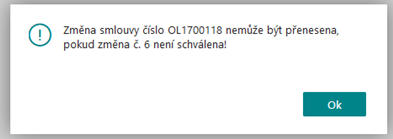
-
The user then opens the Contract Change History on the change copy, closes the line, and transfers the change copy.
-
-
-
-
To transfer a change copy
-
, the system adds to the change line before transfer:
-
Financing Period-New from the Financing Period (in Month) field from the change copy
-
-
in the ReplacebyChangeCopy function is checked again:
-
Service-Updated (150)=Y and
-
Insurance-Updated (151)=Y and
-
Payments-Updated (152)=Y and
-
Calculation Lines-Updated=Y and at the same time Complete Calculation=Y– all must be Y, otherwise it displays the message:
-
Changes requiring recalculation have been made to the change copy. Please run recalculation before transferring the change copy.
-
-
-
The system copies all the data of the change copy to the original, then deletes the change copy
-
If it is a Leasing with delivery of goods = Y, a transfer has been made to the contract and a corrective VAT document to the original and a new document to the new customer have been created, then the system will post these documents when transferring the change copy. See also Převod smlouvy s dodáním zboží na jiného zákazníka and Převod smlouvy
-
On original contract sets:
-
Change Copy Exists=N
-
Change Copy=N
-
Last Change Code from the last line of the Contract Change History
-
Adds the date and time of the last change.
-
-
Remove change copy
This option allows the user who created the change copy (the owner of the change copy) to delete the change copy without any changes being reflected in the original. The original is reverted to its original state.
When deleting a change copy by the button, the last opened row in the Contract Change History with the given change type is deleted.
If a user closes the change history manually and then deletes the change copy/variant instead of transferring it, then we no longer have the last open line. In this case, we delete the last corresponding closed line, namely the one that was created on the same day as the change copy/variant was created.
Renew change copy
This option allows the user who created the change copy (the owner of the change copy) to restore the change copy data from the original, i.e. the change copy is refilled with the source data.
Renewing a change copy does not delete a row of that change copy from the Contract Change History.
Change copy owner
Only the user who created the change copy of the contract (the owner of the change copy) can work with it. A user who has the right to change the owner of the change copy (User Setup: Allow Change Copy Owner=Y) can use this option to change the owner of the change copy from the original owner to himself or to another person. We recommend using this option, for example, in case the owner of the change copy is unable to work.