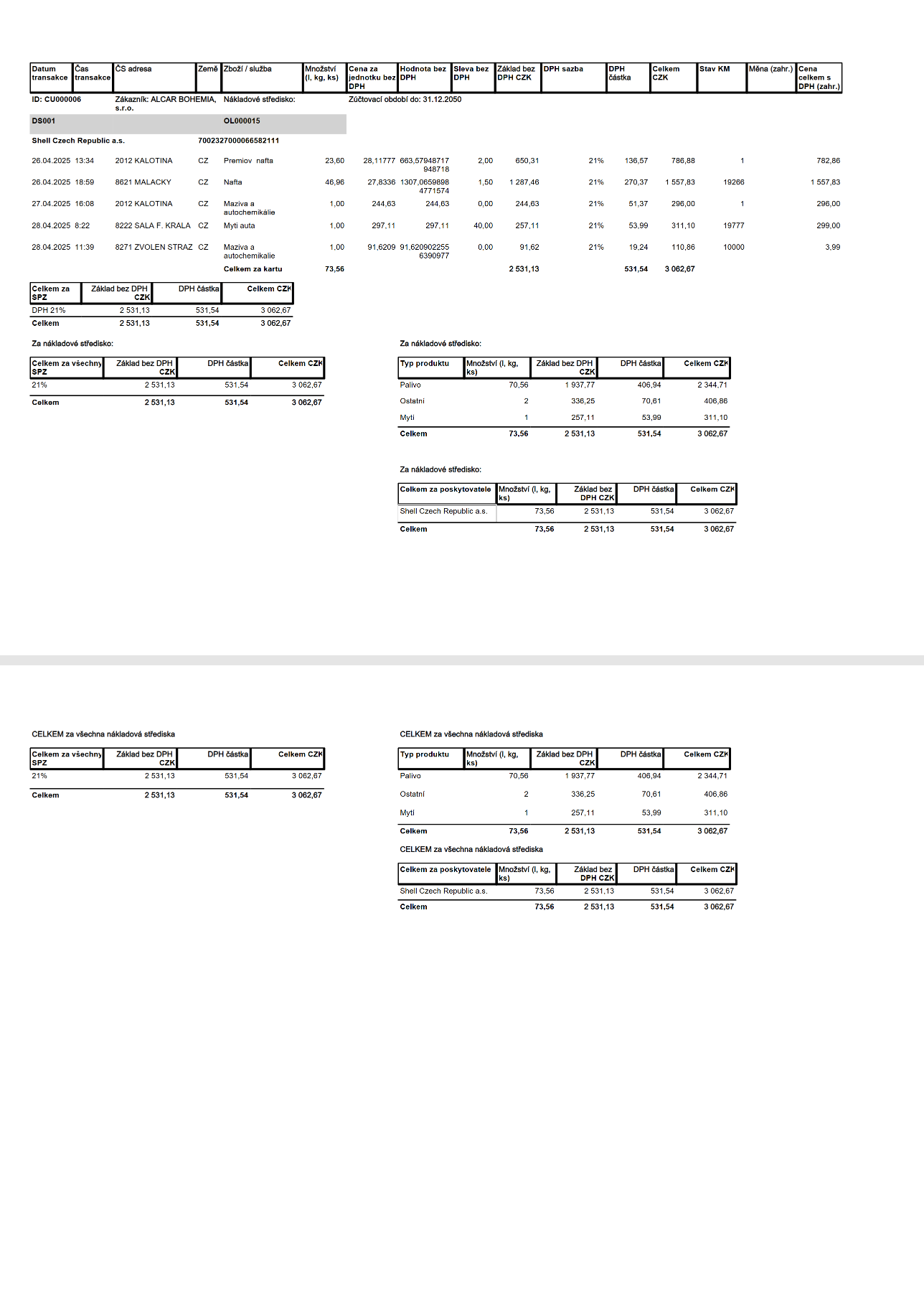
The procedure for creating refueling transactions is described in Tankovací karty.
Setup for an invoicing job
Invoice Print Report
The print report for the posted invoice is generated according to the settings in the Invoice Printout Setup table.
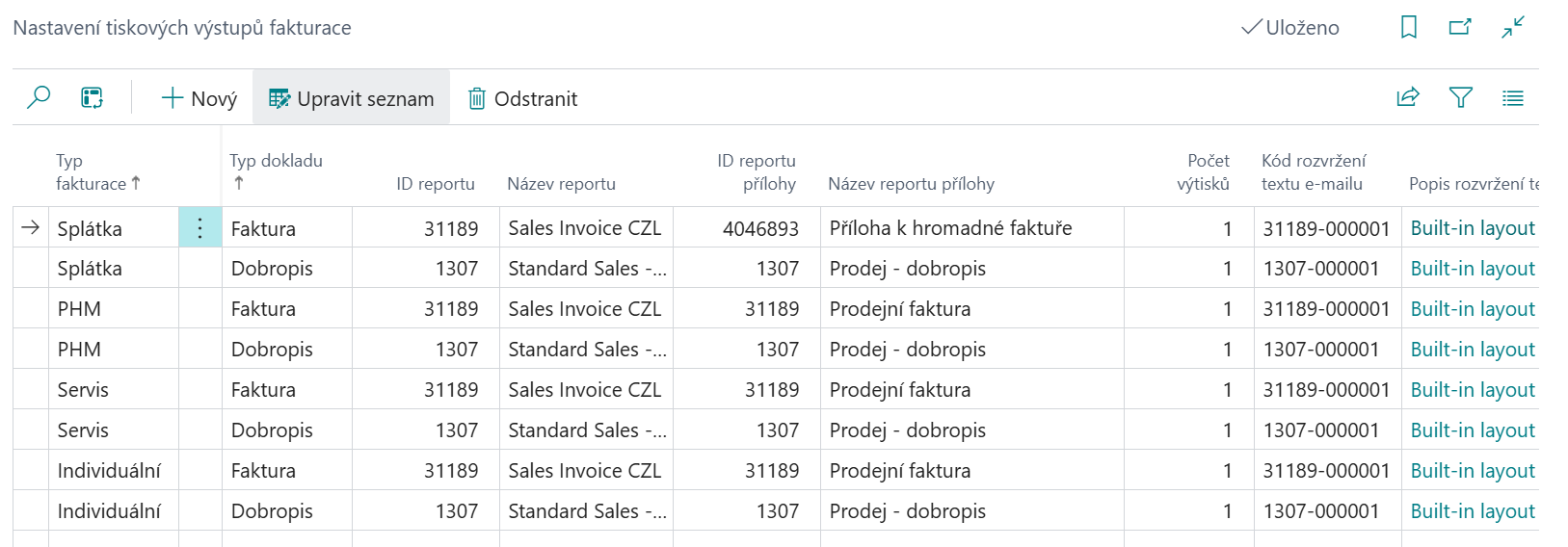
Invoice text, dimensions, number sequences and permission to reinvoice to customer without posting purchase
This setting can be done in Contract with Service Settings.
In the General tab, you can set
-
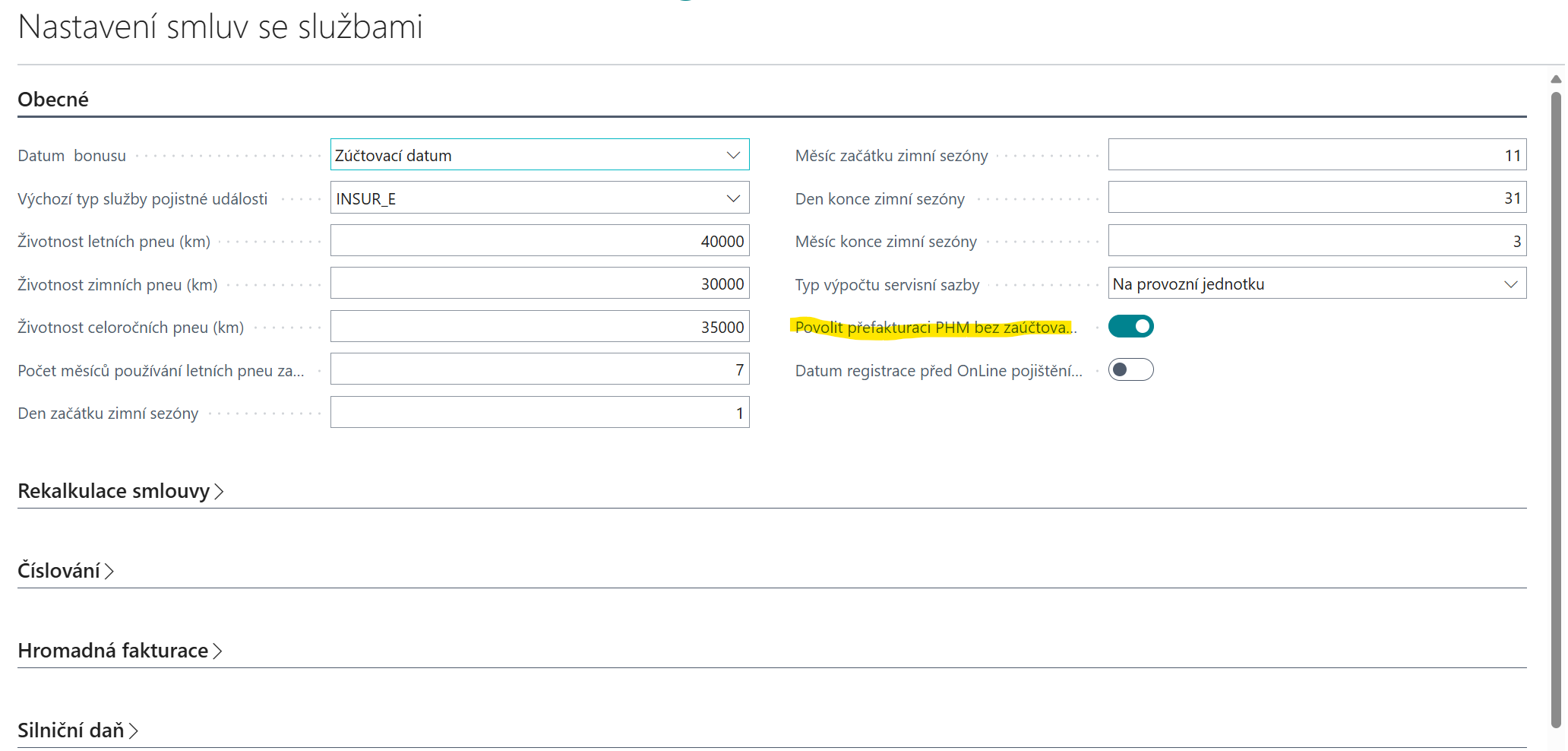
Allow Reinvoice To Customer Without Posting Purchase
-
If set to "Allow reinvoice to customer without posting purchase" = Yes, fuel card transactions can be reinvoiced to the customer even before the purchase invoice is posted.
-
A more detailed description in the Nastavení Business .
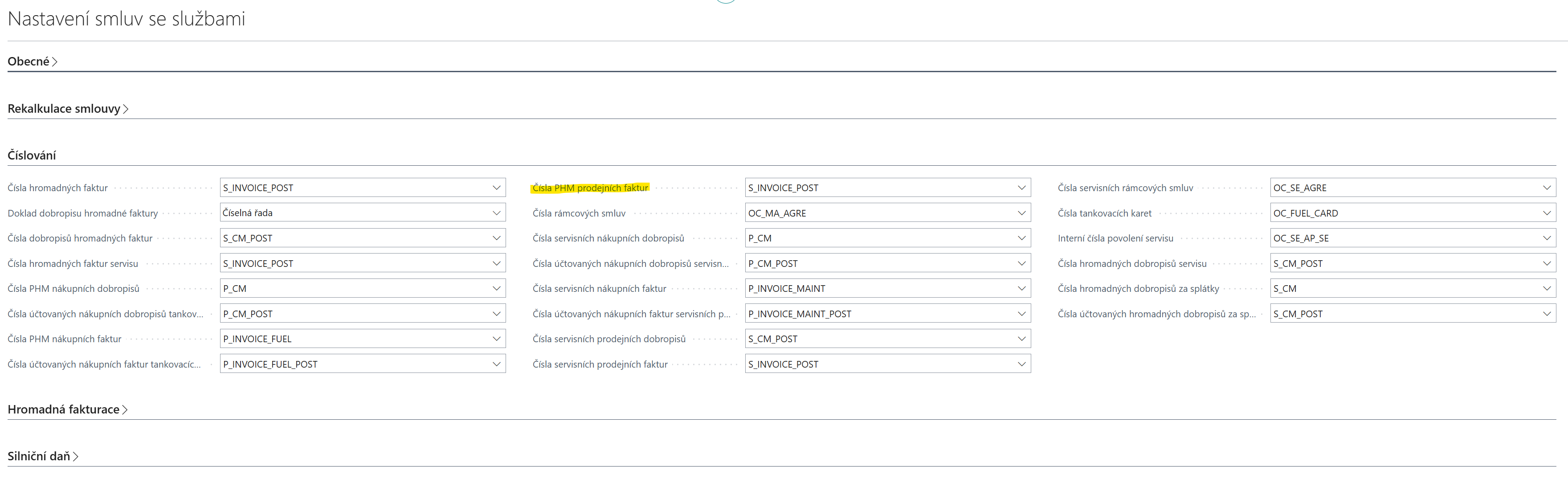
On the Numbering tab, you can set
-
A number series for reinvoicing fuel card records into the Fuel Sales Invoice Numbers field.
A more detailed description in the Nastavení Business .
In the Mass Invoicing tab, the following settings are set:
-
Text to invoice by selecting the standard text code in the Fuel Standard Text Code field
-
Mass Invoicing Dimension Code. This dimension code is used for all mass invoicing, not just for fuel.
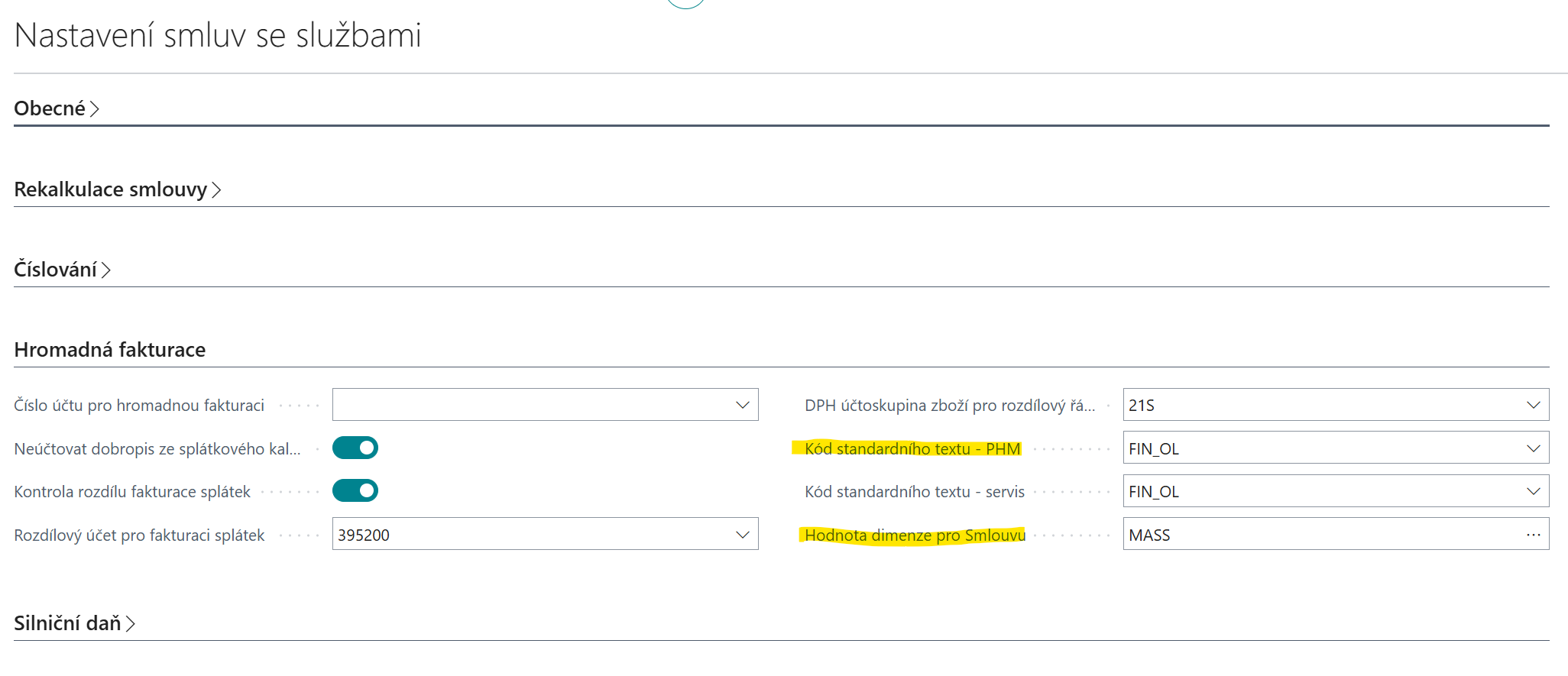
Posting Setup
Posting settings for individual sales invoice lines are set in Invoice Interface Mapping in relation to Country Code and Item Code in the Standard Sales Code field.
This code is downloaded to the Fuel Card Transactions table when transactions are imported, and then when re-invoicing, the general ledger account number is filled from the Standard Sales Code into the sales invoice line.
A specialty is the Service Fee on Fuel Card transactions. It is not listed in the import file, but it is calculated. Both the calculation and the settings are described in Nastavení fakturačního interface, .
Settings on the customer card
On the customer card, you can set the following:
-
Payment Terms Code
-
This setting is used by the system for the Due Date field when issuing sales invoices
-
This is a standard field
-
-
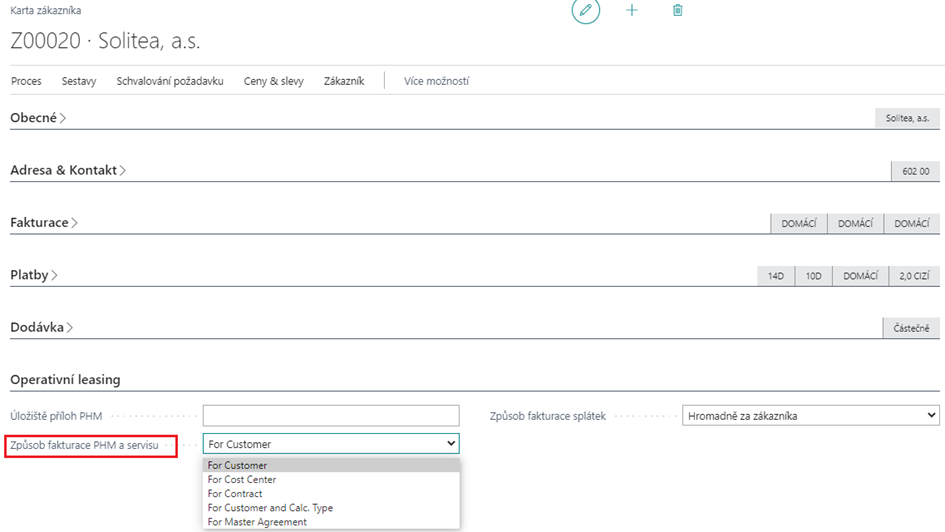
Fuel and Maintenance Billing Method
-
The user sets up the desired invoicing for the fuel card transaction.
-
Can be: per customer/per business location/per contract/per customer and calculation type/ per framework agreement
-
Depending on the setup, the system will create mass sales invoices from fuel card transactions and service allowances.
-
Example of invoicing for a customer's business places
Under two contracts to different customer's business locations.
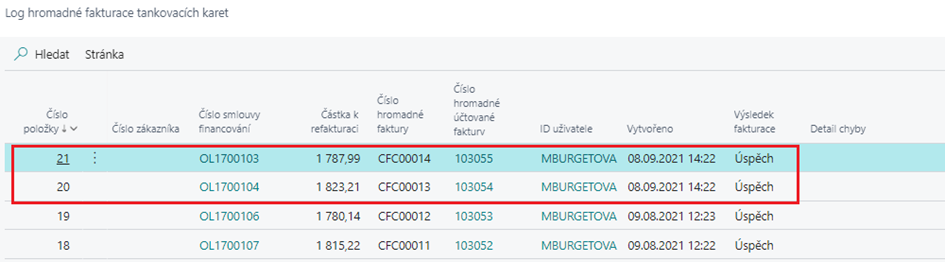
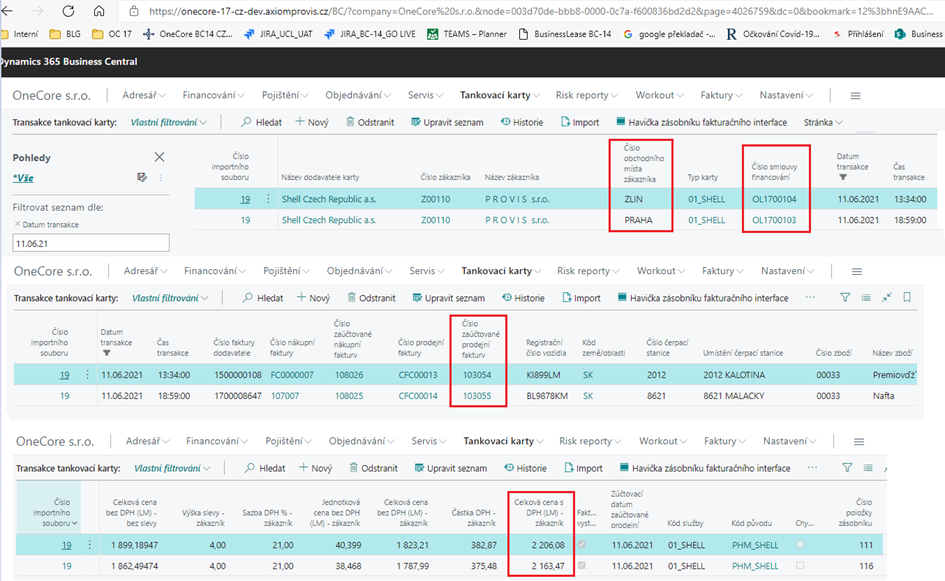
There are two contracts OL1700104 (Zlín) and OL1700103 (Prague) for one Provis customer – I invoiced the transactions from 11.6.2021:
He created two invoices correctly:
entered the posted / unposted invoice number into the Fuel Card Transaction:
The header of the invoice shows both the leasing contract and the customer's business location:
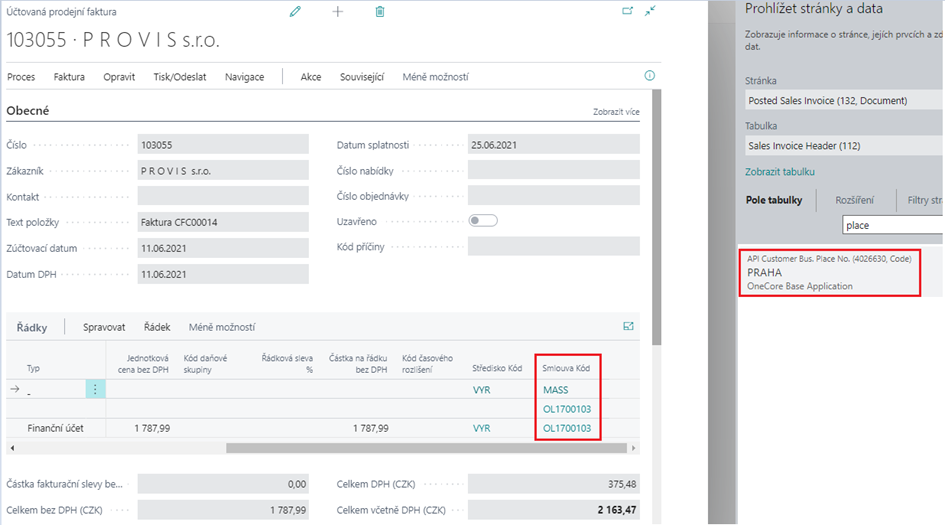
Mass invoicing of fuel cards
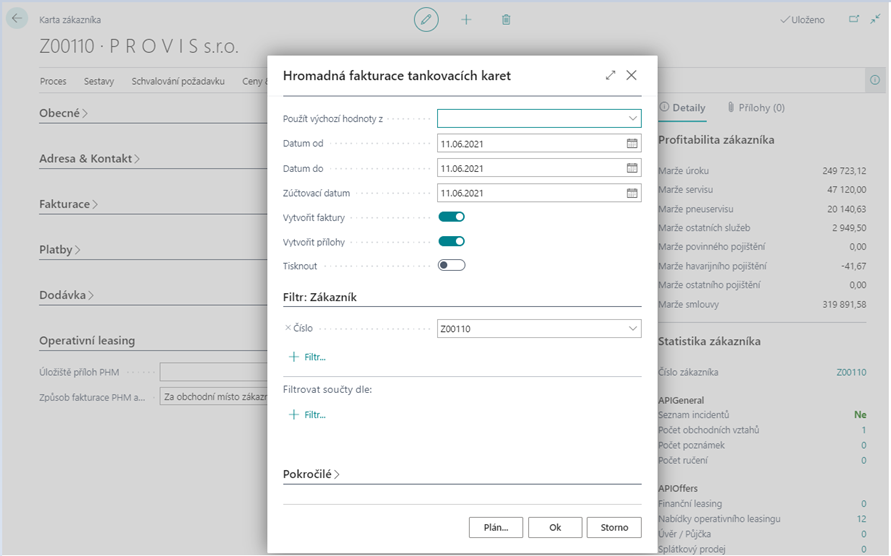
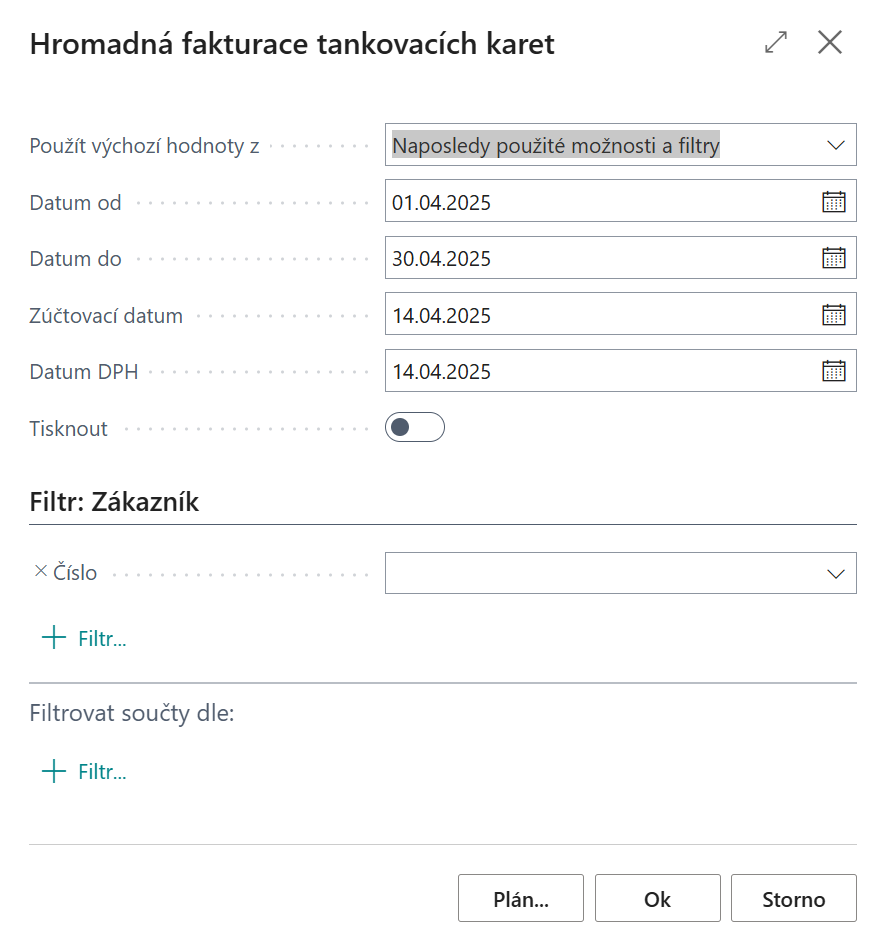
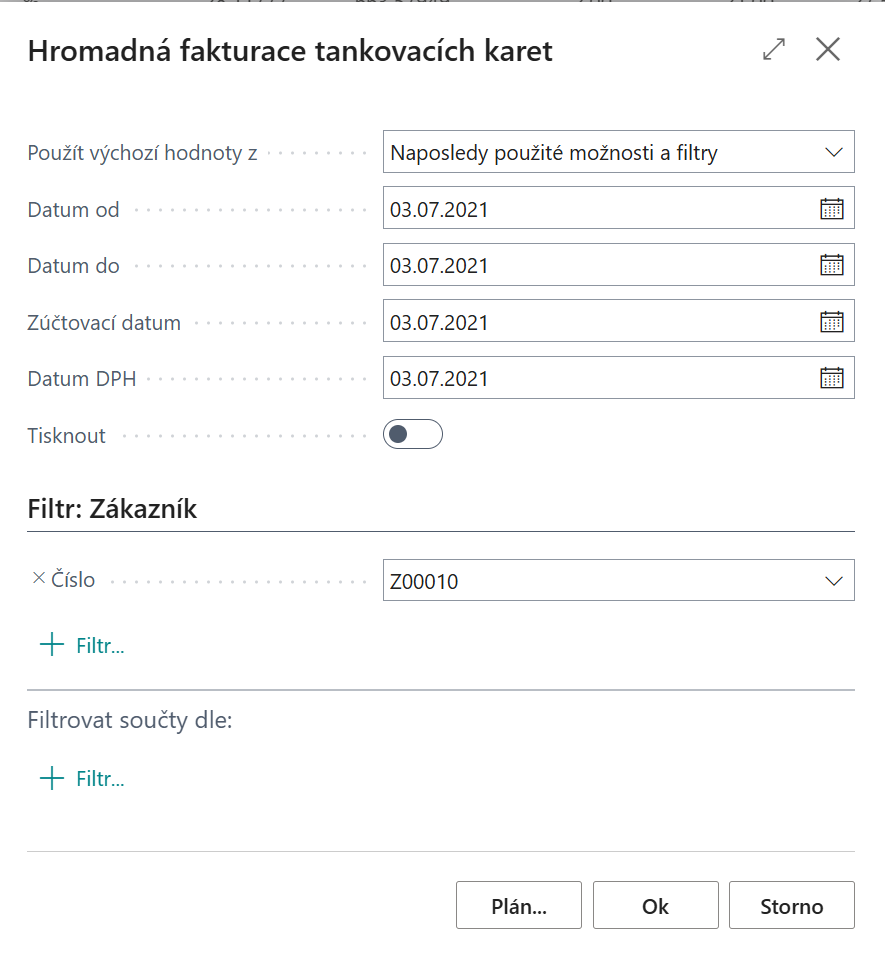
Mass invoicing of fuel cards can be started with the per customer filter and with the fuel card transaction period filter:
-
Date From
-
User enters the beginning of the period from which transactions will be included in the report/invoice.
-
-
Date To
-
The user enters the end of the period from which transactions will be included in the report/invoice.
-
-
Posting Date
-
User enters posting date for sales invoice
-
-
VAT Date
-
User enters VAT date for sales invoice
-
-
Print
-
the user ticks if the system is to print invoices with attachments at the same time when creating an invoice (only the PDF attachment is printed)
-
Creating an Invoice
The system goes through "Fuel Card Transactions" and filters by Transaction Data Falling within the invoiced period:

The next filter is the "Invoiced" = NO:

Another filter is, the flag "Error" = NO:

If it's not in Service Contract Settings allowed re-invoicing of fuel without posting purchase, so the next filter for the customer invoice is filled in "Posted Purchase Invoice No.“:

Based on the Customer Number, the system will determine the Customer's Billing Method:
-
Per Customer – One invoice for all customer contracts.
-
Per cost center – as many invoices as there are customer cost centers
-
Per contract – as many invoices as there are leasing contracts
-
Collectively per customer and calculation type (Open / Closed) – maximum of two invoices per customer
-
Collectively for the framework agreement – one invoice for the customer's master agreement
Next, it will scroll through the "Fuel Card One-Off Charge" table and filter similarly to fuel card transactions:
-
Invoice = Yes
-
Invoice Method = Invoice for Fuel
-
Invoice Issued = No
-
Fee accrual date – must match the specified period
The system creates a sales invoice, which it fulfills as follows:
-
The system creates an unposted invoice header in which the following is performed:
-
Customer No.
-
value in the Invoice Print Type field: Fuel
-
value in the Contract Code field: Mass in the invoice header
-
The posting date is filled from the dialog window from the Posting Date field
-
VAT Date = Fills from the dialog box from the VAT Date field
-
Due Date = Posting Date + Payment Terms Code from Customer Card
-
Currency code = remains blank regardless of customer/contract currency, invoice is always in local currency
-
Penalty Code = Penalty Code from Customer Card
-
Reminder Terms Code = Reminder Terms Code from Customer Card
-
-
Invoice lines are filled by:
-
1 invoice line is created for 1 buffer line. And in the buffer it is grouped after the contract, the std code. sales and VAT product posting group. I.e. transactions with the same values are merged into one buffer line, with different values new buffer rows are created. Plus a new line for the charge that's entered on the fuel card card.
-
After posting a mass invoice (it is created for a general Contract Code), the individual invoice items will be reposted to specific contracts and the number of the posted sales invoice will be copied to the Fuel Card Transaction.

The bulk task processes only the invoice document type. It does not create a credit memo.
Fuel Card Transactions
-
When the invoice is posted, the system fills in the following fields in the Fuel Card Transactions table:
-
Invoice Invoiced on A fields
-
Posted Sales Invoice No.
-
Posted Salesable Invoice Posting Date field
-
-
After posting, the system displays the following system message: X successfully posted invoice and unsuccessfully Y. Do you want to open the log? Y/N
-
If the user enters YES – the Fuel Card Log will open with a filter only for the records created during the job execution.
-
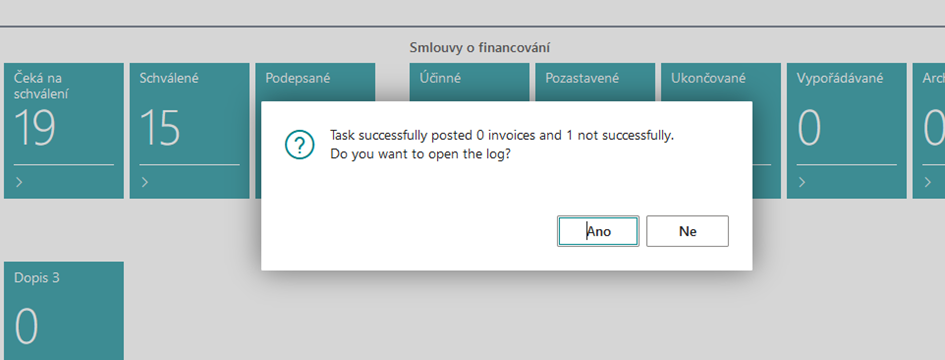
Fuel Card Mass Invoicing Log
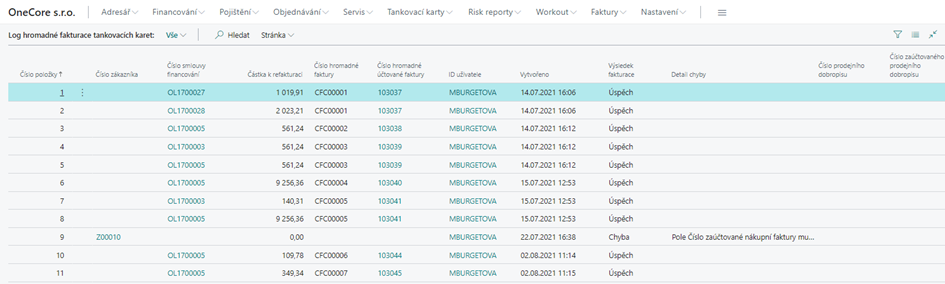
A bulk task records the success/failure of invoicing fuel card transactions.
The system enters the customer's number into the log only in the event of an error. If the system detects an error while processing an invoice for a customer, it will log which customer it was and an error message.
If successful, the system will write down the contract number, invoice number, invoice amount, date and time of creation.
If a fee is included in the customer's invoice along with fuel transactions, two items will appear in the log:
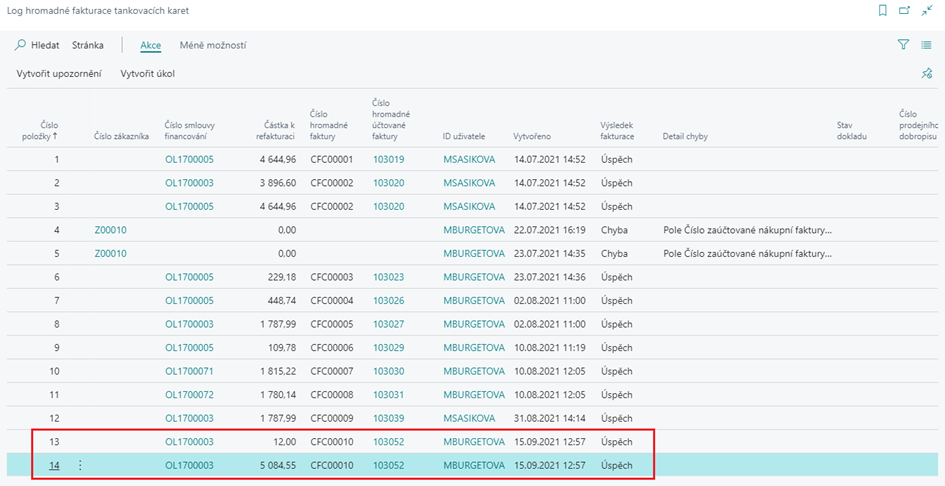
The system writes the item "for a fee" (item 13) and the item "for transactions" (item 14) separately into the log. The invoice is one, the same in both items.
A posted invoice can be credited using the standard functionality, but the records in the Fuel Card Transactions table will not be changed by the Invoiced YES field, i.e. it is not possible to reissue the invoice. You need to create new records by importing fuel card transactions.
Example: Invoicing to a customer – refuelling abroad and a one-time fee at the same time

The fee is based on the FC00006 card, customer Z00010 is the same as the transaction on 3.7.2021:

I will start mass invoicing with the same filters (period, customer):
The result is reported by the system: "Completed without error"
Selling Documents No. Written into the Transaction:

The invoice is one 103052 according to the settings on the customer card:
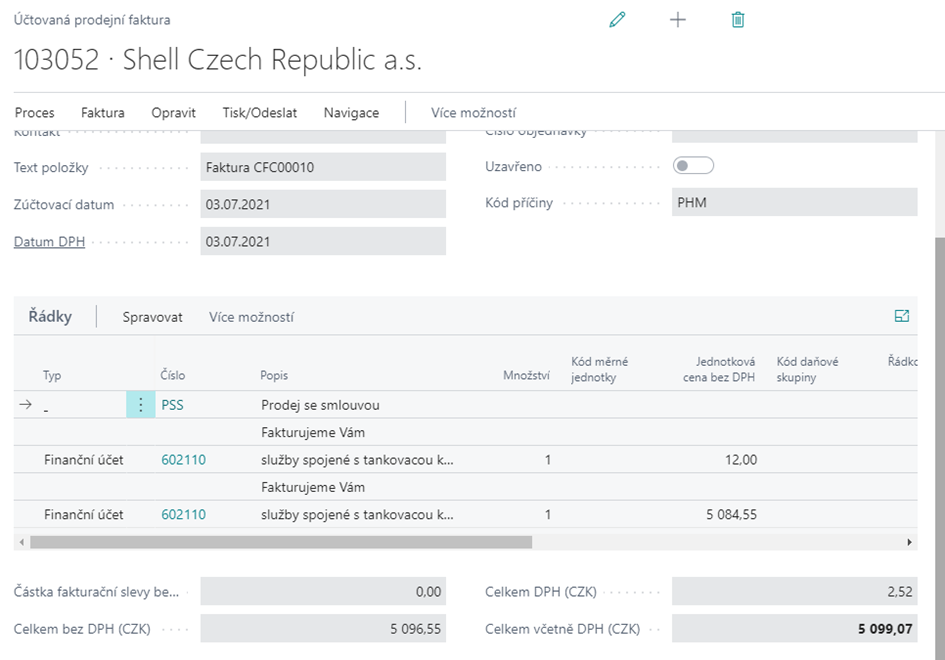
VAT is correct only from the fee of 2.52, because the refueling was abroad

Annex to Fuel Invoice
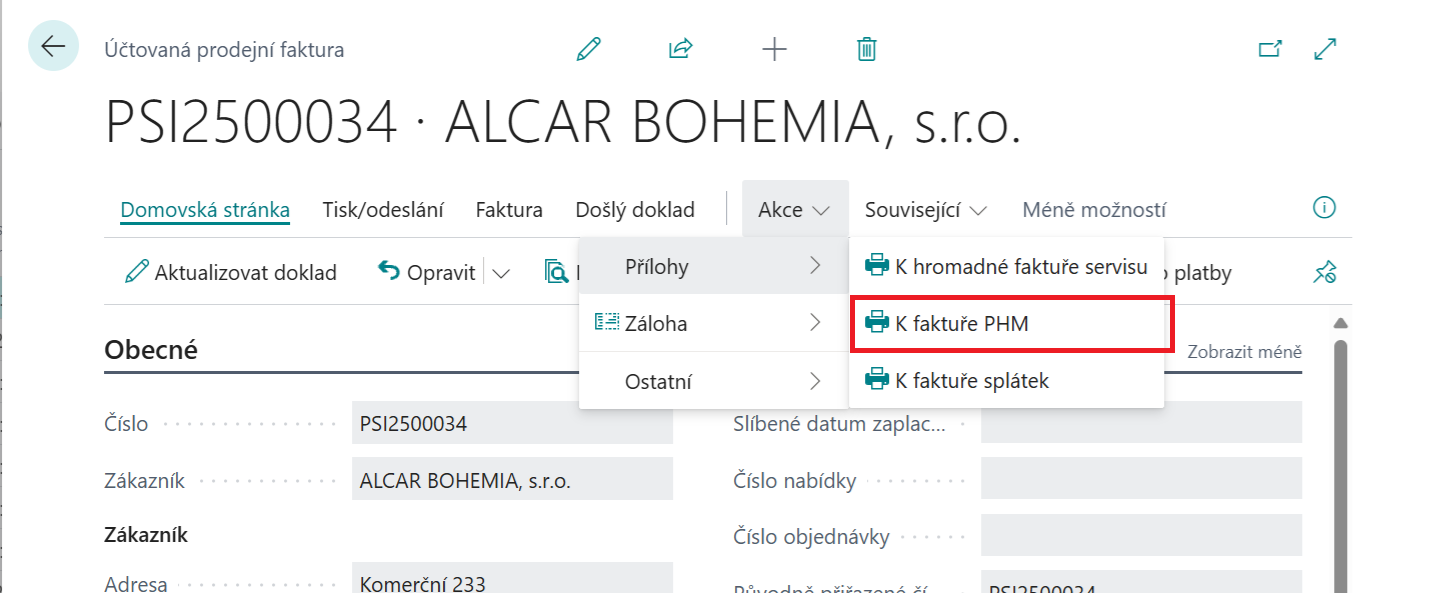
An attachment to a fuel invoice can be created/opened from a posted sales invoice for fuel:
When the task runs, a dialog box appears:
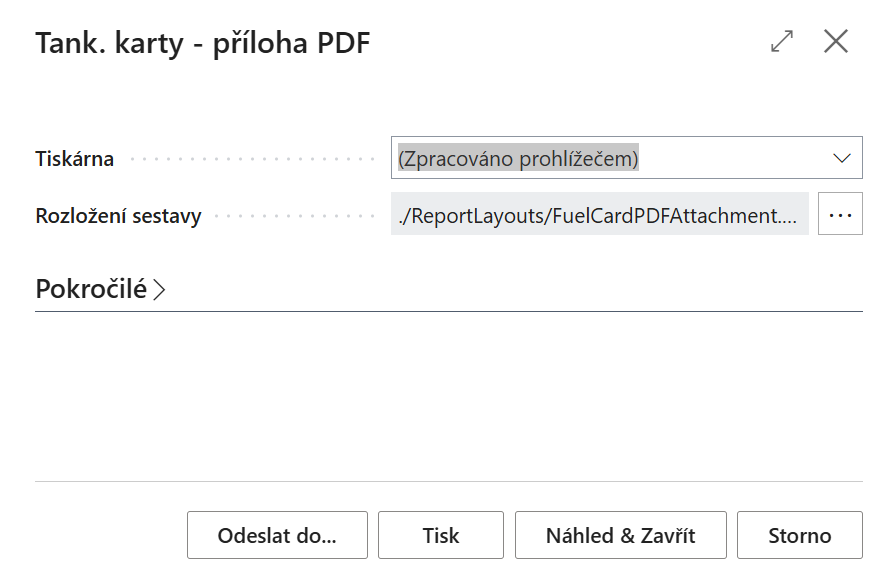
Choice:
-
Send To
-
the attachment can be opened in MS Excel, MS Word, PDF,... according to standard functionality
-
-
Press
-
The attachment is open in print preview
-
-
Preview and Close
-
The attachment is open on the screen
-