
Setting up the Print Report, Attachments
Report (attachments) for printing and sending
After running the function under the Print or Create attachment button on the sales document card (invoice/credit note), the system reads a report from the Invoicing Printout Setup table API Invoicing Printout Setup (4046886) according to the value on the sales document card in the Invoice Print Type and Document Type fields.
Invoicing Print SetupAPI Invoicing Printout Setup (4046886)
THE fields in the table are:
-
Invoicing Type = Invoicing Type
-
If the value is:
-
Individual
-
, the system will search for the record (row) according to the value of the invoicing type and the document type.
-
From the record, it takes the ID report, e-mail structure, or jobrespensibility for sales documents that have a value in the Inovice Print Type – Blank field on the document card.
-
-
-
PaymentThe
-
system searches for a record (line) according to the value of the invoicing type and the document type.
-
From the record, it takes the ID report, e-mail structure, or jobrespensibility for sales documents that have a value in the field Inovice Print Type = Payment on the document card.
-
-
-
Maintenance (Maintenance)
-
the system searches for a record (line) according to the value of the invoicing type and the document type.
-
From the record, it takes the ID report, the structure of the mail, or the Jobresponsibility for sales documents that have a value on the document card in the field Inovice Print Type = Maintenance (Service).
-
-
-
FUEL (Fuel)
-
the system searches for a record (line) according to the value of the invoicing type and the type of document.
-
From the record, it takes the ID report, e-mail structure, or jobrespensibility for sales documents that have a value in the field Inovice Print Type = Fuel on the document card
-
-
-
-
-
Document Type
-
is filtered by document type when searching for a record
-
-
Report ID
-
user selects a report that is generated when printing or saving attachments to document attachments
-
-
Email Body Layout Name
o Editable, lookup to Report Layout List
-
Email Body Layout Description
o Non-editable, lookup to Report Layout List
-
E-mail Subject:
-
the system reads the value into the body of the mail
-
-
ATTACHMENT Name (E – mail Attachment Name)
-
the name of the attachment for the Attachment type Sales Invoice
-
-
Sent To
-
the Jobresponsibility of the contact to which the document is to be sent is selected
-
Customer Card
IN the Invoicing tab, you can set up mass sending of sales documents for the customer.
Mass Sending of Saleable Documents:
-
Empty value
-
The system does not process the document (does not send, does not switch the sending status)
-
-
Mass Jobs
-
Invoicing Tasks: Post Financing Payment (with services; Mass Invoicing Fuel Cards; Mass Reinvoice Maintenance; Post Billing Credit Memos After posting the document, they send the document immediately, namely:
-
Create, save attachments
-
TOGGLE on the tab Document Status = Complete
-
Sending Status E – mail
-
Sent = if the sent mail is
-
Not sent – error = if the sending failed).
-
The Sending Email error text writes a description of the error
-
-
-
-
-
Periodic Task
-
After running the Mass Sending Documents task, the system creates an email for one customer, in which all the attached
-
-
Periodic Task Zip
-
After running the Mass Sending Documents task, the system creates an email for one customer, which contains a Zip attachment with all document attachments. In Zipe, a directory is created from attachments)
Stop Sending:
-
Ak je nastavené na ANO
-
neither bulk invoicing jobs nor task Bulk document sending doesn't send customer's saleable documents.
-
Invoice Sending Method
THE table Method of sending documents defines the method of sending sales documents (print, email), as well as the creation of additional attachments for individual invoicing for a given customer.
Field:
-
Invoicing Type
-
for lower invoicing tasks, the system searches for a record by Invoicing Type:
-
post Financing Payment (with services) = Invoicing Type Payment
-
Mass Invoicing Fuel Cards = Invoicing Type = Fuel
-
Mass Reinvoice Maintenance = Invoicing Type = Maintenance
-
post Billing Credit Memos = Payment
-
-
-
Document Type
-
Invoice/Credit Memo
-
-
Type of Sending Documents:
-
Print
-
after posting, the system sends the document to print
-
-
Email
-
after posting, the system sends the document according to the settings in the Job Responsiveness
-
-
-
Attachment Format
-
a parameter is selected for creating a report format
-
-
ATTACHMENT Report ID Selecting
-
a report for the attachment
-
-
ATTACHMENT Report Name
-
retrieved from the selected report
-
-
ATTACHMENT Layout Code
-
loads in the selected attachment layout
-
-
Attachment Layout Description
-
choose an attachment layout
-
-
ATTACHMENT Name
-
Text field When
-
Inserting attachments to document attachments, the system changes the attachment with the selected text
-
Sales & Receivables Setup
IN the Sales and Receivables Setup table, tab E – mailing Setup, the parameters of the Mass Sending Document task are set, such as: Email body report ID (the email dataset should contain fields from the customer card); Email Body Layout Code, Subject, Attachment Name
Sending Sale Documents
Manually Sending Saleable Documents
After posting an individual document, the user has the option to send the document with attached attachments by e-mail from the document card.
After posting, the document has:
-
Document Status = Empty
-
Sending Status E-mail = Not Sent
THE user checks the saleable document, then switches Document Status = Complete
CLICK Create Attachment to create document attachments
When the system button is launched:
-
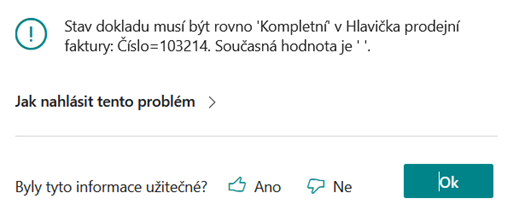
Checks Document Status = Complete
-
If it is not Document Status = Complete displays a message
-
-
for the Invoicing Print type on the Sales Document Card:creates attachments
-
from Invoice Printout Setup and Customer Inv. Sending Method.saves
-
them in Document Attachment
-
for Report Saleable Invoices Attaches Attachment Type = Sales Invoice
-
for Report Attachments to Attachments Attachment Type = External Attachment Sales Invoice resp. credit note
-
if the user inserts an attachment that is to be attached to the email, so he must add in the Attachment Type = External Attachment Sales Invoice or Credit Memo
-
-
THEN use the Email button to create an Email and send it.
After sending, on the sales document card, the field Sending Status - E-mail = Sent
Sending Documents by Mass Invoicing Tasks
Invoicing tasks: Post Financing Payment (with services); Mass Invoicing Fuel Cards; Mass Reinvoice Maintenance; Post Billing Credit Memos after posting the document, ak je nastavené on the customer card:
-
Mass Sending Sale Documents = Mass Jobs
-
Stop Sending = NO
-
The method of sending customer invoices for a given Invoicing Type is Email = YES
System after posting sales documents by invoicing tasks:
-
Sends saleable documents
-
OVERRIDES on the sales document card Sending Status - E-mail = Sent
-
Writes Success or Failure invoicing tasks to the log
mass Sending Document Task
the Mass Sending Document task can be run from the Role Center via Search, or repeatedly via the scheduler.
the task processes sellable documents, only for customers who have set up on the customer card:
-
Mass Sending of Saleable Documents = Periodic Task or Periodic Task Zip
-
Stop Sending = NO
After the job starts:
-
goes through the List of Posted Invoices and the List of Posted Credit Memos;
-
filters the records
-
Document Status =
-
CompleteSending Status E mail (Sending Status – Email) = Not sent.In
-
THE document header in the API MASS Invoice (4026710) field, ak is:
-
YES collects into the NO stack
-
- LOOKS into the Shortcut Dimension 2 field. According to the dimension, it searches for the contract card, where in the API Financing Contract Header (4026397), ak is in the Paym field. Calendar is Tax Document (19032) field value:
-
YES + Invoice Print Type = Payment skips document (document will not be sent), waits for manual sending
-
NO = continues on
-
-
-
-
RECORDS grouped by
-
customer Numbers
-
On the customer card, it checks:
-
Mass Sending of Saleable Documents = Periodic Task or Periodic Task Zip
-
Stop Sending = NO
-
-
-
Jobresponsibilities namely:
-
according to the value in the field in Invoice Print Type (Sales Cr. Memo Header (114), Sales Invoice Header (112), searches the Invoicing Printout Setup tab for a record that has the same value as in Invoice Print Type;
-
of the found record searches for a value in the Send To (Job responsibilities) field)
-
-
Note. If the customer had documents with all types of invoicing, the task would create:
-
One mail for Jobresponsibility Invoice, in which there would be documents with all types of invoicing
-
A second e-mail for Jobresponsibility FMN, in which there would be documents only for Invoicing Type = Maintenance.
-
groups records, creates mail:
-
email
-
takes from the contact card Jobresponsibility
-
-
body E – mail:
-
System from tab. Sales & Receivables Setup (311) reads the report from the Email Body Layout Code field
-
-
THE subject is taken
-
from the tab. Sales & Receivables Setup (311) reads the value from the new field E – mail Subject
-
-
-
To an email attachment, as it was on the customer card in the Mass Sending of Sales Documents field:
-
Periodic task attaches all attachments from Attachment documents (does not zip them)
-
Periodic task ZIP, zips all attachments. In Zipe, it creates a directory according to the numbers of the individual documents in which the attachments are located.
-
-
Sends e-mail
-
On the document cards, the value is written into a new field Sending Status – Email (79280) Sent
-
and when an E mail is created, or an error occurs when sending, i.e. E-mail is not sent. The system switches to the Sending Status – Email field to Not Sent – Error and writes an error to the Sending Error Text.
-
IN Sent E-mails, the user can check whose emails were sent by the customer.
Creation and sending of e-documents
Creating and sending e-documents is a standard BC functionality and depends on the supplied localization of the given country. For the functionality to work properly, it is necessary to have the settings made in the following tables:
-
E-Document Service (6103) -
Document Sending Profile (60) -
Workflow (1501)
Created documents are recorded in a table E-Document (6121).tag.
The general use and settings of the functionality are described here:
Since BC28, there has been a change in the application in the E-Document Core - Microsoft is now keeping an eye on CommitIsSuppressed, InvtPickPutaway and PreviewMode and in this case, it skips the creation of the e-document. In One. Core mass posting tasks, commits are suppressed for possible roll-back in case of an error and correct logging of the job progress. Therefore, One. Core has been supplemented with a logic that ensures that the document is recalled, generated and sent, even if the commit is suppressed. This ensures the use of the standard process of generating and sending e-documents.