
The following applies to a created loan: If the loan is in the New Status and is not registered/released, the User can delete the loan.
This is a similar form to the Reservation field description in the Reservations chapter.
The Rent Card is divided into General Rent Information and the Rent Lines
On the top bar in the Related section
-
Dimension
-
After clicking, you will see a table for entering dimensions for a given reservation / rent
-
By default, the dimensions of the customer who is selected on the loan are transferred to the table. The user can change the dimensions
-
Pri fakturácii sa dimenzi přepřenosí do hlavičky faktury (Standard Function)
-
General Tab
Field:
-
No. (No.)
-
Rent No.
-
-
Order No.
-
The reservation number from which the rent is created. Interconnection through detailed items
-
-
Licence Number (Licence Number)
-
License plate number of the selected car for rent
-
-
Renter Email
-
Empty by default
-
The user can enter the e-mail address to which the documents will be sent if the Send Documents function is used
-
This e-mail address is entered in the Send To field and is placed after the e-mail addresses that are automatically downloaded from the Printout Definition settings for the document
-
-
Contract Status
-
Values New, Released, Cancelled, Finished, Invoiced
-
-
Invoice Count
-
Displays the number number of all issued documents of the Invoice type for the given loan number to date
-
The user clicks on the number to display a list of Sales Invoices
-
-
Posted Invoice Count
-
Displays the number number of all posted sales invoices for the given rent number
-
The user clicks on the number to display a list of Posted Sales Invoices
-
-
Monthly Rent
-
If NO
-
The system calculates rent per day (daily rental)
-
First invoicing: (Last day of the month of the business day set for the user – Rent from) x Rate day
-
Next invoicing: (Last day of the month of the business day set for the user – Last Posting Date) x Rate per day
-
-
-
If YES
-
The system calculates the rent for the whole month, i.e.
-
First invoicing: (Last day of the month of the business day set for the user – Rent from) x (Rate month/30)
-
Other invoicing: (Last day of the month of the business day set for the user – Last Posting Date – the system determines how many months need to be invoiced) x Rate per month
-
-
-
If Monthly rent is NO, it is possible to change the rate per day in the Rate per day field in the Rent lines.
If Monthly rent is YES, it is possible to change the rate for the month in the Rate month field in the Rent lines.
Rent lines (Rent lines 4027408)
In the Manage section, there is a button:
-
Dimension
-
After clicking, you will see a table for entering dimensions for a given reservation / rent
-
By default, the dimensions of the selected vehicle and the dimensions from the reservation / rent header from the Dimensions table are transferred to the table. The user can change the dimensions
-
When you update the dimensions on the reservation/rent header, the header dimensions in the dimension table on the reservation/rent line are also updated
-
pri fakturácii sa dimenzi přepřenos do row faktury (standard function)
-
By default, the data from the reservation card will be copied if it exists
Field Description different from the booking card
-
Returned (Date)
-
Date of actual return of the vehicle
-
-
Returned (Time)
-
Actual Vehicle Return Time
-
-
Tariff (Day)
-
Non-editable field
-
-
Pricelist Tariff [Day])
-
Non-editable field
-
-
Tachometer - Beginning
-
The value is added from the car card – another piece of information can be entered
-
when changing the km data manually, the given km will also be written on the vehicle card and if the value of the financed object number is filled in on the vehicle, a message and the function described in the Tachometer Status field on the car rental car will be displayed
-
-
Tachometer - End
-
The value is filled in automatically when writing to the acceptance protocol in the Return section in the Odometer Status [Returning] field
-
The user can change the value (note that the value is not written incorrectly to the passing protocol)
-
If the km data is changed, the given km will also be written on the vehicle card and if the value of the financed object number is filled in on the vehicle, a message and function described in the Tachometer Status field on the car rental car will be displayed
-
-
Run Kilometers (KM)
-
The system calculates the difference between the mileage at the beginning and at the end of the rental
-
non-editable field
-
-
Free Kilometers
-
Editable data
-
By default, it is pre-filled with the calculated value of free non-invoiced km as:
-
Number of rental days * free km per day from the selected price list lines
-
-
When filling in the date in the Returned [Date] field, the system calculates the free km according to this date ** free km per day from the selected price list lines according to the number of rental days
-
The user can write
-
-
Posted Kilometers
-
Difference Between Free and Traveled Kilometers
-
non-editable field
-
-
Price per posted km
-
Price from the price list per kilometers driven over the limit
-
non-editable field
-
-
Price per posted kms
-
Amount Calculated as Billed Kilometers * Price Per Posted Kilometers
-
-
Fuels Amount
-
Amount as a surcharge for unrefuelled fuel
-
if the protocol shows the tank level when the vehicle is taken over and the tank is filled in at the time the vehicle is handed over, the value is calculated automatically based on the difference and the current fuel price in the Fuel Prices table
-
The user can insert or edit a value
-
-
Deposit For Rent
-
Informative value without function
-
By default, the value is tightened according to the selected price list from the even field
-
The user can write the value
-
-
Posted Kilometers (Posted Kilometers)
-
Actual mileage charged after the end of the lease
-
Non-editable field
-
-
Rented Days
-
Actual Rental Days by Return Date
-
-
Total Rent Amount
-
Rental price calculated after returning the vehicle
-
-
Total Rent Amount Incl. VAT
-
Total Rental Price * VAT
-
User Tab
This tab contains information related to the use of the vehicle.
Field:
-
Travel Abroad
-
after checking this box to YES, the Allowed Countries field will be editable.
-
-
Allowed Countries
-
Here, if foreign travel is permitted, the user can enter the countries to which the rental car is allowed.
-
-
Authorized User 1 to 4
-
Here, the user enters the person authorized to drive the rented vehicle. If the tenant is a natural person, this person is inserted into User No. 1.
-
Lookup of customer contact personas
-
-
Authorized User 1 to 4 Name
-
according to the added code in the Authorized User 1 to 4 field, the name of the user from the contact list is filled in
-
field will be hidden if the value is not added to the field Authorized User 1-4
-
-
Driver's Licence No. AU 1 to 4
-
To fill in the system according to the contact or to fill in the user manually after filling in the Authorized User
-
field will be hidden if the value is not added to the field Authorized User 1-4
-
-
Passport No. AU 1 to 4
-
The user fills in the passport number of the authorized user
-
field will be hidden if the value is not added to the field Authorized User 1-4
-
-
Intermediary
-
Here, the user can select the person who mediated the deal from the suppliers' code lists.
-
-
Provider Name
-
after selecting the Provider number, its name will be filled in automatically.
-
Address tab
By default, the data from the reservation card will be copied if it exists
Delivery Address
-
Delivery Address
-
The default value of the field is blank
-
The field will be filled manually
-
The field is editable.
-
-
Delivery City
-
The default value of the field is blank
-
The field will be filled manually
-
The field is editable
-
-
Delivery Postal Code
-
The default value of the field is blank. The field will be filled manually
-
The field is editable.
-
Pick-up Address
-
Pick-up Address
-
The default value of the field is blank
-
The field will be filled manually
-
The field is editable.
-
-
Pick up City
-
The default value of the field is blank
-
The field will be filled manually
-
The field is editable.
-
-
Pick-up Postal Code
-
The default value of the field is blank
-
The field will be filled manually
-
The field is editable.
-
Invoicing tab
By default, the data from the reservation card will be written, if it exists.
-
Payer No.
-
By default, the number of the selected tenant is filled in
-
The user can select the payer number from the customer list Subsequently, all the data about the selected customer will be filled in.
-
-
Payer Name
-
It will be filled in automatically according to the selected payer number
-
-
Payer Address
-
It will be filled in automatically according to the selected payer number
-
-
Payer Address 2
-
Additional information to the address. It will be filled in automatically according to the selected payer number
-
-
Payer City
-
It will be filled in automatically according to the selected payer number
-
-
Payer Post Code
-
It will be filled in automatically according to the selected payer number
-
-
Customer Bussines Place No.
-
Field editable independently of reservation / rent status
-
When clicked, the user opens a list of the customer's Business Places filtered to the value in the Bill-to No. field in the Invoicing tab
-
The user selects the customer's departure location if they want the value from this field to be populated in the Customer Bus field of the invoice. Place Code.
-
-
Customer Bussines Place Name
-
Non-editable field
-
The name of the customer's business location is entered into the field, according to the selected code in the Customer Business Place No. field
-
-
Payer Registration No.
-
Editable Field
-
The value must be entered manually by the user
-
Attention: currently, when changing the payer, the IR value is not deleted
-
-
Payer VAT Reg. No.
-
The value is filled in automatically after selecting the Payer No.
-
The value can be edited by the user
-
ATTENTION: there is no check for the correct format of the VAT number when editing
-
-
Renting Cost Centre
-
The user can add the customer's cost center where the vehicle is to be rented
-
-
Return Cost Centre
-
The user can add the customer's cost center where the vehicle is to be returned
-
-
Invoicing Cost Centre
-
The user can add a cost center, which will be listed on the invoice
-
-
General Bus. Posting Group (Gen. Bus. Posting Group)
-
here the user can select the general posting group Rental, this group is automatically added from the customer card to the Invoicing tab.
-
-
Created By
-
Information about the user who created the reservation card
-
-
Last Modify By
-
Information about the user who last changed any of the data on the reservation card
-
-
Payment Method Code
-
here the user can choose the method of payment of the invoice, the data from the customer's card is automatically filled in the Invoicing tab.
-
Notes tab
By default, the data from the reservation card will be copied if it exists
You can insert notes on the Notes tab to print on a sales invoice or rental agreement.
Functions on Rent Card
New option:
-
Create Invoice
-
User creates an invoice for the loan
-
-
Create Fee
-
For a description of the functionality, see. Vytvořit poplatek
-
Choice Process:
-
Issue
-
The loan is issued through this item. After starting the function, the system checks the filling in of the data in the fields:
-
Delivery Address
-
Delivery City
-
Delivery Postal Code
-
-
If any of these fields are empty, the system will display the error message "Delivery address has not been filled in" and the rent will not be issued.
-
-
Detailed Entries
-
Displays a list of entries filtered to the contract number
-
Detailed description in the chapter below
-
-
Car Rental Billing
-
The functionality is described in the chapter Vyúčtování autopůjčovny
-
-
Finish Whole Rent
-
The lease is terminated, it is necessary to fill in the date and time of the end of the lease. For a detailed description, see. Ukončení nájmu
-
-
Cancel
-
The user can cancel a released and registered rent if it has not been invoiced at least once.
-
If there is no posted sales invoice on the loan, OC cancels the rent
-
If there is an unposted sales invoice on the loan, the OC cancels the rent
-
If a posted invoice has already been issued for the loan, the OC will display a message when attempting to cancel: "Cannot be cancelled. This loan has already been invoiced."
-
-
After selecting Cancel, the Rent Contract Status will change to Canceled and can be found in the Rentals-All tile
-
-
Finish Rent Line
-
The function is not used.
-
Action Choice Features:
-
Issue
-
For a description of the function, see. Process option
-
-
Finish Whole Rent
-
The lease is terminated, it is necessary to fill in the date and time of the end of the lease.
-
-
Cancel
-
For a description, see. Process option
-
-
Finish Rent Line
-
For a description, see. Process option
-
-
Create Invoice
-
For a description, see. New option
-
-
Create Fee
-
For a description, see. New option
-
Choice Related – Rent:
-
Detailed Entries
-
Displays a list of entries filtered to the contract number
-
-
Car Rental Billing
-
The functionality is described in the chapter Vyúčtování autopůjčovny
-
-
Handover Protocol
-
The functionality is described in the chapter Tisk dokladů k výpůjčce
-
To choose a report:
-
Print Contract
-
Description of the function in the chapter Tisk dokladů k výpůjčce
-
-
Send Documents
-
Description of the function in the chapter Odeslání dokumentů k výpůjčce
-
Detailed Entries (API Det. Rent Contract Entry)
Detailed items are one of the means for managing, blocking and releasing vehicles for reservation and rental, and displaying the status of vehicle utilization. To block and release vehicles, the flag is important:
-
If the vehicle is free on the vehicle card Returned = Yes (currently the field is hidden on the card)
-
Rent From Date And Time
-
Rent to Date and Time
Note: Even if the vehicle meets the conditions described above, the vehicle can still be blocked for rental and reservation by the flag on the vehicle card Vehicle temporarily unavailable = Yes.
The created detailed item takes the car number, dates and times from the created row of the reservation/rent card.
New reservation:
-
Enrollment Status = New
-
A detailed item is not being created
-
The vehicle remains free. On the vehicle card, the Returned = Yes field
-
In vehicle utilization, the vehicle is visible in the list, it can be booked/rented
Cancelled reservation:
-
Registration Status = Cancel Reservation
-
A detailed item is not being created
Reservation Registered by the "Register" button
-
Enrollment Status = Released
-
A Rent Contract Entry 4027411 API is created
-
A Detailed Entry is created in Status = Reservation and Status = Active
-
There is no link to the loan
-
The vehicle is already blocked for another reservation or rental. On the vehicle card, the Returned = Yes field
-
In vehicle utilization, the vehicle is in the list with the status Reserved
New loan without binding registration (there is no detailed item):
-
Rent Status = New
-
Rent Contract Entry 4027411 API is not created
-
Detailed Entry in Status = Reservation and Status = Active is not created
-
The vehicle remains free. On the vehicle card, the Returned = Yes field
-
In vehicle utilization, the vehicle is in the list with the status Not Assigned
New rent with binding registration for reservation (active detailed reservation item exists)
-
Rent Status = New
-
Vehicle is still blocking Detailed entry of the original reservation in status = Reservation and status = Active
-
The vehicle is already blocked for another reservation or rental. On the vehicle card, the Returned = No field
-
In vehicle utilization, the vehicle is in the list with the status Reserved
New Rent Cancelled Without Binding Registration
-
If you try to cancel, the OC will display the message: "There is nothing to cancel, the loan has not been issued yet."
Rent Issued
-
Rent Status = Released
-
A new Rent Entry (API Rent Contract Entry 4027411) is created
-
A new Detailed Rent Entry will be created in Status = Rent and Status = Active which will take over the blocking of the car
-
Original blocking Detailed entry with Status = Reservation sets Status = No
-
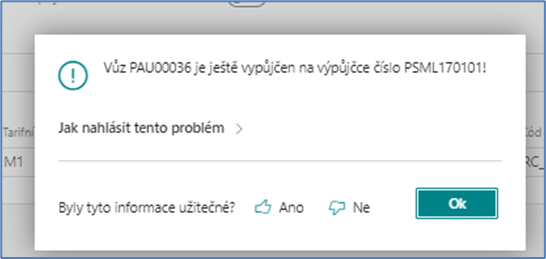
The vehicle is still blocked for another reservation, rental for a given time and time. If the user tries to issue a new reservation for such a car, the system will display a message and will not allow the car to be issued:
-
In vehicle utilization, the vehicle is in the list with the status Rented and for the last day Available/Rented according to the return time
Loan issued cancelled with binding registration
-
Rent Status = Cancelled
-
Vehicle is released Detailed entry in status = Cancel rent and status = Active
-
The vehicle is unblocked for further reservation, rental. On the vehicle card, the Returned = Yes field
-
In vehicle utilization, the vehicle is in the list with the status Not Assigned
Rent terminated
-
Rent Status = Done
-
A new Rent Entry (API Rent Contract Entry 4027411) is created
-
A new Detailed Rent Entry is created in status = Closed status = Active
-
Original blocking Detailed item with Status = Rent is set Status = No
-
The vehicle is released for further reservation, rental
-
Please note that until this time, the vehicle is systemically blocked for further rental, even if it is free according to the date
-
-
In vehicle utilization, the vehicle is in the list with the status Not Assigned