
The tab contains basic information about the contact, some fields are described below. Others are described in the documentation for Business Central directly from MS.
Field:
-
Contact number
-
is filled in automatically after completion of the wizard for creating a contact, according to the marketing settings (number series)
-
-
Name
-
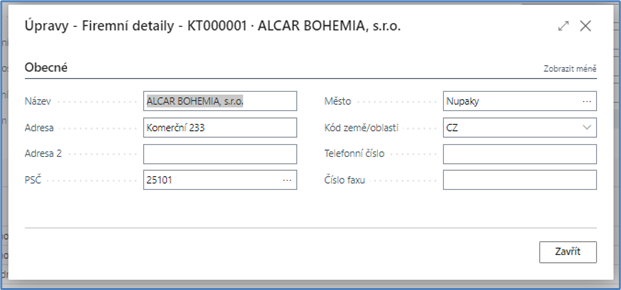
In BC, the name is downloaded from the wizard to create a partner or set using the "Assist edit" button next to the "Name" field on the contact card, General tab. After pressing the button, the user will be offered a form for entering the Name and address of a person or company according to the settings in the Type field.
-
If the value in the Name field is changed on a Contact where the value of the Driver = YES field, then the system:
-
filters the Financed Object table to the number of the contact to be changed in the Driver field and downloads the value to the Driver Name field
-
filters the Object Driver History table to the number of the changed contact in the Driver field and downloads the value to the Driver Name field
-
Note: the transcription is based on the modification of the entire contact. That is, after changing the name via the dialog box above and closing the dialog box, or after closing the card of the entire contact in the case of editing the name directly in the field
-
-
-
Type
-
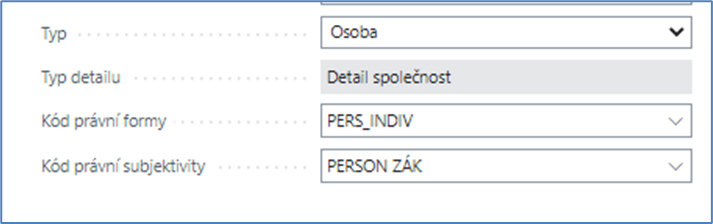
The contact type determines whether the contact is a company contact (potential customer/vendor) or a person contact (company representative, employee)
-
-
Detail Type The
-
detail type determines whether the contact is a company (the entity we do business with) or just a person. This means, for example, that the customer can be a private person, i.e. it is a Type Person and a detail Company.
-
-
Legal Form CodeThe
-
field is used to record the legal form of the contact (e.g. PO entrepreneur, FON – natural person not entrepreneur, FOP – natural person entrepreneur, etc.).
-
-
Legal Subjectivity CodeUse
-
this field to select the legal subjectivity of the contact. According to the selected legal subjectivity, editable fields are set in BC.
-
-
Cooperation
-
PartnerBy default, N. Changes user to Y if it is a cooperation partner (contract importer).
-
The change of value is automatically transferred to the new Cooperation Partner field (new) in the Vendor tab (23), General tab, on the supplier with the same Contact No.
-
A detailed description of the records of importers and dealerships can be found here Importéri a dealerství
-
-
DealershipDefault
-
N. Changes user to Y if it is a contracted dealer.
-
The change of value is automatically transferred to the new Dealership field (new) in the Vendor tab (23), General tab, on the supplier with the same Contact No.
-
A detailed description of the records of importers and dealerships can be found here Importéri a dealerství
-
-
Company No.
-
The company number where the person type contact is employed or to which company the contact is to be assigned. For contacts of type: Company (potential customer), the copy field contains the value of the field: No.
-
-
Company Name:
-
Specifies the name of the contact. If the contact is a person, you can click the field to display the Name Details window.
-
Company name, according to the number in the field: "Company number"
-
-
Contact Business Relation
-
Specifies the type of existing account.
-
Options: None, Customer, Vendor, Employee, Multiple
-
When you click a field, the contact's Account card or list opens
-
-
Contact Status
-
field for setting the contact status, for possible checks with the system
-
Values
-
Active (default value when creating a contact)
-
Inactive (no function yet)
-
Anonymized
-
You can't switch the status manually.
-
The status is switched automatically after the contact is anonymized according to the anonymization scenarios set
-
-
-
-
Activity statusThe
-
field is visible on the card only if the contact is Type=Company
-
The value in the field informs in which time period the contact was last contacted by the activity that is recorded by the created interaction (email, phone call, meeting)
-
Selected interaction type= interaction that has an interaction selected in the Interaction Template Code field, which has a value = Yes
-
in the Activity Status Tracking fieldInteractions of the company and its contacts (persons) are taken into the tracking.Default
-
-
value when creating a contact = Free
-
The values will be changed as follows:
-
To the status "Hot", the last interaction must not be older than 1 month.
-
The contact will then fall into the "Active" status at any time between the date of the last interaction >1 month; <=3 months. (Active = there is an interaction for the given contact (of selected type)< = 3 months from the system date)
-
Postponed = there is an interaction given contact of the Company type > 3 months and <= 12 months from the system date
-
Free = there is an interaction of the given contact of the Company type > 12 months from the system date, or it does not exist at all
-
-
-
Search Name:
-
Specifies an alternate name that you can use to search for the record if you can't remember the value in the Name field
-
-
Salesperson Code
-
Specifies the code of the salesperson who normally handles this contact
-
By default, it is tightened if the salesperson is set in the Marketing Settings in the Salesperson Code field
-
The value is then transferred to all cards in BC, where this contact is completed and the Salesperson Code field occurs
-
-
Salutation Code
-
Specifies the salutation code that will be used when you communicate with the contact. The salutation code is used only in Word documents. To view a list of solicitation codes that are already defined, click the field
-
-
Organizational Level CodeSpecifies
-
the organizational code for the contact, for example: top management. This field is valid only for people
-
-
Last DateTime Modified Specifies
-
the date and time when the contact card was last modified. This field cannot be edited
-
-
Date of Last Interaction:
-
Specifies the date of the last interaction involving a contact, such as a mail received, email, or phone call. This field cannot be edited.
-
-
Last Date Attempted:
-
Specifies the date when the contact was last contacted, for example, when you tried to call them, with or without success. This field cannot be edited.
-
-
Next Task Date The
-
date of the next task associated with the contact
-
-
Contact Status
-
Options: Active and Non-Active
-
Fields for managing marketing actions and managing contact consents
-
If for any reason we deactivate a contact in this field (the user changes the value in the "Active contact" field to = Nonactive), then the Consent Status will change to Expired and the Consent Expiration Date will be filled in with the system date
-
-
Exclude from Segment:
-
Specifies whether the contact should be excluded from the segment.
-
-
Closed-Privacy Blocked
-
Specifies whether access to the subject's data should be restricted in day-to-day operations. This is useful, for example, in protecting data from privacy changes.
-
status is toggled manually and automatically
-
automatically switches if the contact is anonymized and the value in the Contact Status field switches to = Anonymized
-
-
-
Minor:
-
Specifies that a person's age is below the definition of adulthood as recognized by law. Data for minors is blocked until the parent or guardian of the minor provides parental consent. To unblock the data, select the Parental consent has been accepted check box.
-
-
Parental Consent
-
ReceivedSpecifies that the parent or guardian of the minor has provided their consent for the minor to use the service. If this check box is selected, data can be processed for minors.
-
-
Register:
-
An Option field that specifies whether a contact is registered with a Trade or Business Licensing Office
-
-
Place of Jurisdiction / District OfficeThe
-
field is used to set the place of the court/office where the contact is logged into the register
-
-
SectionThe
-
field is set to the Section of the Business Register
-
-
File No. / Trade Reg. No.
-
The Commercial Register Insert or Trade Register No. is set in the field
-
-
Changed By
-
The code of the user who last modified the contact
-
-
Registration No. (Registration No.)
-
After creating a contact, the ID number is added to the ID field, if it was entered in the wizard to create a partner in the Registration Number field
-
If the field is empty and the user enters the IR value, after leaving the field, the check of the IR will be transferred to the Ares register. The result of the check is displayed by a BC message on the screen
-
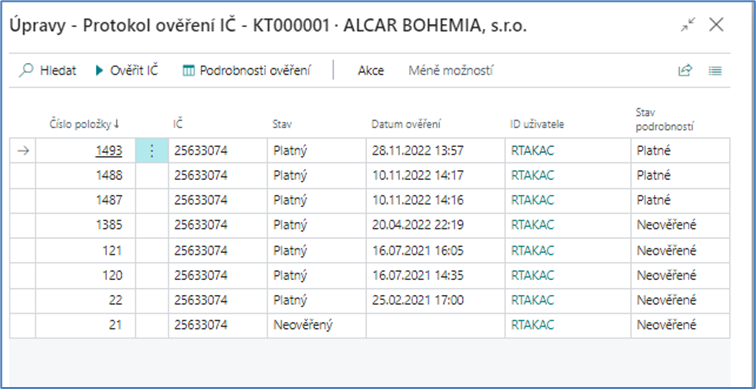
If the user clicks on the three dots next to the field, the history of the ID verification will be displayed, and optionally, the user can re-verify the ID:
-