
After the completing Wizard or Copilot calculation creation system creates Financing Card in status Calculation.
Section General
-
Calculation No.
-
Financing Type
-
Financing Product Code
-
Legal form, Customer No., Customer Name
-
Gen. Terms and Conditions Code
-
Currency Code
-
Contract Exchange Rate Date
-
Contract Exchange Rate
-
Branch Code
-
Salesperson No.
-
Offer Creation Date
-
Offer Validity Date
-
Approval Date
-
Contract Signing Date
-
Calculation Starting Date
-
Expected Termination Date
-
On Active Contract can be found additional fields about invoices:
-
Posted Invoice Count
-
Represents the number of posted invoices
-
-
Cancelled Invoice Count
-
Represents the number of cancelled invoices (field is currently hidden but can be shown again with Personalize button)
-
-
Invoice Count
-
Represents the number of created invoices, but not yet posted invoices
-
-
Posted Credit Note Count
-
Represents the number of posted credit notes belonging to the current contract
-
Clicking on this number opens list of posted credit notes belonging to this contract
-
-
Credit Note Count
-
Represents the number of created but not posted credit memos belonging to the current contract.
-
Clicking on this number opens list of created unposted credit notes belonging to this contract
-
-
Section Calculation
-
Financing Calculation Model
-
model for interest and payment calculation
-
-
Calendar Month
-
If boolean Calendar Month = Yes
-
System creates an aliquote payment, e.g. Calculation Starting Date is 15. 03. 2025, first payment will be from 15. 03. 2025 - 31. 03. 2025 and second payment will be regular calendar month, it means 01. 04. 2025 - 30. 04. 2025. Last payment in case of 1 year contract will be from 01. 03. 2025 - 14. 03. 2025. It means the regular payments respect calendar month in Payment Calendar.
-
-
If boolean Calendar Month = No
-
Then in Payment Calendar are displayed technical months, it means 15. 03. 2025 - 14. 04. 2025, etc.
-
-
-
Daily Interest
-
It is possible to turn on daily interest only with calculation model INTEREST. If turned on, the system calculates interest exactly according to the number of days in a payment period under the same conditions (principal, interest rate) based on Formula: "Principal balance" * Rate / 365 (366) / 100 * Days.
-
-
Part Payment Due Date
-
Selection from the options "At the beginning" or "At the end" influences the posting date and due date of the invoices, as well as the interest rate.
-
-
Part Payment Period
-
Choose how often payments will be paid - a month, a quarter, a half-year or a year.
-
-
Financing Periods (in Months)
-
Default duration of the contract. Even financing period is other than months always input here information in months.
-
-
No. of Payments - it is automatically calculated by no. of payments and financing period
-
Initial Fee, Principal Amount, Maximal Principal Amount, Interest Rates (Cost, Margin, Total) Fees nad Insurance
-
Values entered in wizard
-
-
IRR %
-
Internal rate of return is a method of calculating the investments rate of return which excludes external factors which affects a return rate (a risk-free rate, an inflation, the cost of capital, a financial risk, etc.)
-
-
APR %
-
Annual percentage rate refers to the annual rate of interest charged to the borrowers and paid to the investors. Represents the actual yearly cost over the term of a loan
-
-
Service % per Financing Period
-
Service fee can be added by the percentage of amount and a cost in the next cell is automatically calculated
-
-
Service per Financing Period
-
Service fee can be added by the percentage of amount and a cost in the next cell is automatically calculated
-
-
Service Payment Period
-
Field is used for choosing a period for calculating the service fee - a month, a quarter, a half-year or a year
-
-
Insurance per Financing Period
-
If you are providing an insurance for the customers, a value can be added here
-
-
Insurance Payment Period
-
Field is used for choosing a period for calculating the insurance fee - a month, a quarter, a half-year or a year
-
-
Calculation Updated
-
Boolean says if we are working with updated calculation, if no, just recalculate payment calendar with Complete Calculation or Finish (Calculator Lines)
-
Section Customer
In this section is displayed and filled some fields about Customer which are originally coming from Contact Card: Customer No., Sell-to Contact No. Customer Name, Customer Address, Customer Address 2, Post Code, Customer City, Address for Correspondence, Name, Name 2, Address, Address 2, Post Code, City, Country/Area, Primary Contact No., Primary Contact Name, Phone No. Mobile Phone No., Fax No., Registration No., Tax Registration No., Personal ID.
Enable Encashment is just informative field without any functionality
Section Invoicing
-
Department Code
-
Here is displayed the value which is set on Customer Card/Customer/Dimensions under Dimension Code = Department
-
-
Contract Code
-
Value is generated after contract approval, once the numbering changes to contract number
-
Value CONTRACT must be set in OneCore Setup in value Contract Dimension Code.
-
-
Posting Groups
-
Posting Groups are related to accounting and financial management particularly focusing on posting groups, which are used to define how transactions are recorded in the general ledger.
-
These posting groups help automate the process of assigning the correct general ledger accounts to transactions based on business rules and tax treatment, ensuring accurate financial reporting. Here’s a breakdown of each term:
-
General Business Posting Group
-
This posting group is used to classify a business entity (like a customer or vendor) based on the type of business transactions they are involved in.
-
It helps to determine which general ledger accounts are used when posting entries related to business activities.
-
For example, this could define different groups for different location of customers or suppliers (like "Domestic" or "Export").
-
-
General Product Posting Group
-
This group is used to classify what you buy and sell, so products or services for the purpose of financial posting.
-
It defines the general ledger accounts that are associated with specific product categories or items when sales or purchases are recorded. For instance, you could have different posting groups for "Financial Leasing" items and "Loans" financing or for “Services”, “Retails”,… which would affect how transactions involving those groups are posted.
-
Based on combination of General Business Posting Group and General Product Posting Group set in OneCore Posting Setup system assigns the appropriate accounts for Principal, Interest, Insurance, Service and Unpaid Interest.
-
-
Customer Posting Group
-
The Customer Posting Group is used to classify customers based on their type of transactions, such as sales or payment methods, for proper accounting
-
It defines which accounts (accounts receivable) will be used when posting transactions related to a particular customer.
-
It’s a way of grouping customers based on how they should be accounted for in the ledger.
-
-
Tax Business Posting Group
-
This posting group is related to the business side of tax transactions.
-
It defines which tax accounts should be used for recording tax-related entries in the general ledger. For example, it might include accounts for sales tax payable or tax expense for different types of business activities, such as for "Sales" or "Purchases."
-
-
Tax Posting Group Principal
-
The Tax Posting Group Principal defines the accounting rules for a principal or primary tax posting.
-
This can be linked to the main tax categories for various types of tax, like VAT or sales tax, to ensure proper financial reporting of tax-related activities. This posting group will determine how the tax amount gets recorded in the financial accounts.
-
-
Tax Posting Group Interest
-
This group specifically relates to interest-related tax transactions, such as taxes on interest income or expense.
-
It defines how entries for interest-related taxes (e.g., VAT on interest payments) are posted to the general ledger.
-
It could involve calculating and posting tax on financial transactions that generate interest.
-
-
Tax Posting Group Service
-
This posting group is used for transactions related to services, specifically for recording tax on services provided or received.
-
The tax treatment of services may differ from the tax treatment of goods, so this posting group defines how the tax for services is accounted for in the general ledger.
-
-
Tax Posting Group Simple Ins.
-
This group is related to transactions involving simple insurance (like basic types of insurance coverage).
-
It defines how tax transactions associated with insurance premiums or payments are posted in the accounting system. It’s useful for categorizing insurance tax treatment, which may have special rules depending on jurisdiction.
-
-
Payment Terms Code
-
Specifies when payments should be made. No. of days specified in Payment Terms Code are added to Posting Date and Due Date of an invoice is calculated.
-
-
Payment Method Code
-
Informative field, choose payment method from the options and it is available to change in any status
-
-
Finance Change Terms Code
-
Field is used to record possible ways of penalizing the contract, from which the user selects the method when creating a customer card and a financing contract.
-
-
-
Section Contract transfer (Active Contract)
-
Video how to change a customer is Contract Transfer in OC Loans App
-
Used for contract transfer to another customer
-
Contract Transfer Status
-
mandatory field for contract transfer
-
must be filled Approved and then can be triggered wizard Change Customer Wizard
-
Proposal
-
Approved
-
Done
-
-
-
New Customer No.
-
Filtered for the same Legal Form as original customer
-
If filled, then populated in wizard
-
-
Continuer Name
-
Filled based on New Customer No.
-
-
Transfer Request Receipt Date
-
If filled, then populated in wizard
-
-
Transfer Reason
-
If filled, then populated in wizard
-
-
Section Closing and Other
-
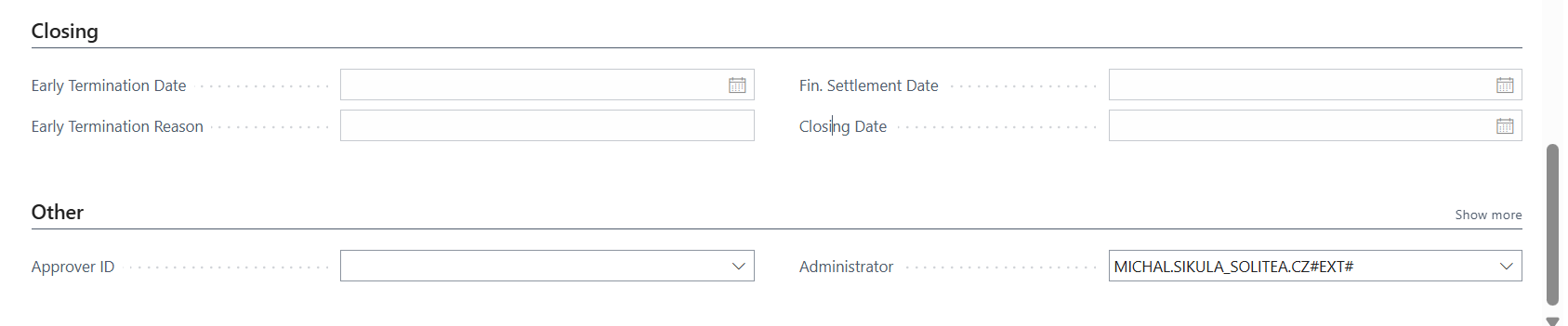
In section Closing are saved information about Early Contract Termination.
-
In section other we can see Approver of the contract and Administrator.
Upper panel of Financing Card
-
Home

-
Complete Calculation
-
Complete Calculation button saves changes which were done within Financing Card, recalculates the Calculator, brings changes to the Payment Calendar and recalculates the Payment Calendar.
-
The Complete Calculation button is available on the Financing List and Financing Card. After pressing Complete Calculation, system perform a control whether there exist updated Abs/Rel values on the contract (in Calculator Lines). If there exist explicitly added value of rel and abs values, the message is displayed: “The Calculation function cannot be used because there are absolute or relative parts in the calculation lines. Recalculate the Contract via Calculation Lines.” This prevents absolute and relative values from being resete to default and keeps setup of Abs and Rel values.
-
If the Abs and Rel values in the calculator lines have not been changed in the contract, system continues to check the status of the contract:
-
If contract status >= Active, the message is displayed: "The detailed status of contract ... is ... Calculation update cannot be carried out." If Status < Active, the contract is recalculated. If user wants to recalculate active contract, it is possible through Calculator Lines > Finish.
-
-
Calculator lines
-
Via Calculator Lines it's possible to simulate unregular payments via absolute and relative parts. More info about Calculator Lines can be found in chapter Calculator Lines in OC Loans App .
-
-
Change Customer Wizard
-
Via Change Customer Wizard is possible to transfer contract on other customer. More info about how to perform this change can be found in chapter Contract Transfer in OC Loans App .
-
-
Change Financing Period Wizard
-
We are able to extend or shorten financing period on active contract. Process is described in this chapter Financing period change in OC Loans App
-
-
Change Financing Rate Wizard
-
We are able to increase or decrease Financing Rate Cost or Margin during contract life manually on single contract or by bulk process. Process is described in this chapter Financing rate change in OC Loans App .
-
-
Change Principal Wizard
-
We are able to modify Principal Amount on active contract via wizard Change Principal Wizard. Process is described in this chapter Principal amount change in OC Loans App .
-
-
Statistics
-
In Contract statistics are displayed summarized data of Total Principal, Total Interest, etc. and calculated important parameter called Net Profit on the Contract ("Total Interest" / (("Financing Rate - Margin" + "Financing Rate - Cost") / "Financing Rate - Margin")) + ("Total Insurance" * (1 - financingProduct."Insurance Cost %" / 100)) + ("Total Services" * (1 - financingProduct."Service Cost %" / 100))
-
-
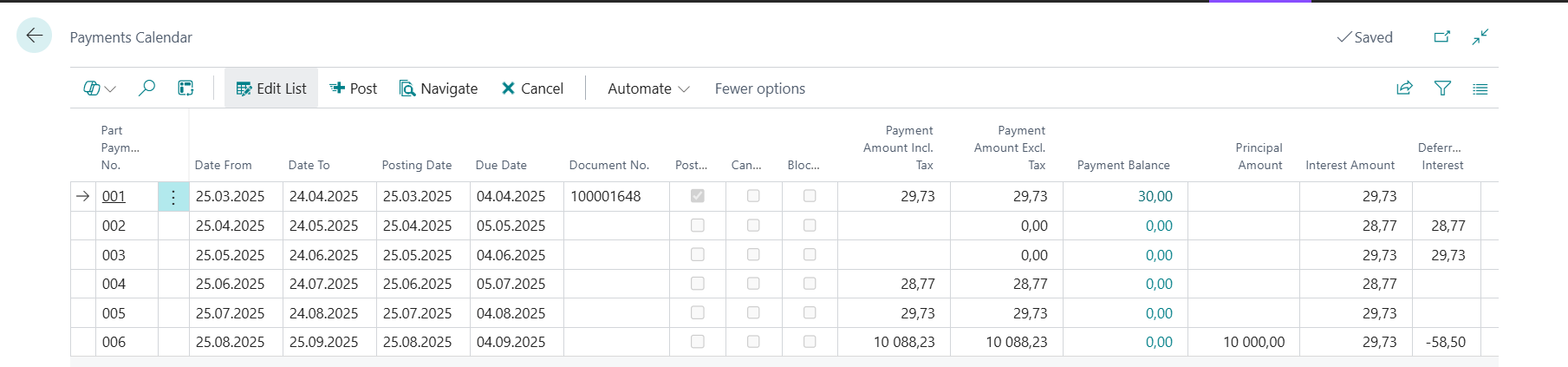
Payment Calendar

-
The functions Post, Cancel are available in case Contract has status Active, otherwise not. Navigate button shows summary of posting document. Analysis mode is described on Microsoft Learn page Analyze list page and query data using data analysis - Business Central | Microsoft Learn (without guarantee).
-
Fields in Payment Calendar:
-
Part Payment No.
-
Payment Sequence No. (Three-Digit)
-
The Down Payment is number 000
-
Installments subsequently with an increment of +1
-
-
Date From
-
Start of Payment Period
-
Fills the system automatically
-
For First Payment=Contract Calculation Start Date
-
-
Date To
-
End of Payment Period
-
Fills the system automatically
-
It is determined in relation to the periodicity of the installments
-
-
Posting Date
-
Fills the system automatically according based on setup Part Payment Due Date (At the begging or At the end)
-
-
Document No.
-
system fill in automatically when an installment is posted
-
document number under which the payment was posted
-
-
Posted
-
system fill in automatically when an installment is posted
-
-
Canceled
-
system fill in automatically when posted installment is canceled
-
-
Payment Amount Incl. Tax
-
Fills up the system automatically
-
Installment value to be paid, sum of all installment items
-
-
Payment Amount Excl. VAT
-
Payment Amount Excl. VAT= Principal + Interest + Simple Insurance + Simple Fee
-
-
Payment Balance
-
System fill in automatically, it is payment balance value showing Balance of the given payment from Customer Ledger Entries
-
When clicked, an overview of Customer Ledger Entries is opened with a filter for the given document number

-
-
Principal Amount
-
Principal payment in the given monthly payment
-
-
Interest Amount
-
Interest payment in the given monthly payment
-
-
Insurance Amount
-
the value is calculated evenly to every installment from the contract header
-
-
Service Amount
-
the value is calculated evenly to every installment from the contract header
-
-
Principal Tax Amount
-
VAT amount calculated from Principal Amount
-
-
Interest Tax Amount
-
VAT amount calculated from Interest Amount
-
-
Insurance Tax Amount
-
VAT amount calculated from Insurance Amount
-
-
Service Tax Amount
-
VAT amount calculated from Service Amount
-
-
Principal Balance (Beginning)
-
Calculated using calculation lines
-
-
Principal Remaining
-
Calculated using calculation lines
-
-
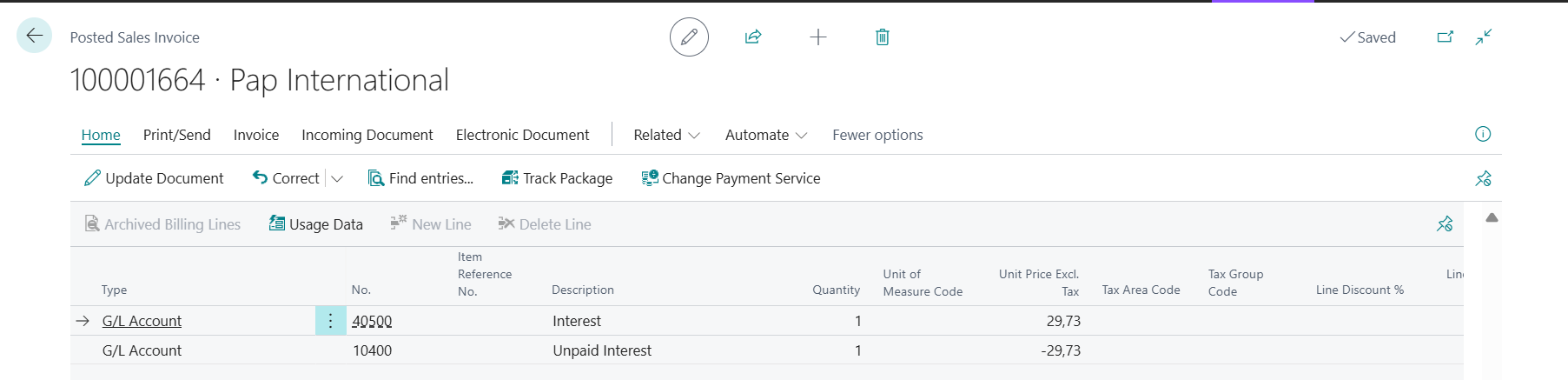
Deferred Interest
-
Deferred interest is possible for Interest Calculation Model
-
It means when interest payments of a loan (with Interest Calculation Model) are deferred during a specific period of time. You will not pay any interest as long as your entire balance on the loan is paid off before this period ends.
-
To have Balance = 0 on the line, you must check Reverse Sign = Yes in OneCore Posting Setup
-
-
Rounding Difference Amount
-
it is displayed in case Principal Amount + Interest Amount ≠ Payment Amount

-
-
-
-
Note:
In case there are all payments invoiced in payment calendar and user clicks on button Complete Calculation, payment calendar cannot be recalculated. Instead, there is displayed message: “There must exist at least one line where Rel<>0.” In case of interest model: “Number of payments not invoiced is lower than 1.”
-
Contract Documents

-
If documents are defined for a given Legal Form in OneCore Setup, then OC will copy those documents for the calculation/contract that have:
-
In the Legal Form Filter the same value as the Customer's Legal Form
-
Automatically Assign to Contract = Yes
-
have Valid From=< workdate <=Valid To
-
We fill here just some important dates and if it was Shipped and Approved. Approved ID, Approved Date and Approved Time are filled automatically.
-
Some more information about the setup is described here OC Loans App - Setup .
-
-
Guarantees
-
A guaranteed loan agreement may be made when a borrower is an unattractive candidate for a regular bank loan. It is a way for people who need financial assistance to secure funds when they otherwise may not qualify to acquire them. And the guarantee means that the lending institution does not incur excessive risk in issuing these loans. We are able to select any type of guarantee types, as the code list can be defined by users in OC Loans App - Setup . More about Guarantees can be found in chapter Guarantee creation in OC Loans App .
-
-
Attachments
-
For attaching necessary documents
-
-
Reports
-
Quick access to printed versions of some important documents related to contract, like Offer, Contract and Payment Calendar. With clicking on Create Attachment button will be reports saved into FactBox under Attachments.
-
more info in Customer reports in OC Loans App
-

-
Change Status
-
With status change process we are able to modify the life cycle of the contract. More about status change is described in chapter Contract activation in OC Loans App .
-

-
Actions
-
Create Invoice
-
For creation of individual invoice
-
-
Create Credit Memo
-
Usually used for Creation of Withdrawal slip, where Loan Principal Amount appears in Line.
-
-
Print
-
For printing documents as Offer, Contract, Payment Calendar
-
-
Copy Calculation
-
To create a calculation similar to the existing one, you don't have to create new calculation from scratch. In status Calculation is available function Copy Calculation and system will automatically create the copy of calculation under new number with all parameters. From this copy it's possible to create another copies.
-
-

-
Related
-
Dimension
-
Contract Change Histor
-
Based on Change Log Setup is possible to define which contract changes will be recorded under Contract Change History table. y
-
-
Contract Transfer History
-
After changing Customer on active contract is created record in table Contract Transfer History which includes data about Original Customer, Continuer, Transfer Request Receipt Date and Transfer Reason
-
-
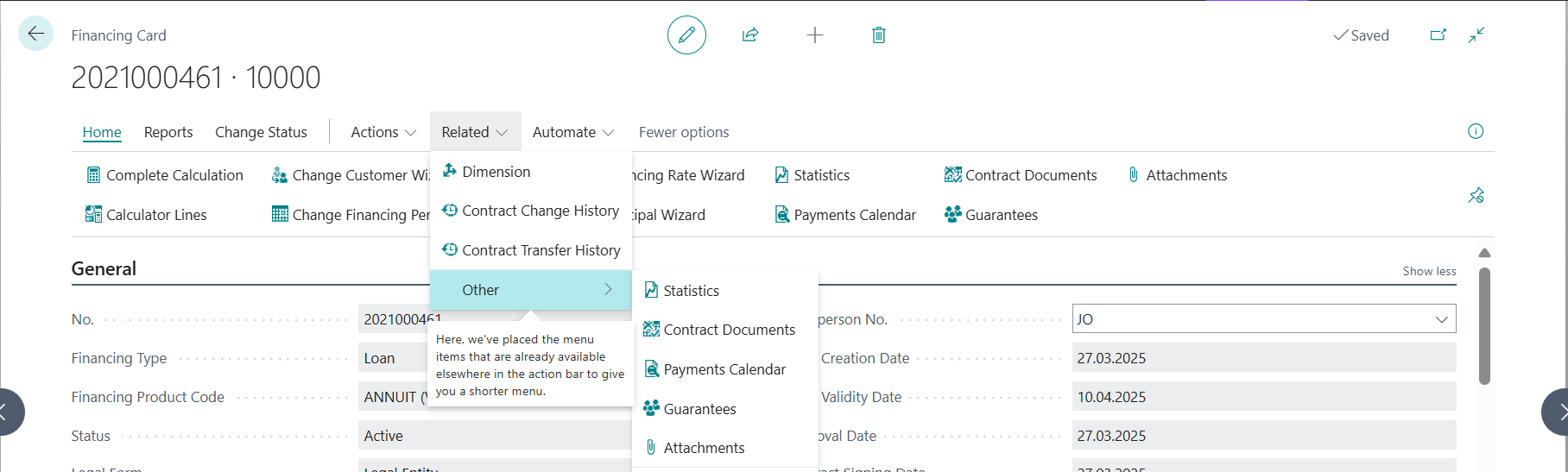
Other
-
List of some functions which are available in other tabs
-
-
-
Automate
-
more info here Power Automate Integration overview - Business Central | Microsoft Learn (without guarantee)
-
