
It's possible to do basic setup of Financial App in section OneCore Setup. In OneCore Setup you manage the basic conditions and terms such as object source, posting, guarantee types, contract documents, branches, contract transfer reasons, sale codes, numbering, non-working days, public holidays and withdrawal slips.
The setup could be done
-
by the wizard (function Setup>OneCore Setup Wizard) - recommended to use for initial setup of the application
-
or manually (function Setup>OneCore Setup) which is described lower
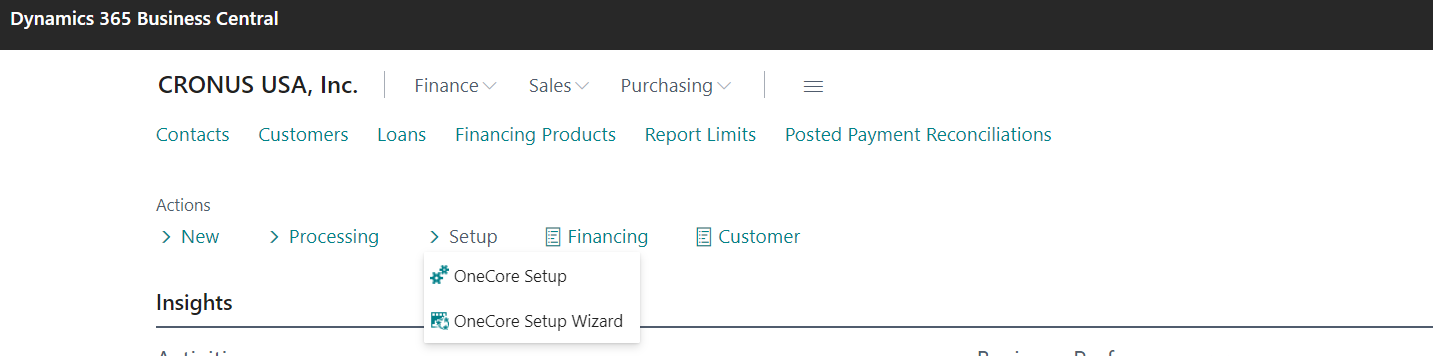
OneCore setup (menu section)
-
OneCore Posting Setup
-
The posting setting is described here.
-
-
Guarantee types
-
The list of Guarantee types used in financing contract
-
All guarantees which are set up in this section, you can choose during the process of the Financial Leasing creating
-
New types are added by button New
-
Usage of guarantees is described here:Guarantee creation in OC Financial Leasing App
-
-
Contract Documents
-
It is possible to set up the process of automatic assigning required contract documents to particular Legal Form
-
List of documents can be automatically assigned to contract (via Checkbox Automatically Assign to Contract) based on selected Legal Form (Legal Entity, Individual Non-Entrepreneur, Individual Entrepreneur)
-
We can setup in which contract status is needed to approve the contract and system notifies user during contract status change in case document was not approved yet
-
Manually can be added into contract only documents that meet the filter of Legal Form, some more description is in Financing Card in Financial Leasing App
-
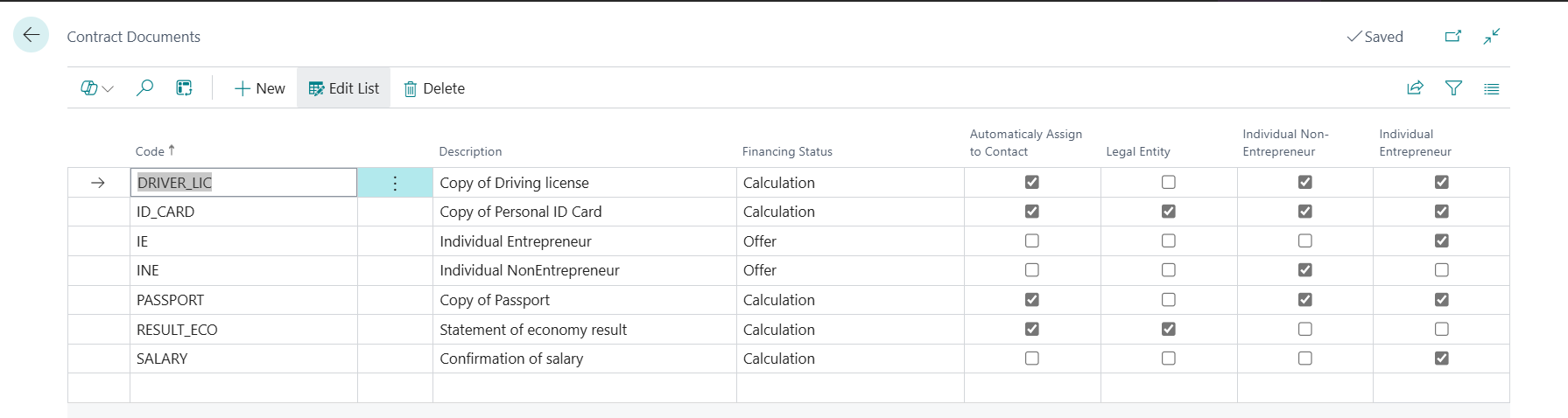
-
Branches
-
The list of Internal or External branches of your company.
-
-
General Terms and Conditions
-
Specifies general terms and conditions of the Financial Leasing.
-
-
Contract Transfer Reasons
-
The contract could be transferred from different reasons (as insolvency, takeover, death,..)
-
There is the list of these reasons
-
The new one could be added by the button New.
-
-
Standard Sale Codes OneCore
-
Code used to categorize or identify a specific type of transaction
-
Mandatory field during individual invoice creation
-
OneCore setup
-
General
-
Contract Dimension Code
-
To set up Dimension for Financing Contract e.g. CONTRACT
-
-
Default Offer Validity Period
-
How long is the offer valid
-
-
Initial Fee Payment Terms
-
Default Payment Term for the Initial Fee Invoice
-
-
Initial Fee Standard OneCore Sales Code
-
Default Sales Code for the Initial Fee Invoice
-
-
Object Source
-
Item
-
Selection of Item will take list of available Items to be used for Financial Leasing
-
-
Fixed Asset
-
Selection of Fixed Asset will take list of available Fixed Assets to be used for Financial Leasing
-
-
-
-
Numbering
-
The numbering of Contracts allowing to use default values or change the numbers codes in Calculation status and Guarantees for contract.
-
It is done in "No. Series" table where can be created new series number for documents by button New.
-
It is necessary to set up numbering by making check of the button Active
-
Numbering of documents (No. Series) can be done automatically by the system - Default Nos. or manually Manual Nos..
-
Starting No.
-
It is used for first document number
-
If the numbering is "Default Nos" the system will automatically increments the document number by one.
-
-
Ending No.
-
If it is filled the system notifies you of the ending series.
-
-
-
Contract Transfer
-
It is possible to define Transfer Fee Payment Term and Transfer Fee Standard OneCore Sales Code in case of Contract Transfer.
-
For more information follow How to work with contract changes.
-
-
Non-working days
-
The system offers you the possibility to setup:
-
working and non-working days
-
public holidays
-
-
It has an effect on calculation of Due Date and Posting Date in Payment Calendar
-
Posting Date and Due Date will be calculated as first working day after regularly calculated date
-
To set up non-working days, boolean must have value YES
-
To set up holidays, choose exact day from the calendar and write short description (as 1/1/2022 - New Year)
-
If you need follow the video for the setup of non-working days How to set up working days, public holiday.
-
-
Posting
-
Allow Non-Standard Posting
-
If Allow Non-Standard Posting = No
-
system controls if "Payment Balance" is equal to "Payment Amount Incl. VAT", in other words if all figures are rounded the same way. Following fields are considered:
-
Payment Amount - Financial Product - Total Rounding Code
-
Balance Amount - General Ledger Setup - Inv. Rounding Precision ($)
-
Principal Amount, Interest Amount - Financial Product - Part Payment Rounding Code
-
Insurance - Financial Product - Insurance Rounding Code
-
Service - Financial Product - Service Rounding Code
-
Anuit in Calculator Lines - Financial Product - Calculation Rounding Code
-
-
In case "Payment Balance" is equal to "Payment Amount Incl. VAT" system will not allow us to:
-
Post an installment (e.g. in case total rounding code = 1 has different setup as other codes 0.001) and is displayed an error:
-
“Amount including Tax must be equal to xxx in Sales Heather: Document Type = Invoice, No = xxx. Current value is xxx.”
-
-
Cancel an installment (e.g. if there exist different setup of rounding in General Ledger Setup = 1 compared to Financial Product Code - all rounding are set to 0.01) and is displayed an error:
-
“Payment Balance must be equal to xxx in Financing Line: Financing No = xxx, Line No. = xxx. Current value is xxx.
-
-
-
-
If Allow Non-Standard Posting = Yes
-
system allows to post an invoice or credit note even "Payment Balance" is not equal to "Payment Amount Incl. VAT" due to different rounding
-
Rounding setup has direct impact on calculated amount of Payment Balance and Payment Amount
-
An error message during posting and cancelling an installment is changed to a question:
-
“The payment amount is not equal to the payment balance. Do you want to continue?" which allows to post and cancel an installment after confirmation.
-
-
-
-
Payment Terms Source for Individual Invoices
-
The possibility to choose whether the individual invoice reflects a payment term from the customer or from the contract
-
-
-
Posting Cancellation
-
In this part define the Custom Charge Statement text which will appear on the credit memo.
-
This text will then appear on the posted credit memos in Lines (column Description) automatically.
-
-
Proper Termination
-
Setup for proper termination and how it works is described here.
-
-
Reporting
-
Here you can choose which reports (Offer, Contract, Payment Calendar) you want download by button Create Attachments on specific contract and save into Factbox/Attachments.
-
-
Withdrawal Slip
-
usage for Loans
-
Follow up: