In Rental App are 3 ways how to create rent item:
-
create Rent Item from Item
-
create Rent Item from Fixed asset
-
create Rent Item manually
Before creating Rent Item from Item or Fixed asset must be Item or Fixed Asset already created. For more information see How to create Item and How to create Fixed Asset.
-
In section Actions click on button Rent Item.
-
Empty Rent Item Card is displayed and we are able to create new Rent Item by 3 options:
-
From Item
-
Search among Items in field Item No.
-
Rent Item is possible to create if Rent Item = Yes (Item Card) and Max. Rent Item Count ≤ Quantity on Hand
-
-
From Fixed Asset
-
Search among Fixed Assets in field Fixed Asset No.
-
Rent Item is possible to create if Rent Item = Yes (Item Card) and Rent Item Created = No
-
-
From scratch
-
All fields must be filled manually
-
-
-
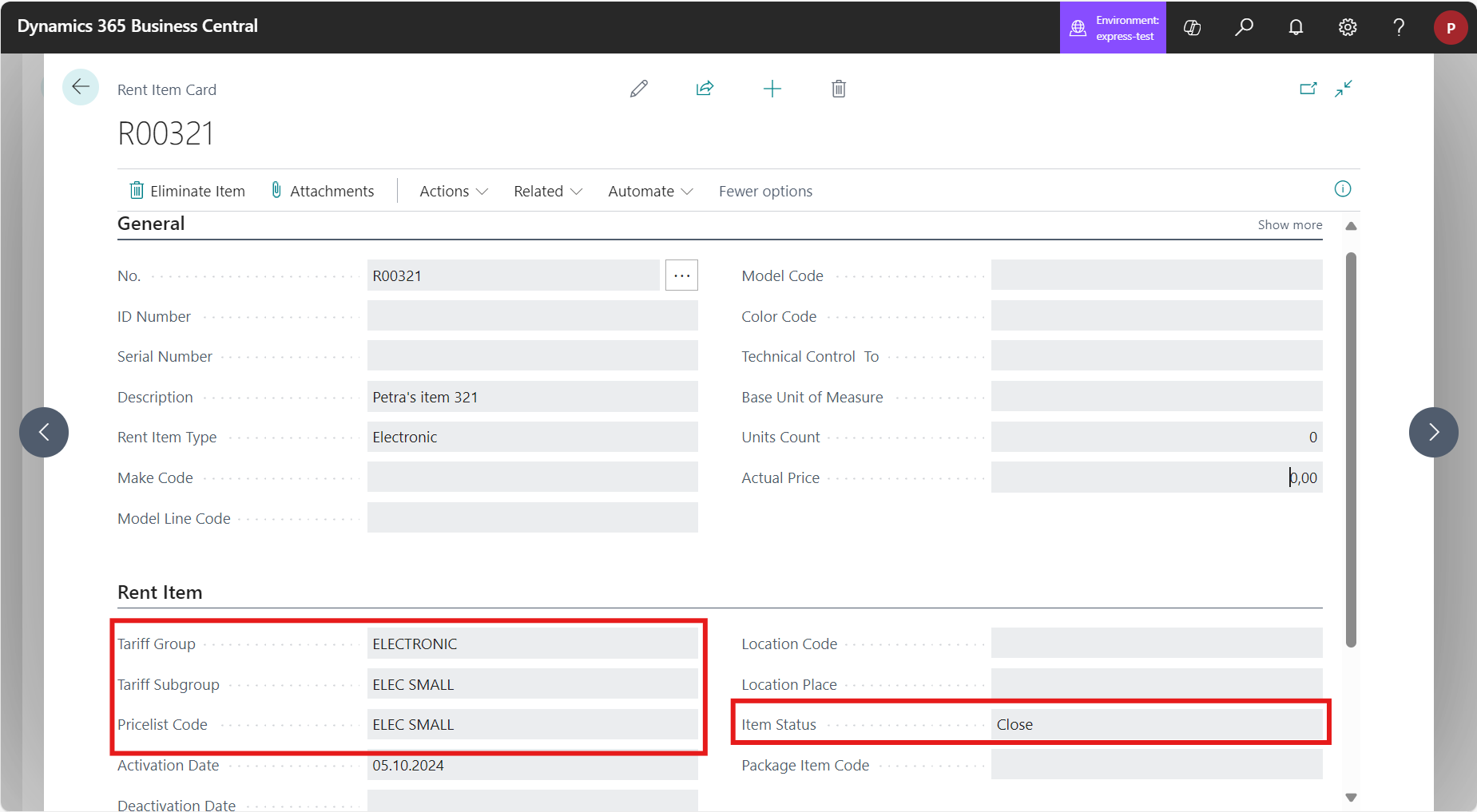
In section General is generated No. of Rent Item automatically according to numbering (setup in Rent Module Setup)
-
For new Rent Item must be selected Tariff Group, Tariff Subgroup, Pricelist Code (described in Pricelist setup in OC Rental App ) and Activation Date
-
Item Status
-
read-only field which is showing the reflection of what is happening with Rent Item on current Work Date.
-
There are several options: "Not Assigned", "Reservation", "Cancel Reservation", "Rent", "Return", "Cancel Rent", "Close", "Invoiced", that are described in chapter Rent Items in OC Rental App
-