
In this chapter is described the rent process. In case you want to make reservation before rent, see How to create Reservation.
Creation of new Rent
For creating new rent click on icon +Rent situated in section Actions or use function Item Utilization.

Then you will see Rent Card where you fill all important information about rental. In case Monthly rent is turned on, the price of rent item is changed from daily tariff to monthly tariff in amount set in price list.
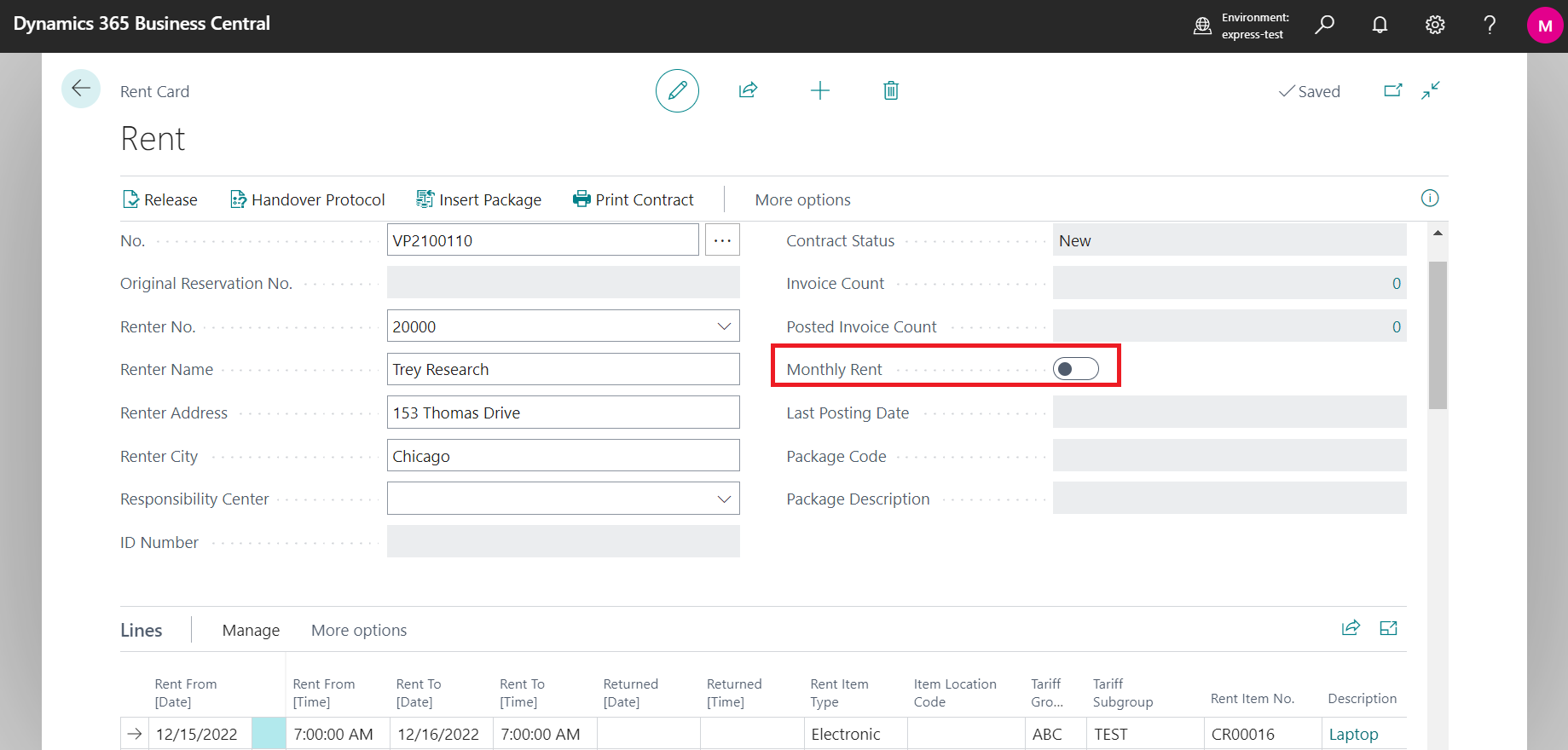
In status Rents - New we are able to directly change amounts in fields as Tariff [Month], Tariff [Day] and Tariff [Hour]. The system then recalculates Rent Amount with new tariff values and change will be reflected in documentation and invoicing as well.
Handover Protocol of the Rent Item
When the customer has decided to take over the rent item, we are able to record additional information about this in Handover Protocol.

In part General are summarized all general information about rental.
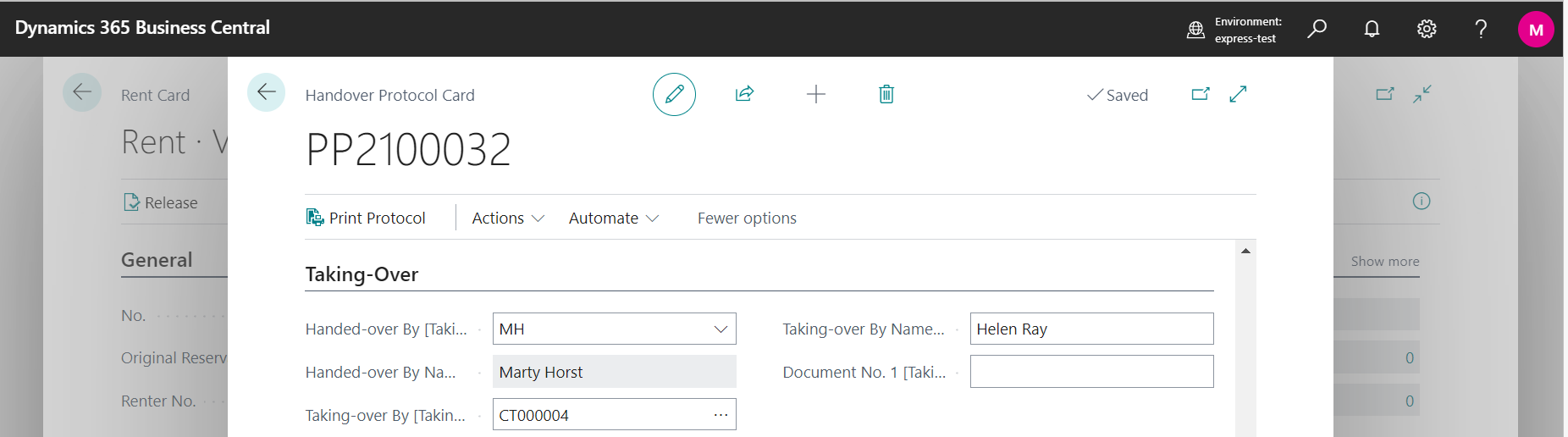
In section Taking-Over can be specified who handed over the item and who took over the item. Select person from List of Employees into field Handed-over By. As Taking-over By can be chosen Contact Person belonging to Renter. Details about Handover Protocol can be found here: Handover Protocol in OC Rental App
Release of Rent Item
Once Handover Protocol is filled, we can officially rent the rent item by button Release available in upper panel of the Rent Card.

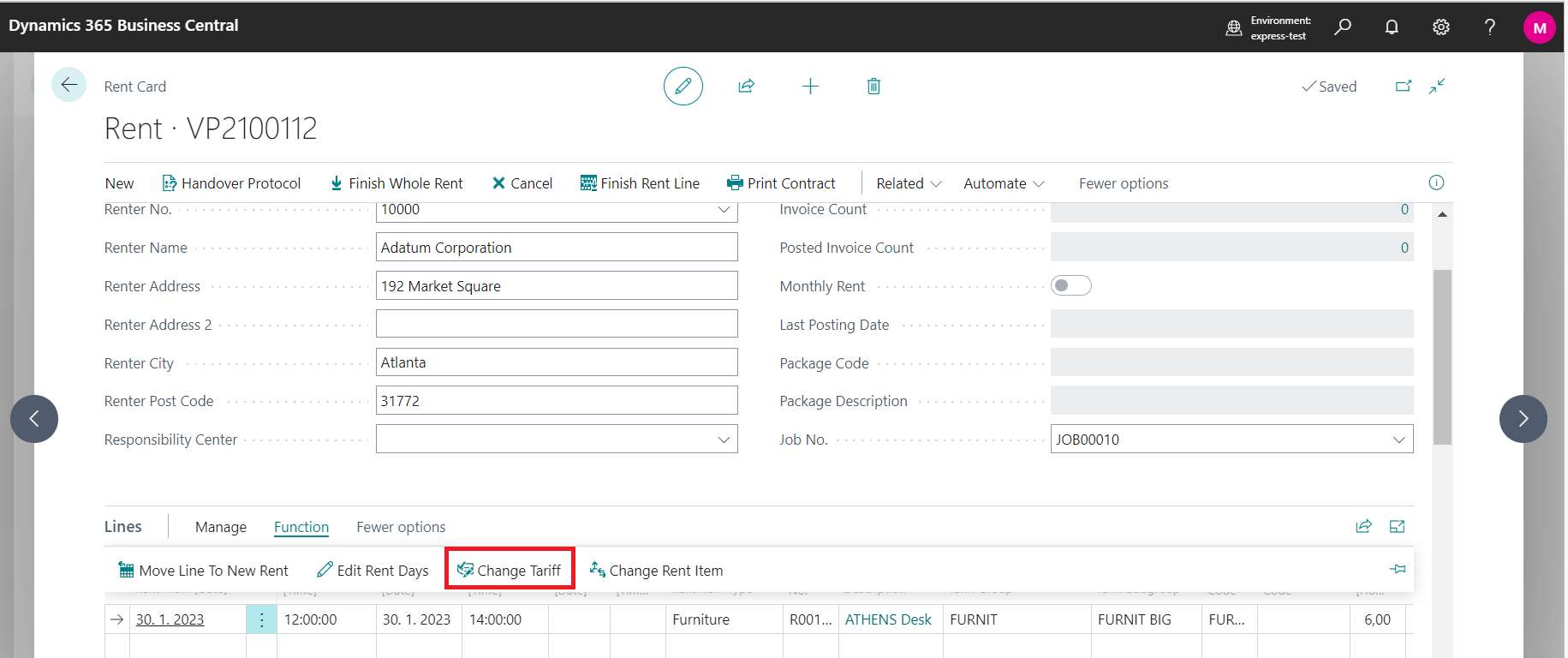
In status Rent - Released you can change the rent item amount anytime by using wizard named Change Tariff. Just enter Tariff Change Date and Tariff [Day] and the system will calculate with the new tariff.
Handover Protocol update by returning an item
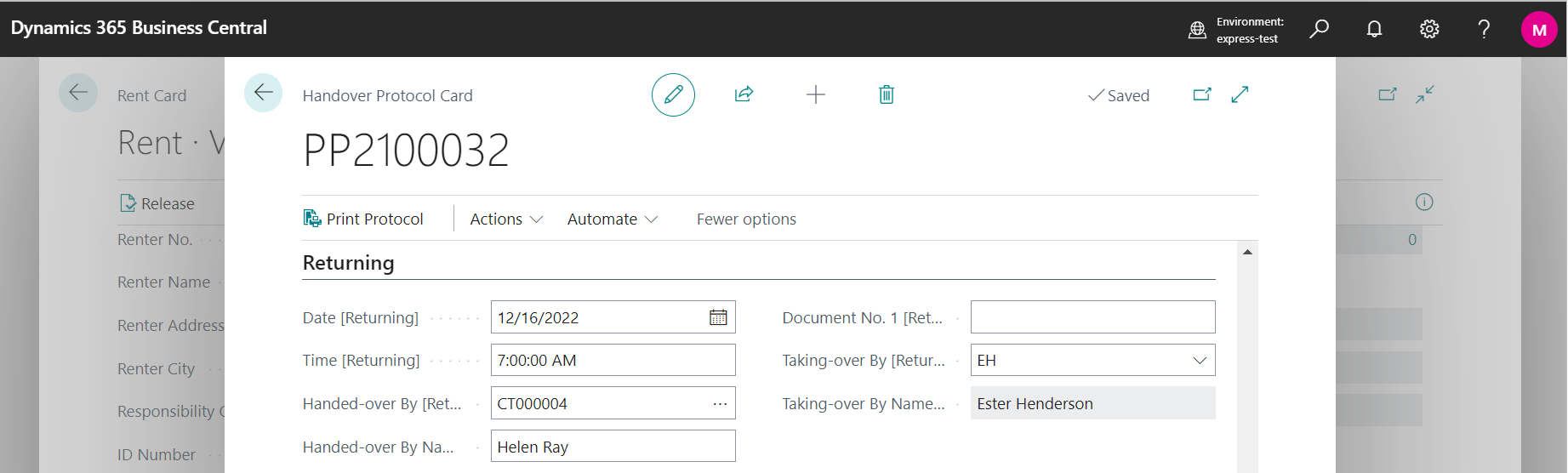
Once the item is returned by Renter we are able to record information about returning date and time, handed over by and taking over by into Handover Protocol into part Returning.
Evidence of Rent Item Damages
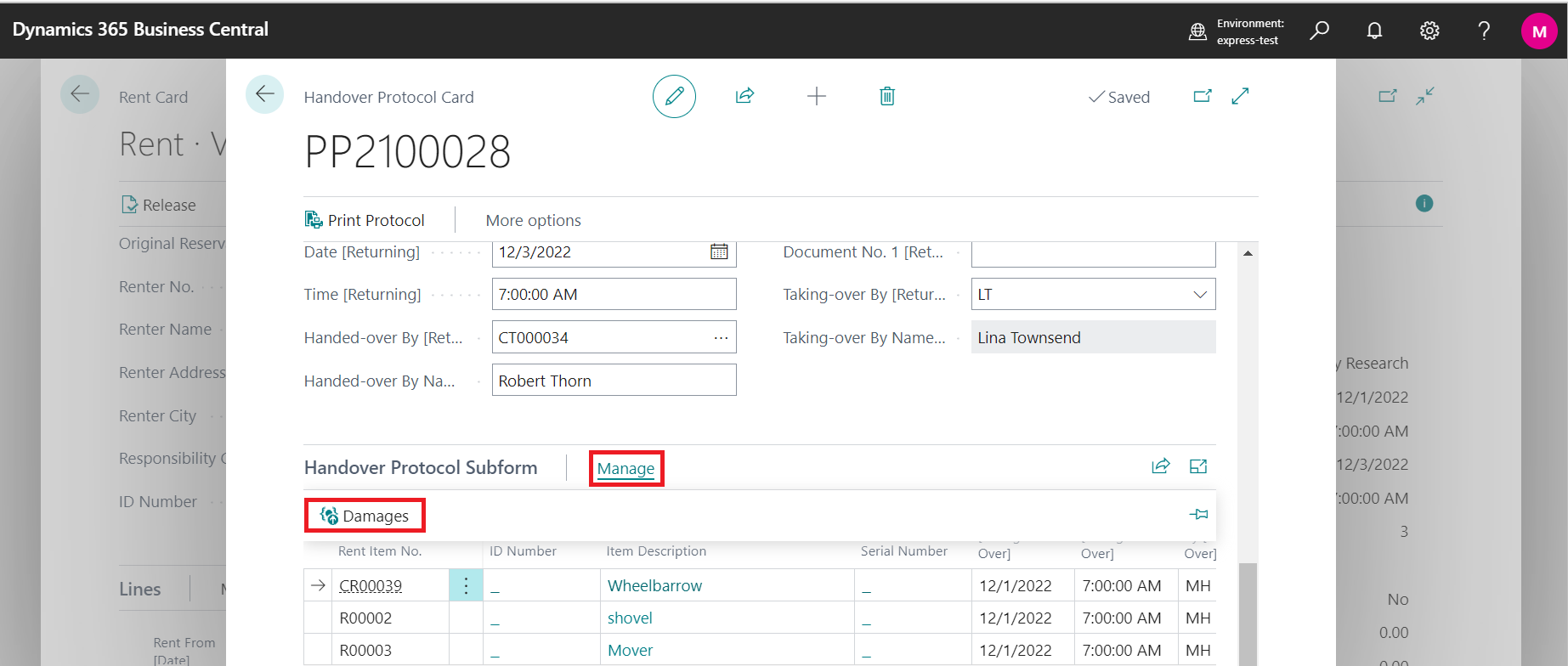
We are able to evidence damages via Handover Protocol. In lower part of the Handover Protocol Card is available Handover Protocol Subform where is placed button Damages. If we tick that the damage is Active then during next rental of this rent item system notify us about an active damange. Damage is also reflected into damaged rent item (on Rent Item Card/Related/Damages)
Finish Whole Rent
When you want to finish the rent of rent item, go to section Rent - Released and choose the rent. Then go to Process and click on Finish Whole Rent.

Invoicing of the rent
At the end of the rent, we invoice the customer. Go to section Rent - Finished, open concretely rent, click on button New and choose Create Invoice (or Create Fee if you want). You can also post it.

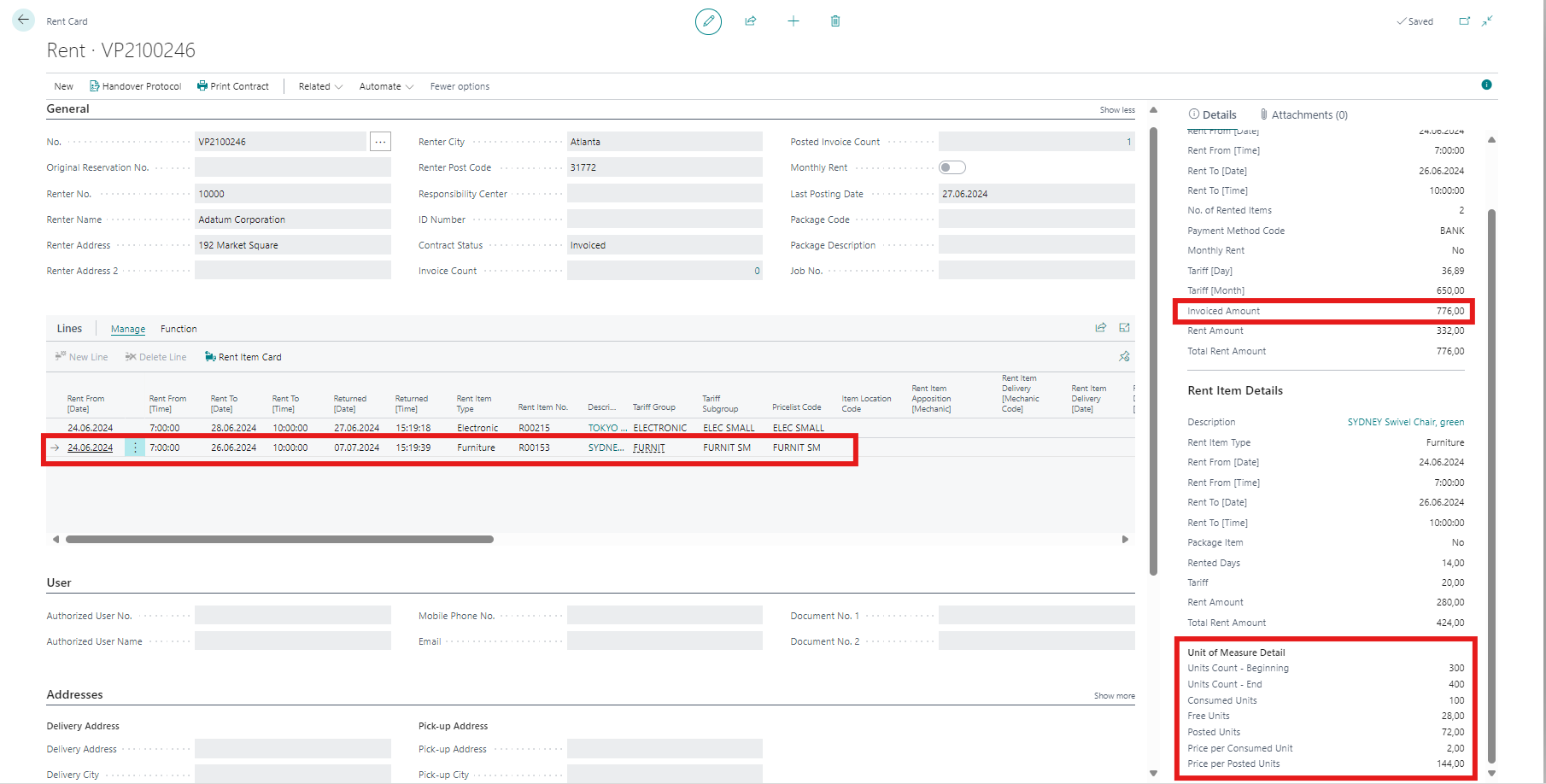
Posted invoiced amount is possible to check directly on Rent Card for all rent items. For particular item there is visible also some additional information for each rent line, e.g. free units, consumed units, etc.
Workflow, including detailed information about the Rental App is shown in the video: