
In Rental App you are able to send Invoices and Credit Memos to your customers in several ways.
Sending Invoices/Credit Memos from Customer Card
-
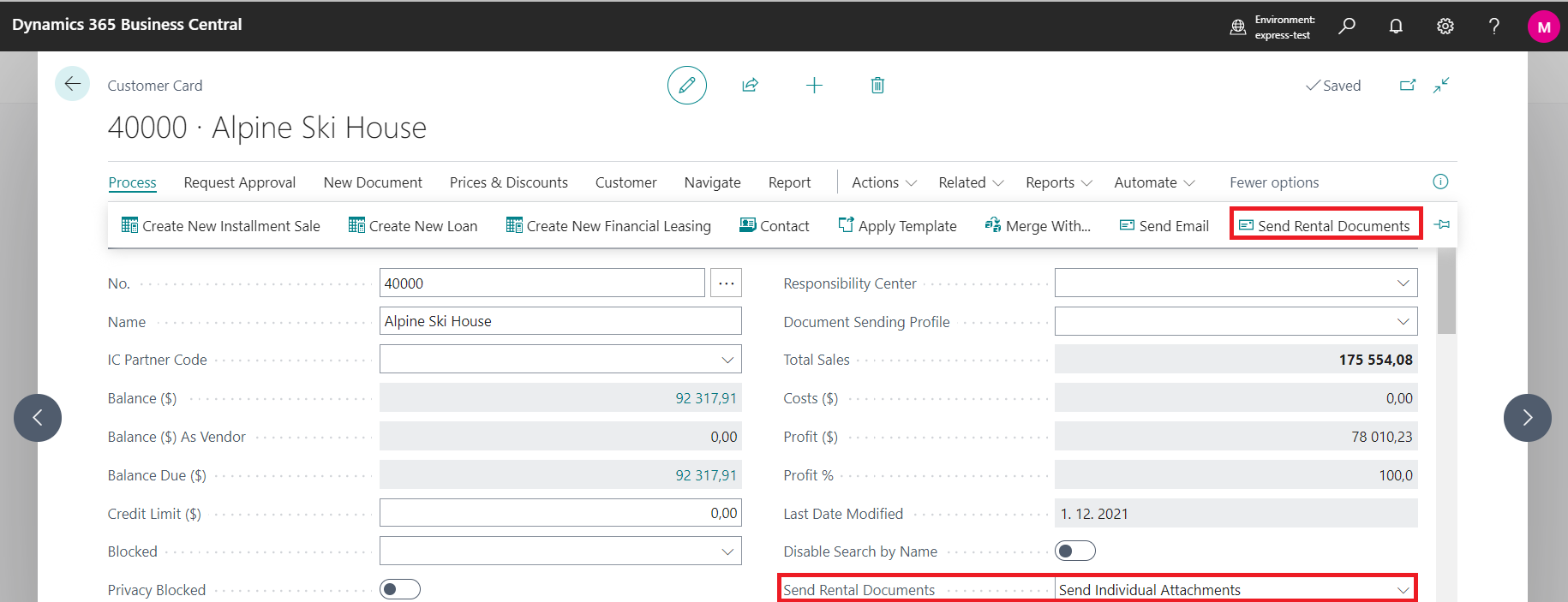
If you want to send invoices to single customer, go to the Customer Card/Process/Send Rental Documents
-
There must be 2 conditions met to success the process:
-
In Send Rental Documents field must be a value
-
In case you leave field Send Rental Documents empty, the system will not send invoices to this custome
-
There are 2 options:
-
Send Individual Attachments
-
Invoices will be sent as individual PDF files within one email
-
-
Send ZIP Attachment
-
All invoices will be sent within one zipped file
-
-
-
-
Status of the invoice must be “To Send”
-
The system sends only posted invoices that have a status To Send
-
To Send status have only those invoices, which are posted.
-
-
Sending Invoices/Credit Memos by Mass Document Sending
-
Invoices and Credit Memos can be sent through mass task, which can be started manually or from job queue entries:
-
Sending manually
-
On the main page search task Mass Document Sending
-
In the displayed window, enter:
-
Customer identification, if the field No. will stay empty, invoices will be send to all customers
-
Method of sending (Send Individual Attachments or Send ZIP Attachment).
-
-
The system sends only posted invoices that have a status To Send. To Send status have only those invoices, which are posted. In case you leave field Send Rental Documents on Customer Card empty, the system will not send invoices to this customer.
Sending Invoices/Credit Memos from Job Queue Entries
-
To send invoices automatically and regularly, on the main page search Job Queue Entries.
-
Create a new entry by clicking on button New.
-
In field named Object Type to Run choose Report
-
Into field Object ID to Run enter the number of report - 70502807 (Mass Document Sending).
-
-
Define the Earliest Start Date/Time which specifies the earliest date and time when the job queue entry should be run.
-
In section Recurrence define which days will be running this job
-
If you want invoices to be sent regularly, e.g. each month, fill in the Next Run Date Formula field.
-
In section Process use following actions:
-
Set Status to Ready
-
click a button to run a bulk task that will run based on the conditions you specify
-
-
Set On Hold
-
click the button to pause the bulk job
-
-
-
If sending invoices fails, the reason for the failure will be indicated in under the button Log Entries.
-
More about Job Queue Entries can be found on Microsoft Learn Schedule jobs to run automatically - Business Central | Microsoft Learn (without guaranty)

We are able to change the status of the invoice. On Posted Sales Invoice select Process/Update Document/Rental Send Status.
Follow up:
How to create reminder in general