This chapter describes the reminder creation in detail. If you want to check the general usage, please go to How to create reminder in general.
As Reminders are standard Microsoft Business Central function, some more information about Reminders can be found on Microsoft Learn (without guarantee):
Send reminders to customers in Dynamics 365 Business Central - Training | Microsoft Learn
Set Up Reminder Terms and Levels - Business Central | Microsoft Learn
Reminders are the possibility how to notify customer about overdue items. Firstly it is necessary to create Reminder Term and assigned it to all relevant customers. Reminders could be calculated also with interest charges according to Reminder Term set up.
Reminder creation
It could be created :
-
Manually
-
By button Reminders/Home/New
-
Manual creation is used only if the reminder is needed for a single customer
-
Steps:
-
Select relevant customer
-
Select Posting and Document Date
-
To which date are the charges calculated
-
-
Check the Reminder Term and Finance Charge Term
-
Make sure that there is assigned Reminder Term Code
-
To calculate interest assign also Finance Charge Term to the customer.
-
Populated data can be changed manually on Reminder Card.
-
-
Check the Due Date for issued Reminders
-
Prepare reminder lines and calculate charges by task Suggest Reminder Lines in Reminder menu (Reminders/Home/Suggest Reminder Lines)
-
The system offers overdue items and calculate the charges according to the Reminder and Finance Charge Term and selected parameters.
-
Lines can be edited or deleted from the Reminder Lines.
-
The created Reminder can be issued (menu Reminders/Home/Issue).
-
-
-
-
Automatically
-
By task Reminders/Home/Create Reminders
-
Typically use this task to generate reminders for all customers
-
Window includes following filtering
-
Posting Date
-
Specifies the date that will appear as the posting date on the header of the reminder that is created by the batch job.
-
-
Document Date
-
Specifies the date that will appear as the document date on the header of the reminder that is created by the batch job. This date is used for any interest calculations and to determine the due date of the reminder.
-
-
Only Entries with Overdue Amount
-
Specifies that the batch job will only insert open entries that are overdue for payments and invoices. Overdue open entries have a due date that is before the document date on the reminder.
-
-
Include Entries on Hold
-
Specifies if you want to create reminders for entries that are on hold.
-
-
Use Heather Level
-
Specifies if the batch job will apply the condition of the reminder level to all the reminder lines.
-
-
Other filters, like Customer filter, Cust. Ledger Entry filter
-
-
The system creates the Reminders with reminders lines. You can edit lines and Issue.
-
-
Reminder Term
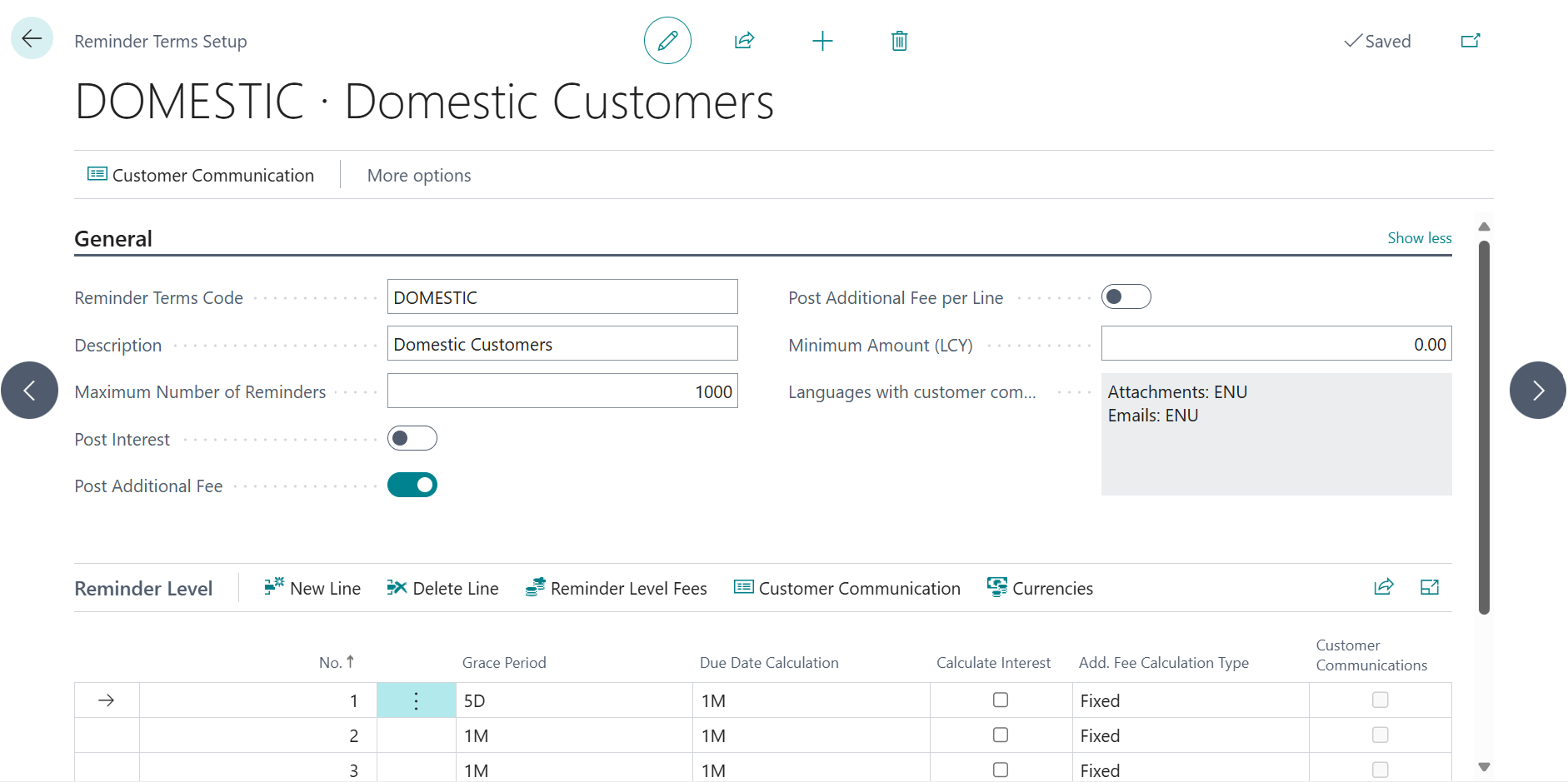
Reminder Term Setup specifies how Reminders will be calculated. You can set up unlimited levels of reminders, calculate interests, add additional fees to reminder or to the every reminder line. Reminder Term must be assigned to every relevant customer. It is necessary to fill some information about the reminder term if you want to create customer reminder.
-
Reminder Terms Code
-
Specifies a code to identify this set of reminder terms.
-
-
Description
-
Specifies a description of the reminder terms.
-
-
Maximum Number of Reminders
-
Specifies the maximum number of reminders that can be created for an invoice.
-
-
Post Interest
-
Specifies whether to post any interest listed on the reminder to the general ledger and customer accounts.
-
-
Post Additional Fee
-
Specifies whether to post any interest listed on the reminder to the general ledger and customer accounts.
-
-
Post Additional Fee per Line
-
Specifies whether to post any additional fee listed on the reminder to the general ledger and customer accounts.
-
-
Minimum Amount (LCY)
-
Specifies whether to post any additional fee listed on the finance charge memo to the general ledger and customer accounts when the memo is issued.
-
-
Languages with customer comment
-
Specifies the languages with customer communications for this reminder. The list of languages with attachment texts and email texts is displayed in the format Attachments: <list of languages with attachment texts>, Emails: <list of languages with email texts>.
-
Reminder Level
-
New Line
-
Delete Line
-
Reminder Level Fees
-
Reminder Level Fee Setup
-
Calculate Interest
-
Specifies whether to calculate interest on the reminder lines.
-
-
Additional Fee Calculation Type
-
Specifies how the additional fee is calculated.
-
Fixed: The Additional Fee values on the line on the Reminder Levels page are used.
-
Dynamics Single: The per-line values on the Additional Fee Setup page are used.
-
Accumulated Dynamic: The values on the Additional Fee Setup page are used.
-
-
-
Fee per reminder (LCY)
-
Specifies the amount of the additional fee in LCY that will be added on the reminder.
-
-
Fee per line (LCY)
-
Specifies the line amount of the additional fee in LCY.
-
-
-
-
Customer Communication
-
Setup of Customer Communication per each level of reminder
-
Customer Communication include texts added to reminders documents and email text
-
-
Currencies
-
Additional fees per different currencies can be added
-
-
Reminder Level Lines
-
Setup for each reminder level is separated
-
No.
-
Specifies the number of the involved entry or record, according to the specified number series.
-
-
Grace period
-
Specifies length of grace period for this reminder level
-
The Grace Period field specifies the duration that must pass from the due date (or from the date of the previous reminder) before a reminder is created. This allows for a specified time frame in which no reminders will be sent, providing a buffer for the customer to settle their obligations.
-
-
Due Date calculation
-
Specifies how is calculated Due Date in Reminder
-
-
Calculate Interest
-
Specifies if the Finance charges would be calculated in Reminder or not
-
-
Add. Fee Calculation Type
-
Specifies how the additional fee is calculated.
-
Fixed: The Additional Fee values on the line on the Reminder Levels page are used.
-
Dynamics Single:The per-line values on the Additional Fee and Add. Fee per Line Amount setup page are used. You can set up different parameters according to the currency code and threshold Remaining Amount , set up percentage Additional Fee amount, Min or Max Additional Fee
-
Accumulated Dynamic: The values on the Additional Fee Setup page are used.
-
-
-
Customer Communication
-
Specifies whether the reminder level has customer communications. If the reminder level has customer communications, the field is set to Yes; otherwise, it is set to No.
-
For every reminder level it is possible to set up different Beginning Text and/or Ending text in Reminder Level menu/Customer Communicatin. There can be used Placeholders in Reminder Level Communication. Placeholders are described on Microsoft Learn page (no guarantee): Set Up Reminder Terms and Levels - Business Central | Microsoft Learn
-
-
-
Reminder example
Setup Reminder for overdue invoices for customer Adatum Corporation:
-
Open Reminder Terms
-
Change Max No. of Reminders to 3
-
Change Post Interest = YES
-
Change Post Additional Fee and Post Additional Fee per Line = YES
-
-
Opel Levels
-
In table create 3 levels (3 lines)
-
Grace Period will be 1 month in all levels
-
The Reminder Due Date will be 1 month in all levels.
-
1st level setup
-
Select Single Dynamic type of additional fee calculation
-
Calculate Interest will be not ticked because the charges will be calculated in 2nd, 3rd level
-
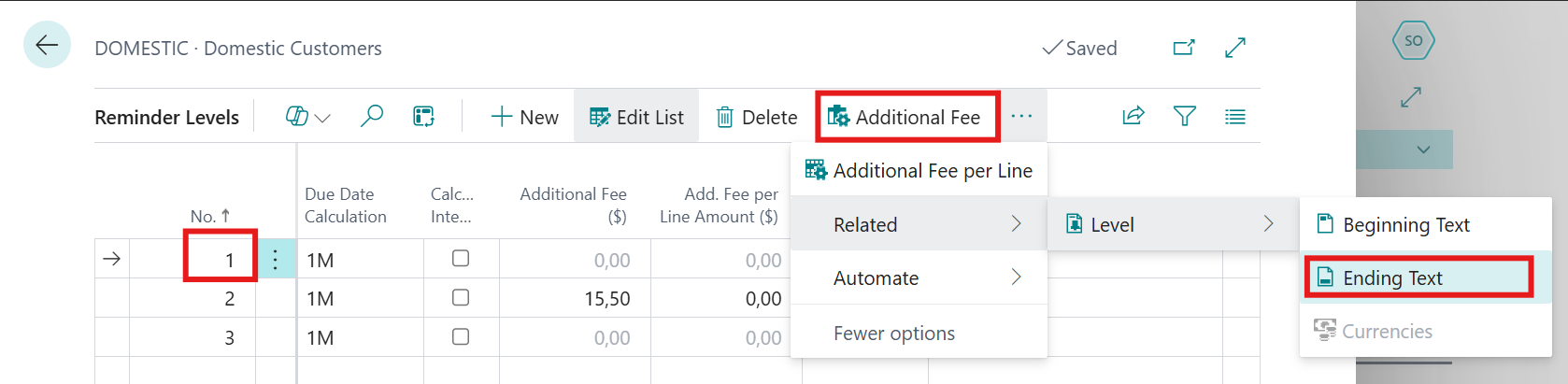
Open function Additional Fees and set percentage 0,2% as Additional Fee %, Min. Amount 7$ and Max. Amount 10$
-
Add Ending reminder text via Additional Fee/Related/Level/Ending Text to notify customer to pay.
-
-
-
2nd level setup
-
Select Fixed type of additional fee calculation
-
Change Calculate Interest to ticked because we want to calculate charges from 2nd level
-
Enter Amount of Additional Fee into column Additional Fee 15,5$.
-
In Ending text inform customer you will forward receivables to collection agency.
-
-
3rd level
-
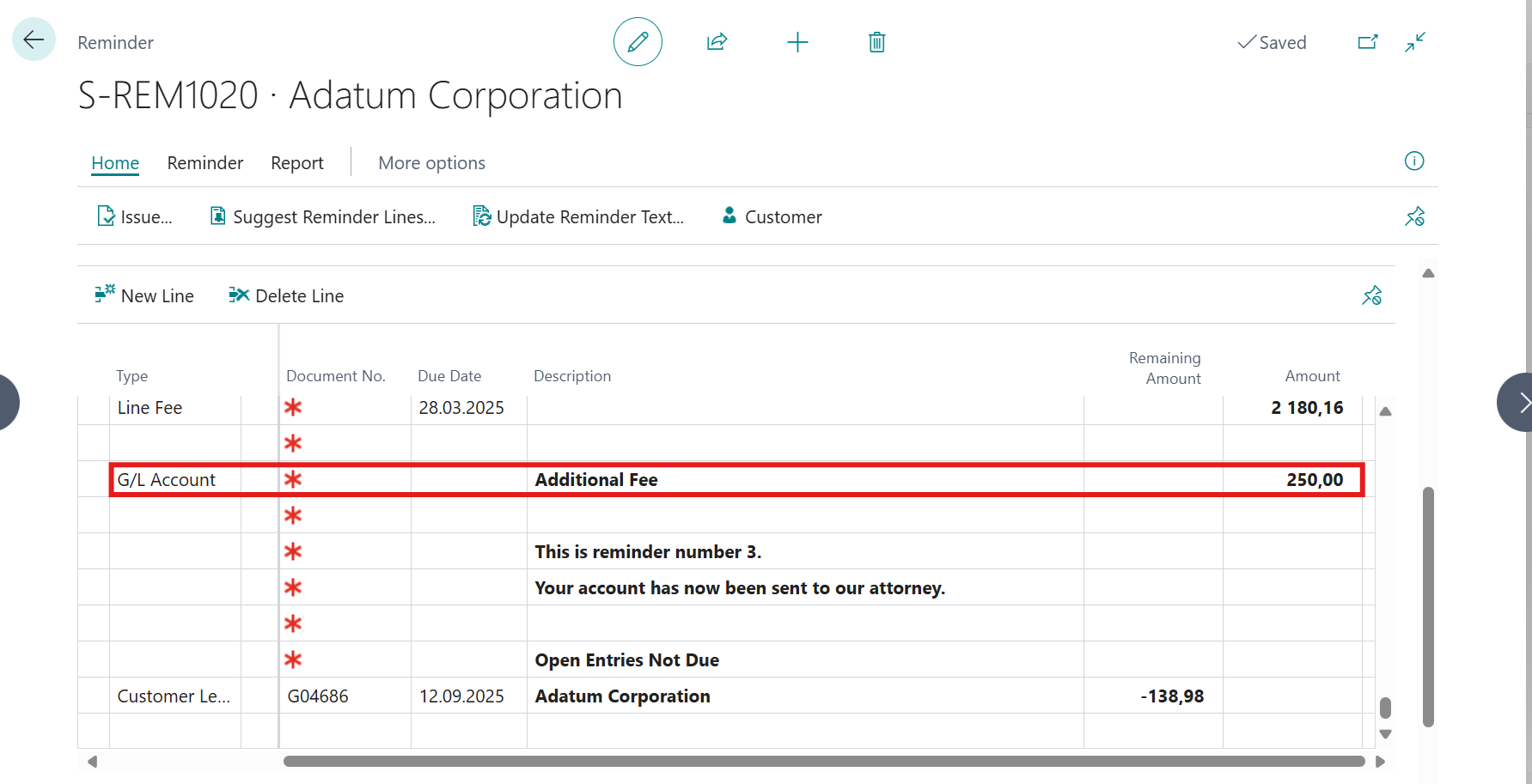
Additional Fee set to Fixed in amount 250$.
-
Change Calculate Interest to ticked because the charges will be calculated in 3rd level
-
In Ending text notify customer that receivables will be sent to account to your attorney.
-
-
Creation of reminders
Open function Reminders and select New
-
Click to button New in Reminders menu
-
Select the customer which has Reminder Term Code Domestic and Finance Charge Term Code 1,5% monthly in Customer Card and Reminder Card
-
Fill the Posting and Document Date for 1. level to 15.01.2025
-
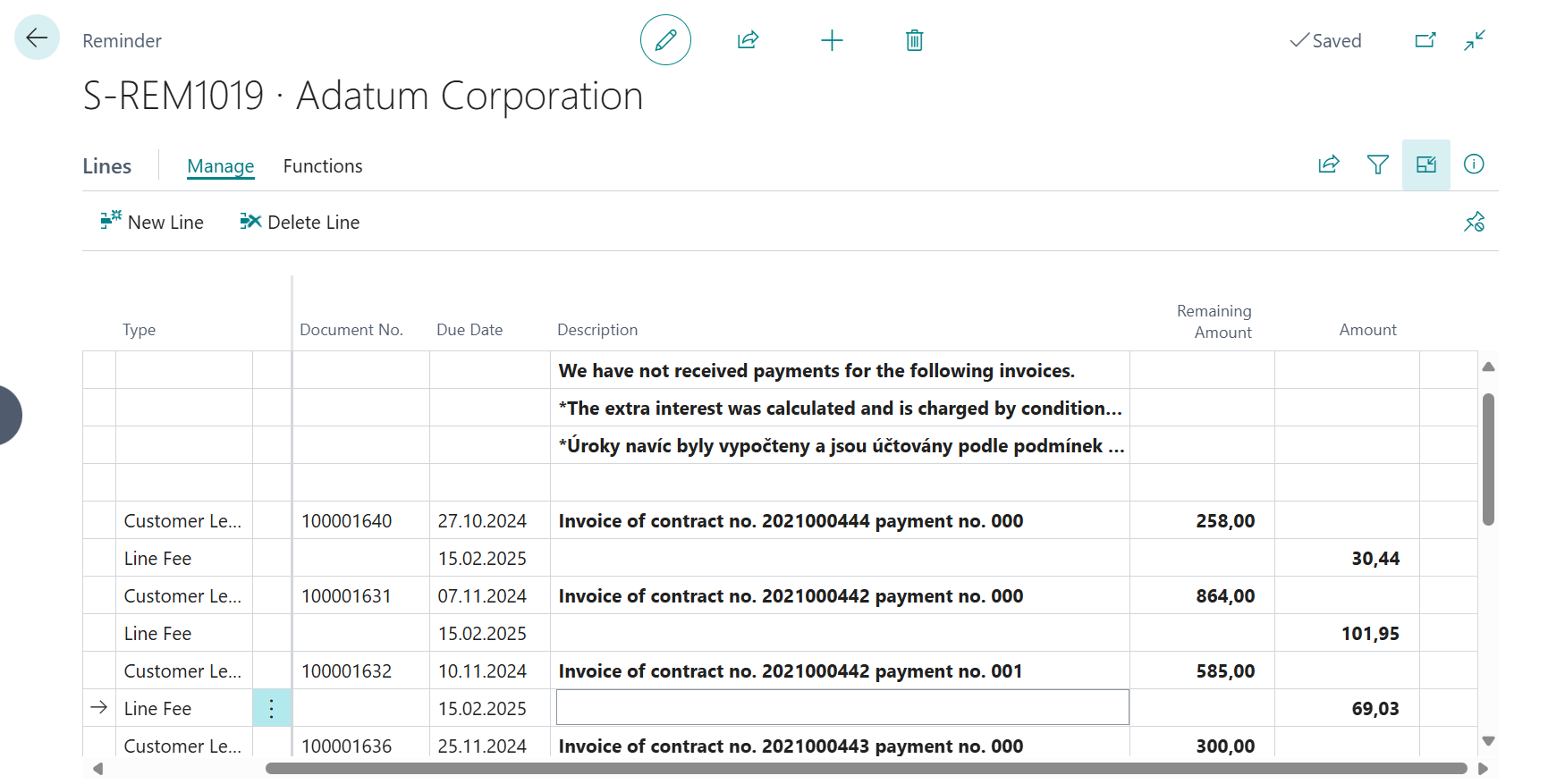
Suggest Reminder Lines
-
Issue
-
The same do with second and third reminder
-
For the 3rd level we can see that Additional Fee is calculated in amount 250,00.