
We are able to work with reservations, which is optional part of rent process and can be hidden from menu in case it is not useful. In Rental App you have ability to create new reservation through 2 options:
New Reservation/Rent via Item Utilization
-
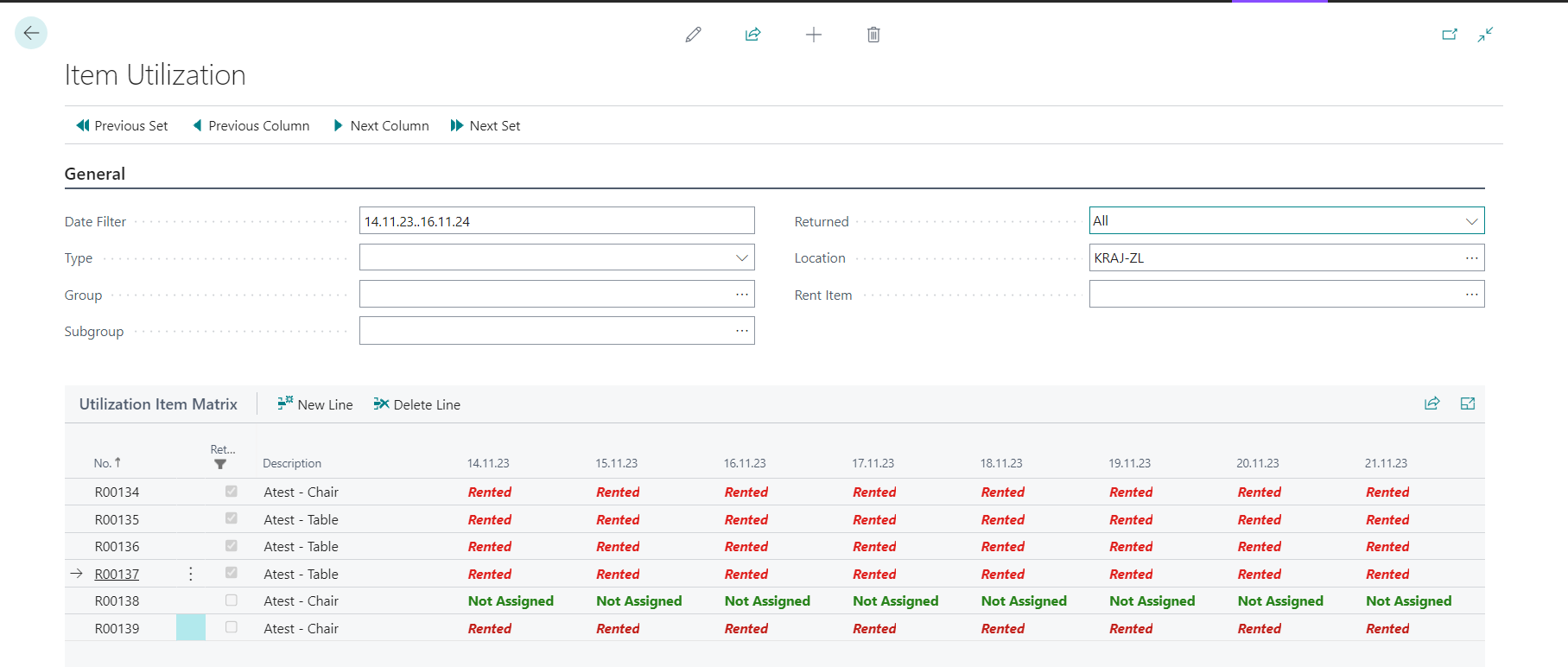
Click on button Item Utilization placed in Role Centrum to open Item Utilization screen.
-
General fast tab
-
Date Filter
-
Insert date range to check which rent items are available (Not Assigned), Reserved, Rented. In Microsoft Learn can be found how to define desired date rage Entering dates and times in Business Central - Business Central | Microsoft Learn.
-
Note, that this field does not work with single date
-
Filtering is done automatically after selection of criteria
-
-
Type
-
Filter among item type {Furniture, Hand Tools, Machine, Electronic, Special} to quickly find all rent items which are available for particular type.
-
-
Group
-
Filter for Tariff Groups
-
-
Subgroup
-
Filter for Tariff Subgroups
-
-
Returned
-
Yes - all available rent items are shown
-
No - all not returned rent items are shown
-
All - all rent items are shown
-
-
Location
-
Filter only rent items placed in particular location
-
-
Rent Item
-
Filter only specific rent item to see occupancy for defined date range
-
-
Returned flag is set to YES if the status of the Rental where the selected item is used is finished regardless of the filtered date. In another rental, if the rent is not released, the flag is set to YES, after the status changes to released, the returned flag is set to NO.
-
Utilization Item Matrix
-
List of filtered Rent Items with displayed status
-
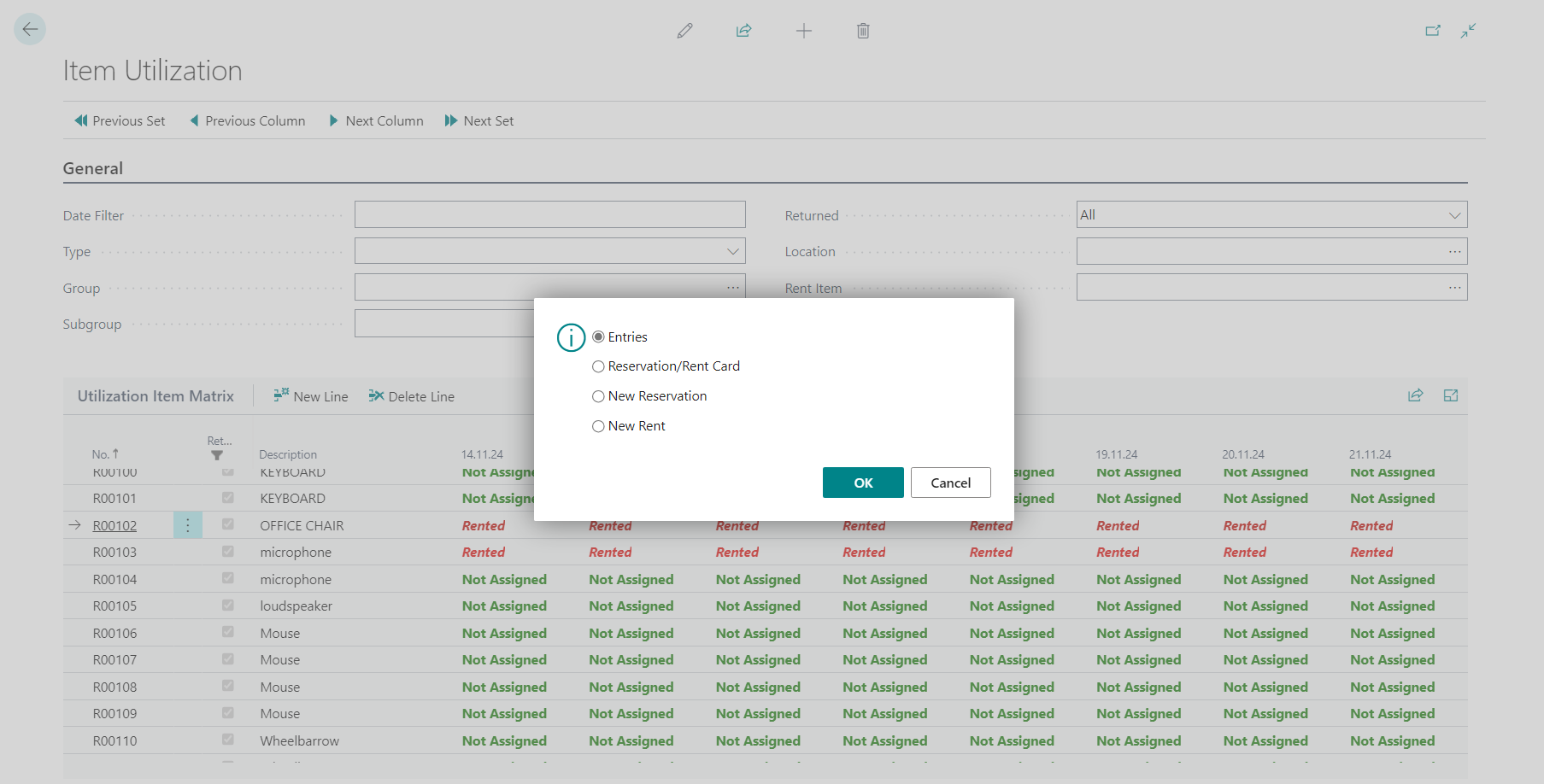
Clicking on Item Status inside of the Matrix opens new window with 4 options:
-
Entries
-
Displaying Detailed Contract Entries (for other status than Not Assigned, it is shown detailed contract entry for particular day, otherwise empty)

-
-
Reservation/Rent Card
-
Displaying Reservation/Rent Card (for other status than Not Assigned, it is shown detailed contract entry for particular day, otherwise empty)
-
-
New Reservation
-
In case status is Not Assigned, otherwise warning message appears:
-
“Rent Item R00102 is not available. (Detailed Entry)“
-
-
New Reservation is created with following data:
-
Date From - chosen date from Utilization Item Matrix
-
Time From - current time
-
Rent To - chosen date from Utilization Item Matrix
-
Time To - empty.
-
-
-
New Rent
-
In case status is Not Assigned, otherwise warning message appears:
-
“Rent Item R00102 is not available. (Detailed Entry)
-
-
New Rent is created with following data:
-
Date From - chosen date from Utilization Item Matrix
-
Time From - current time
-
Rent To - chosen date from Utilization Item Matrix
-
Time To - empty
-
-
-
-
New Reservation via Actions/Reservation
Another way how to create reservation is clicking on button +Reservation, situated in section Action. In this case empty Reservation Card is opened and all details, like Rent item, Rent From, Rent To must be entered manually

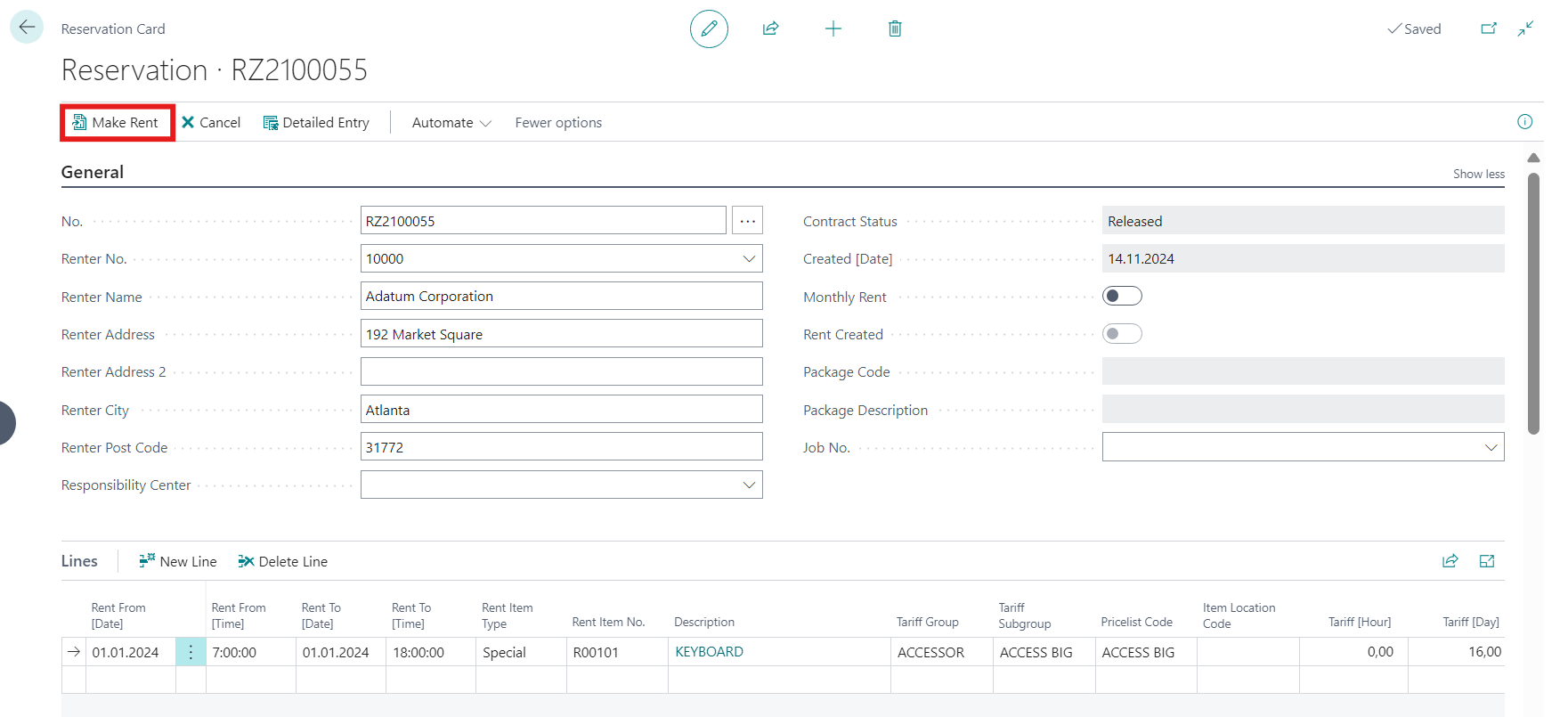
New Rent from Reservation
From the Reservation can be created new Rent via button Make Rent.
New Rent via Actions/Rent
Another way how to create new rent is clicking on button +Rent, situated in section Action. In this case empty Rent Card is opened and all details, like Rent Item, Rent From, Rent To must be entered manually.
Follow up: