
After creation of Rent is next step to Release Rent. We have the button for Release available on Rent Card in the upper panel. We are able to generate the invoice for rent during the rental or after rental, in status:
-
Rent - Released
-
In the invoice is calculated rent period based on Rent From Date/Time to Rent To Date/Time
-
We are able to create Create Invoice/New
-
-
Rent - Finished
-
In the invoice are calculated data based on Rent From Date/Time to Returned Date/Time
-
Can be invoiced via New/Create Invoice but more comfortable is to use button Finish Whole Rent, where system asks: “Do you wish to finish invoicing?”
-
Created and Posted Invoices are reachable through field Invoice Count and Posted Invoice Count. All rentals shown under Longterm Rents can be found under Rents - Released.
Monthly invoicing
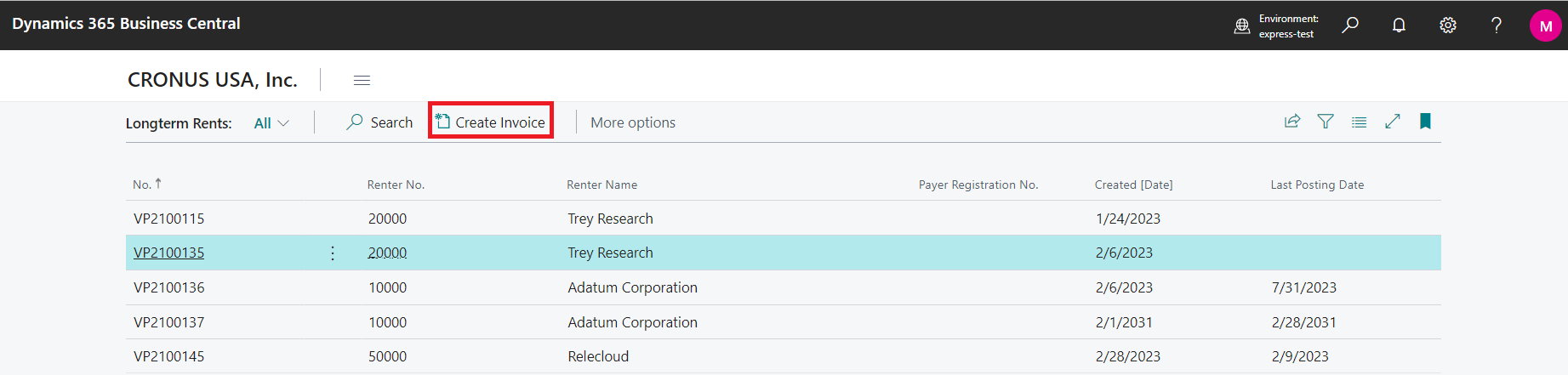
In Rental App is possible to create Longterm Rents, it means rentals which last more than one month. The list of long term rents is saved under the list of Longterm Rents. Button is available in the upper part of the main page.

-
Steps:
-
Click on button Create Invoice and system creates the invoice for one month
-
in case we are starting during the month, there is created partial invoice from the day we start the rental till end of current month
-
In case we didn’t invoice 2 months, there will be created one invoice for whole non-invoiced period, e.g. last invoice is created till 31.03.2025 and now is month May. Clicking on Create Invoice will create an invoice with period 01.04.2025 - 31.05.2025 (from the first day of not posted month till the last day of rent in current month).
-
-
Mass invoicing
In Rental App is possible to post multiple invoices at once.
-
Steps:
-
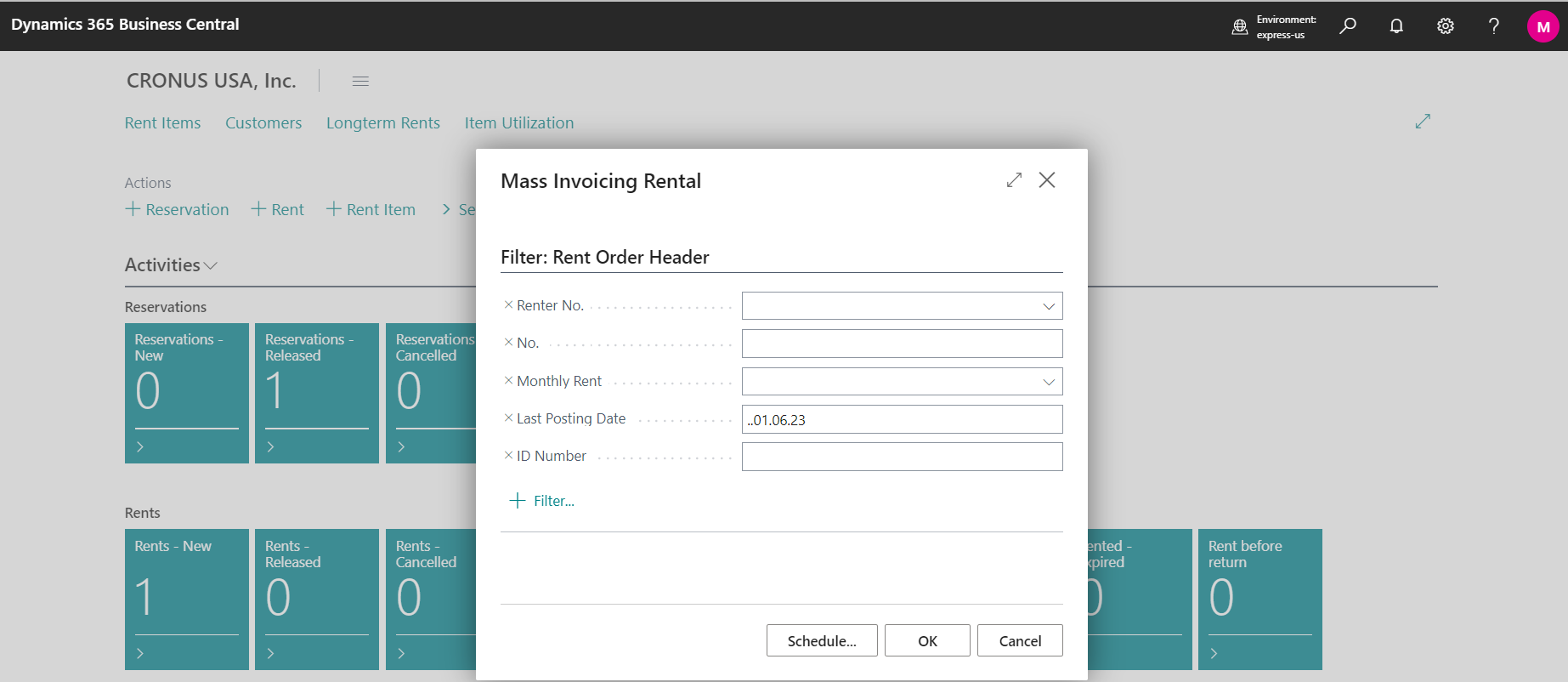
Search for task Mass Invoicing Rental.

-
Fill the table used for filtering Rents
-
On screenshot is seen an example to create invoices with posting date till 01.06.2023
-
After this action you will see the number of issued invoices. If there will be error, it means some of invoices didn’t meet conditions.
-
In case no filtering, system creates invoices to all customers and all contracts until specified Last Posting Date.
-
Automatic mass invoicing
If you want the system to create and post invoices regularly, e.g. on a monthly basis, search Job Queue Entries
-
Steps:
-
Create new Job Queue Entry by clicking on the button New
-
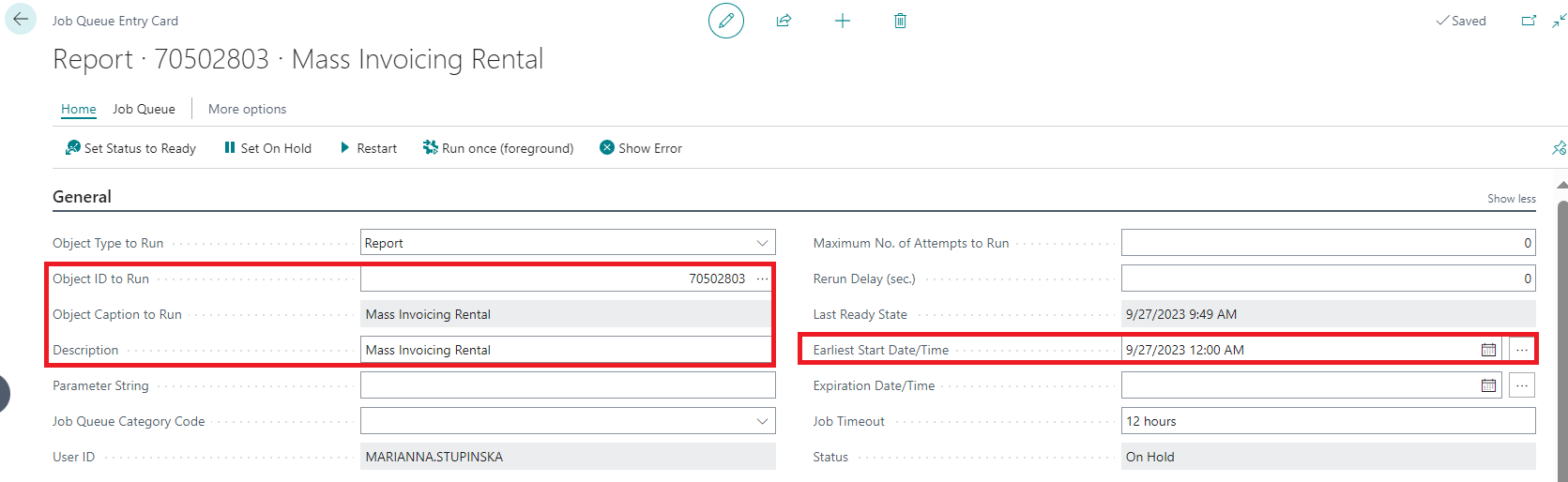
In the field Object ID To Run select ID 70502803 (Mass Invoicing Rental).
-
In the section General you enter basic parameters for selected job, Earliest Start Date/Time included.
-
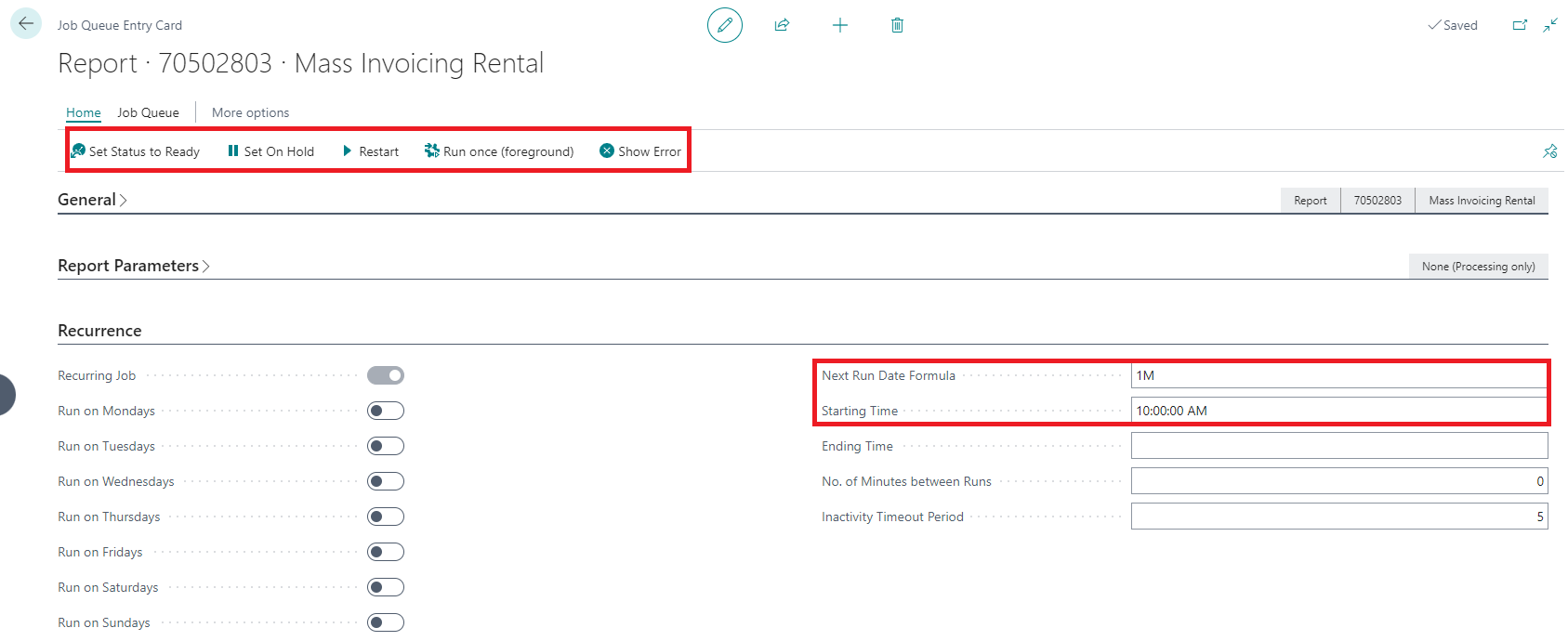
In the section Recurrence specify how often to repeat created job (in this case every month at 10 o'clock).
-
On the top bar switch job queue state
-
To start the job, click on the button Set Status To Ready.
-
This job goes through all the rents in the Released and Finished status and creates and posts invoices for rentals
-
-
Additional fees
-
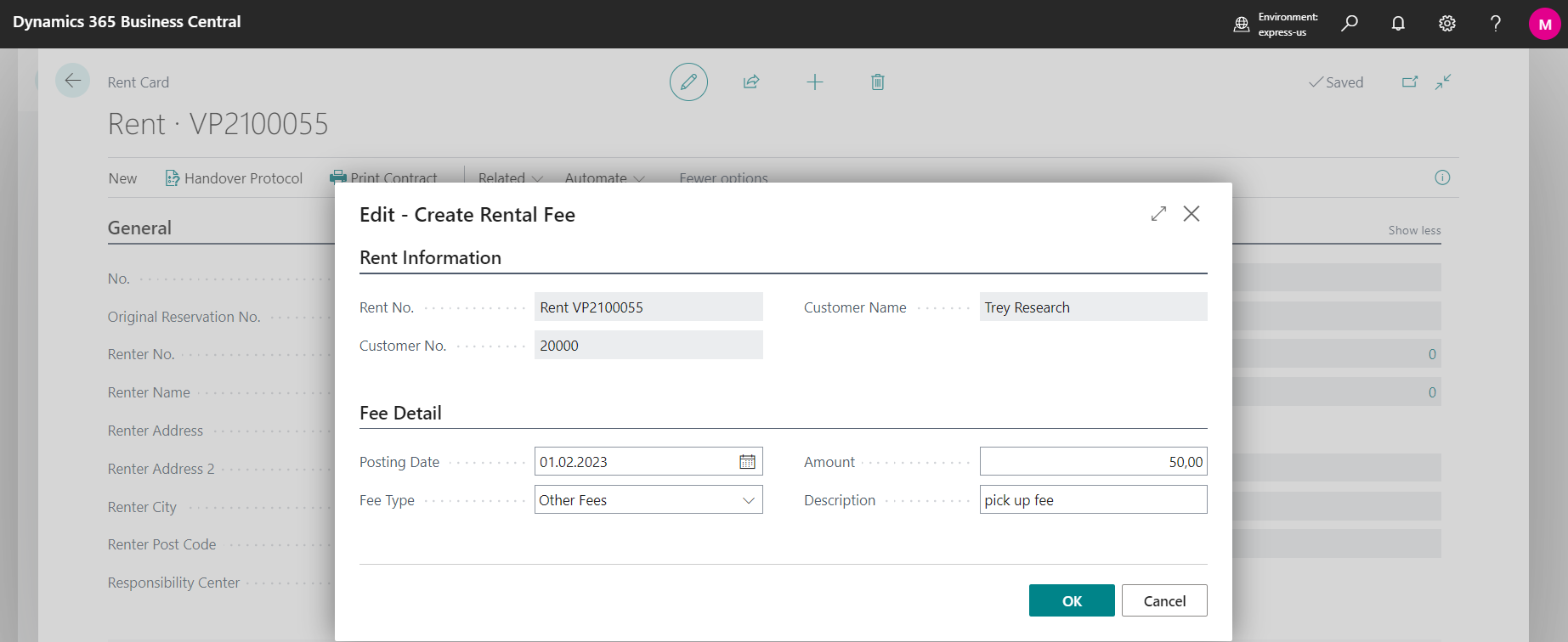
In case there appeared some additional fee to rental, add a fee via Rent Card/New/Create Fee.

-
In opened window Create Rental Fee insert Posting Date, Fee Type, Amount and Description.
-
Posting of the fee will be done based on setup in Posting set up in OC Rental App .
-
Created invoice will be found under on Rent Card in field Invoice Count, posted invoice will be moved to Posted Invoice Count.
It is not possible to delete created invoices (not posted). If there exists External Document No. in the invoice and if we find an entry in the "SOL Rent Order Header" table with this number, it will not be allowed to delete the invoice.
Follow up:
Mass invoices/credit memos sending
How to create reminder in general