
Principles
Using bank accounts in Business Central is used to keep track of your banking transactions. Accounts can be denominated in local currency or in foreign currency. The set currency on the bank account cannot be changed after the first transaction has been posted!
MS regularly updates the documentation for this setting area. Documentation valid for BC22 is available at the following link:
Set Up Banking - Business Central | Microsoft Learn
CZ localization documentation valid for BC22 is available at this link:
Core Localization Pack for Czech - Business Central | Microsoft Learn
This area describes Bank Account Card Setup and Bank Export/Import Setup. The settings for using direct debit are also described.
There is no description of the settings for SEPA payments.
Dependencies and assumptions
The numbering of bank account cards depends on the setting in the General Ledger Setup table in the Bank Account Numbering field.
Description of the documented area
Bank Account Setup
A bank account can be opened in the overview Banks or in the overview Bank Accounts using the New button. After pressing the New button, a new Bank Account Card will be created, in which it is necessary to set up some fields for the correct posting of bank transactions and the creation of bank orders and bank statements.
Setting up the Bank Account – General Tab
Description of field settings:
-
Number Field
-
is created depending on the number sequence setup that is set up in the General Ledger Setup table. The number sequence can be set as automatic numbering of new cards or it can be set for manual number entry according to your own logic.
-
-
Name field
-
A text description of the bank account according to your own requirements.
-
-
Bank Account No. field
-
Set up a bank account number, including a bank code.
-
-
Field Closed
-
If you close your bank account, you can also close your bank account card so that it can no longer be charged.
-
-
Disable Automatic Payment Matching field
-
Specifies whether automatic payment matching should be disabled for this bank account after bank transactions are imported.
-
-
Match Tolerance Type
-
Specifies the tolerance with which the automatic payment application function will apply the Matched Amount Incl. Tolerance field to this bank account. The Amount option is set.
-
-
Match Tolerance Value field
-
Specifies whether the Apply automatically function applies the Number of entries found within the amount tolerance rule for this bank account, using a percentage or an amount. The value is set to 1.
-
Setting up the IB card – Communication tab
The fields in this tab are not mandatory. In particular, it is possible to set the address of the bank house and the Country/Region Code to specify the country in which the bank account is opened. This information is mainly used for cross-border payments.
Bank Account Card Setup – Posting Tab
Description of field settings:
-
Currency Code field
-
Set the code of the currency in which the account is maintained outside the local currency, it is not set. After the first entry is posted, the currency code cannot be changed.
-
-
Bank Account Posting Group Field
-
Select a posting group from the Bank Account Posting Group table. The selected posting group determines which G/L account bank account transactions will be posted to. Setting up the posting group of a bank account is described in the chapter below.
-
Bank Account Posting Groups
Use the Bank Account Posting Groups table to set up the balance sheet account to which bank, cash, or credit transactions will be posted when a bank account card or cash register card is used for posting.
The fields are set as follows:
-
Code
-
Enter any combination according to your own logic
-
-
Account number
-
Select the G/L account number from the chart of accounts. The number of the selected G/L account must not have direct posting enabled and must not have pre-filled data in the Posting tab.
-
Setting up the Bank Account – Transfer Tab
Description of field settings:
-
SWIFT Code field
-
This field is set primarily if the account is used for foreign payments. By selecting from the SWIFT Codes code list, you will enter the corresponding SWIFT code of the bank where your account is maintained.
-
-
IBAN Field
-
This field is set primarily if the account is used for foreign payments. Enter the international bank account number for the bank account.
-
-
For the Bank Statement Import Format, Payment Export Format, and Foreign Payment Export Format fields,
-
only if you are going to export foreign payments from the bank account, select the code from the Bank Export/Import Setup table. Codes are only set up if you want to download statements and create payment orders. The settings of the table from which the codes are selected (Bank Export/Import Settings) are described in Nastavení Bank | Nastavení exportu/importu banky .
-
-
Payment Import Format field
-
is set up only if you want to use accumulated payments.
-
The name of the payment journal template and batch is set only when you don't use import and export.
Bank Account Card Setup – Automatic Statement Import Tab
Adjustment for OC CZ
Field Post Journal (Post Pay. Recon. Journal) is used to automatically import bank statements. You set Yes if you want the imported statement to be automatically posted.
-
Status quo
-
The automatic posting setting when importing bank statements can only be used if a Payment Reconciliation Journal is generated from the Issued bank statement (that is, if the Search Rule Code field is not filled in on the header of the Issued bank statement). The posting result (success or error) is recorded in the Import Bank Statement Log.
-
-
Upcoming modification (bug in DevOps 4703)
-
The field is renamed to Post Reconciliation or Post Journal
-
The functionality will be extended to include Payment Journal posting:
-
If set to Yes, the system will filter the general journal according to the settings on the bank account card and filter the lines for this journal to Document number = Issued bank statement number. Runs posting for these lines
-
The posting result will be recorded in the Import Bank Statement Log. The log will be extended to record errors when issuing a statement, during which the Payment Journal is generated, and errors when posting the Payment Journal.
-
-
Setting up the Bank Account – Payment Journal Tab
Description of field settings:
-
Variable S. to Description
-
Specifies the copying of the variable symbol for payment to items.
-
-
Variabilní s. do variabilního symbolu (Variable S. to Variable S.)
-
Specifies to copy the payment variable symbol into the Variable symbol field in the payment reconciliation journal.
-
-
Variable S. to Description to External Document No. (Variable S. to Ext. Doc.No.)
-
Specifies to copy the payment variable symbol into the External Document No. field in the payment reconciliation journal.
-
-
Dimension from Apply Entry
-
Specifies the transfer of Dimensions from the applied (paired) entry (document) to the payment line.
-
-
Post Per Line
-
specifies whether the Bank account will be used as the balance sheet account number on each line, if this option is not enabled, the system will post to the balance sheet account of the bank in turnover.
-
-
Search Rule Code
-
is described in Nastavení Bank | Nastavení Pravidl hledání
-
-
Non Associated Payment Account
-
Specifies the account for unlinked payments. By selecting an account from the chart of accounts, unpaired payments will be set up here. In the payment reconciliation journal, you can then manually pair such entries or change the account for posting.
-
Bank Account Card Setup – Payment Orders and Bank Statements Tab
Description of field settings:
-
Domestic Payment Order ID and Foreign Payment Order ID
-
It is used to select a print report.
-
-
Payment Partial Suggestion
-
Allows loading an item that already has a payment paired, but is not fully settled.
-
-
Foreign Payment Orders
-
It allows you to create payment orders in a currency other than the local one for domestic bank accounts. For a foreign currency bank account, this box must always be checked.
-
-
Check Czech Format on Issue
-
Specifies whether the Czech account format should be checked for domestic bank account when issuing a domestic payment order.
-
-
Payment Jnl. Template Name
-
Select a template from the List of General Journal Templates code list that will be used for posting the bank statement
-
-
Payment Jnl. Batch Name
-
Select a worksheet for the template from the General Journal Batches code list that will be used for posting the bank statement
-
-
Check External No. by Current Year
-
Specifies whether to check external document numbers in the current year when the bank statement is issued.
-
Bank Account Card Setup – Numbering Tab
Description of field settings:
-
Field Order Numbers (Payment Order Nos.) and Statement Numbers (Bank Statement Nos.)
-
are set by selecting from the No. Series code list and specify the code of the number series that will be used for assigning payment order numbers and for assigning numbers to bank statements.
-
-
Field Numbers of Issued Orders (Issued Payment Order Nos.) and Issued Statement Numbers (Issued Bank Statement Nos.)
-
are set by selecting from the No. Series code list and specify the code of the number series that will be used for assigning numbers to issued payment orders and for assigning numbers to issued bank statements.
-
Bank Export/Import Setup
A global service provider that converts payment information into any data format the bank requires is connected and ready to be turned on in Business Central. This is referred to in Business Central as the Service for converting bank data.
The bank data conversion service can limit the number of rows that can be exported to a single file. An error message is displayed when the limit is exceeded. It is recommended that bank statement files did not exceed 1000 linesas the processing time in a bank's data transfer service can increase significantly.
Objects provided by MS will be used in the table settings according to the specific requirements from the client.
For OC CZ, new fields Default Folder Path and Archive Folder Path have been added, where paths to the network folder for automatic processing of bank statements are set.
Set up Search Rules
Search rules are used to automatically apply bank statement entries when they are created Payment Journal from the bank statement for version BC20 and above. They can significantly speed up the process of processing a bank statement in the system and make it easier for users to identify individual payments.
You can set your own payment settlement rules in the Search Rules code list. Several different rules can be set in the code list at the same time. You can set custom rules for bank accounts or, for example, for different types of bank statements.
To define Search Rules, follow these steps:
-
In the system magnifier, enter Search Rules, and then select the related link.
-
In the overview, click a function New (New), the Search Rule Card will open.
-
In the Code field, you enter a unique identification for the rule, and in the Description field, you can describe the search rule. You can make one of the rules the default by activating the Default field. There is a check in the field that only one record can be marked as the default (Yes value) within the records in the table. The system will add the default rule to bank statements if no other search rule is defined on the bank account.
-
Each rule should contain at least one line. The order of the rule lines matters, it should be done from the greatest consensus to the more general rules. Thus, the order of the rows determines the prioritywith which the system will attempt to apply the rule. You can adjust the order of the rows using the buttons above the rows. Move Up and Move Down will allow you to change the order of the search rows.
You can create rule rows manually as needed by your users, or you can generate predefined rules by using the Create Default Rows feature.
A single line of a search rule has three logical units:
-
Identification
-
Search (searching in customer, supplier, employee, "old" backups of the Base application). Note: the application of new CZ advances (Advance Payments Localization for Czech) complements the search in "new" purchase and sale advances
-
Filter (Based on the set mask, how to design a line for the payment journal is directly determined). There can be either a search definition or a filter definition on a single line. They cannot be combined within the same row.
Identification part of the rule
Description of field settings:
-
Description
-
It can contain a detailed description of the rule for better orientation.
-
-
Bank Transaction Type
-
Here you can define a restriction on the type of bank transaction. The values can be Credit, Debit, or Both (indiscriminate – default value). For example, if the rule is set to Overdraft, this line will be applied only to lines in the bank statement that have a positive amount.
-
-
The scope of the search determines which logical part of the row is valid. The possible choices will be:
-
Balance
-
searching in items of customer, supplier, employee, "old" backups Base application
-
-
Customer
-
searching in customer entries and "old" sales backups Base application
-
-
Vendor
-
searching in vendor entries and "old" purchase advances Base application
-
-
Employee
-
Searching in employee items
-
-
Advances
-
The option is complemented by the application of new CZ advances (Advance Payments Localization for Czech) and allows you to search in "new" purchase and sale advances
-
-
Account Mapping
-
This option determines that the filtering part will be used instead of the search part of the rule.
-
-
Search part of the rule
Specifies the rules for searching for an item to apply within the specified range (customer, vendor, employee, and advance ledger entries).
The fields in this section can only be parameterized if there is a value other than Account Mapping in the Search Scope field in that row of the search rule.
Note: if the search part of the rule contains multiple options at the same time, then there will always be a conjunction relation (i.e. and at the same time) between the individual options.
-
Bank Account No.
-
If the field is checked, the system will search for the given range (customer, supplier, employee entry) by bank account number. For a given bank statement line, the customer/vendor's bank accounts and the bank account in the employee table are always searched. If exactly one customer/supplier or employee account is found, a filter for the customer/supplier/employee number in the items is automatically applied to the given filters.
-
-
Amount
-
If the field is checked, the system will search by amount with a currency code in the given range (customer, supplier, employee, advance payment). The system will work with the payment match tolerance defined on the bank account card (Matching Tolerance Type and Matching Tolerance Value fields).
-
-
Variable Symbol
-
If the field is activated, the system will search for the given range (customer, supplier, employee, advances) according to the variable symbol.
-
-
Constant Symbol
-
analogous to the Variable Symbol field.
-
-
Specific Symbol
-
analogous to the Variable Symbol field.
-
-
Multiple Result
-
The field specifies which item the system should suggest for applying if more than one item matches the search rule criteria that you specify. The possible values for the field are:
-
First Item Created
-
The system selects the oldest item
-
-
Last Created Item
-
The system selects the latest item
-
-
Nearest Due Date
-
The system selects the item that has the oldest due date. If the due date values match, selects the first item from them
-
-
Last Due Date
-
The system selects the item that has the youngest due date. If the due date values match, selects the first item from them
-
-
Nearest Posting Date
-
The system selects the item that has the oldest posting date. When the date values match, selects the first item from them
-
-
Last Posting Date
-
The system selects the item that has the youngest posting date. When the date values match, selects the first item from them
-
-
Smallest Remaining Amount
-
The system selects the item that has the smallest value in the Remainder (LCY) field. When the balance amount values are matched, it selects the first item from them
-
-
Largest Remaining Amount
-
The system selects the item that has the largest value in the Remainder (LCY) field. When the balance amount values are matched, it selects the first item from them
-
-
Continue
-
With this option, the system does not select any item and continues with the next search rule as part of the matching.
-
-
-
Filtering part of the rule
Specifies the rules (filter specification) for locating the account to use to post the bank statement line. You will only be able to parameterize the fields in this section if the Search Scope field in the Search Scope field is = Account Mapping. This means that the system will not look for an item to settle on balances. Note: if more than one option is used at the same time in the filtering part of the settings, there is always a conjunction (i.e. and at the same time) between the individual options.
-
Description Filter
-
You can write a transaction description filter for a line from a bank statement in this field. It is possible to use the standard control characters used in Business Central. E.g.: if you enter the @poplatek filter, it will be tested whether the transaction description contains the word fee regardless of case and diacritics in any position in the text.
-
-
Variable Symbol Filter
-
It works similarly to the Description filter, but above the Variable symbol field in the bank statement row. E.g. if ?? 32*, then it is tested whether the variable symbol has any two digits in the first two positions, digit 3 in the third position and digit 2 in the fourth position, any digits can be in the remaining positions. If 308|0308 is entered - it is tested whether the symbol takes the value 308 or 0308.
-
-
Constant Symbol Filter
-
the same applies as for the Variable Symbol Filter field.
-
-
Specific Symbol Filter
-
the same applies as for the Variable Symbol Filter field.
-
If the system finds a match in the bank statement row based on the specified filters, then the account type and account number, which are specified in the Account type, Account No. fields, are written to the general journal line.
Searching and matching rules
-
As soon as a row of a bank statement is found that matches the search rule or the set filter, i.e. exactly one item is found, it automatically stops the evaluation and continues with the next line on the bank statement.
-
If the system does not find any matching record according to the defined search rules, then it assigns the statement line to the unidentified payment account that is defined for the bank account on the bank account card in the Unallocated Payments Account field.
-
If a search rule line is evaluated as positive, its identification is written to the payment journal line in the Search Rule Code and Search Rule Line Code fields.
Set up Direct Debit
With the customer's consent, you can collect payments directly from the customer's bank account according to the SEPA format.
To use Direct Debit, you need to set up the settings described in the following sections.
Bank Export/Import Setup
In this table, vendor sets up the appropriate procedure for direct debit.
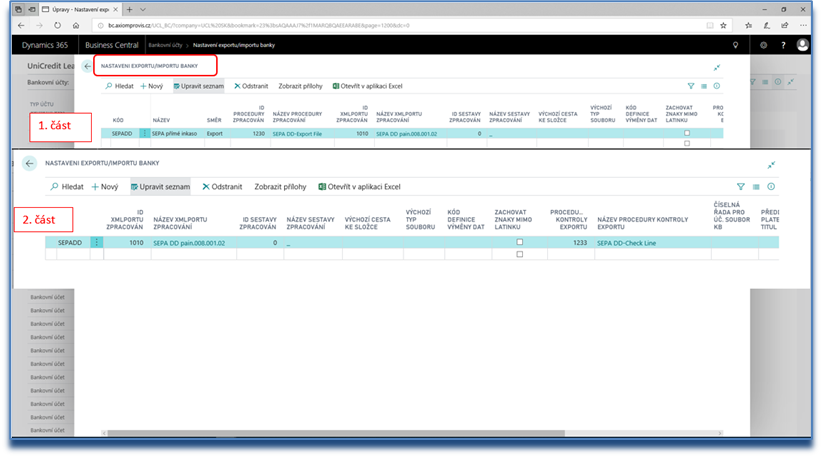
Bank Account Card
Open Bank account cardto which your company will receive collected payments.
On the General Set the fields:
-
Exp. format. SEPA Direct Debit
-
Select Code SEPADD (SEPA Direct Debit).
-
The appropriate procedure is already set up under this code
-
-
Credit Certificate No.
-
In the Creditor Identifier field, enter the CID (Creditor Identifier) of the company (client)
-
The CID is a unique identifier of the direct debit recipient and is a mandatory part of SEPA direct debit orders
-
The CID consists of the ISO code of the respective country, check digits, any specification of the beneficiary's business activities and up to 28 digits reserved for the beneficiary's national identifier
-
On the Numbering Set the fields:
-
Direct debit numbers
-
Select a number sequence for internal collection order numbers
-
Payment Method
In the dial Payment Methods Set up a direct debit code.
Fill in the required fields:
-
Code
-
Internal code in the code list
-
-
Trade-in Account Type
-
Set the G/L Account value
-
-
Direct Debit
-
Check the box
-
-
Direct Debit Terms Code
-
Set up Payment Term to calculate the due date of the document
-
When using a given Payment Method Code on the Customer Card or directly on sales documents, the system will copy the Payment Terms Code if a code is not already entered on the card or on the document. In this case, this filled in code is no longer overwritten
-
This field is optional, you can leave it blank.
-
Customer Card
Open Customer cardwhose payments you want to collect. On the Payments Set the required fields:
-
Partner Type
-
Select whether the customer is a "company" or a "person"
-
The field is mandatory for direct debit payments, because the system uses this field to select customers for direct debit orders.
-
If Partner Type is not filled in, the system will not include this customer in the recovery order.
-
-
Payment Method Code
-
Fill in the Payment Method Code that you have created for invoices paid by direct debit
-
From the Customer Card, the system copies this code into sales invoices
-
On sales invoices, this code must be filled in for the invoice to be included in the collection order!
-
-
Preferred Bank Account Code
-
You can also set up the Preferred Bank Account Code field.
-
This setting is optional, the system will use the preferred bank account, for example, when creating a sales invoice to search for a valid direct debit authorization or when proposing a collection order. If a customer has multiple valid permits, the system prefers permits with that bank account when withdrawing.
-
Customer Bank Account
On the Customer card, open Customer Bank Accounts (Customer Card > Customer > Bank Accounts).
Load Customer's bank account card, from which direct debit payments will be made. On the Transfer tab, fill in SWIFT code and IBAN. These fields are mandatory.
Direct Debit Authorization
On Customer Card Next, open the Direct Debit Authorization (Customer Card > Related > Customer > Direct Debit Authorization):
SEPA Direct Debit Authorization
Create a new line for the appropriate permission. On the line, fill in the fields:
-
ID
-
The direct debit authorization number provided by the customer. A Number Series can be set up for this field (in Sales & Receivables Setup, Number Series Tab, Direct Debit Authorization Number Series field). If the number series is not set, the permission number is entered manually
-
This number is automatically copied by the system after the invoice is created to the Sales Invoice header and after posting to the Posted Sales Invoice header and to the Customer Ledger Entry
-
-
Customer Bank Account Code
-
Select the customer's bank account from which direct debit payments will be collected.
-
-
Validity From
-
Specifies the date from which the permit is valid
-
The validity of the permission is checked at the Invoice Due Date
-
-
Validity To
-
Specifies the date when the permission expires
-
The validity of the permission is checked at the Invoice Due Date
-
Note: Entering the direct debit validity period "from – to" is not mandatory, if the data (one or both) are not filled in, then the direct debit authorization is valid without restriction, unless the authorization is Blocked or Closed.
-
-
Signing Date
-
Date when the customer signed the direct debit authorization
-
-
Payment Type
-
Set whether direct debits can be performed repeatedly (type Periodic) or only once (type One-off)
-
-
Expected number of direct debits
-
Estimated number of direct debits
-
The field is editable and can be changed at any time, even after the original estimated number of exported orders has been exhausted
-
For the periodic type of permission, the expected number of direct debits is set by the user, for the one-time type of permission, the system automatically sets one direct debit
-
-
Ignore Expected Number of Collections
-
By checking this option, you can indicate that direct debit will not be closed automatically when the debit computer reaches the expected debit number
-
-
Number of direct debits
-
Number of actually issued and exported collection orders
-
If the number of direct debits reaches the expected number set, the system will automatically block the authorization
-
-
Blocked
-
You can manually block or unblock direct debit permissions.
-
Customer ledger entries with a blocked authorization will no longer be included in collection orders, even if the validity period has not yet ended or the expected number of collection orders has not been exhausted
-
-
Closed
-
The authorization is closed automatically after the expected number of direct debits has been exhausted
-
When the expected number of direct debits increases, the permission is automatically reopened.
-