
Importing rates will read an Excel file that contains the input data for creating insurance rates.
Ins. Rate Import Templates
Rate import templates are set up by the user in the insurance settings area.
Role Center -> One Core – Insurance -> Settings -> Rate Import Templates
The User enters the Rate Import Template by filling in the Template Code and Name.
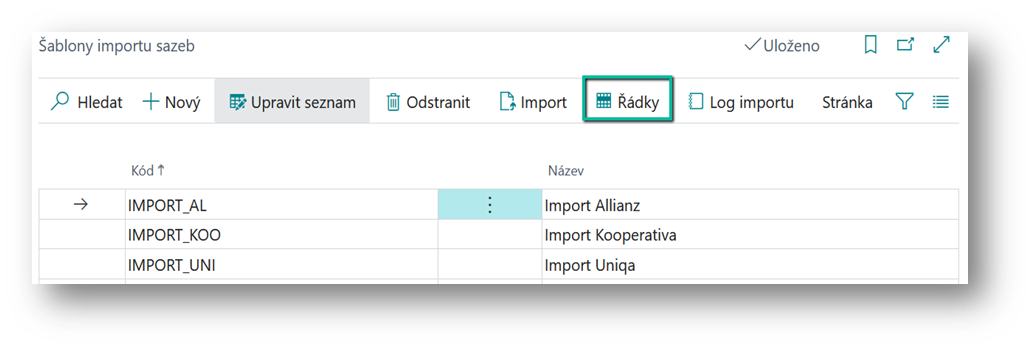
For the template, the user defines the rows for each sheet of the import file.
Template Lines
On the Template, the user defines rows for each sheet of the import file.
The rate import template row contains the following fields:
-
Sheet Name (Sheet Name)
-
The user enters the batch name of the import file.
-
-
Insurance Company No. (Insurance Company No.)
-
The user selects the insurance company for which the rates will be imported. After selection, the system will fill in the name of the insurance company.
-
-
Insurance Product No. (Insurance Product No.)
-
The user selects an insurance product. After selection, the system will fill in the name of the product.
-
-
Framework Agreement No. (Framework Agreement No.)
-
ID of the framework agreement for which the rates are to be imported.
-
-
Set No. (Set No.)
-
ID of the set under which the seedlings are to be imported.
-
-
Active (Active)
-
The user marks the set as "active" when importing the given sheet. Sets cannot be imported for inactive template rows
-
For each row of the template (i.e. for each sheet of the import file), the user defines a Mapping. In "Mapping", the user specifies how the system should process individual columns of the import file.
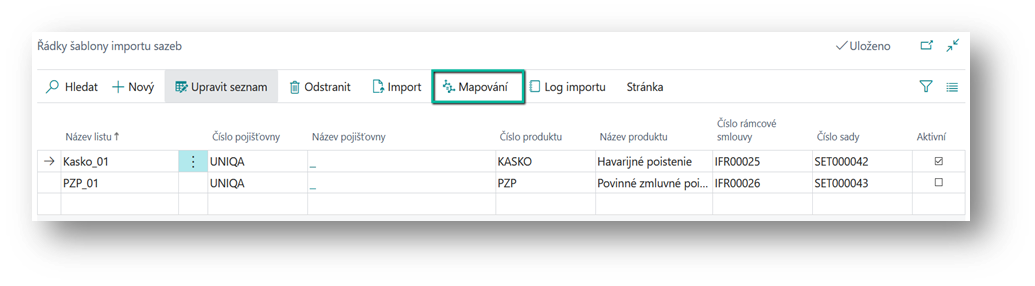
Ins.Rate Import Mapping
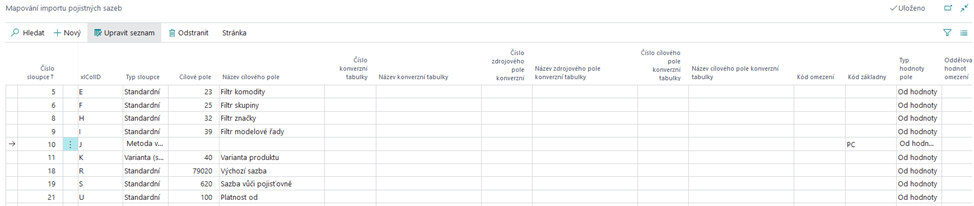

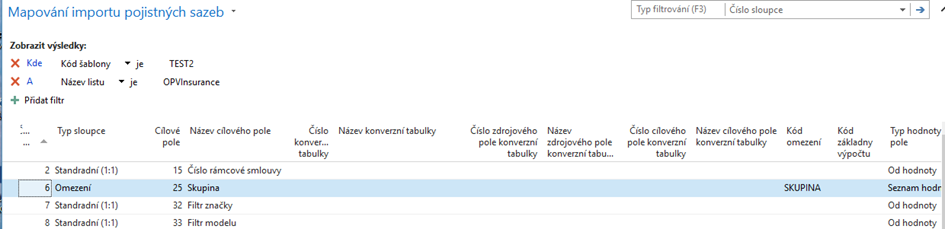
User Mappings Sets for Insurance Product Batch Columns
-
Column No.
-
The user enters the column number of the import file
-
-
xlColID
-
The system fills in the letter of the corresponding column of the import file
-
-
Column Type
-
The user selects from the following options
-
Standard (1:1) (Standard) – The system stores the content of the field in this column in the "target field" of the rate. For example, the contents of column 6 are stored in the typesetting in the Filter field of the tags
-
Conversion (Conversion) – the system uses the content of the field as the "source field of the conversion table", according to which it searches in the defined conversion table and stores the target field of the conversion table in the typesetting"
-
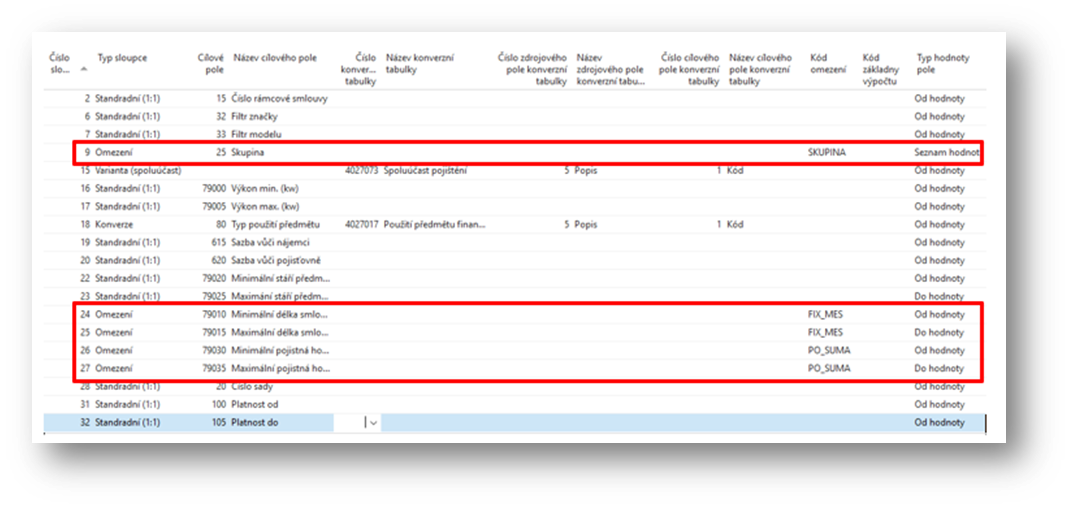
Constraint (Restriction) – The system will use the contents of the field to compare the constraint condition in the defined "restriction code" and the "field value type". A restriction can be specified in multiple columns of an import file. Selects an insurance product variant according to the constraints. The variant must comply with all restriction conditions.
-
Calculation method (Calculation Method) – The system uses the contents of the field to select the calculation method. In this case, the user has to enter the "calculation base code" and possibly also the "field value type" to determine the method interval.
-
Variant (deductible) – The system uses the contents of the field to select variants according to the deductible. "|" can be used to transform the deductible.
-
Variant (limit) – the system will use the contents of the field to select variants according to the limit. "I" can be used to transform the limit.
-
-
-
Target Field
-
The user selects the rate field where the system saves the result
-
-
Target Field Name
-
After selecting the target field, the system will automatically fill in the
-
-
Conversion Table No.
-
In the case of conversion, the user must enter the conversion code list in which the system is searching.
-
-
Conversion Table Name
-
After selecting a conversion table, the system will automatically fill in the name of the conversion table
-
-
Source Conversion Table Field No.
-
In the case of conversion, the user must specify which field is the source field in the conversion code list. That is, according to which he searches in it.
-
-
Source Conversion Table Field Name
-
After selecting the source field of the conversion table, the system will automatically fill in the
-
-
Target Conversion Field No.
-
In the case of conversion, the user must specify which field is the target in the conversion code list. I.e. Which will be used as a result
-
-
Target Conversion Field Name
-
After selecting the target field of the conversion table, the system will automatically fill in the
-
-
Restriction Code
-
For constraints, the user must select which constraint it is.
-
-
Calculation Basis Code
-
The field is filled in by the user
-
-
Field Value Type
-
For a field that is used to evaluate a constraint condition or to search for an interval of an insurance calculation method, the user must know which type of value it is
-
From Value – this is the lower limit
-
To value – this is the upper limit
-
List of values – a list of matching values will be entered in the column.
-
-
-
Constraint Values Delimiter
-
The field is filled in by the user if it is a "field value type" = List of values. By default, the system will use "|" (vertical slash), if the user wants to use a different one, it is necessary to enter in this field – e.g. ";" (semicolon).
-
Note that the first line of the imported file is the header that the system takes into account and does not import the first line.
Example of mapping "calculation method" for POV (liability insurance)
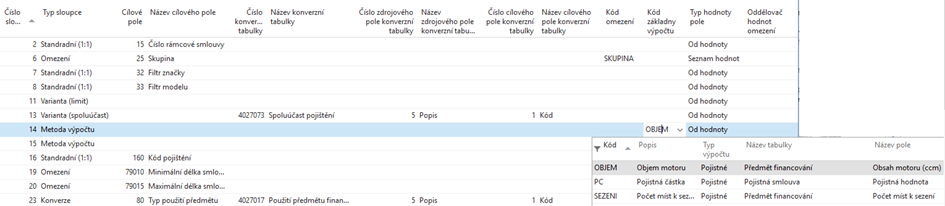
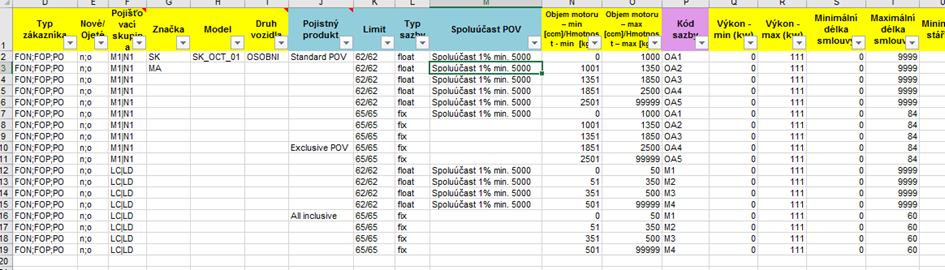
The method of calculating premiums for third-party insurance is based on engine capacity.
In the Value Type column of the field, the user specifies which column contains the lower value and which contains the upper value of the interval:

From the import source file:

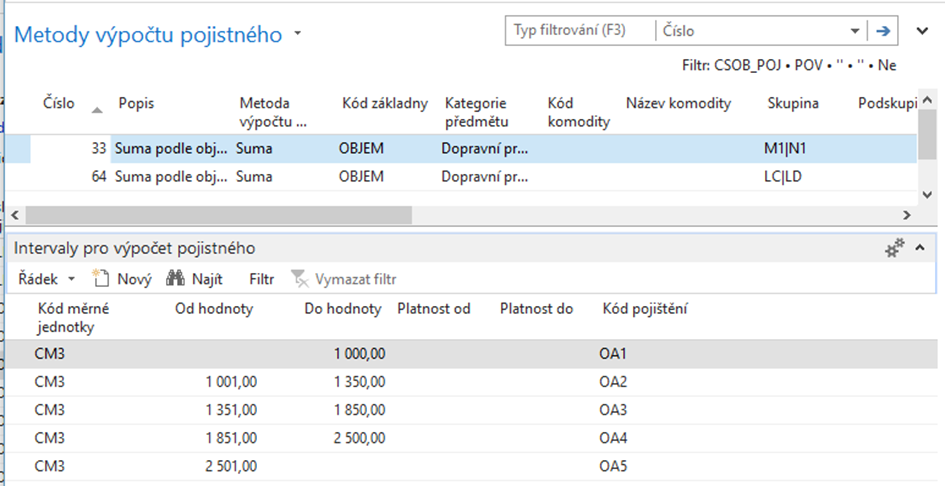
The system selects the premium calculation method for the rate based on the set. It is important that the "subject category" in the method and the imported rate match.
If there is a category in the imported file for which the premium calculation method is not based on the set, an error message will follow during the import.
Example of constraint conditions
For example, for the HAV variant, three constraint conditions are defined:
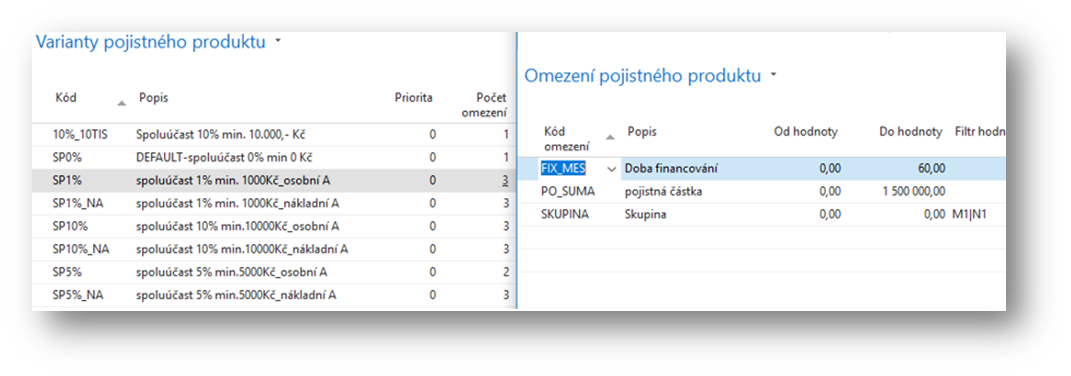
For each condition, we need to specify the column, column type = "constraint", constraint code, and field value type in the source file.
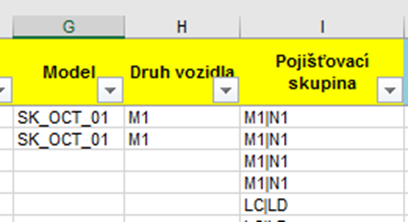
For constraints, the system checks whether the restriction condition matches exactly. For example, the list of values in the import file must be the same as the list of values on the product variant constraint condition. If the user needs to specify the rate filter only once from the list of values, it must have two columns in the import file. One for the rate filter and the other for the restrictions:
Example of boolean constraint
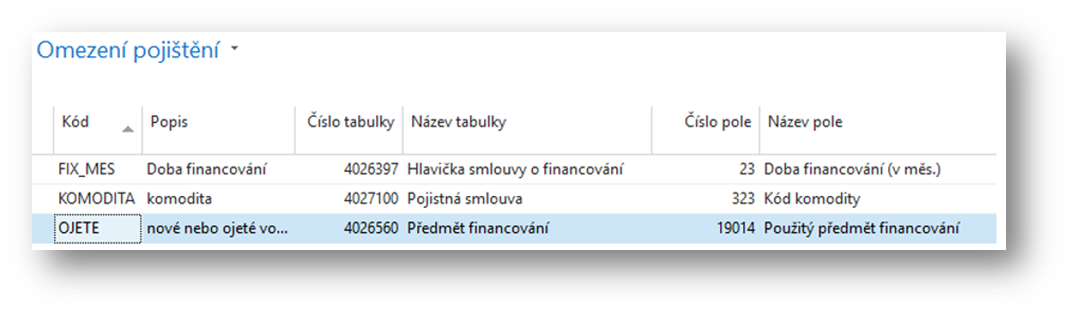
On the product variant, a restriction can be set based on a field with a logical value of Yes/No (True/False) – e.g. Financed Object Used:
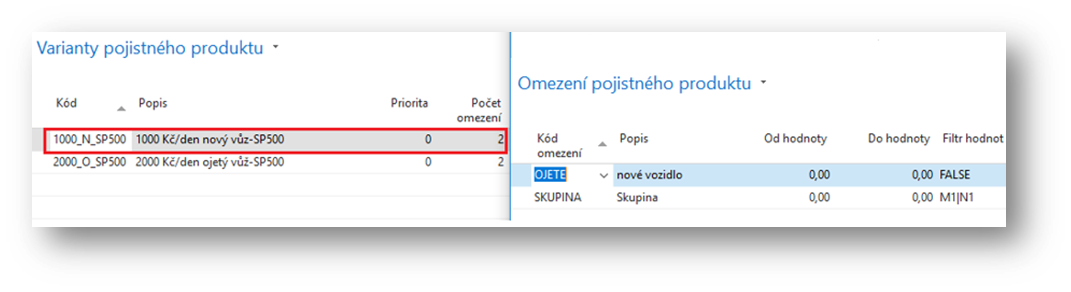
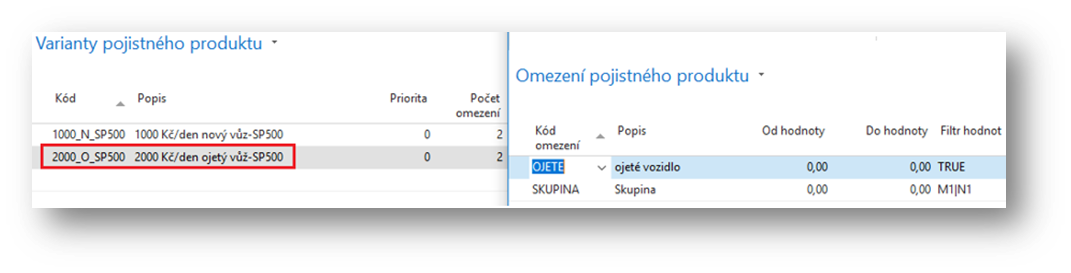
In the source file for the import of rates, the column for "used" cars will be filled in with the value TRUE and for "new" cars with the value FALSE:

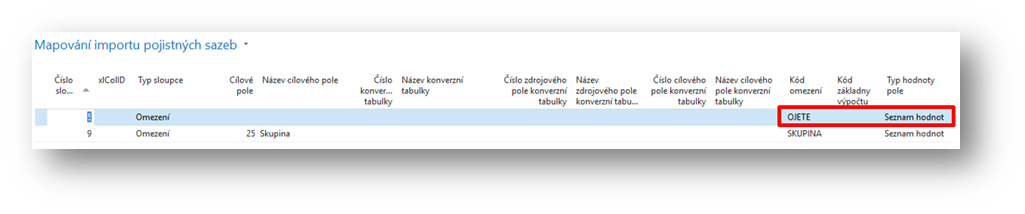
In the mapping, the user then sets the "column type" of the constraint and the value type of the "list of values" field:
Conversion example
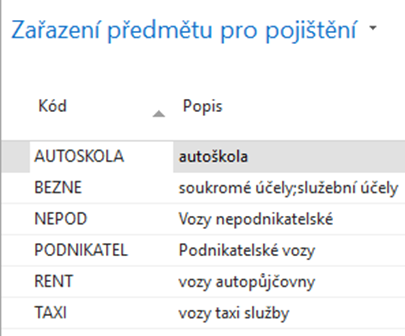
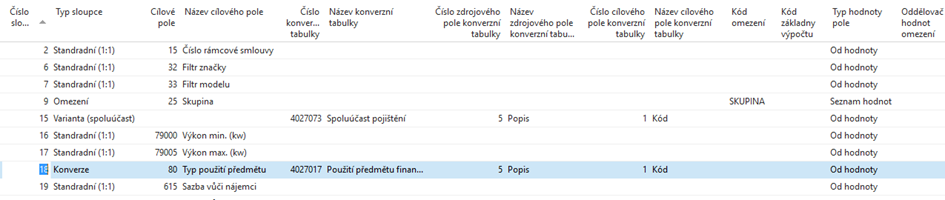
In the import file, there is only the text of the usage method. By means of conversion, we will search for this text in the Financing Object Usage code list.

We will store the code from the code list in the resulting rate:
Example of participation and limit on product variant

If there is a code from the code list, e.g. insurance limits, in the source file for import, just enter the "column number" for mapping and select the "column type" Variant (limit).
If there is a description from the code list in the source file for import, it is also necessary to enter the "number of the conversion table" (code list), "source field" = description and "target field" = code that is used to search for the corresponding variants. In the example, the search for variants by "deductible" based on the description is used.
Example of Different Groups Overlapping Durations
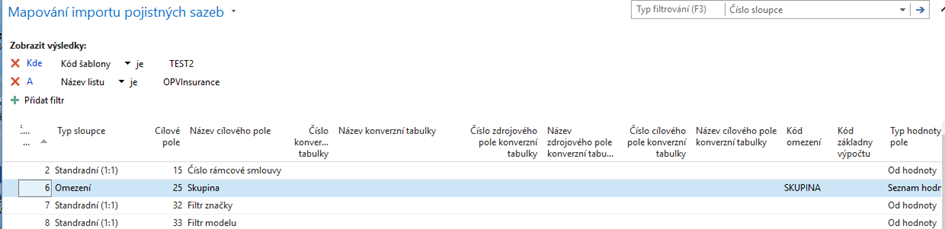
If there is an overlapping duration for different groups, it is necessary to add "Group" to the variant constraint, because there is a different condition for the financing period for different groups.
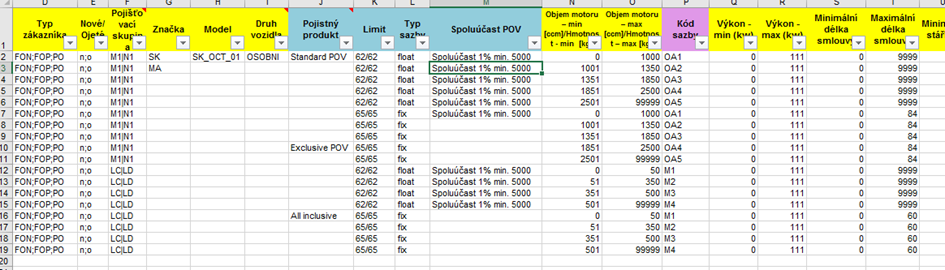
If the group was up to the rate, both options would be offered for the 60-month contract and the 84-month contract would not include rates.
Example Object Category is Machine - Equipment (option)
In the case of an object category other than "Vehicle Technology" (index 0), it is necessary to add an index to the category to the imported file (i.e. "Machinery and equipment" as index "1") and set up mapping.
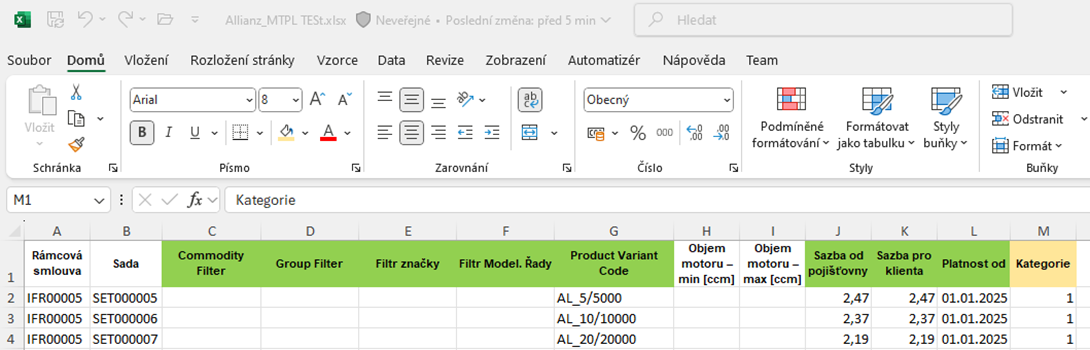
Category Mapping
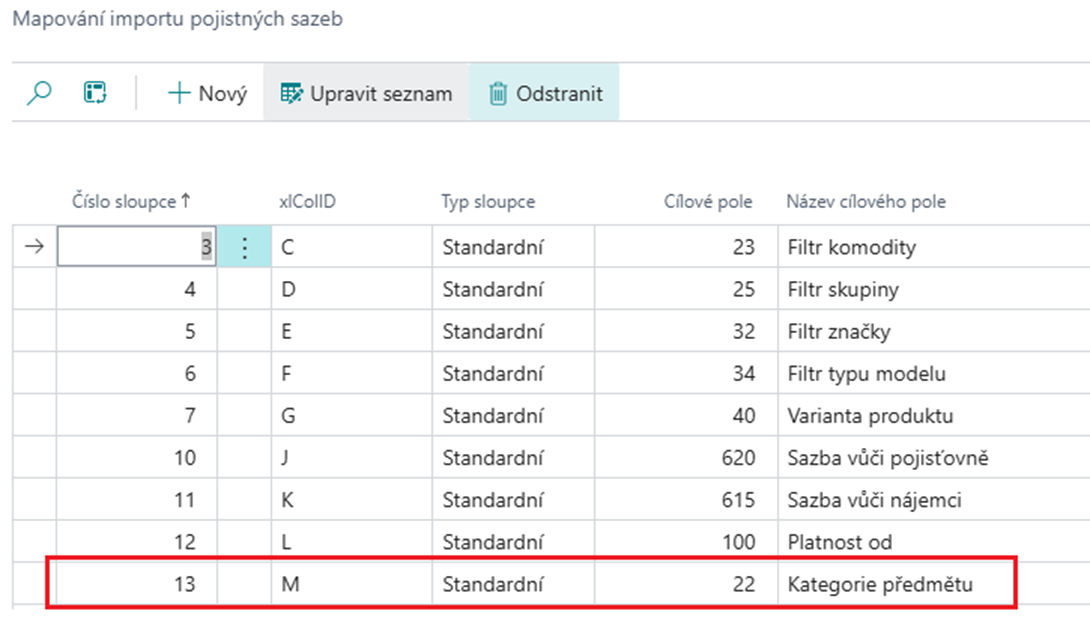
Then he correctly adds the category and method to the typesetting:
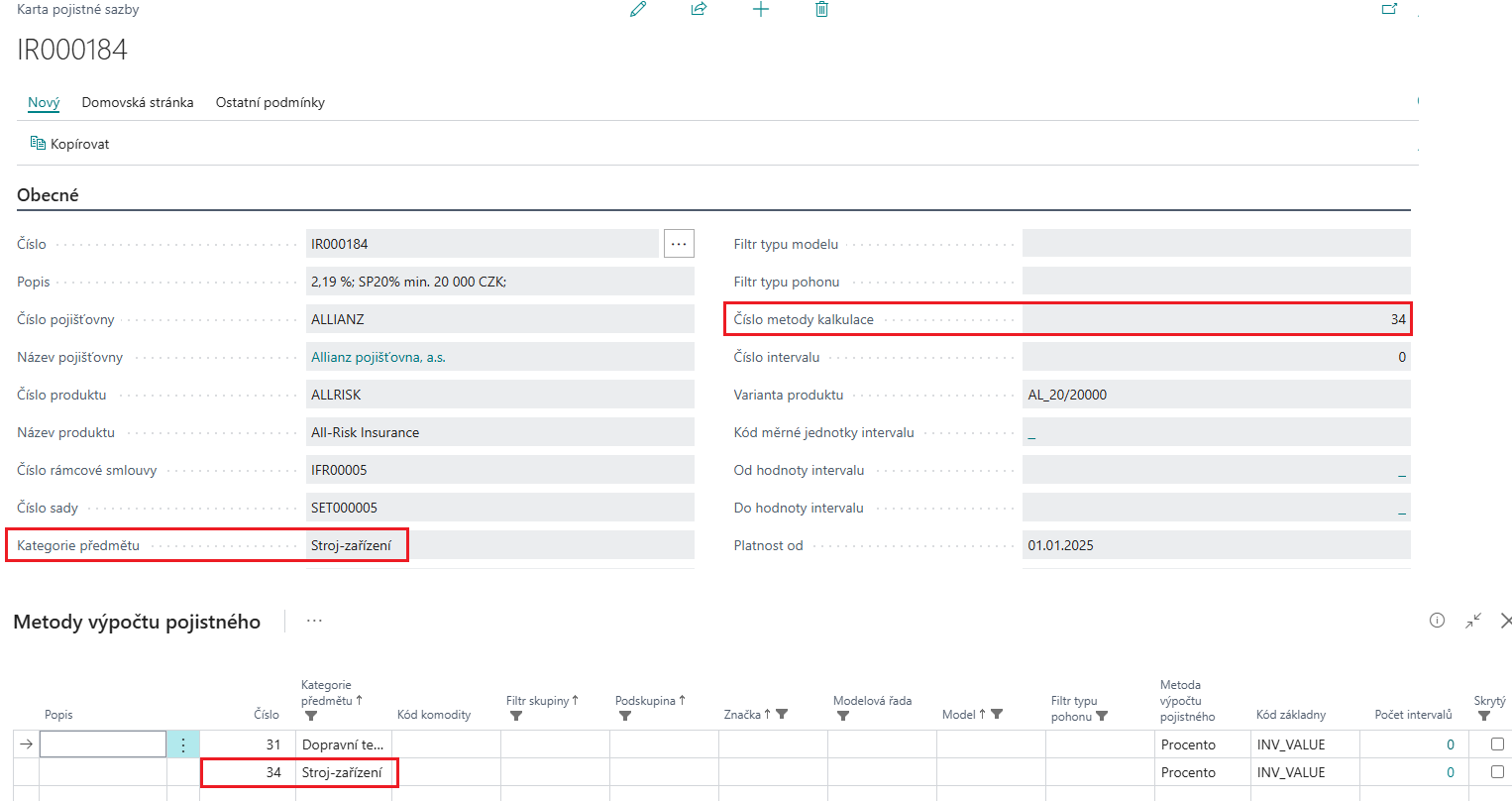
If there was no category in the import file and mapping, the system reported an error, even though there was only one method for "machine-equipment" at the time - the system could not find the method:

Starting Rate Import
After creating the template, lines, and mappings, the user starts the import of rates. If there is no row marked as Active on the template, the system reports an error:
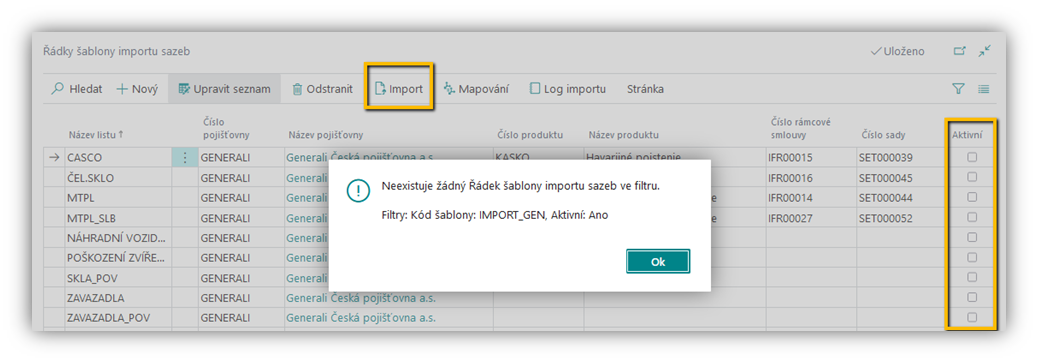
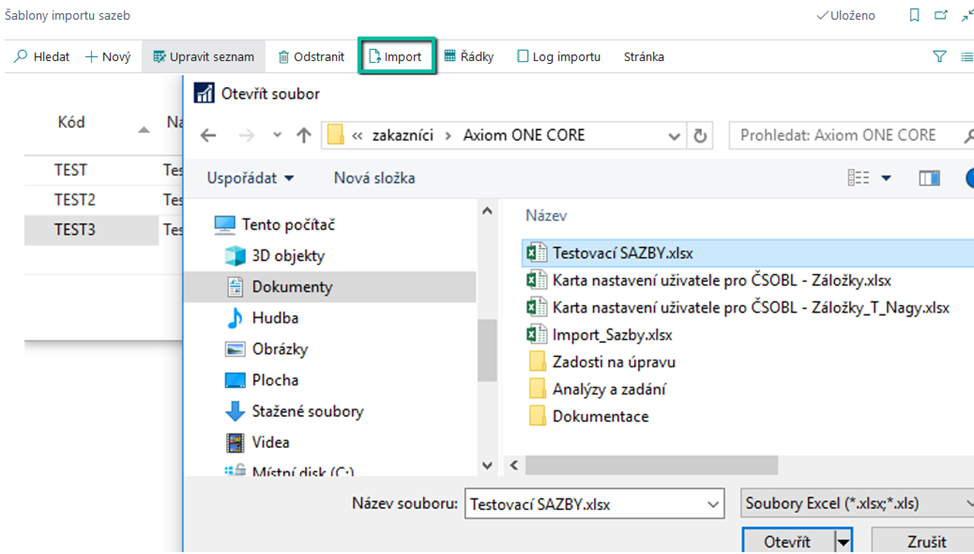
If the template setup is with active rows. The user proceeds to enter the file:
If there is an overlapping duration for different groups, it is necessary to add a "Group" to the variant constraint, because there is a different condition for the financing period for different groups
If the group was up to the rate, both options would be offered for the 60-month contract and the 84-month contract would not include rates....
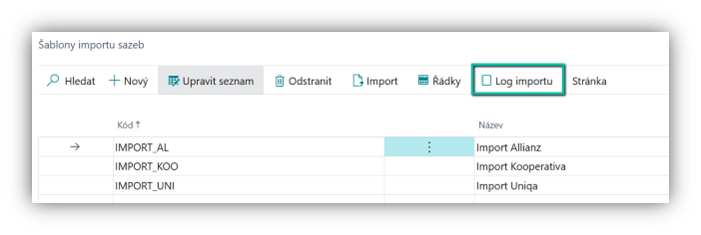
Import Log
After importing rates, the system saves the result in the Import Log table. The user can open the log filtered for the given template:
Field:
-
Entry No. (Entry No.)
-
Unique key when importing
-
-
Template Code (Template Code)
-
Imported Template Code
-
-
File Name (File Name)
-
Source import file name with path
-
-
Sheet Name (Sheet Name)
-
Source Import File Batch
-
-
Series No. (Row No.)
-
Line No. of Source Import File
-
-
Insurance Company No. (Insurace Company No.)
-
Specified insurance company on the template line
-
-
Insurance Product No. (Insurance Product No.)
-
Specified insurance product on the template line
-
-
Framework Agreement No. (Framework Agreement No.)
-
Entered framework agreement on a template line
-
-
Set No. (Set No.)
-
The set can be specified both on the template line and in the source import file
-
-
Date of issue (Created At)
-
Import Start Date
-
-
Creation Time (Creation Time)
-
Processing Time
-
-
Rate No. (Rate No.)
-
If a rate was created by import, a unique key is entered – the number of the created rate
-
-
Result (Result)
-
Success - if the system did not encounter a problem and created a rate
-
Error – when the system was unable to create a rate
-
-
Error Detail (Error Detail)
-
Specification of the problem in case of error
-
-
User ID ((User ID)
-
The user who started the import
-
Examples of errors
Examples of "error details"
-
No variant found matching the restriction

No variant found matching the limit: -FIX_MES/0/60/-COMMODITY/0/0/SZ-PO_SUMA/0/3,000,000/-STARI_MES/25/60/
The import failed because a variant with this limitation was missing:
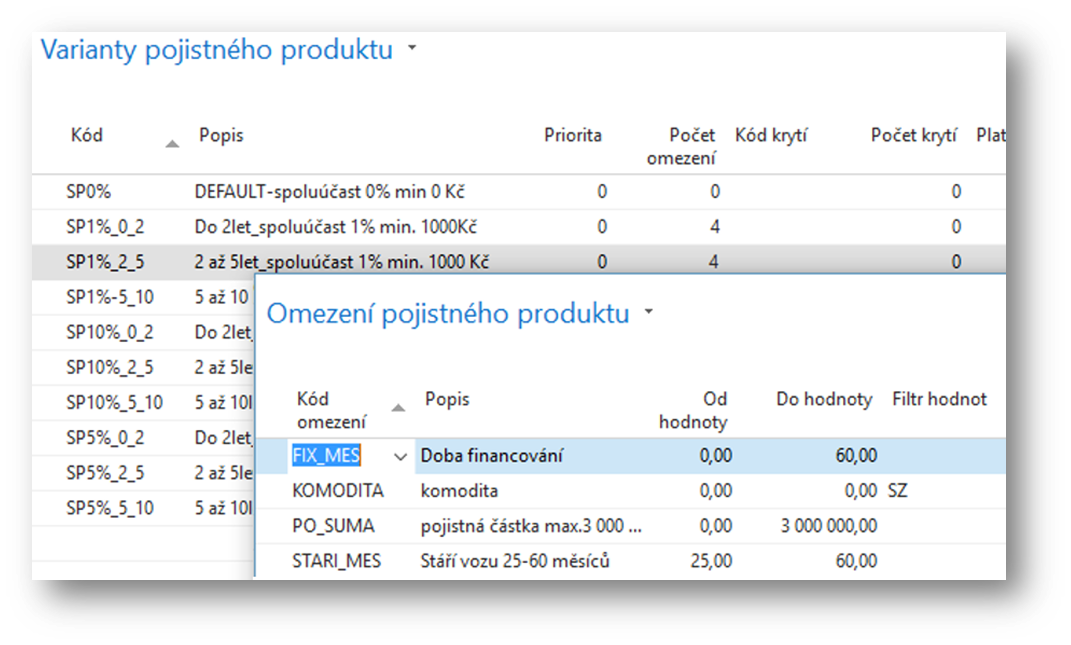
After reviewing and adding the missing variant, the import was successful.
-
No variant found with the given deductible
No variant found. Filters: Insurance Company No.: CSOB_POJ, Product Number: STROJNI ALLRISK, Participation Code: '<ERROR>'
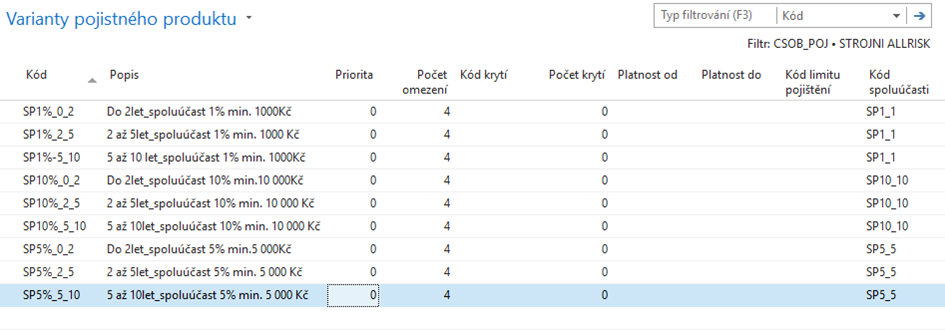
There is no variant on the Allrisk Machine without a deductible code.
There may be an error in the import file – the deductible should have been there, or it is necessary to create a variant without deductible.
-
Variant with limit not found
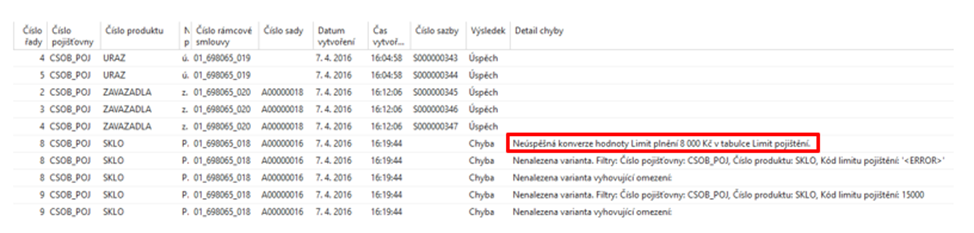
Conversion of the Indemnity Limit value of CZK 8,000 in the Insurance Limit table was unsuccessful.
Based on the text "Fulfillment limit CZK 8,000", the system did not find a limit code.
The user has to check the limit dial.
-
Calculation method not found
It is necessary to check the methods of calculating premiums on the set, possibly even at higher levels. The method was not specified, or it differs from the method in the import file. The problem can also be caused by a missing interval in the premium calculation method.
The same error is reported by the system even if the system does not find a method of calculating the same category per set according to the "Object Category" of the imported rate. E.g. the set had a method set only for machines, but there were rates for both machines and means of transport in the import file. (It was necessary to add the calculation methods on the set.)
-
Calculation method interval not found
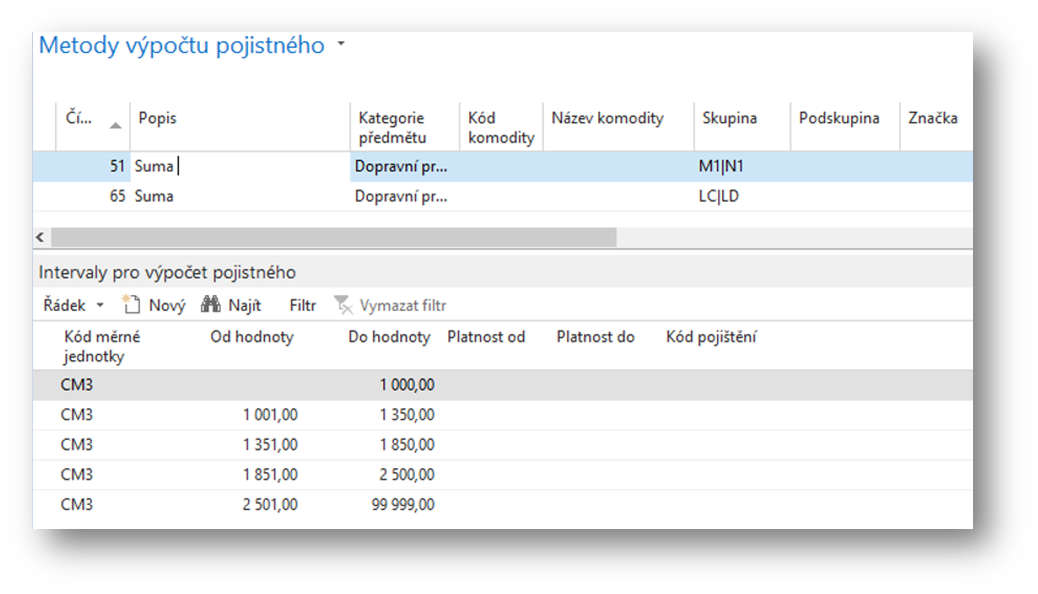
Calculation method interval not found 51.
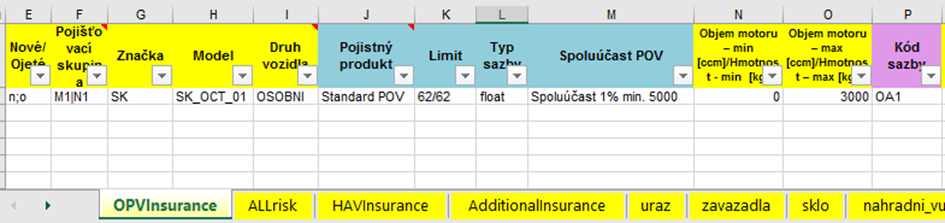
There is no interval with a range of 0 – 3000 on the set
Delete insurance company product Rates button
If the import of rates on a new insurance company product results in the creation of rates that contain an error, it is possible to delete the rates once.
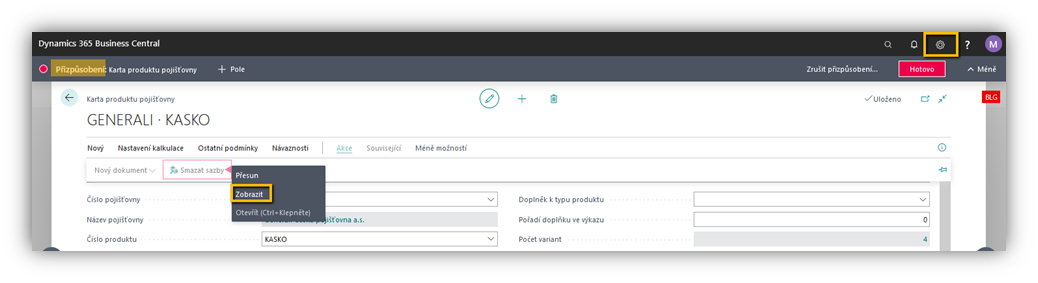
There is a hidden button on the insurance company's product card for this purpose.
The button must be made available to the responsible user:
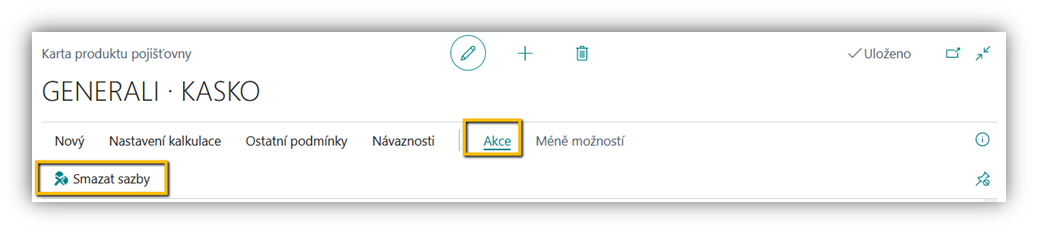
On the "Insurance Company Product" tab, the responsible user will then see a new Delete Rates button:
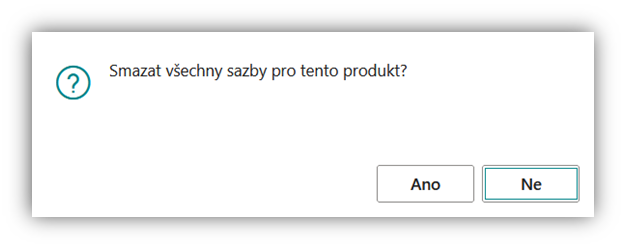
A prerequisite for deleting the rates of an "insurance company's product" is that there is no insurance contract with this rate.
If the system finds the rate applied to the insurance policy, it will not perform the deletion.
After the successful deletion of the rates, the user can correct any error and Import Rates Again.