
On the invoice interface template, the user sets the required data record checks to be performed by the system after searching for the vehicle, contract and service allowance.
Active Service Check
The user selects the check on the template for the given service.
During the check, the system checks whether the Service on the contract is valid at the time of the VAT Date data record.
If it is not valid, the system will write an error message to the
of the invoice interface stack for the given line: "Service is not active“
Discount check – on the Tire Discounts code list
Discount Check – Determined by Tire Brand
To check discounts in the Tire Discounts code list, it is necessary to enter Discount Control and Determination by Tire Make on the template.
When checking the discount for the "type of service" PNEU, the system then compares the discount in the data sentence with the discount in the Tire Discounts code list for the given supplier, period and tire brand.
If the discount in the data sentence is smaller than the discount in the code list, the system prints an error message to the invoice interface stack for the given line: "The amount of the discount on tires does not correspond to the discount price list. Discount found xx“
E.g. in the "tire discount" code list, a 30% discount is valid for a given supplier and brand, and in the data sentence there is a 2% discount, the system warned about a discount discrepancy with an error message.
If it does not find the tire brand for the "tire service" service in the dial list Tire Discounts (T.4026611) for a given supplier, the system also checks for the given supplier and the framework service agreement in the code list Discounts and Bonuses of the Maintenance Agreement (t.4026708) to see if the discount "Tire Service" is entered with the same or empty tire brand in the field Tire Filter.
Discount check - for framework agreement
In addition to the Maintenance Agreement, the user can define the following discounts:
-
Per Supplier
-
To Business Location
-
Discount / Bonus Type
-
Purchase discount on parts
-
Purchase Discount On Labor
-
The next level of discount can be for the car brand, model line or model.
If you turn on discount control, the system will compare the discount amount in % in the data record and in the relevant template. If a specific vendor is not entered on the financed object, it will be checked in the table of discounts and bonuses of the maintenance agreement.
Amount Check
If the user turns on "amount control" on the template, the system compares the amount in the data record and the amount on the allowance during import. The amounts in the data sentence are summed up by the system for the approval number, the subject, and the type of service. If there are multiple items in a given batch for a given object, approval number, and service type, the system must compare their sum with the limit specified on the service type.
If the difference is in the amount up to the limit set to Service Type, the system does not report any error (and produces a delta row while processing).
If the difference in the amount over the limit is set to Service Type, the system will report a soft error. After accepting the error, it creates a delta line when the batch is processed.
For example, there is a total of CZK 4,700 per permit for the TIRE service type
In the date sentence, tires for the contract came in the total amount of 9,727,-
If the difference is greater than the set limit on the service type, the system reports a soft error: "The amount does not match the approved amount.”
So after a possible Acceptance When processing errors, the system creates a difference line for the TIRE service type in the amount of the difference, i.e. 9,727 - 4,700 = 5,027
In the example above, the system has created a line for the storage of tires in the allowance – 961.88. Because the amount was up to the limit for the service type T_STORAGE in the case of storage, the system did not even report a soft error here.
If the mandatory approval number is not checked on the service template (e.g. storage), if the item in the data sentence does not have an approval number, but the system has found the object according to the registration number and the amount is within the limit of the service, it will create a new maintenance permission according to the settings on the relevant template.
The system has determined the template based on item code mapping.
Service Period Check
The user selects the check on the template for the given service.
During the check, the system checks whether the Service on the contract in the period according to the date of taxable supply in the data sentence is valid.
E.g. The date of taxable supply is 8.11.2020, so the system checks whether the date falls within the valid period of the contract.
If the Service on the contract was no longer valid at the given time, the system writes an error message "Invalid Service. Valid from:DDMMYY, Valid To: DDMMYY"
Tire Category Check – OC OC
The user selects the check on the template. You need a separate template for buying tires and periods.
On the Template, the user ticks Tire Category Check. In order to correctly record the number of tires on the allowance, it is necessary to select the determination according to the "Tire Brand" as well as the Registered Number of Tires and Tire Period.
Tire category check can only be performed on a valid service Tire Service – Tire Service Detail. If the system does not find a valid service, it does not actually have a prescribed tire category.
When checking a tire category, the system takes the description of the tire brand in the data record and looks for the same "description" field in the tire make code list. If it finds, it takes the "brand code" and the "category code" next to it.
It compares this category code with the "category code" prescribed on the service valid in the given "period".
If the "tire category" on the service does not match the tire category in the data record, it registers a soft error with "error message 7" in the buffer for this line: "Does not match tire category“.
If it is the case that "make tire" is not entered in the tire make code list, the system will mark a soft error with the text of the error message.
In this case, the tire brand code must first be updated so that the system can compare tire categories.
If there is no valid Service on the contract Tire Service, the tire category check cannot be performed.
It is not possible to specify a prescribed category. In this case, it prints an error message – "Service is not valid, category check cannot be performed.“
Contract End Check
During the check, the system checks whether the contract is terminated on an earlier date than the date of taxable supply from the data record.
If the "date of actual termination" is filled in on the header of the contract < the date of taxable supply from the data record, the system writes an error message "The contract has already been terminated at DDMMYY“
Approval No. Check
The position of the approval number (authorization code) is given by the file format. Specify the format.
The user selects the check on the template.
Based on the car's registration number, the system will find the item and the contract. If the check is enabled, it searches for the mandatory approval number in the data sentence and the corresponding maintenance permission.
If the system has to check for a given type of service Approval No. and the data sentence does not say "announces" A hard mistake only if there is no "approval number" for the given item code PNEUZ and at the same time the line amount is Greater than limit for that type of service. This is a hard error with the message: "There is no approval number for tire purchase".
In the event that it is amount On the line Less than limit, the system reports a soft error and after accepting the error and the "Execute" function, it automatically creates a service permission with the amount up to the limit.
Empty Odometer Status
On the invoice interface template, it is possible to check whether the odometer status is filled in.
According to the description of the data record.
In this case, the system checks the column in the data record.
If the template for a given item code contains a check for an empty odometer status, the system will report a soft error: "Odometer status not specified".
Zero amount to be reinvoiced
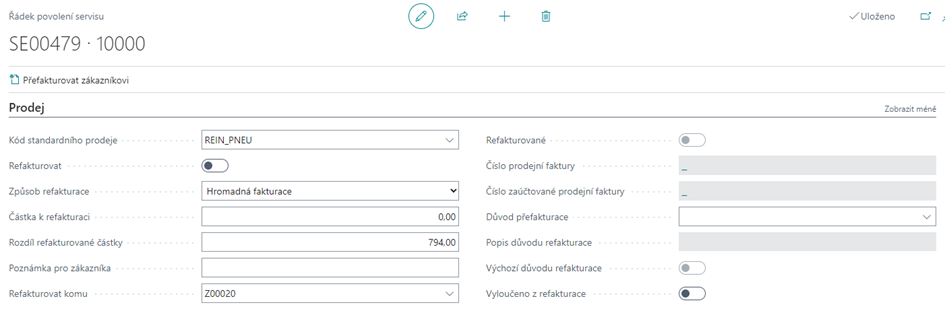
When searching for an allowance according to the "approval number" on the allowance, the system checks the Reinvoice check box.
If there is a check mark Reinvoice = Yes and at the same time the amount to be reinvoiced = 0, the system writes an error message: "Permission is marked for reinvoicing to a customer with zero amount to be reinvoiced."
First-time delivery – service validity check
After signing the contract, tires are ordered as part of the preparation of the item. Before the object is handed over, the services are created on the date of the offer creation.
If the "VAT date" on the data record line is after the date of creation of the offer, the Service is assessed during the checks as valid from the date of creation of the offer, even though the handover could have been later and the "valid from" is adjusted according to the "handover date".
Examples:
A: The VAT date is before the offer creation date
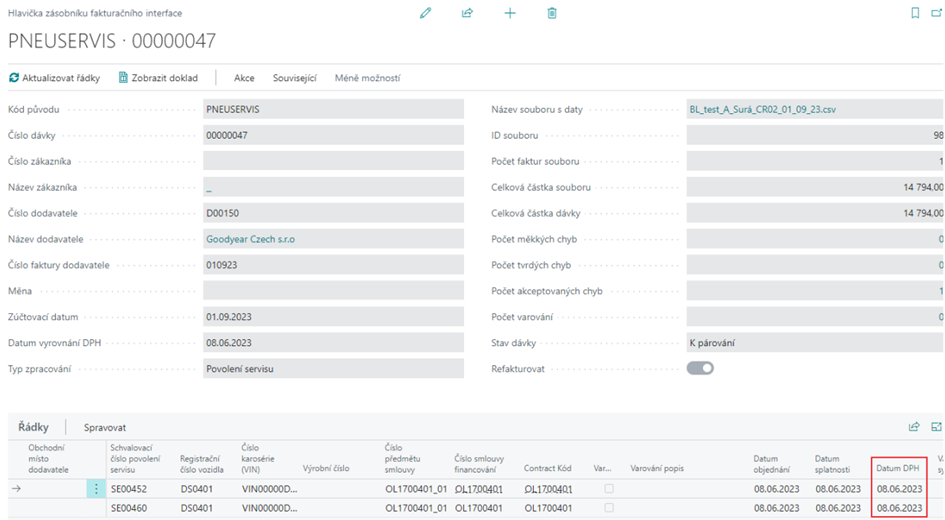
Because VAT Date < Offer Creation Date, the system correctly flags an error (in June, the Service was not valid even according to the offer)

To evaluate whether a valid Service was valid, we use "Ultimo date, it is the 1st day of the month VAT Date data record.
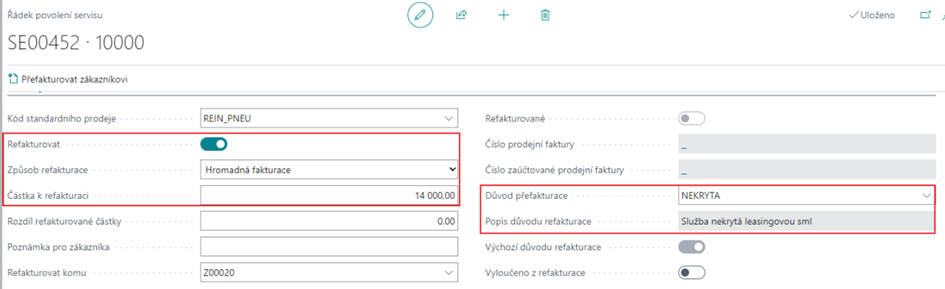
B: The VAT date is after the Offer Creation Date
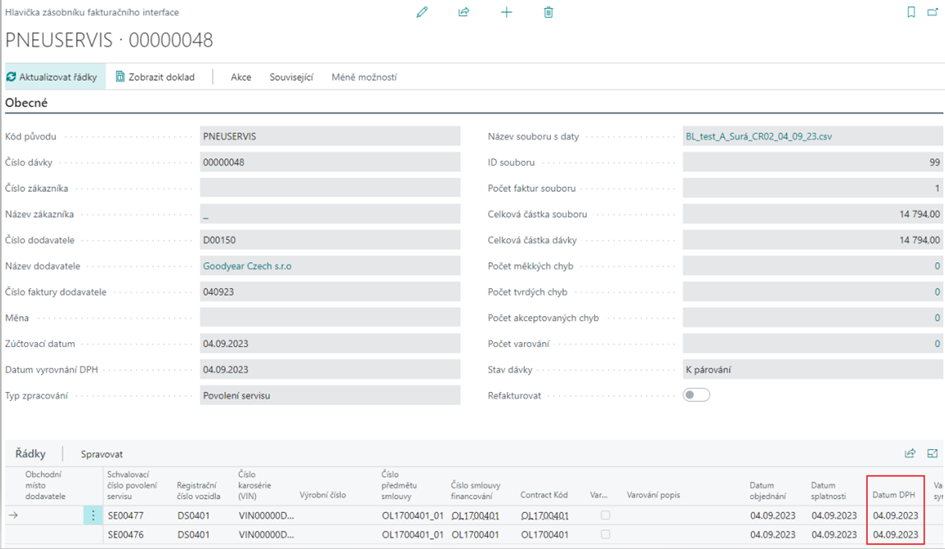
The Reinvoice flag is correctly NO, Amount to be reinvoiced is 0 and Reinvoicing reason is empty because Offer creation date is 09/01/2023:
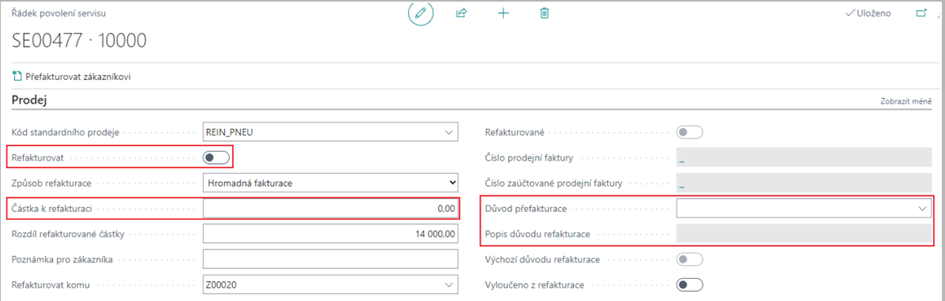
The system did not print an error because the Offer Creation Date is 1.9.2023, so 4.9. Service was already valid from this point of view.
C: The VAT Date is after the Handover Date
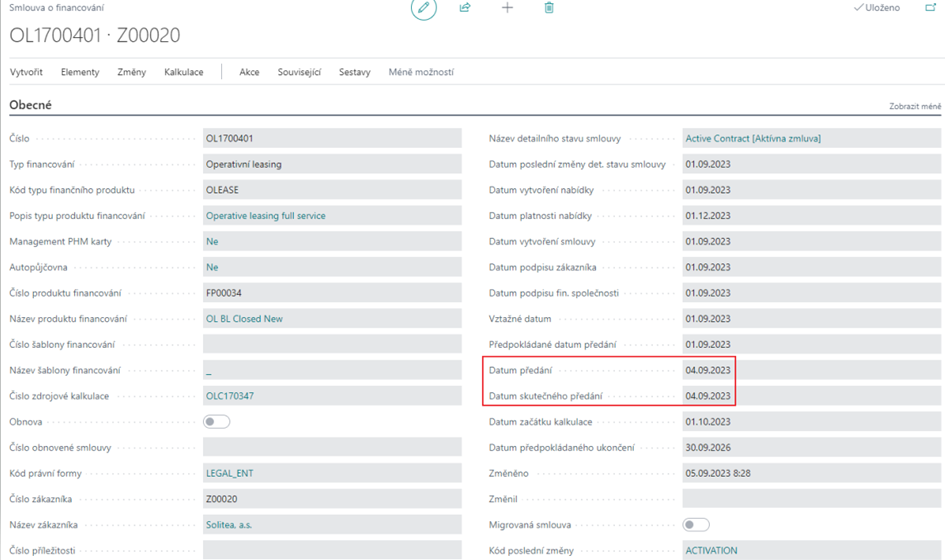
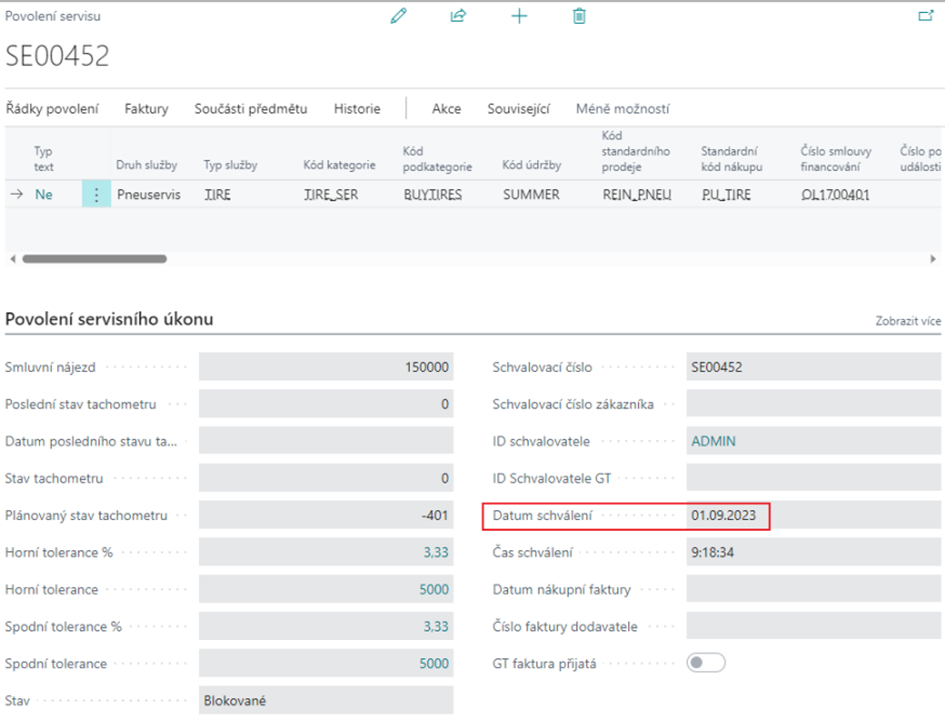
The permit was created and approved before the object was handed over:
Services start after handing over:
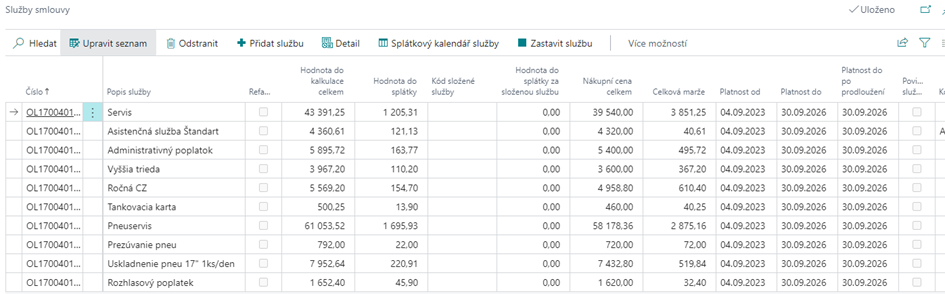
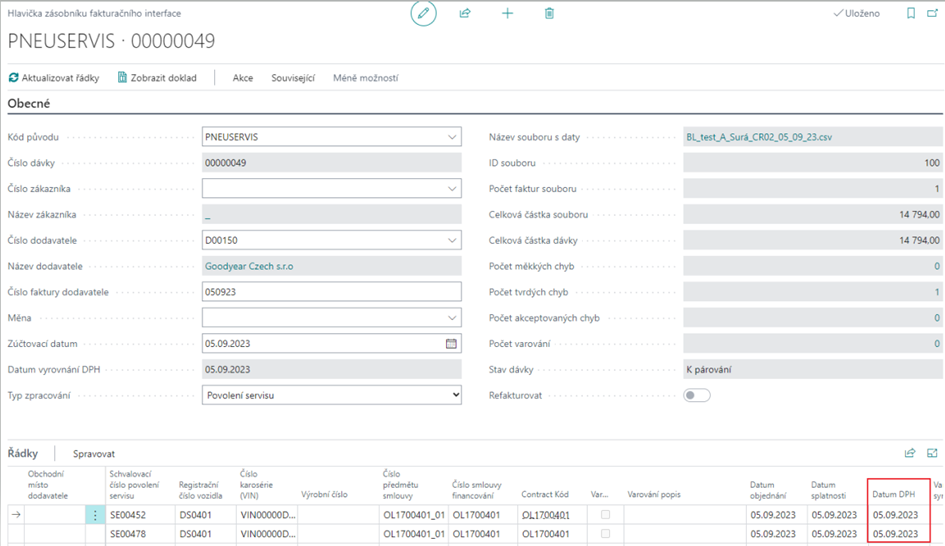
The stack row is correct, it is not marked with a soft error, because the system assesses in this case the start of the service validity according to the Offer Creation Date.
VAT date in a data sentence before the end of the service
Example A: the allowance is for the original service, the item in the data record is for the terminated service (VAT Date) and will come after the creation of a new service
It does not report an error in the data record item as of 15.10.2023, because it does not search by status, but by validity, and finds the previous service valid in October 23:
Example B: VAT date in a data record After the end of the service to 30.11.2023
To evaluate whether a valid Service was valid, we use "Ultimo date, it is the 1st day of the month VAT Date data record.