
Logging is provided by NuGet Serilog packages.
Specifically, these are the following packages:
-
Basic:
-
Install-Package Serilog.AspNetCore -Version 2.1.1
-
Install-Package Serilog.Settings.Configuration -Version 3.0.1
-
-
Packages for individual channels (sinks):
-
Install-Package Serilog.Sinks.Console -Version 3.1.1
-
Install-Package Serilog.Sinks.File -Version 4.0.0
-
Install-Package Serilog.Sinks.ApplicationInsights -Version 2.6.0
-
The list of packages for each channel is here: https://github.com/serilog/serilog/wiki/Provided-Sinks
Configuration
By installing the Serilog.Settings.Configuration it is possible to configure logging via a file appsettings.jsonwhere it is possible to set individual channels (sinks). The whole setup has a simple structure that is easy to configure (but it is advisable to work directly with the code).
-
Serilog
-
Using - add individual packages
-
MinimumLevel - Logging level setting (global)
-
WriteTo - Configuration of individual channels
-
Name - method name (e.g. Console, File, ApplicationInsightsTraces...)
-
Args - parameters of the method above (always the name of the parameter and its value)
-
-
Example
"Serilog": {
"Using": [ "Serilog.Sinks.File", "Serilog.Sinks.Console" ],
"MinimumLevel": "Information",
"WriteTo": [
{
"Name": "File",
"Args": {
"path": "Logs\\log.txt",
"restrictedToMinimumLevel": "Error",
"fileSizeLimitBytes": null,
"retainedFileCountLimit": 30,
"rollingInterval": "Day",
"outputTemplate": "{Timestamp:yyyy-MM-dd HH:mm:ss.fff zzz} [{Level:u3}] {Message:lj}{NewLine}{Exception}{NewLine}{NewLine}"
}
},
{
"Name": "Console"
},
{
"Name": "ApplicationInsightsTraces",
"Args": {
"instrumentationKey": "5ad9a27c-7dc6-4640-ba94-7321e499a415",
"restrictedToMinimumLevel": "Information"
}
}
]
}
Canals
Here you will find a description of the individual logging channels and their use.
Console
This is a basic logging channel that makes it much easier for the developer to develop the application.
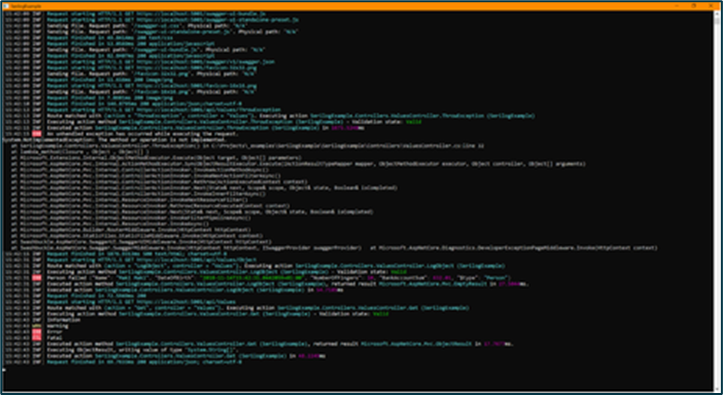
Source: https://github.com/serilog/serilog-sinks-console
File
This involves logging into a file that can be downloaded via FTP if necessary. However, this procedure cannot be connected to any automation - sending an email in case of a critical error.
Various parameters can be set for this channel, which are described in the link below. It is definitely worth mentioning the parameter rollingInterval, which specifies how often a new file should be created (e.g. hourly, daily, etc.) together with the parameter retainedFileCountLimitfor which the maximum number of files is set (the oldest are automatically deleted).
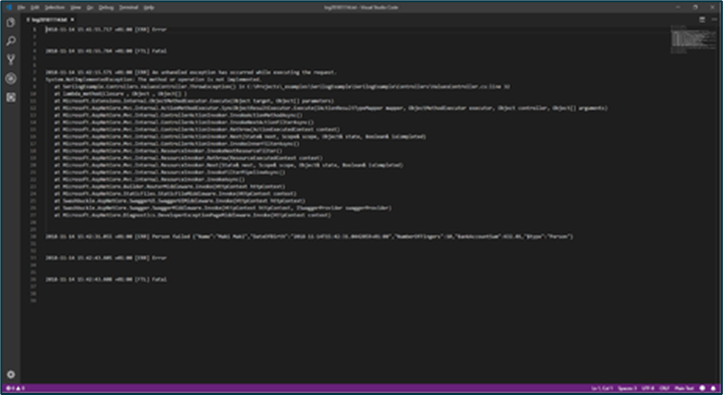
Source: https://github.com/serilog/serilog-sinks-file
note: This approach will not be used
ApplicationInsights
It's a pipeline that allows you to write to Application Insights. Application Insights is extensible
Application Performance Management (APM) Service. It is intended for web developers on multiple platforms. It is used to monitor a live web application.
After you create an Application Insights resource in the Azure portal, in the Properties section we find the Instrumentation key, which is used to connect Application Insights and the application. After registering in the appsettings.json Allows serilog to send reports to Application Insights as EventTelemetry, TraceTelemetry or ExceptionTelemetry.
-
EventTelemetry
-
Used for logging user actions or events
-
Performance Monitoring
-
Scheme:
-
Name (Max length: 512 characters) - used for message grouping
-
Custom properties (Max key length: 150 Max value length: 8192)
-
-
-
TraceTelemetry
-
Diagnostic logs
-
Scheme:
-
Message (Max length: 32768 characters)
-
Severity level (Value can be Verbose, Information, Warning, Error, Critical)
-
Custom properties (Max key length: 150 Max value length: 8192)
-
-
-
ExceptionTelemetry
-
Logging Exceptions
-
If the log contains any exception, it will always be sent as ExceptionTelemetry
-
Log statistics can be found in the Application Insights in the section Investigate item Metrics, where it is possible to monitor the logs, create filters over them, etc. A better option is to calm further into the Classic Explorerwhere you can create your own charts and alert settings (see Fig. 1).
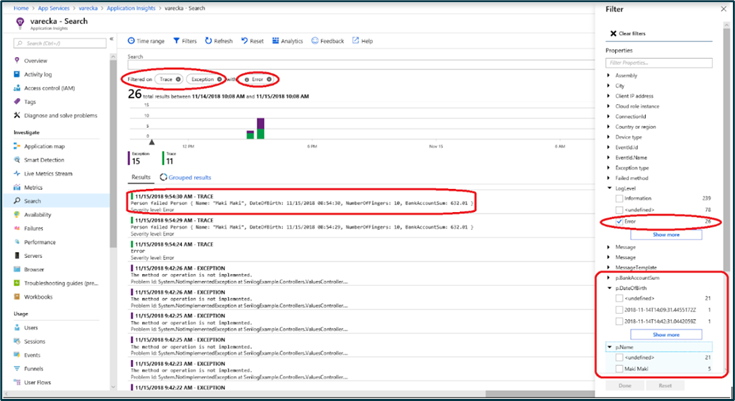
The logs themselves can be found using the Search in the section Investigatewhere you just need to select filters Trace and Exception and other parameters of interest (see Fig. 2). It is also possible to log entire objects on BE, the parameters of which are then available in the search. This can be useful for saving inputs before calculation.
The advantage over all other channels (sinks) is the possibility of establishing further processing when data is received - e.g. sending an email to the responsible person in case of exceptions or exceeding the storage space.
Fig. 1
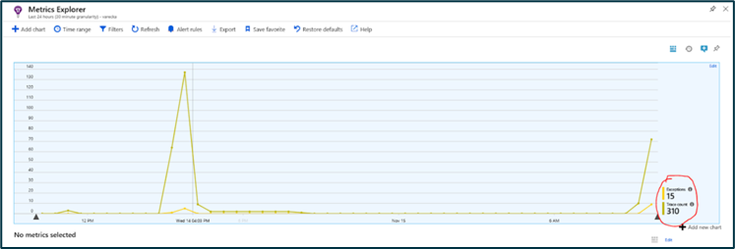
Fig. 2
Resources:
https://github.com/serilog/serilog-sinks-applicationinsights
https://hryniewski.net/2017/12/10/structured-logs-with-serilog-and-application-insights/
https://docs.microsoft.com/cs-cz/azure/application-insights/app-insights-overview
AzureTableStorage
Unfortunately, it is not cross-platform. This is a write to Table Storage. The input is storageTableName and connectionString. Cannot be connected to automatic.
Source: https://github.com/serilog/serilog-sinks-azuretablestorage
List of Logged Events
-
CalculationService:
-
Log Calculation model after Initialization
-
Log every exception thrown while calculation process
-
Log result configurations list
-
-
ExcelExportService:
-
Log exception while processing Calculation List
-
Log exception while processing Offer
-
-
Pdf Export:
-
Log exception wile rendering pdf Offer
-
-
EmailSender:
-
Log exception while sending emails
-
-
ImageHelper:
-
Log exception while saving Base64 Image
-
-
Global exception catcher:
-
Log exception
-