
In the section Insurance to define settings related to insurance contracts. This is the setting of insurance companies, products to which rates are linked. It is also possible to define restrictions that are linked to the insurance company and the product.
Insurance Products - Product Creation/Modification/Removal
List Insurance Products It is located in the first tab. A new insurance company product can be created from the overview Insurance Products Use the Add Product.
A tab for entering a new insurance product will open.
Field:
-
Product Name
-
A required field, the value of which is displayed when selecting an insurance product in the calculator
-
-
Product description
-
Required field
-
Insurance Product Specification
-
-
Product Type
-
The default option is Basic
-
The user chooses one of the options
-
Basic
-
Additional
-
-
There are two sections in the calculator (Basic Insurance, Additional Insurance) and based on the selection of this field in the settings, the product is displayed in the relevant section in the calculator
-
-
Calculation Base
-
The default option is Insurance Total
-
The user chooses one of the options
-
Sum insured - the method of calculating the insurance premium will always be % of the sum insured. In the section General Settings is a definition of which amount will be entered into the calculation of insurance premiums as Sum insured:
-
Total price without VAT to calculation = price of the vehicle including optional and additional equipment after discount without VAT
-
Vehicle price incl. VAT (incl. equipment and before discount) = vehicle price including optional and additional equipment before discount incl. VAT
-
-
Engine Displacement
-
Without base
-
Combination (without base/sum insured)
-
In the case of insurance products, it will be possible to determine the rate by % of the sum insured or by the amount, e.g. the value of the cover (glass)
-
-
-
-
Specificity
-
Required field
-
It is only used to display help for the administrator to fill in the field Text for Calculator at Insurance Rates
-
The user chooses one of the options
-
Unresolved
-
Participation
-
Cover
-
Quantity
-
-
-
Select products
-
Optional field
-
The user selects from the list of financing products
-
It is possible to select multiple products
-
If filled in, the insurance product will be offered in the calculator only for the selected financing product
-
If the field is blank, the insurance product is available for all financing product types
-
-
Mandatory make
-
If the field is checked, then it is necessary to fill in the mark on the rate that belongs to the given insurance product.
-
-
View
-
Optional field
-
The user chooses from the options
-
Available
-
Optional insurance product that will be available for selection in the calculator
-
-
Unavailable
-
The product will not be available in the calculator
-
-
Required - Visible
-
In the calculator, the insurance product is selected automatically, the user cannot cancel the selection (cannot be edited)
-
-
-
-
Default Product to Specify Insurance Company
-
Flag for determining the product according to which insurance companies will be displayed for selection (more in the insurance display section of the calculator)
-
You will only be able to mark as default an insurance product that is marked as Mandatory - Visible
-
You can modify an existing insurance product using the Edit, which is located on the overview Insurance Products
After pressing the button, the insurance product card will be displayed, where you can change anything except Calculation Base. When you change the name, the change is also reflected in the rate or restriction if the insurance product is used in a rate or restriction.
Deletion of the insurance product is possible using the Delete, which is located only on the overview Insurance Product.
If there are rates or restrictions linked to the insurance company, then a question will be displayed when the button is pressed

After confirming Delete, the system will delete the insurance product as well as the linked rates and restrictions.
Insurance companies - establishing/modifying/removing an insurance company
The list of insurance companies is located in the second tab. A new insurance company can be created by default from the list Insurance companies Use the Add Insurance Company.
A tab for entering a new insurance company opens, which contains only the name of the insurance company.
Field:
-
Title
-
Required field
-
You can edit an existing insurance company using the Edit, which is located on the overview Insurance companies.
After pressing the button, the insurance company card will be displayed, where it is possible to change the Name. If an insurance company is used in a rate or restriction, then the change will also be reflected in the rate or restriction.
Removal of the insurance company is possible using the button Delete, which is located only on the overview Insurance companies.
If there are rates or restrictions linked to the insurance company, then a question will be displayed when the button is pressed

After confirming Delete, the system will remove the insurance company as well as the linked rates and restrictions.
Insurance Rates - Create/Modify/Delete Insurance Rates
The list of Insurance Rates is located in the third tab. A new rate can be created by default from the overview Insurance Rates Use the Add Rate.
A tab for entering a new insurance rate will open.
Field:
-
Insurance Product
-
Required field
-
Selecting the insurance product to which the insurance rate is linked
-
When creating a new insurance rate, a card with only this field will open. After selecting an Insurance product, additional fields will open depending on which insurance product has been selected. Fields are opened based on the selected Calculation Base on the insurance product
-
-
Title
-
Required field
-
This is the name of the insurance rate
-
-
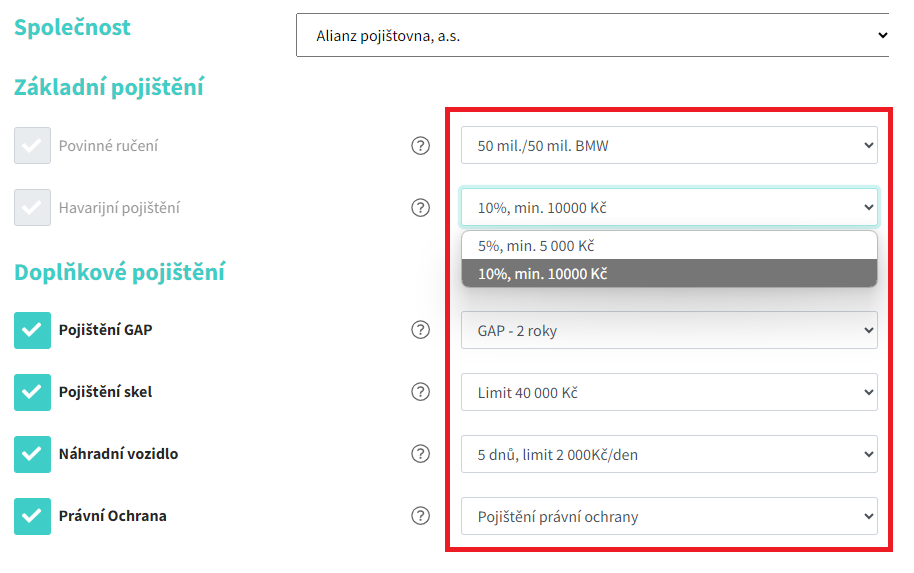
Text for Calculator
-
Required field, default value is {}
-
Text that will be displayed to the user/dealer when selecting a rate in the calculator
-
Examples:
-
Participation, e.g. 5%, min. CZK 10,000.00
-
Coverage, e.g. Limit 50mil / 60mil < 5 years
-
Quantity, e.g. number of seats, days for replacement vehicle
-
Display in the calculator
-
-
-
Insurance company
-
Required field
-
Choosing the insurance company to which the insurance rate is linked
-
-
Make
-
If the value of the field is present on the selected insurance product Mandatory make equals YES, then it is necessary to select in this field the tags for which the rate is determined
-
-
Vehicle Type
-
You can select from the values of Personal, Utility or leave the field blank
-
If the field is empty, then the rate is determined for all vehicle types
-
-
Calculation method
-
The field is displayed when an insurance product is selected on which the Calculation Base Elected Combination (without base/sum insured)
-
The default value is Percentages, the user can change to Value
-
-
Rate
-
Required field
-
The value is entered in different units of measurement depending on the selected insurance product and its selected Calculation Base:
-
Without base
-
The rate is given as a percentage
-
-
Combination (without base/sum insured)
-
The value is entered either in % or in absolute value, depending on the choice in the field Calculation method
-
-
Engine Displacement
-
The rate is given in absolute value
-
-
Insurance Total
-
The rate is given as a percentage
-
-
-
-
Minimum value
-
The field is displayed when an insurance product is selected on which the Calculation Base Elected Engine Displacement
-
Required field for this insurance product
-
This is the minimum engine capacity for which this rate is defined, the value is entered in ccm
-
-
Maximum value
-
The field is displayed when an insurance product is selected on which the Calculation Base Elected Engine Displacement
-
Required field for this insurance product
-
This is the maximum engine capacity for which this rate is defined, the value is entered in ccm
-
-
Restrictions for other products
-
Selection of insurance products that will not be offered if this insurance rate is selected in the calculator
-
-
Description
-
A text field in which you can enter any description of the insurance rate
-
Informative fields
-
-
Insurance Terms and Conditions
-
A text field in which you can enter any description of the insurance conditions
-
Informative fields
-
-
Information for users
-
A text field in which you can type any description for the user
-
Informative fields
-
-
Valid From
-
Valid from a given rate, only valid rates will be offered in the calculator
-
-
Valid To
-
Valid up to a given rate, only valid rates will be offered in the calculator.
-
It is not possible to add an Insurance Rate until all mandatory fields have been entered – to create a rate, it is necessary to press the button Add Rates. If the rate card is abandoned in any other way than by confirming this button, then the rate will not be created.
You can edit an existing insurance rate using the Edit, which is located on the overview Insurance Rates.
After pressing the button, the insurance rate card will be displayed, on which you can change anything. Then you need to press the button Save Rate, otherwise the change will not be saved.
Removal of the insurance rate is possible using the Delete, which is located only on the overview Insurance Rates.
Restriction - creating/modifying/removing restriction
The Restrictions list is located in the fourth tab. A new restriction can be created by default from the overview Constraint Use the Add Constraint.
A tab opens for you to enter a new restriction.
Field:
-
Insurance Product
-
Required field
-
Selecting the insurance product to which the restriction applies
-
-
Insurance company
-
Required field
-
Choosing the insurance company to which the restriction is linked
-
-
Price From
-
Required field
-
The value is indicated in Value (monetary)
-
-
Description
-
A text field in which you can enter any description of the insurance restriction.
-
It is not possible to save the restriction until all required fields have been entered – to create a restriction, it is necessary to press the button Save Restrictions. If the constraint card is exited in any way other than by confirming this button, then the restriction will not be created.
You can edit an existing restriction using the Edit, which is located on the overview Constraint.
After pressing the button, the restriction card will appear, where you can change anything. Then you need to press the button Save Restrictions, otherwise the change will not be saved.
Removal of the restriction is possible using the Delete, which is located only on the restriction overview.