
The "Vehicle Configuration" section sets up information about the vehicles, basically it is a vehicle catalog.
Vehicle List
The vehicle catalogue is transferred to the OneCore Quick Calculator database from the integration intermediate layer. The imported catalogue cards are displayed in the vehicle list.
Vehicles to Vehicle List It is not possible to create it manually, but the data is read via import. It is not possible to edit the vehicle list or delete the record. The import method is described in Kalkulátor Technická část
Parameter Setting
In the Parameter Settings section, there are dials that enter the vehicle list. These are the code lists:
-
Vehicle Brands
-
Series
-
Models
-
Classes
-
Fuel
-
Gearbox
These code lists are filled through import, so it is not possible to manually create a new record in any of them. It is not possible to manually edit anything in these code lists and delete records. Only flagged records are displayed ISDeleated = NO. The import is described in the document Kalkulátor Technická část
Optional equipment
In the Optional equipment are defined by Equipment Groups and Equipment Items, which can then be selected in the calculator when configuring the vehicle.
Optional equipment is a simple entry with practically just the name of the item. From the optional equipment, groups are created that are assigned to different classes of the car (business, economy, luxury, etc.). Depending on the class and price of the vehicle, the selected optional equipment group will be displayed in the calculation. The number of selected optional equipment items may have an impact on the residual value of the vehicle.
Equipment Items - Create/Edit/Remove Equipment
The list of equipment items is located in the second tab. New optional equipment can be created from the overview as standard Equipment Items Use the Add Item.
A simple tab will open for you to enter the new equipment.
Field:
-
Title
-
Required field
-
-
Description
-
Required field
-
You can edit existing equipment using the Edit, which is located on the overview Equipment Items.
At the touch of a button, the optional equipment card is displayed, which can be changed to Title and Description. If the fixture is used in a group, then the change will be reflected in that group as well.
Removal of equipment is possible using the Delete which is placed only on the overview Equipment Items.
When the button is pressed, a question is displayed: "Are you sure you want to delete the record?”
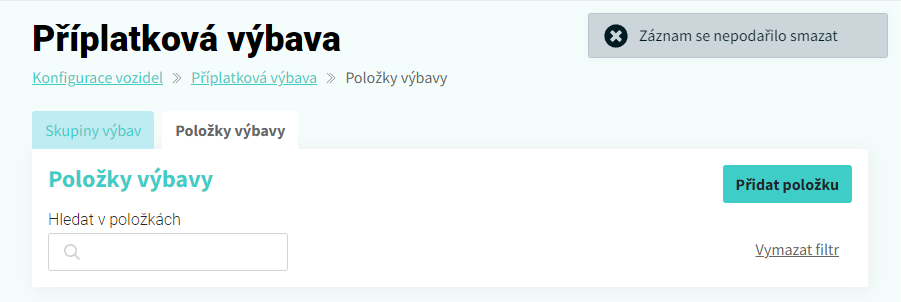
After confirmation Delete, the system will remove the equipment as long as it is not used in any equipment group. Otherwise, you'll get an error:
Equipment Groups - Create/Edit/Delete Equipment Group
The list of equipment groups is located in the first tab. A new optional equipment group can be created from the overview by default Equipment Groups Use the Add Group.
A tab opens for entering a new equipment group.
Field:
-
Title
-
Required field
-
-
Select Class
-
The user selects a vehicle class from the imported code lists Classes
-
It is then filtered to this value in the calculation
-
It is not possible to create two equipment groups with the same vehicle class. The system checks for this duplication at the push of a button Add Group. If a duplicate is found, the system displays an error message and does not allow the group to be saved.
-
-
Vehicle List Price Excl. VAT From (Incl.)
-
The user enters the lower limit of the list price of the vehicle to which this equipment group applies
-
If it remains empty, then it is taken as unlimited
-
-
Vehicle List Price Excl. VAT To (Incl.)
-
The user enters the lower limit of the list price of the vehicle to which this equipment group applies
-
If it remains empty, then it is taken as unlimited
-
-
Select equipment items
-
Here, the user selects the equipment items that belong to this group
-
-
Percentage Impact on Residual Equipment
-
Depending on how many fixtures are selected from a given group in the calculation, a percentage of the defined interval is added
-
The intervals must cover the number of trims that are selected in the previous field (e.g. if I select 10 equipment items, I set the intervals to 0 to 5 and 6 to 10).
-
Number of equipment elements from
-
The user enters the lower limit of the number of trims for which the specified percentage of residual value impact applies
-
-
Number of equipment items up to
-
The user enters the upper limit of the number of trims to which the specified percentage of residual value impact applies
-
-
Influence on price
-
The percentage by which the residual value of the vehicle is affected for a given number of trims
-
-
-
You can create a new group by pressing the Add Group button. It is not possible to add new optional equipment to an already defined group – the Add group button is inactive (there can be only 1 optional equipment per class).
You can edit an existing equipment group using the Edit, which is located on the overview Equipment Groups.
At the touch of a button, the equipment group card is displayed, where you can change anything. Changes from the equipment group are not updated on an existing calculation only if the existing calculation is opened for editing and then the system takes into account the new data from the settings when calculating the combinations.
To delete a equipment group, use the Delete, which is located only on the overview Equipment Groups.
When the button is pressed, a question is displayed: "Are you sure you want to delete the record?”
After confirmation Delete, the system deletes the equipment group.
Brands - Logo
On the Brands - Logo tab, it is possible to assign a logo to individual brands, which can be used for printing the offer.
A new record can be created by default from the Brands - Logo overview using the button Add a tag.
A tab will open for you to enter a new brand and logo.
Field:
-
Make
-
Selects the user from a list of tags
-
If the user selects a brand, it will not be possible to save edits without uploading the logo
-
-
Upload a logo
-
A user can upload a logo
-
Deleting a record is possible using the Delete, which is located only on the overview Brands - Logo.
When the button is pressed, a question is displayed: "Are you sure you want to delete the record?”
After confirmation Delete, the system deletes the record.