In the Product Configuration section, you can define the settings necessary to calculate the rental price. These are the settings of products and services to which price lists are linked. In addition, REFI rates are defined in this section.
Individual services use different sources to calculate the amount to pay the rent:
-
Audatex web Service or MDM integration interlayer query – Determination of service costs
-
Maintenance
-
-
Rate settings in the OL Calculator Administration
-
Highway Stickers
-
Fuel Card
-
Replacement Vehicle
-
Assistance
-
Road Tax
-
-
Combinations: Rate settings in OL Calculator Administration + import of tire and rim pricelists from XLS
-
Tire Service
-
Products - product creation/modification/removal
The products include features such as: entrepreneur/non-entrepreneur, permitted mileage range, permitted range of financing periods, list of services and insurance products that can be offered within the main product.
The list of Products is located in the "Products and Services" section in the first tab. A new product can be created by default from the "Products" overview using the "Add product" button.
A tab for entering a new product will open.
Field:
-
Title
-
A required field, the value of which is displayed when selecting a product in the calculator
-
-
Description
-
Product Specification
-
-
Make
-
The field allows you to restrict the product to only selected vehicle brands
-
-
Subject Form
-
The user chooses from the values Legal entity or Natural person
-
Only one of them can be selected, the default value is Natural Person
-
-
Interest Margin
-
The value is entered as a decimal number in %
-
It is the default value that is added to the calculator
-
The user/dealer can change the value in the calculator between "Minimum Margin" and "Maximum Margin"
-
-
Minimum Margin
-
The value is entered as a decimal number in %
-
This is the lower limit, i.e. the value that the user/dealer is allowed to enter in the calculator
-
-
Maximum Margin
-
The value is entered as a decimal number in %
-
This is the upper limit, i.e. the value that the user/dealer is allowed to enter in the calculator
-
-
Default number of months
-
Required field
-
This is the default financing period, which is added to the calculator and can be changed according to the variance of the period
-
-
Period Variance
-
Required field
-
The field specifies multiples of the financing period that can be entered in the calculator
-
-
Period
-
This is the payment period
-
The default value is Annual, can be changed to Semi-Yearly, Quarterly, or Monthly
-
-
Payment Term
-
The default value for the field is At Start, which can be changed to End
-
Default Mileage
-
Required field
-
-
This is the default value of the yearly mileage, which is drawn into the calculator and can be changed according to the mileage dispersion and within the Upper/Lower tolerance range
-
Mileage Dispersion
-
Required field
-
The field specifies multiples of the yearly mileage that can be entered in the calculator
-
-
Upper Mileage Tolerance
-
Required field
-
The value of the field is tightened to the print output in the "Free Limit" field
-
It does not affect the calculation
-
-
Lower Mileage Tolerance
-
Required field, but only registration field
-
It is possible to add information to the printout, now only the Upper km tolerance is in the printout and it is in the "Free limit" field
-
-
Custom Rate for Under-Limit km
-
The rate is entered by value (monetary)
-
It is added to the calculation if there is a value of 0 in this field (it overrides the queried value)
-
You can edit an existing product using the "Edit" button, which is located on the "Products" overview.
After pressing the button, the product card will be displayed, on which you can change anything
Deleting a product is possible using the "Delete" button, which is located only on the "product" overview.
Services - creating/modifying/deleting a service
The list of services is located in the "Products and Services" section in the second tab. A new product can be created by default from the "Services" overview using the "Add service" button.
A tab for entering a new service opens.
Field:
-
Title
-
A required field, the value of which is displayed when selecting a service in the calculator
-
-
Description
-
Service Specification
-
-
Products
-
Selection of products for which this Service will be offered
-
If it is empty, then it applies to all products.
-
-
View
-
The default value is Mandatory visible, the value can be changed
-
The user chooses from the options
-
Required - Visible
-
In the calculator, the Service is selected automatically, the user cannot cancel the selection (cannot edit)
-
-
Required - Invisible
-
It is included in the calculation, but the user does not see this service in the calculation
-
-
Available
-
Optional insurance product that will be available for selection in the calculator
-
-
Unavailable
-
The product will not be available in the calculator
-
-
-
-
Service Category
-
Required field
-
It is necessary to select one of the following options:
-
Maintenance
-
Replacement Vehicle
-
Highway Sticker
-
Fuel Card
-
Fees
-
Registration Fee
-
Road Tax
-
Tire Service
-
Administration Fee
-
-
In some cases, other fields are also displayed on the value of this field[DM3]
-
-
Period
-
The field is displayed for "Service Category = Fees"
-
The field options are
-
Once
-
Monthly
-
Annually
-
-
For the selected period, the Price Excl. VAT is listed below
-
-
Valid From
-
The field is displayed for "Service Category = Fees"
-
Valid from the given fee
-
-
Valid To
-
The field is displayed for "Service Category = Fees"
-
Valid Up To A Given Fee
-
-
Price Excl. VAT
-
The field is displayed for "Service Category = Fees"
-
Price Excl. VAT for the selected period of this fee
-
-
Include In Service Payments / Enter As Calculation Input
-
The field is displayed for "Service Category = Registration Fee"
-
It is mandatory to choose one of the fields
-
-
Minimum value
-
The field is displayed for "Service Category = Administration Fee"
-
This is the lower limit, i.e. the value that the user/dealer is allowed to enter in the calculator
-
-
Maximum value
-
The field is displayed for "Service Category = Administration Fee"
-
This is the upper limit, i.e. the value that the user/dealer is allowed to enter in the calculator
-
-
Default
-
The field is displayed for "Service Category = Administration Fee"
-
It is the default value that is added to the calculator
-
The user/dealer can change the value in the calculator between "Minimum Value" and "Maximum Value"
-
You can edit an existing service using the "Edit" button, which is located on the "Services" overview.
After pressing the button, the service card will be displayed, where you can change anything
Deleting a service is possible using the "Delete" button, which is located only on the "services" overview.
Replacement vehicles - create/edit/delete an entry in the replacement vehicle price list
The price list of the replacement vehicle is located in the "Price Lists" section in the first tab. A new price for a given vehicle class can be created by default from the "Replacement vehicles" overview using the "Add rate" button.
A tab will open for entering a new price for the replacement vehicle.
Field:
-
Title
-
A required field, the value of which is displayed when selecting a service in the calculator
-
-
Car Class
-
Required field
-
One car class is selected from the car class list
-
-
Days in a year
-
Required field
-
Determination of the number of days of use of a replacement vehicle at a set price
-
-
Description
-
Text box
-
-
Valid From
-
Valid from a given price
-
Check for validity – must not overlap for one vehicle class
-
-
Valid To
-
Valid up to a given price
-
Check for validity – must not overlap for one vehicle class
-
-
Price Excl. VAT
-
Price Excl. VAT for One Day per Year
-
You can edit the existing price list using the "Edit" button, which is located on the "Replacement Vehicles" list. After pressing the button, the replacement vehicle card will be displayed, on which you can change anything.
Removal of the price list is possible using the "Delete" button, which is located only in the list of "replacement vehicles".
Highway Ticket - create/edit/delete an entry in the price list Highway Ticket
The Highway Ticket price list is located in the "Price Lists" section in the second tab. A new price for a vignette can be created by default from the "Highway vignettes" overview using the "Add rate" button.
A tab for entering a new vignette price will open.
Field:
-
Title
-
A required field, the value of which is displayed when selecting a service in the calculator
-
-
Valid From
-
Valid from a given price
-
Check for validity – must not overlap
-
-
Valid To
-
Valid up to a given price
-
Check for validity – must not overlap
-
-
Price Excl. VAT
-
Price Excl. VAT for Highway Ticket
-
It is possible to edit an existing price list using the "Edit" button, which is located on the "Highway Ticket Overview". After pressing the button, the Highway Stickers tab will be displayed, where you can change anything.
Removal of the price list is possible using the "Delete" button, which is located only on the "Highway Ticket list".
Fuel Cards - create/edit/delete an entry in the price list Fuel Cards
The Fuel Card price list is located in the "Price Lists" section in the third tab. A new price for a Fuel Card can be created by default from the "Fuel Cards" overview using the "Add Rate" button.
A tab for entering a new Fuel Card price will open.
Field:
-
Title
-
A required field, the value of which is displayed when selecting a service in the calculator
-
-
Description
-
Text box
-
-
Period
-
The field options are
-
Once
-
Monthly
-
Annually
-
-
For the selected period, the Price Excl. VAT is listed below
-
-
Valid From
-
Valid from a given price
-
-
Valid To
-
Valid up to a given price
-
-
Price Excl. VAT
-
Price Excl. VAT for Fuel Card
-
You can edit the existing price list using the "Edit" button, which is located on the "Fuel Cards" overview. After pressing the button, the Fuel Cards tab will be displayed, where you can change anything.
Removal of the price list is possible using the "Delete" button, which is located only on the "Fuel Cards" overview.
Registration Fees - creating/modifying/deleting an entry in the Registration Fee Pricelist[DM4]
The Registration Fees price list is located in the "Price Lists" section in the fourth tab. A new price of the Registration Fee can be created by default from the "Registration Fees" overview using the "Add Rate" button.
A tab will open for entering a new price for a specific type of Registration Fee.
Field:
-
Type
-
A required field, the value of which is displayed when selecting a service in the calculator
-
The field options are
-
Brokerage Fee
-
Vehicle registration
-
Deregistering a Vehicle
-
Tag Issue Fee
-
-
Based on the selected type, additional fields are revealed
-
-
Rate
-
Price excl. VAT for a fee for the entire financing period
-
-
Engine power from
-
The field is displayed for "Type = Vehicle Registration"
-
This is the lower limit of engine power for which a given rate applies
-
If it is left blank, then it is not bounded
-
-
Engine power to
-
The field is displayed for "Type = Vehicle Registration"
-
This is the lower limit of engine power for which a given rate applies
-
If it is left blank, then it is not bounded
-
-
Include in Input Price
-
The default value is NO, if the registration fee is to be included in the entry price, then it needs to be changed to YES
-
For "Type = Vehicle registration" there must be no overlap rates for the engine power range, for other types of registration fee there can be exactly one entry.
You can edit an existing price list using the "Edit" button, which is located on the "Registration Fees" overview. After pressing the button, the Registration Fee card will be displayed, where you can change anything.
Removal of the price list is possible using the "Delete" button, which is located only on the "Registration Fees" overview.
Road Tax - create/edit/delete an entry in the Road Tax price list
The Road Tax price list is located in the "Price Lists" section in the fifth tab. A new price for Road Tax can be created by default from the "Road Taxes" overview using the "Add Rate" button.
A tab for entering a new Road Tax price will open.
Field:
-
Title
-
A required field, the value of which is displayed when selecting a service in the calculator
-
-
Description
-
Text box
-
-
Vehicle Type
-
There are two check boxes, Personal/Utilitarian, from which one needs to be selected
-
Based on the selected vehicle type, additional fields are revealed
-
-
Engine Displacement From
-
The field is displayed for "Personal = YES"
-
This is the lower limit of the engine capacity for which a given rate applies
-
-
Engine capacity to
-
The field is displayed for "Personal = YES"
-
This is the upper limit of the engine capacity for which a given rate applies
-
-
Total Weight From
-
The field is displayed for "Utility = YES"
-
This is the lower limit of the total weight for which the rate applies
-
-
Total Weight To
-
The field is displayed for "Utility = YES"
-
This is the upper limit of the total weight for which a given rate applies
-
-
Valid From
-
Valid from a given price
-
-
Valid To
-
Valid up to a given price
-
-
Annual Rate
-
Annual Rate for Defined Road Tax Parameters
-
For "Personal = YES' shall not overlap the rates between engine capacity and validity, for "Utilitarian = YES" the rates for the total weight and validity ranges shall not overlap.
You can edit an existing price list using the "Edit" button, which is located on the "Road Taxes" list. After pressing the button, the Road Taxes tab will be displayed, where you can change anything.
Removal of the price list is possible using the "Delete" button, which is located only on the "Road Taxes" overview.
Road Tax Discount - Creation / Modification / Removal Road Tax Discount
Road tax discounts are located in the "Price Lists" section in the sixth tab. A new Road Tax Discount can be created by default from the "Road Tax Discount" list using the "Add Rate" button.
A tab for entering a new Road Tax price will open.
Field:[DM5]
-
Title
-
Required field
-
-
Discount
-
This is a road tax discount for the selected type (vehicle age or fuel type)
-
-
Type
-
There are two checkboxes, Vehicle Age/Fuel Type, one of which needs to be selected
-
Based on the selected type, additional fields are revealed
-
-
Age From
-
The field is displayed for "Vehicle Age = YES"
-
This is the lower limit of the age of the vehicle for which the given rate applies
-
-
Age To
-
The field is displayed for "Vehicle Age = YES"
-
This is the upper limit of the age of the vehicle for which the rate applies[DM6]
-
-
Fuel Type
-
The field is displayed for "Fuel Type = YES"
-
It is necessary to select the type of vehicle fuel to which the discount is linked
-
For "Vehicle Age = YES' shall not overlap rates for the age range of the vehicle, for "Fuel Type = YES" There must not be two rates for the same type of fuel.
You can edit existing discounts using the "Edit" button, which is located on the "Road Tax Discounts" list. After pressing the button, the Road Tax Discount card will be displayed, where you can change anything.
Deleting a rate is possible using the "Delete" button, which is located only on the "Road Tax Discounts" list.
REFI Rates - Create/Edit/Delete REFI Rate
The REFI rate code list is located in the "REFI" section. REFI rates define the interest on the contract. A new REFI rate can be created by default from the "REFI" overview using the "Add REFI rate" button.
A tab for entering a new REFI rate will open.
Field:
-
Min. Financing Period
-
Required field
-
This is the lower limit of the financing period for which the rate applies
-
-
Max. Financing Period
-
Required field
-
This is the upper limit of the financing period for which the rate applies
-
-
Rate
-
Required field
-
Interest rate for a defined range of financing periods
-
This is the final interest rate, so it includes all the components of the interest rate
-
-
Valid From
-
Valid from a given rate
-
-
Valid To
-
Valid To Given Rate
-
They shall not overlap rates for the financing period range
It is possible to edit an existing rate using the "Edit" button, which is located on the "REFI" overview. After pressing the button, the REFI rate card will be displayed, on which you can change anything.
Removal of the rate is possible using the "Delete" button, which is located only on the "Road Taxes" overview.
Tires - create/edit/delete an entry in the tire price list
The price list of Tires is located in the "Tire Service" section in the first tab. The tire price list is completely non-editable. A new record is uploaded to the price list using an integration that also works with editing the record or deactivating the record. No entry in the price list can be edited or deleted.
Tire change - create/edit/delete an entry in the tire change price list
The tire change price list is located in the "Tire Service" section in the second tab. The price list of tire change is completely non-editable. A new record is uploaded to the price list using an integration that also works with editing the record or deactivating the record. No entry in the price list can be edited or deleted.
Storage - creating / modifying / deleting an entry in the price list Storage
The Storage price list is located in the "Tire Service" section in the third tab. The storage price list is completely non-editable. A new record is uploaded to the price list using an integration that also works with editing the record or deactivating the record. No entry in the price list can be edited or deleted.
Rims - create / edit / delete an entry in the price list Rims
The Rim price list is located in the "Tire Service" section in the first tab. The Rim price list is completely non-editable. A new record is uploaded to the price list using an integration that also works with editing the record or deactivating the record. No entry in the price list can be edited or deleted.
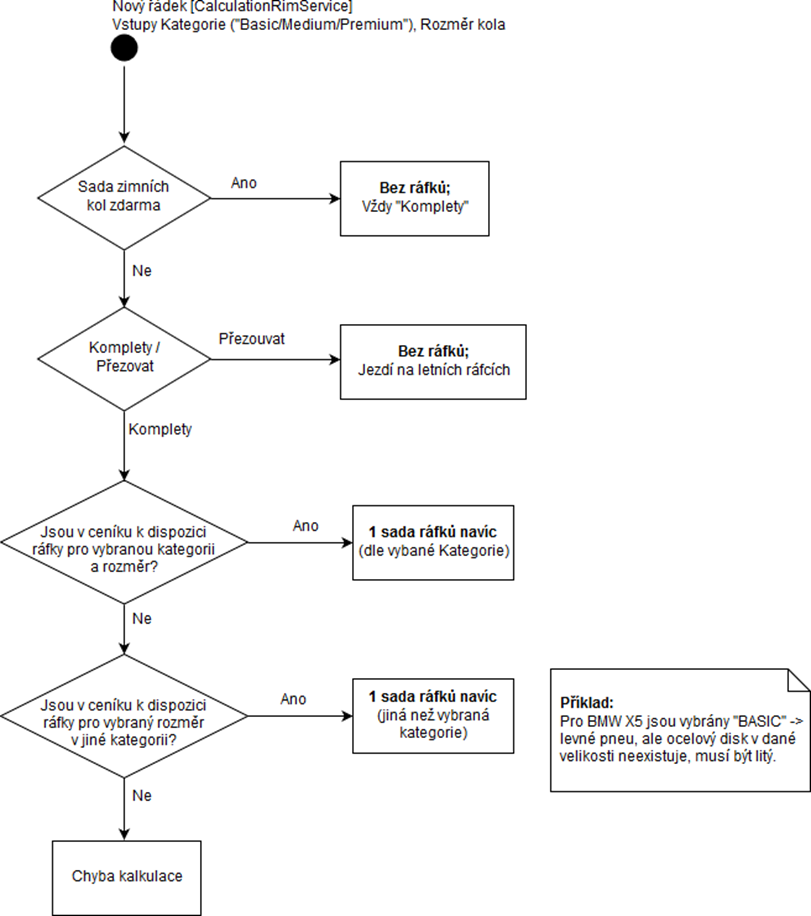
The following procedure will be used to determine the number of rims to be calculated: