
The user can print documents from the list of contracts (if he selects multiple contracts, the selected document is printed for each) or from the contract card – option Reports/Print Documents.
Similarly, it is possible to print from the list of courses (even with multiple items) or from the course card.
Button Print Documents allows you to generate a contract printout from document templates that are defined in the Printout definition table. The output can be in doc, xls or pdf format. When pressed, the system executes:
-
Opens the filtered list of printouts (filtered list of printouts from the Printout Definition table on which):
-
the user has been assigned permissions (see PD on Business Settings) and
-
table ID is set=4026397
-
meet the filters set in the Printout Definition against the dates of the given leasing contract and object:
-
Fields from Contract:
-
If the function is launched from a contract, it goes directly through the contract number
-
If the function is run from a subject, it first detects the contract number from the subject and then goes to the contract
-
These are the fields:
-
Customer No. – same as in the contract or empty
-
Financing Product Type Filter – must have the Financing Product Type from the contract or empty
-
Financing Product Filter - must have Financing Product Type from the contract or empty
-
Detailed Contract Status Filter - must have Detailed Contract Status from the contract or empty
-
Language Code – must have a Language Code (4047130) with a contract or empty
-
-
-
Fields from the subject:
-
If the function is run from an object, it goes directly through the object number
-
If the function is run from a contract, it first detects the number of the first object from the contract and then goes to the object
-
These are the fields:
-
Object Category – All or as on Item+1
-
Group – same as on the object or empty
-
Used Financed Object – All or the same as on the object (note that the object is a flag)
-
-
-
It does not filter fields from insurance or other fields.
-
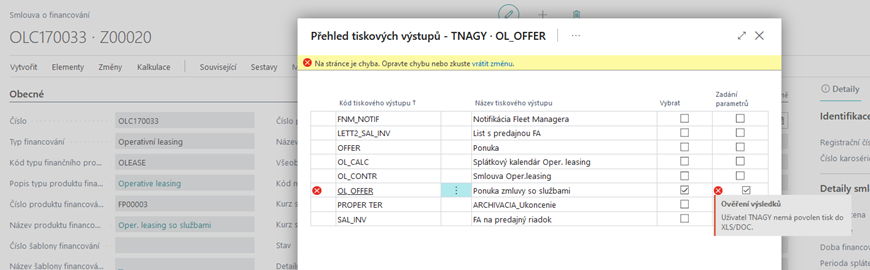
The user then selects the printout he wants to print (Select=A) and if he wants to select the format or other parameters, he also sets the Parameter input=And confirms the Ok button on the given document. If Parameter input=A has been set, the system will check the user after confirmation whether Enable printing to XLS/DOC=A is enabled in User Settings:
-
If the user has Enable printing to XLS/DOC=N – the system displays an error message and does not allow printing to continue:
-
If the user has Enable printing to XLS/DOC=A, the system proceeds to the next step.
-
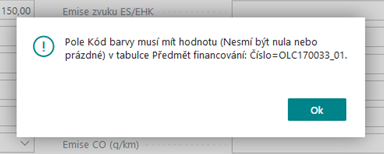
If the Check Colour=Y flag is enabled in the Printout Definition on a given document, the OC will check if the Colour Code (20025) field is not empty on the subject of the contract:
-
If it is empty, it will display an error message and will not allow you to continue:
-
If it is not empty, it continues.
-
-
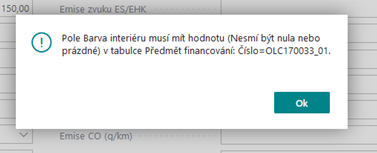
If the Check Interior Colour=Y flag is enabled in the Printout Definition on a given document, the OC will check if the Interior Colour field (247) is not empty on the subject of the contract:
-
If it is empty, it will display an error message and will not allow you to continue:
-
If it is not empty, it continues.
-
-
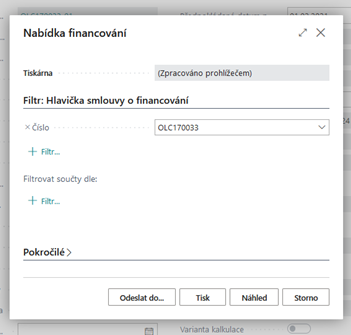
The system will open a standard dialog window to specify additional parameters:
-
In the filters field, Number is the number of the leasing agreement from where the print is started
Function:
-
Send to...
-
Allows the user to select the output format (note: the template of the output must allow these output formats, if not, the operation may not complete):
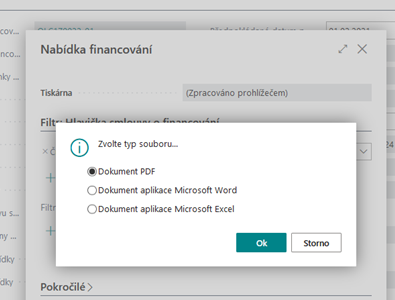
-
-
Press
-
Opens the generated printout in a browser from where the user can print the output.
-
-
Preview
-
Opens the generated document in a standard browser preview from where the user can print the output.
-
-
Cancellation
-
Reverse an operation
-