
Insurance contracts that are part of the financing payments must be created from the financed object using the wizard. The Insurance Contract Creation Wizard uses the default settings from the financing product or financing template – the Insurance tab (for a detailed description, see Produktový management). Settings taken from the product/template are only default – the user can also create insurance that is not defined on the product/template.
The creation of insurance contracts will be simplified for the user by a wizard that can make it easier for the user to select insurance rates based on the Financing Product.
Create Default Insurance
If the "Default" field is checked in the line with insurance policy settings in the Financing Product Insurance, the user can use the Create Default Insurance button on the list or card of the financed object.
After pressing the Create Default Insurance button, the system will display an informative message: "Do you want to create insurance contracts for financing object XXX? Yes/No".
If the user presses Yes, the system performs checks:
-
Checks if the default insurance is set in the insurance of the financing product
-
if the default insurance is not set, an error message follows: "There are no default insurance contracts for the financed object XXX." and the process ends.
-
-
It checks whether the default insurance policies no longer exist on the financed object.
-
If it finds an insurance policy on the object that is marked as "default" in the insurance settings of the financing product, an error message follows: "Insurance contracts already exist for this financed object" and the process ends.
-
-
It checks whether the default insurance setting is unambiguous, i.e. only one insurance rate corresponds to the given setting for each policy.
-
if the setting is not unambiguous, it prints an error message: "All default fuse settings must be unambiguous!" and the process ends.
-
If there is no error in any of the checks, the system creates insurance contracts and prints the message: "X insurance contracts have been created. Do you want to open the list of insurance contracts? Yes/No"
The user can open and review the created insurance contracts.
Create Insurance Contracts
The Create Insurance Contracts wizard can be started from the list or from the Financed Object Card.
At the push of a button, the user starts the Add Insurance Wizard.
Before the actual launch, the OC validates whether the data preset on the financing product or financing template is up-to-date. If they are not, the wizard will not start and will display an error message. (e.g. insurance set closed)
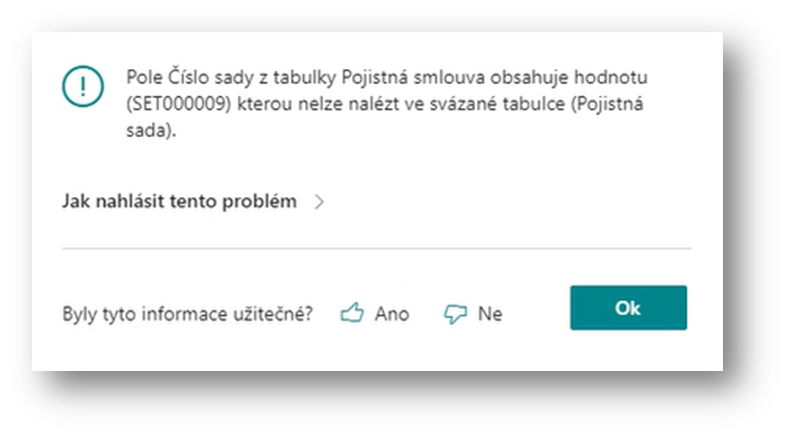
In this case, it is necessary to replace the concluded framework agreement, insurance set with an active framework or set.
If all the parameters are met, the OC will display the 1st step of the wizard.
From the subject and the financing contract, the system has set the data into the following fields:
-
Financing Contract No.
-
Financed Object No.
-
Customer No.
-
Expected Handover Date
-
Expected Termination Date
-
Object Usage Type for Insurance (from Object Card)
-
Editable
-
The user can change if the object is used differently as standard (e.g. Driving School, Taxi, etc.) and thus may have a different (usually increased) rate for insurance.
-
In the "Permitted Insurance" section, based on the "Financing Product Number" and "Product Variant Number" in the contract/calculation header, the system selects the insurance settings – i.e. permitted or mandatory combinations into three groups according to the type of insurance:
-
Third-party liability
-
Property insurance (accident, machinery)
-
Other Insurance – For Supplementary Insurance
By clicking on the calculated field, the user opens a form with an overview for the given type of insurance.
After clicking on the calculated field "UGS Insurance", the system offered third-party liability insurance according to the settings on the financing product or financing template (without lines for checking settings at the level of Insurance Product Type). The user can select only one third-party insurance.
If the user checks the Selected box, the system checks that all fields are filled in on the line: insurance company number, product number, product variant, framework agreement number, set number, and rate number. If the fields are not filled in, an error is reported.
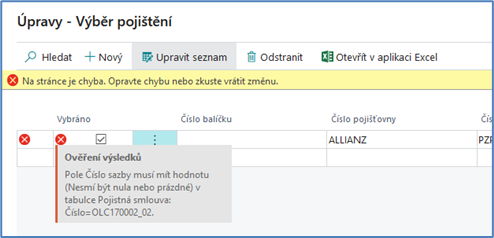
If the Bonus/Malus parameter is defined on the third-party liability insurance based on the number of months without claim, the user fills in the field Months Without Claim.
If insurance is marked as mandatory on a financing product or template, the system checks whether the insurance has been selected according to the settings. Depending on the setting in the Check for Insurance Contracts Existence field, whether it is mandatory, requires confirmation, or not mandatory:
If they do not select insurance that is mandatory or requires confirmation, a user warning or error message follows, depending on the settings on the product or template.
Detailed in the document Produktový management
If "Confirmation" or "Required" is set, a notification will follow with a decision option to allow the user to continue.
In case the product is set to "mandatory"
The user selects a rate and a check mark for the missing mandatory insurance. (You don't have to go back, just click on the calculated field 0 next to Third-party insurance.)
In the same way, the user selects the rate on "Property Insurance".
If the user checks the Selected field even though the insurance rate is not filled in, the system will report the same error as above. Then the same checks will be performed on Confirm or Required.
After you select an insurance rate, enter a check mark in the Selected for property insurance field.
In the same way, the user continues with the selection of other insurance – i.e. supplementary.
After selecting the insurance rates for additional insurance, the user closes the selection with the OK button and selects the Next button on the initial wizard form.
The system opens a form with an overview of the prepared insurance:
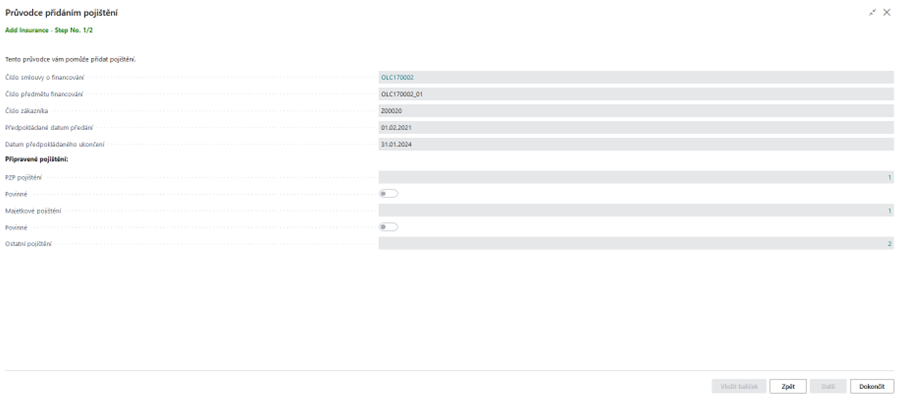
If all mandatory insurances are selected, click Finish to enter a command for the user to create insurance contracts.
When it is finished, the system will display a message that insurance contracts have been created.
On the list of items or on the object card, the user can check the created insurance contracts – Elements->Insurance contracts.
Work with insurance contracts is described in the PD on insurance.
-
The list of insurance contracts entering into financing instalments can be accessed:
-
Financing Contract List – Elements ->Insurance Contracts
-
Financing Contract Card – Elements ->Insurance Contracts
-
Object List – Elements – >Insurance Contracts
-
Financed Object Card-Elements->Insurance Contracts
-
From the OneCore – Financing and OneCore-Financing (All products) roles via Insurance
-
From the role of OneCore - Insurance
Rerun the wizard to add insurance
After creating the compulsory insurance contracts, the user can run the wizard again.
In this case, the system has already found insurance contracts on the object and therefore no longer claims their creation.
The user can enter an insurance policy for another insurance product – in our case only for Other Insurance
Type of use of the subject for insurance from the wizard to creating an insurance
Directly from the Create Insurance Contract wizard, the user can update the "Object Usage Type for Insurance" field on the financed object.
In the first step, the system displays the contents of the "Object Usage Type for Insurance" field from the object card. If the user needs to change the contents of this field, they select the new "Object Usage Type for Insurance" and the new value is stored on the object card:
When selecting a rate, the system will apply a new "Object Usage Type for Insurance.