
How to set up a service
The method of calculating and creating a service for road tax is governed by the Creation of Road Tax Service parameter in Contract with Service Settings/Road Tax tab:
-
Averaged – in this case, the OC will create one service for the entire duration of the contract. It calculates the total value of the tax for the entire financing period according to the discount bands and distributes this total value evenly into the service instalments.
-
According to the discount zones – in this case, the OC will create as many consecutive services for road tax as the discount bands based on the age of the vehicle are issued during the duration of the contract (calculated from the Date of First Registration to the Date of Expected Termination). The value of the service instalment is different in each discount zone, taking into account the actual value of the tax for the given period.
Applies only to CZ: according to the current wording of Act No. 16/1993 Coll., on Road Tax, the subject of road tax is a vehicle of category N2 and N3 and their trailers of category O3 or O4, with the exception of category O with the code of body type DA (semi-trailer).
Applies to SK only: according to the current wording of Act No. 361/2014 Coll. on Motor Vehicle Tax, a vehicle of category L, M, N and O is subject to road tax.
Creating a Road Tax Service
A road tax service can be created:
-
as the default Service when creating default services using the Create default services button
-
However, this function works with the Road Tax service only if it is based on the Financing Product / Financing Template as the default Service.
-
-
manually created Service in Contract Services using the Add Service button
-
manually using the Create Road Tax button. After clicking on the button, the user opens the Create Road Tax form.
When the button is pressed, the system performs several checks:
-
If there is already a road tax Service in the Preparation or Active status
-
If the object is not exempt from paying road tax for the following reasons:
-
The object is not subject to road tax
-
On the "Catalogue Card Group", the value of the "Calculation type" field is equal to "Not subject to"
-
The system will switch the Tax free value on the object after confirming the message below
-
-
The Customer or another entity is the Operator
-
On the "Financed Object", the value of the "Operator" field is equal to "Customer" or "Other Entity"
-
The system will switch the Tax free value on the object after confirming the message below
-
-
The method of use is exempt
-
On the "Financed Object" field, in the "Method of Object Utilization" field, the value is selected, which is Exempt from Road Tax=A
-
Switching Usage Method to s Road Tax Exempt=A equals Toggles Tax Exempt to Y (on object)
-
-
Alternative drive
-
On the "Financed Object", in the "Fuel type" field, a value is selected that is Exempt from road tax=A
-
Switching Usage Method to s Road Tax Exempt=A equals Toggles Tax Exempt to Y (on object)
-
-
If it is an object that meets one of the above conditions, or if Service road tax has already been created, then the system will display a message when starting the "Create default services" or "Create road tax" function:

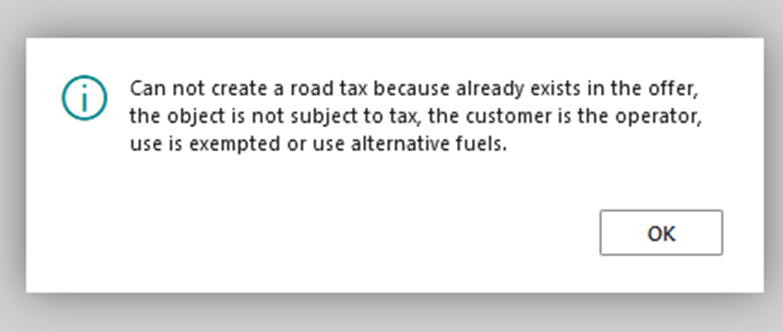
If the object is exempt (or the tax has already been created) service does not create a road tax and changes the value of the Road Tax exempt field to YES on the object (after updating the Financed Object Card). This field is then used for road tax returns.
If there is no Service and the object is not exempt from payment, it proceeds to the next checks:
If the following values are set in Contract with Service Settings:
-
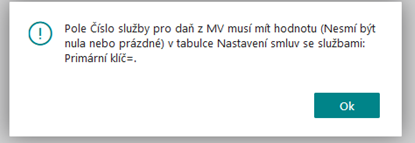
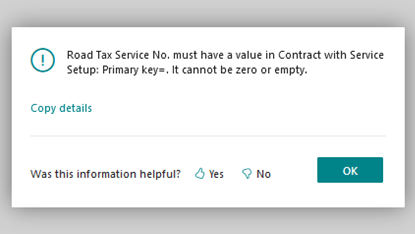
Road Tax Service No.
-
From this field, the system pulls the Service Type Code into the services of the contract when the road tax is established (different from other services).
-
If not, it will display the message:
-
-
If so, it proceeds to the next check.
-
-
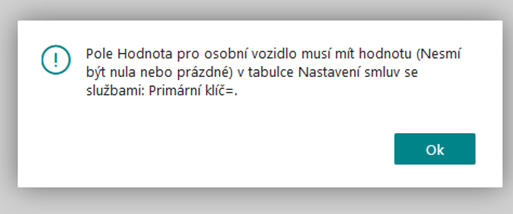
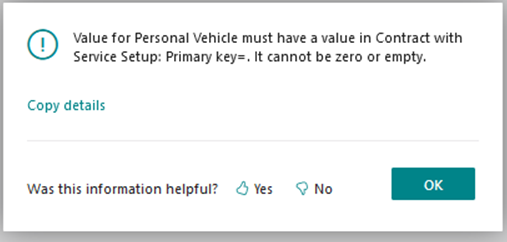
Value for an electric car
-
If not, it will display the message:
-
If so, it proceeds to the next check.
-
-
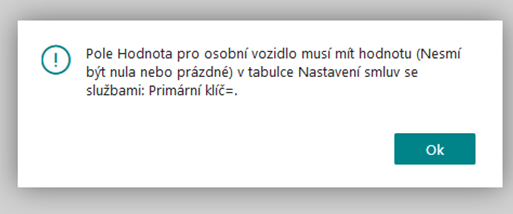
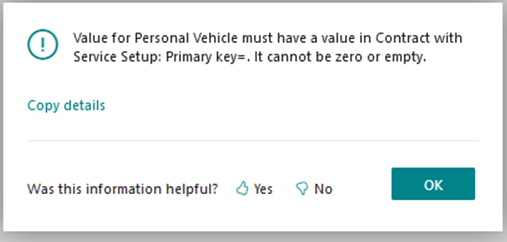
Value for a passenger car
-
If not, it will display the message:
-
If so, it continues.
-
If the object is NOT exempt from road tax and there is no road tax Service yet, the system continues to create a road tax service and find the road tax rate:
-
checks if the item is filled in 1st Registration Date and Fuel Type Code:
-
If they are not filled in, it displays an error message and does not continue (theoretical possibility, currently there is a check on both fields that they cannot be empty).
-
If they are filled in, it continues.
-
-
In the road tax price list, look for the code:
-
Valid From <= Reference Date from Contract Header <= Valid To (can also be empty)
-
Homologation Class Code (300) from the financed object is in the Homologation Class Filter in the price list (new filter).
-
If there is a "*" in the price list, it applies to any code from the course
-
If there is "empty" in the price list, it applies to items with blank
-
-
Type of Body (4026720) from the financed object is in the Type of Body Filter in the price list (new filter)
-
If there is a "*" in the price list, it applies to any code from the course
-
If there is "empty" in the price list, it applies to items with blank
-
-
Continues to the next step.
-
-
If Fuel Type on Object = Value for Electric Car in Contract with Service Settings:
-
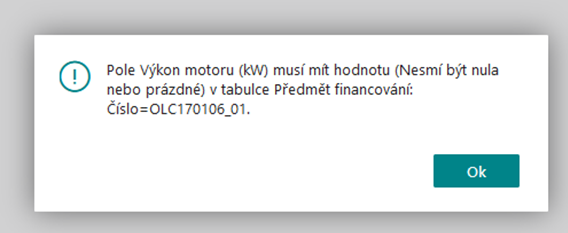
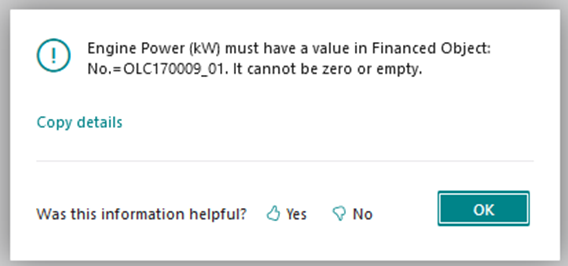
The system will check if the Engine Power (KW) field is filled in on the object
-
If it isn't, it displays a message and doesn't continue:
-
If it is filled in, it continues to the Road Tax Pricelist
-
-
In the road tax price list, you can find the Code for which it applies (other filters):
-
Object Category = Electric Car (option last value)
-
Engine power from (kW) or empty <Engine power (kW) (19058) from object <=Engine power to (kW) can also be empty
-
If it does not find it, it displays an error message and does not continue: "No matching road tax price list has been found!"
-
If found, it proceeds to find the road tax rate
-
-
In the Road Tax Rate table, it searches for the last row for which the following applies:
-
The code is the same that was found in the price list
-
Valid From (110)<= Reference Date with contract <=Valid To (115) can also be empty
-
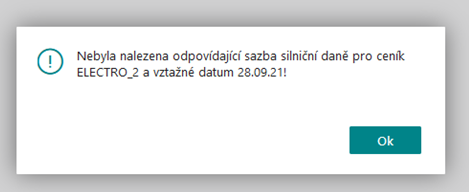
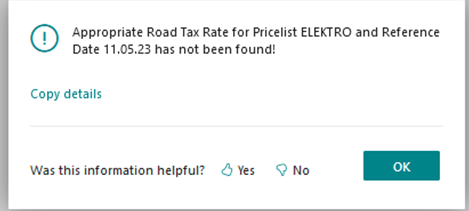
If not, it will display the error message Appropriate Road Tax Rate for Pricelist %1 and Reference Date %2 has not been found! And he doesn't go any further:
-
If found, it opens the calculation window for road tax calculation (see description below).
-
-
-
If Fuel Type on Object is <> Value for Electric Car and Group on Object = Value for Passenger Car in Contract with Service Settings:
-
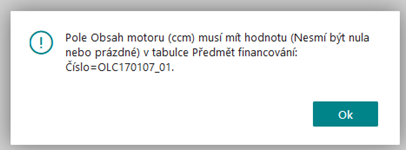
The system will check if the Engine Displacement (ccm) field is filled in on the object (27)
-
If it isn't, it displays a message and doesn't continue:
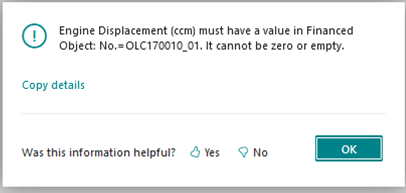
-
If it is filled in, it continues to the Road Tax Pricelist
-
-
In the road tax price list, he finds the Code for which the following applies:
-
Object Category = Passenger Car (first option value)
-
Engine Displacement from < Engine Displacement (ccm) (27) from Subject<=Engine Displacement to (can also be empty)
-
If it does not find it, it displays an error message and does not continue: "No matching road tax price list has been found!"
-
If found, it proceeds to find the road tax rate
-
-
In the Road Tax Rate table, it searches for the last row for which the following applies:
-
Code Same
-
Valid From (110)<= reference date with contract <=Valid To (115) can also be empty
-
If it doesn't find it, it displays an error message and doesn't continue:
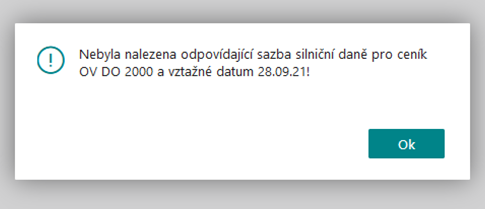
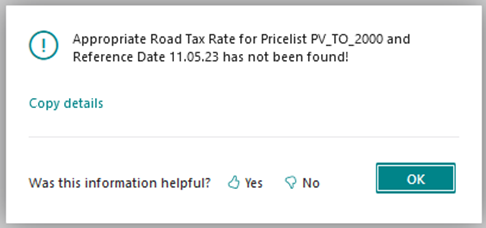
-
If found, it opens the calculation window for road tax calculation (see description below).
-
-
-
If Fuel Type on Object is <> Value for Electric Car and Group on Object applies<>Value for Passenger Car in Contract with Service Settings:
-
if Exclude Number of Axles = N is displayed on the Catalogue Group of the Financed Object (19059), the system will check if the Number of Axles field is filled in on the object (19059)
-
it does not perform this check for Exclude Number of Axles = Y.
-
If the Number of axles is not filled in, it displays an error message and does not continue.
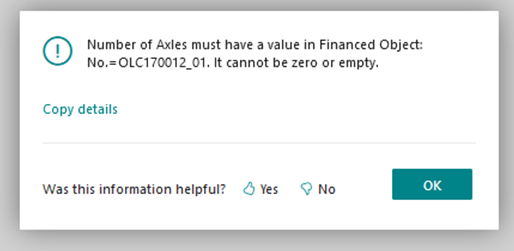
-
If it is filled in, it continues to the Road Tax Pricelist
-
-
In the road tax price list, he finds the Code for which the following applies:
-
Object Category = Other Vehicle
-
if there is Exclude Number of Axles = N on the Catalogue Group of the financed object, the Number of Axles is filtered in the "Road Tax Pricelist" according to the settings Legislation for the road road. Tax in Contract with Service Settings as follows:
-
if Exclude is Number of Axles = Y, it doesn't filter on Number of Axles.
-
Road legislation. tax = Slovak
-
if there are 2 or fewer axles on the "Financed Object", then the "Road Tax Pricelist" filters to "1 or 2" in the "Number of axles" field
-
-
Road legislation. Tax = Czech
-
if there is 1 axle on the "Financed Object", then the "Road Tax Pricelist" filters to "1" in the "Number of axles" field,
-
if there are 2 axles on the "Financed Object", then the "Road Tax Pricelist" filters to "2" in the "Number of axles" field
-
-
Regardless of legislation: If there are 3 axles on the Financed Object, the "Road Tax Pricelist" filters to "3" in the "Number of axles" field,
-
Regardless of legislation: If there are 4 or more axles on the Financed Object, the "Road Tax Pricelist" filters to "4 or more" in the "Number of axles" field,
-
-
Drive Axle Suspension Type Code (new) from the subject of financing is in the Drive Axle Suspension Type Filter in the price list (new filter):
-
If there is a "*" in the price list, it applies to any code from the course
-
If there is "empty" in the price list, it applies to items with blank
-
-
Subsequently, if on the "Catalogue Group" in the field "Force Calculation Type. (Road Tax Calc. Type) = Total Set Weight (CZ: Most Mass Vehicle Combinations SK: Max. Mass Modifications"), is filtered in the "Road Tax Pricelist" according to the weight of the financed object as follows:
-
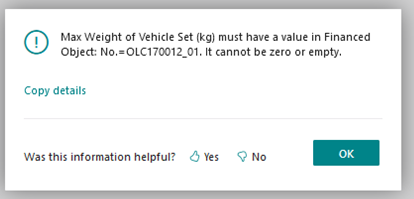
The system checks whether the "Max. Weight of Vehicle Set (kg) (4026750) Max Weight of Vehicle Set (kg), if not ends with an error
-
searches in the interval "Total Weight From" <Max. Weight of the vehicle combination (kg) (4026750) Max Weight of Vehicle Set (kg)<= "Total weight to" in the "Road Tax Pricelist"
-
-
-
Otherwise (i.e. if in the "Cat Card Group" in the field "Force Calculation Type. "Total Vehicle Weight" shall do the following:
-
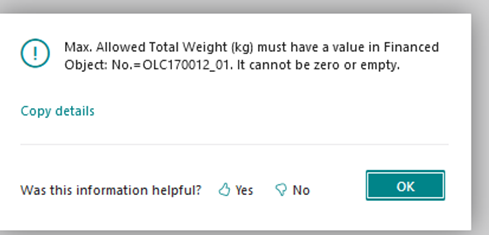
The system checks whether the field "Max. Allowed Total Weight (kg)" (19026) Max. Allowed Total Weight (kg) is filled in on the financed object, unless it ends with an error
-
It filters in the Road Tax Pricelist as follows: (regardless of legislation)
-
searches in the interval "Total weight from" <"Max. possible total weight (kg)" (19026) Max. Total Weight (kg)<= "Total weight to" in the "Road tax price list" field
-
-
If it does not find a matching code, it displays an error message and does not continue: "No matching road tax price list has been found!"
-
If found, it proceeds to find the road tax rate
-
-
-
In the Road Tax Rate table, it searches for the last row for which the following applies:
-
Code Same
-
Valid From (110)<= reference date from contract <=Valid To (115) can also be empty
-
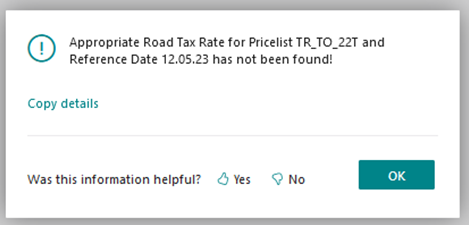
If it does not find it, it will display an error message that it will not continue for tax and further.
-
If found, it opens the calculation window for road tax calculation.
-
-
If the input data on the course and the code lists have been correctly filled in and it is not a vehicle exempt from road tax, the system automatically calculates the motor vehicle tax. If the vehicle is not exempt but has a zero rate (SK: electric vehicles), the calculation will be performed and the result will be a Service with a zero value.
The calculation is made for all discount zones for the duration of the contract. However, the system counts with a maximum of four discount bands.
The calculation is further described via the calculation window, which opens after pressing the Create Road Tax button:
-
The General tab displays the values for the first discount band that was found for the given item and the contract (it does not have to be the first band according to the legislative table, e.g. 0_36).
Note: The discount code according to the type of fuel is used only for SK legislation.
-
In the Tax for the second period tab, there are values for a possible second discount band.
-
In the Tax for the Third Period tab, there are values for a possible third discount band.
-
In the Tax for the Fourth Period tab, there are values for a possible fourth discount band.
When the window is opened, there is a code where it calculates values and stores them in variables, which it then displays on pagi. The procedure is as follows:
-
Finds the Tax Code and Tax Rate as described above
-
If the Road Tax Legislation = Slovak, it goes on to find the discount according to the type of fuel:
-
Takes the Fuel Type from the financed object into the calculation window.
-
filters the API table Discount by Fuel Type (4047504) by Fuel Type (same value), filter Homologation Class Code (from subject) and Valid from <= Reference date from contract header <= Valid to (can also be empty):
-
If it finds a record for tax filters, it goes to the API Discount Rates by Fuel Type table and finds a record for:
-
Fuel Type Code = Same
-
Valid From <= Reference Date from Contract Header <= Valid To (can also be empty)
-
-
The calculation window takes the following values:
-
Discount by Type of Fuel Code
-
Discount by Type of Fuel Code %
-
-
Note: Discount Coefficient is not used in the calculation, it will be removed from the tables
-
If it does not find any record, it will consider that there is no discount (=0%), i.e. it will not take anything into the calculation window
-
-
-
Searching for a discount by age – after searching for a discount by fuel type, the search for a discount by age % in the API Discount by Age of Vehicle (4047503) table continues, regardless of legislation, as follows (age discounts are currently not used for CZ):
-
Checks that there is a non-zero value in the Financing Period (in Months) field on the contract
-
If it were, it wouldn't go any further (theoretical possibility).
-
-
Then he checks the dates on the object and proceeds to calculate the age of the object:
-
If there is a non-blank Object Handover Date on the object, it is used as the start date for the calculation + it is checked that the 1st Registration Date is not greater than the Object Handover Date. Otherwise, the Expected Handover Date from the financed object is used as the start date for the calculation.
-
The age of the vehicle in months at the beginning of the calculated period is calculated as the difference of the Calculation Start Date – 1st Registration Date.
-
The end date of the calculation is taken as Prep. Termination Date From Contract
-
Vehicle age at the end of financing calculates in months calculates as difference Calculation End Date – First Registration Date + 1
-
-
It then proceeds to search the Discount by Age of Vehicle API table.
-
The system filters the table according to Homologation Class Code (300) from the financed object and Valid from <= Reference date from the contract header <= Valid to (can also be empty):
-
If the Vehicle age at the beginning <>0, it filters the Interval from (month)<= Age of the vehicle at the beginning, otherwise it filters the Interval from (month)=0.
-
-
If a record exists in the table, the Interval to (month) field evaluates whether it covers the entire financing period. According to this, it will then decide how many discount bands will be used (1,2,3 max 4) - the system will create discount bands according to the existing procedure (SK legislation still has discount bands).
-
If there is no record in the table (i.e. the current Czech legislation no longer uses any zones), the system will create only one road tax bracket for the entire duration of the contract with a zero discount
-
-
After finding the Discount By Age Code, the system proceeds to the Discount Rates ba Age API compositor and looks for the rate:
-
Discount Code=Same
-
Valid From <= Reference Date from Contract Header <= Valid To (can also be empty)
-
-
if it finds, it will also take Discount By Age % into the calculation window.
-
-
-
It then proceeds to calculate the values:
-
From the corresponding record of the Road Tax Rates table, it takes the value "Tax Rate (LCY)" (annual tax rate (LCY)) and writes it into the RoadTaxRateDec variable.
-
Applies a discount for fuel:
-
RoadTaxRateDec:= RoadTaxRateDec - ((RoadTaxRateDec * FuelTypeDisc." Discount in %") / 100);
-
-
apply a discount for the age of the vehicle from the corresponding discount band:
-
RoadTaxRateDec := RoadTaxRateDec - ((RoadTaxRateDec * VehicleAgeDisc." Discount in %") / 100);
-
-
calculates the amount in the contract currency using the contract exchange rate:
-
RoadTaxRateDecFCY := RoadTaxRateDec / greContract." Contract Exchange Rate";
-
-
calculates the amount in the contract currency using the contract exchange rate:
-
RoadTaxRateDecFCY := RoadTaxRateDec / greContract." Contract Exchange Rate";
-
-
calculates the monthly amount in the contract currency Month Tax Rate with Discount:
-
MonthTaxRateDec := (RoadTaxRateDec/12)/greContract." Contract Exchange Rate";
-
-
Calculates the total value for the duration of the discount band:
-
Road Tax Total = Month Tax Rate with Discount * number of months of discount band from mm.yyyy Valid To – mm.year Valid From
-
-
Calculates the value per payment:
-
Road Tax To Payment = calculates the value of the installment according to the periodicity of the installments on the contract (either keeps or multiplies 3, 6 or 12 for monthly/half-yearly/annual repayments)
-
-
Valid From = takes over from the financed object from the Expected Handover Date or the 1st day of the unposted payment period (if the Service is based on an active contract)
-
Valid To = end of discount zone (as calculated) or max Expected Termination Date from the contract
-
-
A second discount band will be created only if:
-
In Discount by Age of Vehicle, there is an entry for a given Homologation Class Code and
-
The contract term is longer than the interval to (months) from the first discount zone.
-
-
A third discount band will be created only if
-
In Discount by Age of Vehicle, there is an entry for a given Homologation Class Code and
-
The contract period is longer than Interval to (months) from the second discount zone.
-
-
A fourth discount band will be created only if
-
In Discount by Age of Vehicle, there is an entry for a given Homologation Class Code and
-
The contract period is longer than the interval to (months) from the previous discount zone.
-
If the user created the Road Tax manually from the list of contract services, then he/she completes the process of creating the Road Tax by clicking on the Create Road Tax button located on the toolbar. The OK button is used only to exit the window without creating a service.
After confirmation, lines for road tax are created in the Contract Services table. The Road Tax service is created according to the settings in the "Contract with Service Setup" table in the "Road Tax Service Setup" field.
-
If averaged:
-
The OC will create only one Road Tax service for the entire duration of the contract. When the system calculates the total value of the road tax for the entire duration of the contract for sections according to the discount zones, it then divides the calculated value evenly into installments.
-
-
If According to the discount bands:
-
The OC bases as many road tax services during the term of the contract as the number of road tax discount bands it identifies. The result may be several road tax services, within which the values of the tax in the instalment are different.
-
Displaying the Service Detail
To display the detail of the Road Tax service, the user stands on a line (marks the line in blue) in the Contract Services code list, where the Service Type is equal to Road Tax. As soon as the user selects this line, then presses the "Detail" button.
Subsequently, the user will see the Road Tax Detail Card, which contains the "General" tab.
Field:
-
Service No.
-
Non-editable field
-
The value of the field is automatically taken from the contract service card when creating a service detail
-
-
Service Code
-
Non-editable field
-
The value of the field is automatically taken from the contract service card when creating a detail
-
-
Tax Rate (LCY)
-
Non-editable field
-
The system fills in the value automatically from the Road Tax Rates code list valid for the entered service code
-
The value represents the annual rate of road tax
-
-
Fuel Type
-
Non-editable field
-
The system fills in the value into the field automatically from the field of the same name in the Technical Data tab of the course card
-
-
Discount Code by Age
-
Non-editable field
-
The system will automatically add the value to the field for tax discount band by age (if Creation of service is Road tax = According to discount bands)
-
There can also be an empty field if the Service Creation is Road Tax = Averaged (Note: In this case, there may be more discount bands within that certain detail).
-
-
Discounts by age %
-
Non-editable field
-
The system will fill in the value in the field automatically according to the entered age discount code, if the Age Discount Code is filled in.
-
-
Discount Code by Fuel
-
Non-editable field
-
The system will add the value to the field automatically from the Discounts by Fuel Type code list according to the value entered in the Fuel Type field.
-
According to Czech legislation, it is currently irrelevant, the exemption according to fuel is solved using the Fuel Types table. It is used only for Slovak legislation.
-
-
Discount by Fuel %
-
Non-editable field
-
The system fills in the value in the field automatically according to the entered fuel discount code.
-
According to Czech legislation, it is currently irrelevant, the exemption according to fuel is solved using the Fuel Types table. It is used only for Slovak legislation.
-
-
Tax Rate after Discount (LCY)
-
Non-editable field
-
The system automatically calculates the value according to the entered value in the Tax Rate (LCY) and Discounts by Age % fields
-
The value represents the annual road tax rate after discount in local currency
-
-
Tax Rate after Discount
-
Non-editable field
-
The value represents the annual tax rate after the discount in the contract currency. The system calculates the value of the field automatically according to the exchange rate of the contract entered in the Contract Exchange Rate field on the General tab of the offer card.
-
-
Currency
-
Non-editable field
-
The value of the field is automatically drawn from the field of the same name from the General tab on the menu tab
-
-
Monthly Tax Rate After Discount
-
Non-editable field
-
The system calculates the value in the field automatically according to the entered annual tax rate after the discount
-
-
Road Tax Total
-
Non-editable field
-
The system calculates the value in the field automatically according to the entered value in the Monthly Tax Rate after Discount field and the value in the Financing Period (in Months) field on the offer card.
-
-
Road Tax to Instalment
-
Non-editable field
-
The system calculates the value in the field automatically according to the value in the Road Tax Total field and the number of payments on the offer card.
-
-
Invoiced Excl. VAT
-
Non-editable field
-
The system will automatically fill in the amount that has already been invoiced to the current system date
-
It is used for recalculation (change of time and/or mileage) – see PD Changes
-
-
Recalculation Settlement
-
Non-editable field
-
The system will automatically fill in the amount of the recalculation settlement
-
It is used for recalculation (change of time and/or mileage) – see PD Changes
-
Note 1: Electric cars – difference between CZ and SK legislation:
-
CZ Legislation
-
According to the current legislation (5/2023), only vehicles of categories N2, N3 and O are subject to tax
-
-
SK Legislation
-
The vehicle is not exempt but has a zero rate. The fuel type for electric cars will have Exempt from road tax=N. In the road tax price list, it is necessary to create a code for electric cars with a power range from 0, e.g. to 10000kW, and for that line it is necessary to create a rate line, but with Rate=0. The system then establishes a road tax service with a zero value.
-
Note 2: It is not possible to Reinvoice the setting Reinvoice=A for the Road Tax service.