
Enrollment
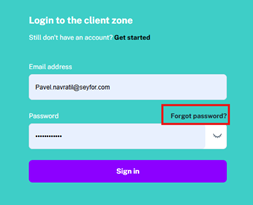
It is also possible to reset the password on the login page of the CG if you forget it.
Overview (Dashboard)
After logging in, the user is taken to the Dashboard of the client zone. On the left side, the CG menu is always displayed. The Administration menu item is visible only to roles with the Super Admin flag and is intended only for employees of the leasing company who manage the content of the Help section and marketing banners.
The overview also contains tabs for pre-selected and filtered overviews of contracts, invoicing and insurance claims(Overview)
If the user is listed as a driver for individual contracts and financed objects in the OC, such contracts are displayed under the Driver Cards. Through these contract cards, you can click directly to the contract detail.
Depending on the selected role, the user will only see data for contracts and financed objects on which he is listed as a driver, or data for the entire company if it is a role with the Client Zone flag: User Admin = "Yes"
User Overview
The first menu item is Users. This item opens an overview of client zone users. The overview shows filtered data from the Contact table, the license plate numbers of the vehicles that are assigned to the user as a driver, and the status of the user in the client zone. The status changes to active at the moment of user login, entering the password and confirming the registration email.
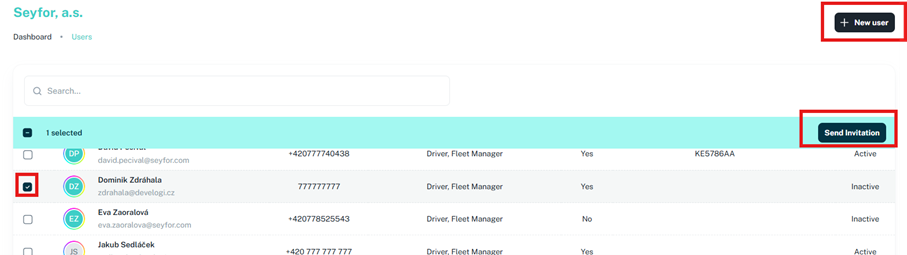
In the overview, it is possible to perform a full-text search in the user's name. It is possible to send an invitation to a user in the Inactive status to log in to the client zone via the button Send invitation. It is necessary to have the user marked and the CG will then send an email to the specified address.
From the overview, it is possible to create a new user via the button New user. The system opens a dialog window for entering the required user information and after confirmation sends the data in the form of a RestAPI service to BC, where it creates a new record of the "person" type in the Contact table under the contact type "company".
This button is only visible to a user whose role has the Client Zone flag User Admin="Yes" and Super Admin="Yes".
Overview and Detail of Financing Contracts
The next item in the menu is Contracts. Below this button, a list of contracts is displayed. Contracts where the user is listed as a driver are displayed, or if the logged-in user has a role with the Client Zone flag User Admin="Yes" and Super Admin="Yes", then all contracts for the given company are displayed.
Only contracts that are in the status allowed in the CI settings are displayed, see above.
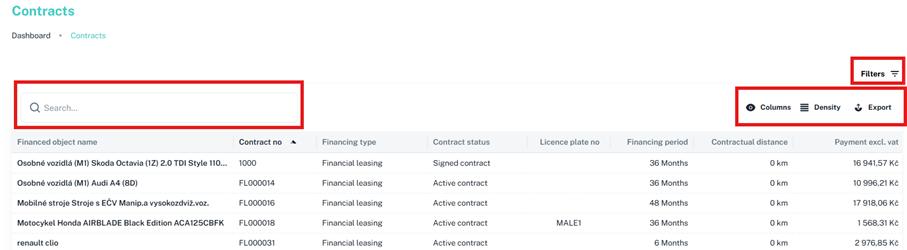
In the overview, you can search in full-text in the columns Financed object name, Contract no, Licence plate no. It is possible to filter via the button Filters in the Contract status and Financing type columns. In the overview, it is possible to use the Columns The user can edit which columns are displayed to the user. This setting remains valid even after you log out and sign in again.
The last button of the report is Export, which launches the export menu of the report. The report can be exported to Excel and CSV format.
Column overview:
-
Financed object name
-
Financing Object Name
-
-
Contract No.
-
Financing Contract No.
-
-
Financing Type
-
Financing Type
-
-
Contract status
-
Financing Contract Status
-
-
Licence plate no.
-
Financed Object Registration make
-
-
Financing period
-
Financing Period
-
-
Contractual distance
-
Total Contractual Mileage of the Financed Object
-
-
Payment excl. VAT
-
monthly instalment
-
-
Serial number
-
Financed Object Serial No.
-
-
Handover date
-
Financing Object Handover Date
-
-
Expected termination date
-
Expected Financing Contract Termination Date
-
-
Contract type
-
Financing Contract Type (Single Object, Multiple Object)
-
Financing Contract Detail
The contract detail can be opened from the Dashboard if the user is assigned as a driver to the financing contract or from the financing contract overview.
Financing Contract Detail contains more selected details in the following 6 tabs – Contract, Financed object, Services, Insurance, Documents, Invoices.
Contract Tab
The tab contains the current status of the contract in terms of financing period and planned mileage. If it is a type of financing where, for example, the mileage is not recorded, the parts will not be displayed. It displays the general details and status of the financing contract itself. It displays the following data.
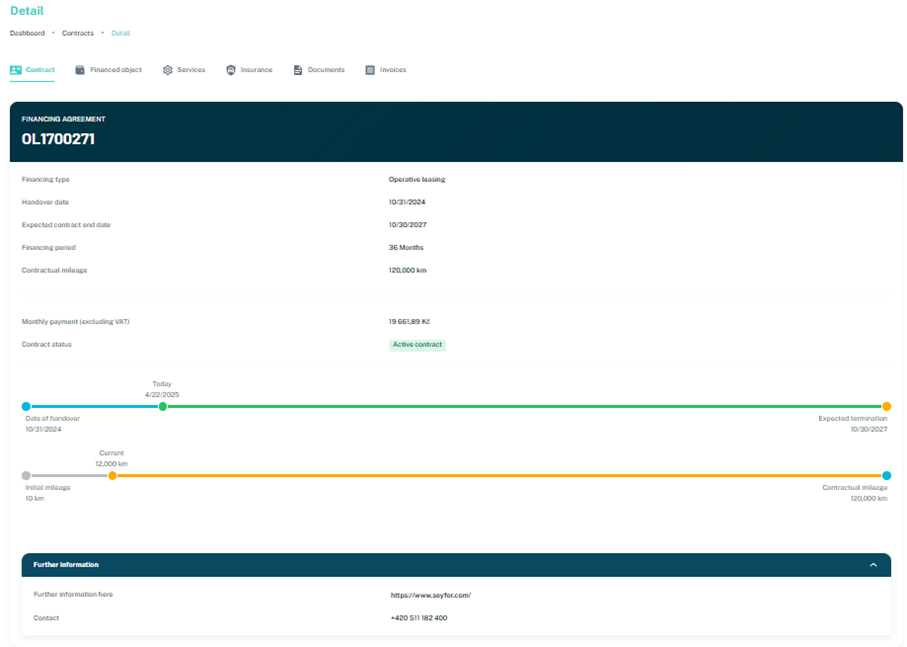
Financing agreement tab:
-
Financing Type
-
Financing Type
-
-
Handover date
-
Financing Object Handover Date
-
-
Expected termination date
-
Expected Financing Contract Termination Date
-
-
Financing period
-
Financing Period in Months
-
-
Contractual mileage
-
Total Contractual Mileage of the Financed Object
-
-
Payment excl. VAT
-
Contract Payment Excl. VAT
-
-
Contract status
-
Financing Contract Status
-
Further information tab
-
Further information
-
Possibility to set the source of additional information, e.g. websites, in the settings.
-
-
Contract
-
Contact the leasing company. It is set in the settings, see above.
-
Financed object tab
It contains details about the financed object in the tabs General, Price excl. VAT, Odometer history, Tires.
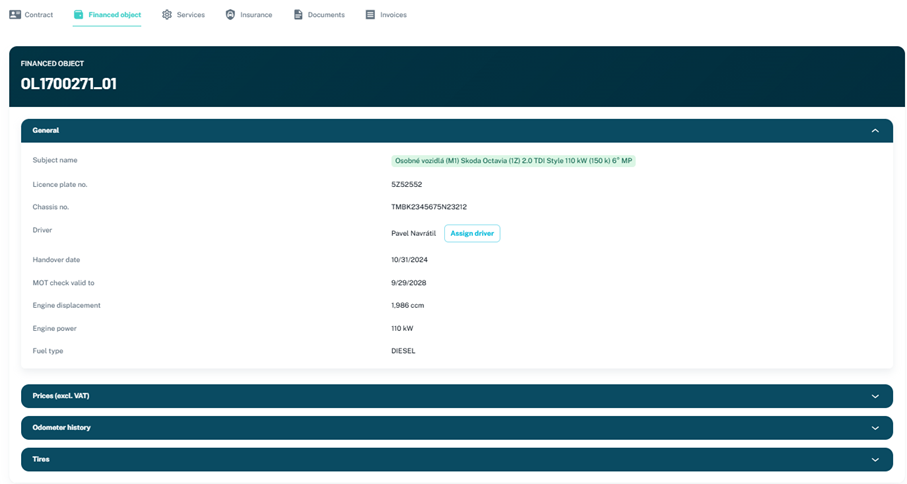
General
General information and some technical data:
-
Subject name
-
Financing Object Name
-
-
Licence plate no
-
Licence Plate No.
-
-
Chassis no.
-
Financed Object Identification No.
-
-
Driver
-
Driver assigned to the financed object. Button Assign driver it is possible to edit the assigned driver in the OC. The functionality offers contacts of the type person for the company, which have the flag Driver = "Yes".
-
-
Handover date
-
Financing Object Handover Date
-
-
MOT check valid to
-
MOT Check Validity Date
-
-
Engine displacement
-
Engine Displacement
-
-
Engine power
-
Engine power
-
-
Fuel type
-
Fuel Type
-
Data is taken from OC - Financed Object (4026560)
Prices (excl. VAT) (Prices (excl. VAT))
Object price data:
-
List price total
-
Total List Price of the Financed Object
-
-
Discount total
-
Total Discount of Financed Object
-
-
Acquisition price
-
Purchase Price of the Financed Object after Discount
-
-
Total finaced amount
-
Total Financed Value
-
-
Down payment
-
Advance payment
-
-
Calculation residual value
-
Calculated Residual Value
-
Data is taken from OC - Financed Object (4026560)
Odometer history
Odometer data:
-
Mileage
-
Up-to-date mileage record. Button Edit It is possible to enter the current mileage as of today's date
-
-
Planned mileage
-
Planned mileage according to date and contractual mileage
-
Data is drawn from the Contractual Distance (4026671) table
Tires
Displays the positions and season of tires used on the financed object from the Object Tire (4026675) subtable
Services Tab
It displays the services that belong to the contract and the financed object. The overview shows a description of the services, whether they are part of the contract, whether it is a direct re-invoicing to the client, the impact on the monthly payment and validity. The site draws information from OC - Contract Service (4026681)
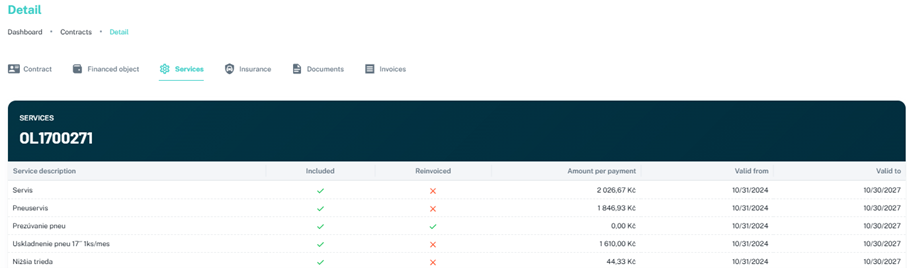
Insurance Tab
Displays overviews of insurance contracts and insurance claims for the given financed object
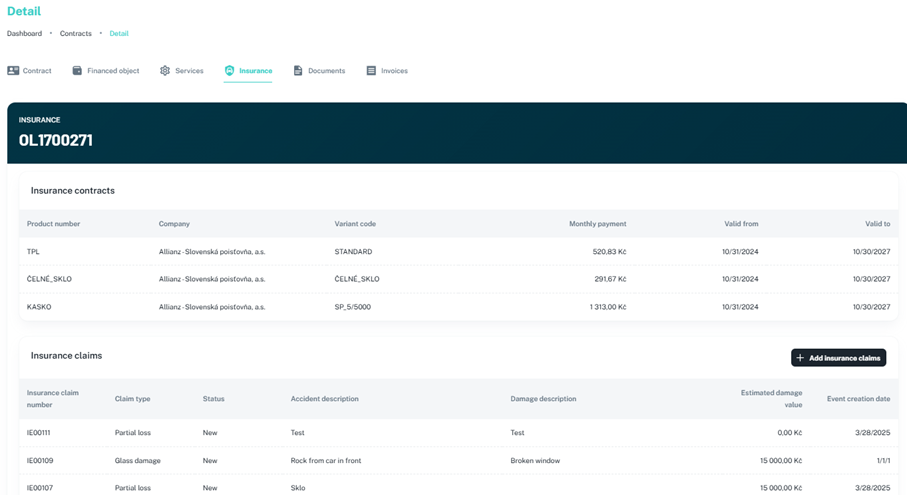
The list of insurance contracts contains information about the insurance product, insurance company, product variant, impact on the monthly payment and validity. The information is taken from the table OC - Insurance Contract (4027100)
The Insurance Claims List contains a list of all open and closed claims, their type, status of resolution, description, amount of damage and date of occurrence. The insured event can be entered into the OC via the button Add insurance claim. The data is drawn from the Insurance Claim (4027130) table.
To add an insurance claim, you need to add the following information:
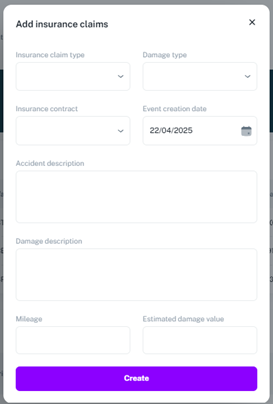
-
Insurance claim type
-
Insurance Claim Type
-
-
Damage type
-
culpability
-
-
Insurance contract
-
From which insurance contract the PU will be dealt with
-
-
Event creation date
-
PU Creation Date
-
-
Accident description
-
Accident description
-
-
Damage description
-
Damage Description
-
-
Mileage
-
Current Mileage of the Financed Object
-
Estimated damage value – estimated amount of damage
Documents tab
The Documents tab contains an overview of documents available for a given financing contract. In the CG settings, it is possible to define which file types will be displayed in the CG. Documents can be downloaded directly from the OC.
Invoices tab
The tab contains an overview of the number of posted and unposted payments and an overview of all invoices issued for the selected financing contract. The report includes the invoice number and description, due date, amount, and whether the invoice has already been paid.
The invoice can also be downloaded as a document.
Invoices
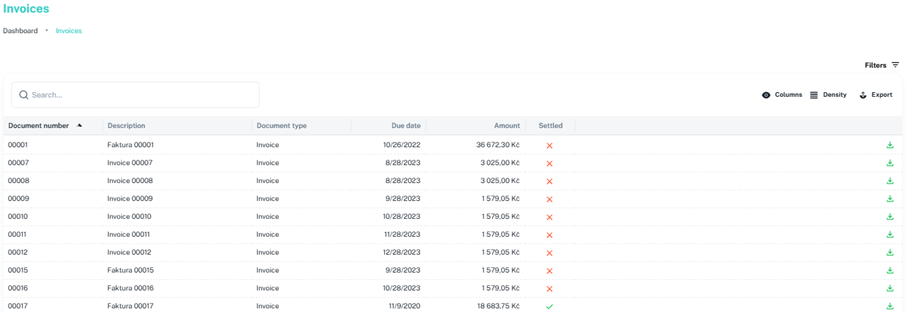
The next item in the menu is an overview of all invoices. A user with a role with the Client Zone User Admin="Yes" and Super Admin="Yes" role will see all invoices for that company. Other users can see invoices for contracts where they are listed as drivers.
For the overview, you can use full-text search, set the displayed columns, filtering, due date and document type. The list of invoices can be exported to the .csv and .xlsx formats
As in the details of the financing contract, this overview contains the invoice number and description, the due date, the amount and whether the invoice has already been paid.
Insurance claims
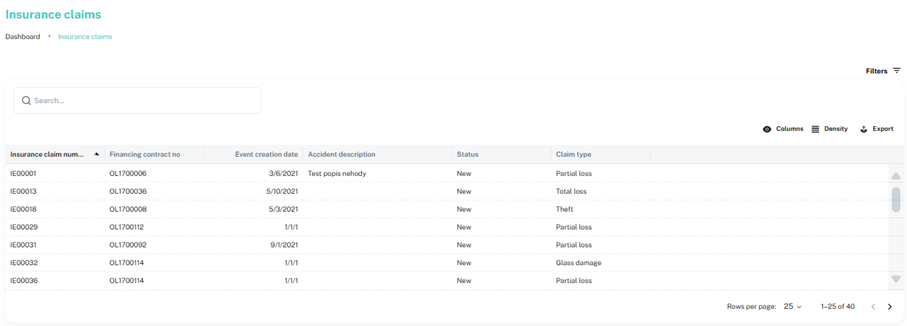
The next item in the menu is an overview of all insurance claims. A user with the Client Zone role User Admin="Yes" and Super Admin="Yes" will see all insurance claims for the company. Other users can see insurance claims for contracts where they are listed as drivers.
Tasks
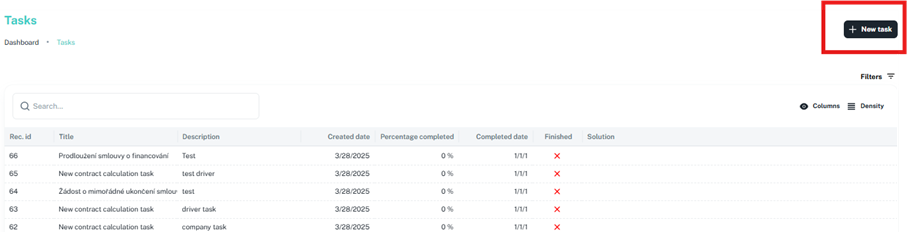
The next menu item is tasks. This section is connected to the functionality of Business Central tasks. Created tasks are displayed and created in the CY. User with the role Client Zone User Admin="Yes" and Super Admin="Yes" can see all jobs for the company, and others can only see the jobs they have created.
In the task overview, it is possible to search for full-text searches, filter and select the displayed columns. The overview includes the task number and title, description, creation date, % complete, completion date, and solution comment.
When entering a new task using the New Task one of the six headlines and then writes a description of the task. In the background, the task is assigned to the appropriate team to be solved according to the settings. From the point of view of the leasing company, the task is solved in BC. Multiple communication between the user and the leasing company is not possible through the tasks. Just a description of the task and then a description of the solution. If communication is necessary, the use of other communication methods is envisaged.
Help (FAQ)
The next menu item is Help, which is intended to provide the user with useful information related to financing contracts, services, insurance, car returns, etc. It is divided into three sections. Frequently Asked Questions, Instructions & Tips, and Company Information.
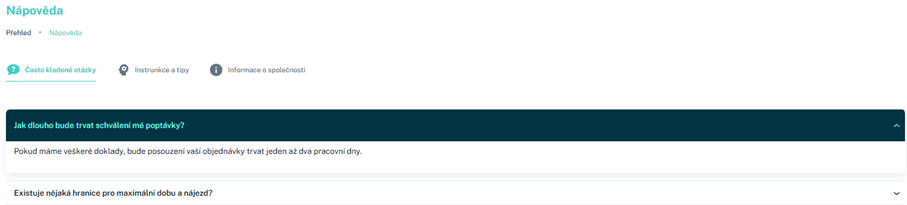
In each section, it is possible to display questions or ambiguities and a defined answer is displayed after clicking on them.
The definition of the content of individual sections is set in the last menu item, namely Administration, which can only be accessed by a user with a role with the Super Admin = "Yes" parameter. It is assumed that a role with this parameter will only be under the responsibility of an employee of the leasing company.
Individual questions and answers can be specified collectively for all companies (clients) of the leasing company or they can be personalized for a specific company in the event that a specific agreement or procedure is reached, valid only for users of a specific company. In the administration, you can adjust the order in which individual questions and answers are displayed.
Administration
It is the last menu item and is used to set up the Help section and the marketing carousel settings.
Questions & Answers & Instructions & Tips
The settings for the Frequently Asked Questions, Instructions & Tips, Company Information, and Marketing Carousel sections are listed above.
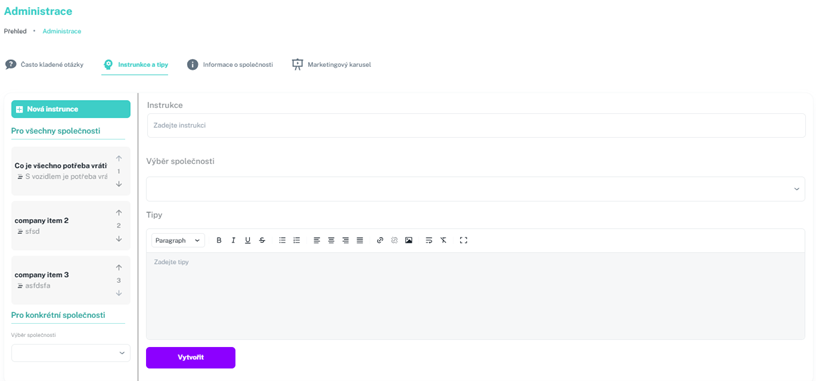
Marketing Carousel
There are 3 types of marketing banners in KZ. Horizontal, which is divided into "Compact" and "Full Width" and Vertical.
In the horizontal setting, you can choose whether it is "Compact" or "Full width", the display length of the individual banners in the carousel is determined and the carousel is (de)activated.
Subsequently, it is possible to add a specific banner for which it is possible to insert a graphic design, type of display, link, role for which it should be displayed and selection of CG pages on which the banner should be displayed.
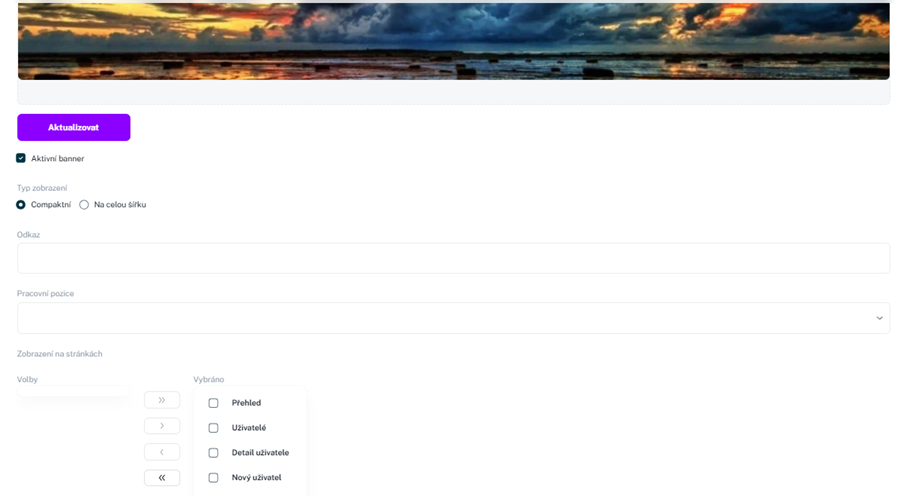
For a vertical banner, the setting option is the same except for the display type setting.
Notification
Notifications will be available within the client zone, which will notify users of individual milestones in the life of the contract or financed object. Notifications will be realized by an icon at the top of the screen. By clicking on the relevant icon, a list of notifications of the user will be displayed. Notifications will be governed by the settings of individual users. Typically, a user who is only in the role of a driver of one contract and financed object will see a notification only for the given contract and financed object.
Within all screens of the CG in the upper right corner, a bell will be created to display the list of notifications. After clicking on it, a list of notifications will appear according to the example below. If a new record is automatically added to the list, the user will see a digit with the number of new records along with the icon. If the user then opens and closes the list, the digits with the number of new notifications will disappear.
View in the upper-right corner of the page

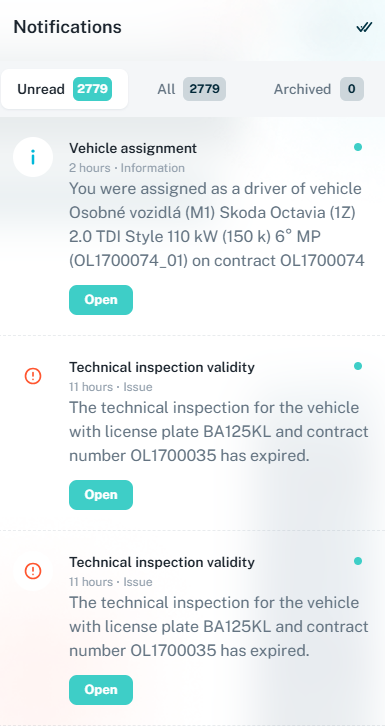
Notifications will be for informational purposes only. In the list, it will be possible to mark "All read" with the green arrow in the upper corner. The list will display the categories All, Unread and Archived with the number of notifications in the given category. Already read notifications will be stored in the Archived category.
Notifications are set for the following events:
|
Notification Name |
Notification Text Description |
Notification Creation Status Description |
User Role Flag for Displaying Notifications |
|---|---|---|---|
|
Expiration of MOT validity |
|
|
Driver => only notifications for financed objects for which the logged-in user is listed as the driver in the driverNo field in the financedObject endpoint Client zone user admin = "True" > displayed to the user with the role and amine flag for the company
|
|
The end of the contract is approaching |
|
|
Driver => only notifications for financed objects for which the logged-in user is listed as the driver in the driverNo field in the financedObject endpoint Client zone user admin = "True" > displayed to the user with the role and amine flag for the company |
|
New Invoice |
|
|
Driver assigned to a given financed object => only notifications for financed objects for which the logged-in user is listed as a driver in the driverNo field in the financedObject endpoint Client zone user admin = "True" > displayed to the user with the role and amine flag for the company Invoicing information = "True" displayed to the user with the role and flag of extended billing information for the company |
|
New Insurance Claim |
|
|
Driver assigned to a given financed object => only notifications for financed objects for which the logged-in user is listed as a driver in the driverNo field in the financedObject endpoint Client zone user admin = "True" > displayed to a user with the role and flag of admin for the company
|
|
Request to return the vehicle |
|
|
Driver assigned to a given financed object => only notifications for financed objects for which the logged-in user is listed as a driver in the driverNo field in the financedObject endpoint Client zone user admin = "True" > displayed to a user with the role and flag of admin for the company |