
Part Costing It is used to enter:
-
Values for Matrix Calculation
-
Service Amounts Maintenance (in absolute value, %)
-
Residual Value
-
Amount of the administrative fee
-
Commissions
-
Margin
Values for Matrix Calculation
-
Length of lease agreement
-
Planned Mileage
The system will fill in the default values from the selected financing product in the Financing parameters section.
The user can change in accordance with the settings of the period and mileage variances on the selected financing product and min. max the values of the rental period and contractual distance in the general settings.
Value of service costs, residual values, rate for over- and below-limit kilometers
Options for entering values:
-
Automatically
-
Standard method, the values are added to the calculation in the form of integration in the calculation of combinations (API_prices).
-
The rate for under-limit kilometers can be set in absolute value via Administration/Products and services/Product settings/Sublimit kilometers/Custom rate for below-limit km
-
-
Manually
-
By checking the flag Manually enter values
-
This option is only available to users with a role that includes permissions Calculation in-house
-
When checked, the system displays a field for entering values:
-
New LC (residual value)
-
The user enters the amount of the calculation residual value in absolute value, which will be used in the calculation of the payment
-
-
New SN (Service Costs)
-
The user enters the value into the calculation for the service (for the contractual mileage and the entire duration of the contract), which will be used to calculate the installment
-
-
SN Discount %
-
The user enters the amount of discount in % by which the value will be reduced in the calculation for the service service, which will be calculated and sent by the api_prices (integration) procedure
-
If the entered value in the previous field is also a discount in %, the system will use the value entered in the field to calculate the payment New SN (Service Costs).
-
-
Rate for Under-Limit Kilometers
-
The user enters the amount v per km in absolute value, which will be used in the calculation
-
-
Excess Mileage Rate
-
The user enters the amount v per km in absolute value, which will be used in the calculation
-
The user can enter all values manually or only selected ones.
Commissions/Subsidies, Margin and Administration Fee
Entering or checking the amount of commissions, subsidies, margins and administrative fees is possible in the section Costing under the icon Mansion.
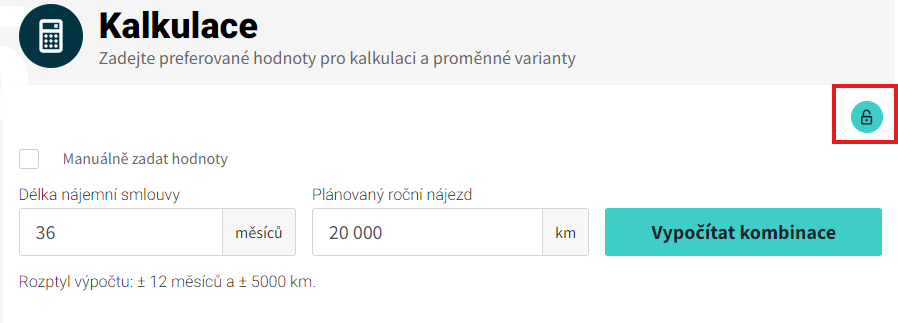
After clicking on the icon, the system will display a form with content according to the permission settings:
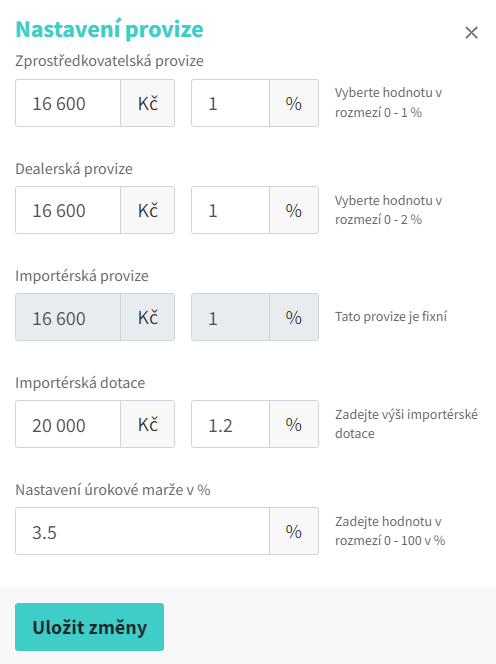
Commission
In the Calculator, it is possible to set and calculate the following commissions:
-
Yield
-
Cost
From the point of view of purpose:
-
Dealer
-
Importer
-
Brokerage
Basis for commission calculation:
-
Price of the car without VAT after discount (including equipment)
-
List Price Excl. VAT (incl. optional equipment)
Brokerage commission
If it is set, it is always applied
The system will display commissions:
-
Defined for the organisation unit to which the user is assigned
-
If it does not find a commission according to point 1, it searches for the commission defined for the parent organisation unit
-
If he/she does not find commissions according to points 1 and 2, he/she looks for commissions for the parent unit of his/her parent unit, etc.
-
If an organisation unit does not have a parent unit or the commission is not defined at any level, the system searches for and displays the commission without specifying the organisation unit
The commission is displayed in:
-
Absolute Value
-
Percentage
The system displays the default value from the commission settings. A user can edit a commission only if he or she has been assigned a role with permissions Edit intermediary jump commission and only within the range specified in the commission description.
Dealer Commission
The system will display commissions:
-
Defined for the organisation unit to which the user is assigned
-
If it does not find a commission according to point 1, it searches for the commission defined for the parent organisation unit
-
If he/she does not find commissions according to points 1 and 2, he/she looks for commissions for the parent unit of his/her parent unit, etc.
-
If the organisation unit does not have a parent unit or the commission is not defined at any level, the system searches for and displays the commission without specifying the organisation unit.
The commission is displayed in:
-
Absolute Value
-
Percentage
The system displays the default value from the commission settings. A user can edit a commission only if he or she has been assigned a role with permissions Edit dealer commission and only within the range specified in the commission description.

Importer's Commission
The importer's commission is tied to a specific brand, i.e. the system will display the commission to users according to the selected brand in the section Vehicle selection.
The importer's commission is fixed, the user cannot change.

Importer subsidy
The importer's subsidy is tied to the brand. In the case of an importer subsidy, the display is linked to:
-
A marker in the Vehicle selection
-
Role permissions
-
Show import subsidy
-
Edit import subsidy
-
-
Setting Up Commissions
-
Do Not Show in Calculation
-
Non-editable in calculation
-
The combination of flags and subsidy display/editing is described in the table below.
|
Commission |
Role |
Costing |
|||
|
Do Not Show in Calculation |
Non-editable in calculation |
Show import subsidy |
Edit import subsidy |
Displayed |
Editable |
|
No |
No |
No |
No |
All |
All |
|
No |
No |
Yes |
Yes |
All |
All |
|
Yes |
No |
No |
No |
Anyone |
Nobody |
|
Yes |
No |
Yes |
No |
Roles with permissions |
The one who has the view |
|
Yes |
Yes |
Yes |
No |
Roles with permissions |
Nobody |
|
Yes |
Yes |
Yes |
Yes |
Roles with permissions |
Roles with permissions |
The amount of the subsidy can be changed by the user without restrictions.
Administration Fee
The administrative fee can also be viewed/edited in Costing on a form that can be opened via the Mansion.
The system will display the service with the service category Administration Fee (Administration > Product Configuration > Products and Services > Services) and its default value. The user can change to a value from the min and max interval defined on the service.
View and edit is only allowed to a user who has a role with permission Calculation in-house.

Interest Margin
Margins can also be viewed/edited in Costing on a form that can be opened via the Mansion.
The system will display the default value of the interest margin defined on the selected financing product in the Product definition. The user can change to a value from the min and max interval defined on the product.
View and edit is only allowed to a user who has a role with permission Calculation in-house.

Calculation of combinations (payments)
The system proceeds as follows:
-
Calculation of all inputs for annuity calculation (Present Value, Residual Value, Interest Rate)
-
The Present Value calculation is entered by
-
Vehicle price after discount excl. VAT
-
Selected Commissions
-
Registered Fee Amounts Collected
-
-
-
Annuity Calculation
-
The same calculation is used to calculate the annuity as for the PAYMENT function in excel
-
-
Effective Interest
-
Effective interest is calculated by iteration, where Present Value is only Vehicle price after discount excl. VAT
-
-
Insurance Calculation
-
Calculation of services
-
Monthly Payment Incl. / Excl. VAT
General Calculation Diagram
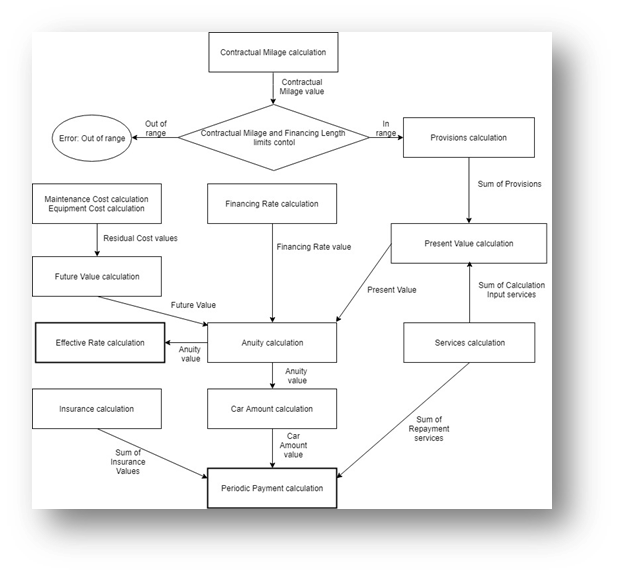
-
Contractual mileage
-
The system calculates based on the inputs specified in step 5 – Costing (Lease Agreement Length and Planned Yearly Mileage)
-
-
Calculation of commissions in Provision calculation
-
Commissions for a given calculation are defined in step 5 – Costing under "Through the Castle"
-
Commissions can affect the amount of the entry price for the calculation of the annuity ((Present Value)
-
The system will include in the input price those commissions that have a flag in the settings Include in payments = Yes (Administration > Commission Settings > Commission Detail)
-
The commission enters with a plus (increases the entry price), the subsidy with a minus (decreases the entry price)
-
-
Registration fee (included in the purchase)
-
The inclusion of the registration fee in the calculation is indicated in step 4 – Services
-
The registration fee service can consist of 4 types of fees. Individual fees may affect the amount of the input price for calculating the annuity (Present Value) if the Enter as Calculation Input = Yes (Administration > Product Configuration > Services > Service Detail with Category = Registration Fee)
-
The system will include the registration fee amounts in the input price, which have a flag in the settings Include in Input Price = Yes (Administration > Product Configuration > Price lists > Registration fee > Registration fee detail)
-
-
Input Price (Present Value)
-
The system will include the following in the input price:
-
Total Price Excl. VAT after Discount + Sum of Commissions, where Include in Payments = Yes + Sum of Service Amounts Registration Fee, where Include in Entry Price = Yes
-
-
-
Financing Rate Calculation
-
The system calculates according to the formula:
-
REFI Code + Margin
-
-
The REFI code is selected by the system according to the duration of the contract, i.e.
-
The duration of the contract for a given calculation (combination) is from the interval of Min. and Max. Financing Period REFI Code
-
Calculation creation date is from interval Valid From and Valid To on REFI Code
-
-
To calculate an annuity, there must be only one matching REFI rate record. If there are more matching records or there is no valid record, the system prints an error message and does not perform the calculation
-
-
Residual Value Calculation (Residual Value)
-
The residual value is taken from the api_prices or the amount manually entered by the user in step 5 – Costing
-
-
Services Calculation
-
Road toll calculation
-
The system finds the rate for the current date – it is the annual rate
-
The rate is stored in Product Configuration / Pricelists / Highway Ticket / Highway Ticket List
-
The value excluding VAT for the calculation is calculated according to the formula:
-
Price Excl. VAT * ((Financing Term in Months/12) + 1)
-
-
-
Fuel card calculation
-
The system will find the rate for the record selected by the user
-
The rate is stored in Product configuration / Pricelists / Highway vignettes / Fuel card list
-
The value excluding VAT for the calculation is calculated according to the formula:
-
Price Excl. VAT * Service Periodicity
-
The periodicity of the service is according to the rate settings (field Period):
-
One-time = 1
-
Monthly = Financing Length in Months
-
Yearly = Financing Length in Months / 12
-
-
-
-
-
Poplatky (Services fees calcualtion)
-
E.g. assistance, radio fee, etc. (does not apply to registration fee)
-
There is only one rate for charges, the amount is defined at the service level in Product Configuration / Products and Services / Service Settings
-
Rates cannot be set separately
-
The system calculates the value without VAT for the calculation according to the formula:
-
Price Excl. VAT * Service Periodicity
-
The periodicity of the service is according to the rate settings (field Period):
-
One-time = 1
-
Monthly = Financing Length in Months
-
Yearly = Financing Length in Months / 12
-
-
-
-
-
Replacement car calculation
-
The system searches for the rate for the record selected by the user in Product configuration / Pricelists / Replacement vehicles
-
The value excluding VAT for the calculation is calculated according to the formula:
-
Price Excl. VAT * Number of Days (Set on Rate) * (Financing Length in Months / 12)
-
-
-
Registration fee as Service (Registration fee calculation)
-
The service consists of 4 parts:
-
Brokerage Fee
-
Vehicle registration
-
Deregistering a Vehicle
-
Tag Issue Fee
-
-
It is not a condition that all types must be set (one is enough)
-
Include in Input Price = No, Include in Payments = Yes
-
With this combination, the sum of the service is calculated
-
-
-
The system selects rates for each type of registration fee
-
For the vehicle registration fee, the system selects a rate based on engine power (kW)
-
-
The registration fee is included in the calculation as Service if there is a flag on the service in the settings Include In Service Payments = Yes (Administration > Product Configuration > Services > Registration Fee Detail)
-
The calculation value is calculated as
-
Sum of all found fee types from the price list for the entire financing period / financing length in months
-
-
-
Road Tax calculation
-
The system searches for the annual rate according to:
-
Car Category
-
Passenger car = according to engine capacity
-
The engine capacity from the catalogue card is from the interval on the road tax rates
-
-
Commercial vehicle = by total weight
-
The total weight from the catalogue card is from the interval on the road tax rates
-
-
-
-
Applies the discount:
-
Depending on the age of the vehicle:
-
Since the vehicle is always new, the system looks for an interval where the lower limit is 0
-
If the system finds a discount, it will apply it to the annual rate
-
-
By fuel type:
-
If a discount is found, the system will apply it to the annual rate after the discount according to the age of the vehicle
-
-
-
Calculates monthly rate:
-
Annual Rate After Discount Applied / 12
-
-
The calculation value is calculated as:
-
Monthly rate * lower value of the options:
-
Length of lease agreement
-
Upper limit of the interval from the applied discount according to the age of the vehicle
-
Example
-
Rate - (Rate * Discount) / 12 , e.g. 3000 is rate x 21% VAT = 3630 * 0.52 (at 48% discount) = 1887.6 / 12 = 157.3 per month
-
-
-
-
-
Tire service calculation
-
Tires
-
The calculation of the number of tires takes into account the settings in the Administration for the service life of summer and winter tires and the number of months of use of summer tires
-
The system calculates:
-
Number of payments (Lease Agreement/Periodicity)
-
Number of tires in the set:
-
If the user chose in step 4 – Services field Different sizes of front and rear wheels
-
Yes - number of tires in the set = 2
-
No - Number of tires in the set = 4
-
-
-
Number of Tires Needed
-
The system calculates the number of sets, rounds the result up. The number of sets is calculated for all dimensions and season, i.e. if the field is checked in the calculation Different size of front and rear wheels, counts sets for Summer – Front, Summer – Rear, Winter – Front, Winter – Back
-
Then multiply by the number of tires in the set
-
Calculation of sets for:
-
Summer Tire = (Contractual Mileage * (Number of months per year in which summer tyres are used/12) / Summer tyre life) - 1
-
Winter Tire = Contractual Mileage * (((12 - Number of months per year in which summer tires are used)/12)) / Winter tire life
-
-
It determines the rate for individual tires as an average Prices without VAT all tires from the price list, filtered according to the specified dimensions and properties in step 4 – Services – Tire Service
-
If it does not find any rate, it displays an error message and does not calculate the combination
-
E.g. Number of Summer Sets -> (60000*(7/12)/42500)-1 = 0
Number of winter sets-> (60000*5/12/37500) = 1 set
4 tires x rate (rate is quoted per tire) / contract length = 107.272 / 36 = 2.979.77
-
-
-
-
-
Rims
-
The calculation of the number of rims includes the type of tire service, the category and the size of the wheels
-
To make the calculation, it proceeds as follows:
-
Free set of winter wheels:
-
Yes = Ends, does not count the service, because the car comes with both summer and winter sets
-
No = continues
-
-
Packages/Tires
-
Tires = Ends, the car will run on summer rims
-
Sets = continues
-
-
In the price list, it searches for records for rims according to selected dimensions and categories
-
Yes = Counts one set of the selected category
-
No
-
-
In the price list, it searches for records for rims according to selected dimensions and other categories
-
Yes = counts one set of a different category
-
No = displays an error in the Tire Service settings to the user
-
-
-
The rate for each rim is determined as an average Prices without VAT of all rims from the price list, filtered by entered dimensions and category.
-
-
-
Tire change
-
The calculation of the number of tire changes takes into account the beginning and end of the winter season
-
Start Date = Calculation Creation Date
-
Contract Ending Date = Start Date + Lease Term
-
-
Calculation:
-
FIRST YEAR
-
1.1. =< Start Date <= Winter Season End Date (Administration settings):
-
Number of tire changes = 2
-
-
Winter Season End Date < Start Date <= 31.12.
-
Number of tire changes = 1
-
-
-
ALL YEAR ROUND
-
Number of tire changes = 2
-
-
LAST YEAR
-
1.1. =< Contract Termination Date =< Winter Season End Date:
-
Number of tire changes = 1
-
-
Winter Season End Date < Contract End Date < Winter Season Start Date
-
Number of tire changes = 1
-
-
-
Winter Season Start Date =< Contract Termination Date =< 31.12.
-
Number of tire changes = 2
-
-
In the event that in the Administration Fields are not filled in Winter Season Start Date and Winter Season End Date, the system when confirming the button Calculate Combinations prints an error message and does not calculate the combinations
-
The value for the calculation is calculated according to the formula
-
Price Excl. VAT * Number of Tire Changes
-
In order to correctly calculate the Tire Change service, it must be Administration There is only one satisfying rate at a time. Otherwise, the system will display an error message and the combination will not be calculated
-
E.g. 36 months 09/2025 – 09/2028
Year 1 (2025) – 1 tire change (.03 < .09 < 31.12.)
Whole year (2026)– 2 tire changes
Whole year (2027) – 2 tire changes
Last Year (2028) - 1 tire change (.03 < .09 < .10)
-
6 tire changes x 4 x tire change rate 230 / 36 months = 153.33
-
-
-
-
-
-
Storage
-
The calculation value is calculated as follows:
-
((Lease Term in Months+1) * Number of Tires) * Price Excl. VAT
-
-
The number of tires will always be 4
-
The rate is selected by the system according to the
-
Rim Dimensions
-
Rim Size Entered in Step 4 - Services - Tire Service Is Out of Interval Diameter From and Diameter To in the price list Storage
-
-
Tire Change Type
-
Tires
-
Sets (currently not in use, hidden selection option in section 4 – Services – Tire service)
-
-
-
For a correct calculation of the service Storage must in Administration There is only one satisfying rate at a time. Otherwise, the system will display an error message and the combination will not be calculated
-
E.g. 37 * 4 * 108.33 / 36 = 445.36
-
-
-
Insurance (Insurance calculation)
-
The system follows the insurance contracts selected in the calculation in step 3 – Insurance. For each insurance contract, an insurance rate is entered in the calculation
-
The calculation of the total value for the calculation is as follows:
-
Rate specified:
-
Percentage
-
The basis for calculation on the insurance product is Sum insured
-
The definition of the sum insured is set in the Administration > General Settings > Insurance Total (Total Price Excl. VAT to Calculation or Vehicle Price Incl. VAT (Incl. Equipment and Before Discount)
-
Insurance value to be calculated (premium for the entire duration of the contract) = (Insurance Total * Insurance Rate/100) * (Rental Period/12)
-
-
Amount
-
The rate is an annual premium
-
Insurance value to be calculated (premium for the entire duration of the contract) = Insurance Rate* (Lease Term/12)
-
-
-
-
The insurance values calculated in this way for each contract are added up to one amount
-
-
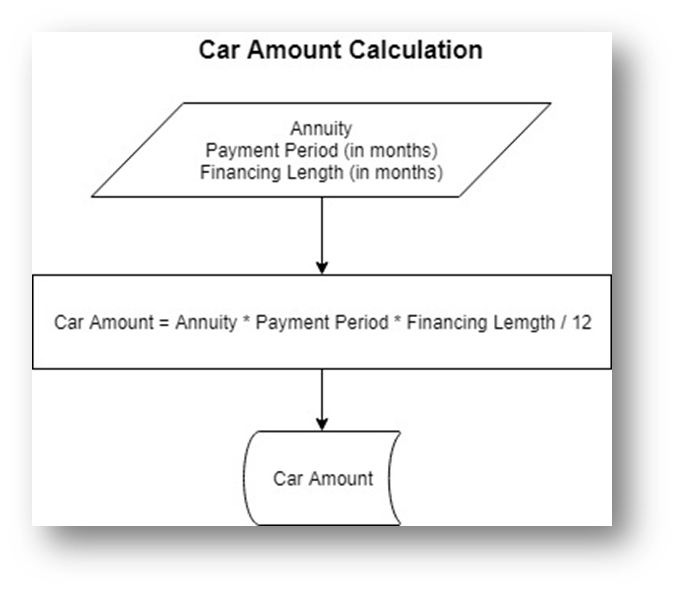
Annuity value to calculation (Car amount calculation)
-
Annuity * Periodicity * Lease Term/12
-
Annuity calculated at the beginning of the combination calculation
-
Periodicity from the product selected in Step 2 – Financing parameters
-
Monthly = 12
-
Quarterly = 4
-
Half Year = 2
-
Yearly = 1
-
-
-
-
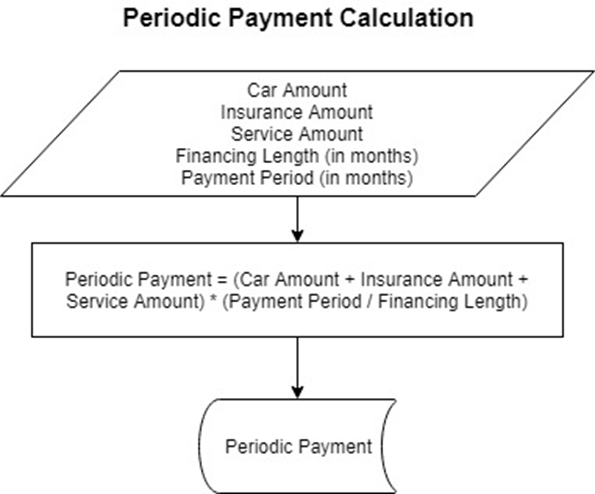
Instalment Amount Excl. VAT (Periodic Payment Calculation)
-
The system calculates according to the formula:
-
(Annuity value to calculation + Insurance value to calculation + Value of services to calculation) * (Payment period in months/ Lease term)
-
-
In this case, the repayment period is in months
-
Monthly = 1
-
Quarterly = 3
-
Half Year = 6
-
Yearly = 12
-
-
-
Periodic Payment Calculation with VAT
-
The system calculates as the sum of:
-
Annuity + VAT amount calculated according to the VAT rate for an annuity
-
Insurance premium + VAT amount calculated according to the VAT rate for insurance
-
Services + VAT amount calculated according to the VAT rate for services
-
-
VAT rates are set in the Administration > General Settings > VAT
-